
How to Use 5inch Capacitive Touch Screen LCD (H) Slimmed-down Version, 800×480, HDMI, Toughened Glass Panel, Low Power: Examples, Pinouts, and Specs
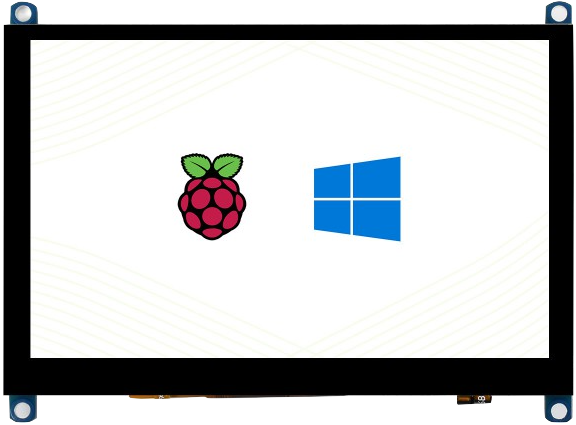
 Design with 5inch Capacitive Touch Screen LCD (H) Slimmed-down Version, 800×480, HDMI, Toughened Glass Panel, Low Power in Cirkit Designer
Introduction
The 5inch Capacitive Touch Screen LCD (H) Slimmed-down Version (Manufacturer Part ID: 20109) by Waveshare is a compact and versatile display module. It features a capacitive touch panel with a resolution of 800×480 pixels, making it ideal for applications requiring a responsive and high-quality visual interface. The display is equipped with an HDMI interface for seamless connectivity and is protected by a toughened glass panel, ensuring durability. Its low power consumption makes it suitable for portable and energy-efficient projects.
Explore Projects Built with 5inch Capacitive Touch Screen LCD (H) Slimmed-down Version, 800×480, HDMI, Toughened Glass Panel, Low Power
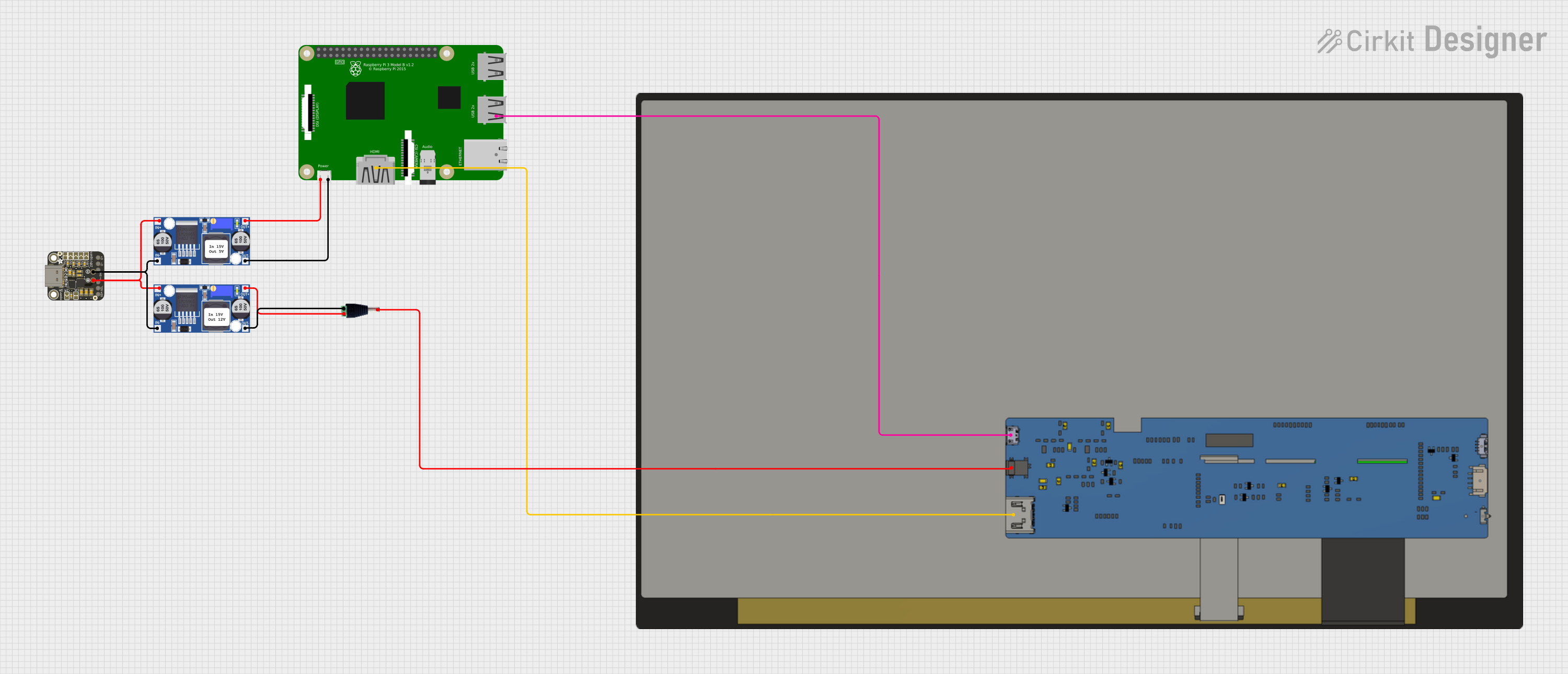 Open Project in Cirkit Designer
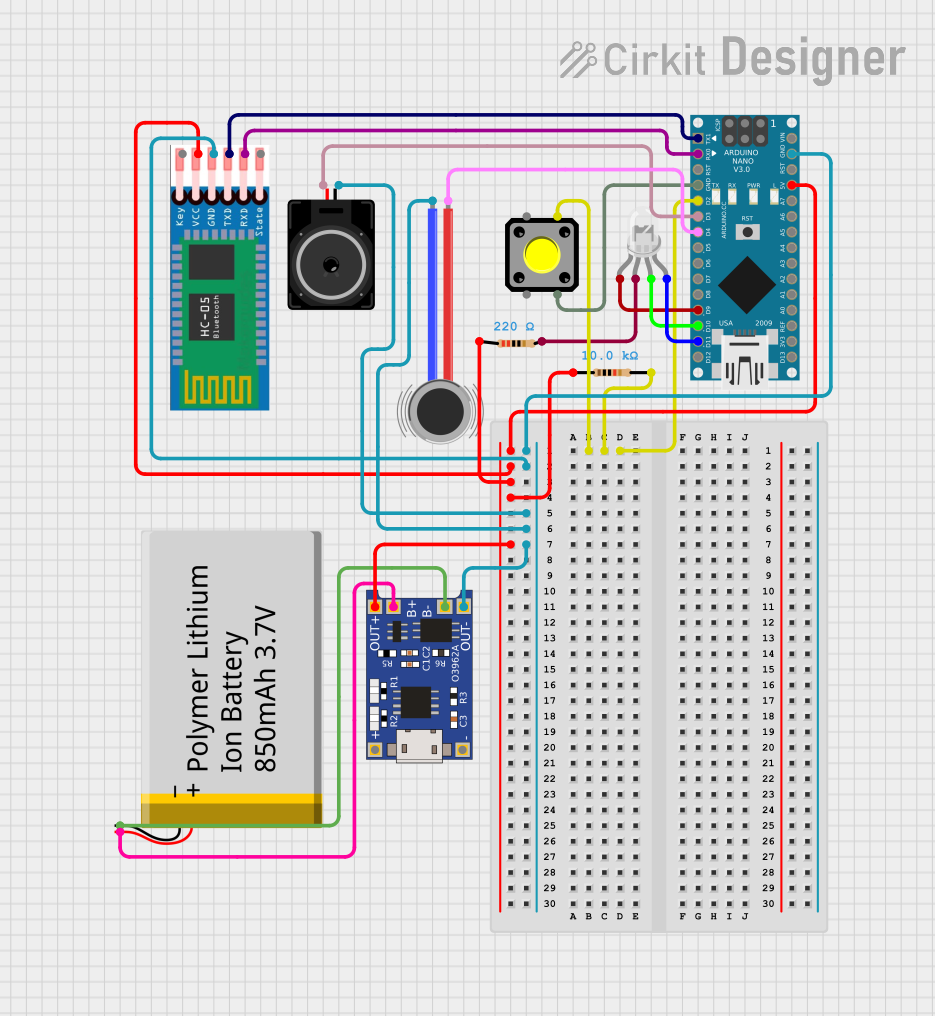 Open Project in Cirkit Designer
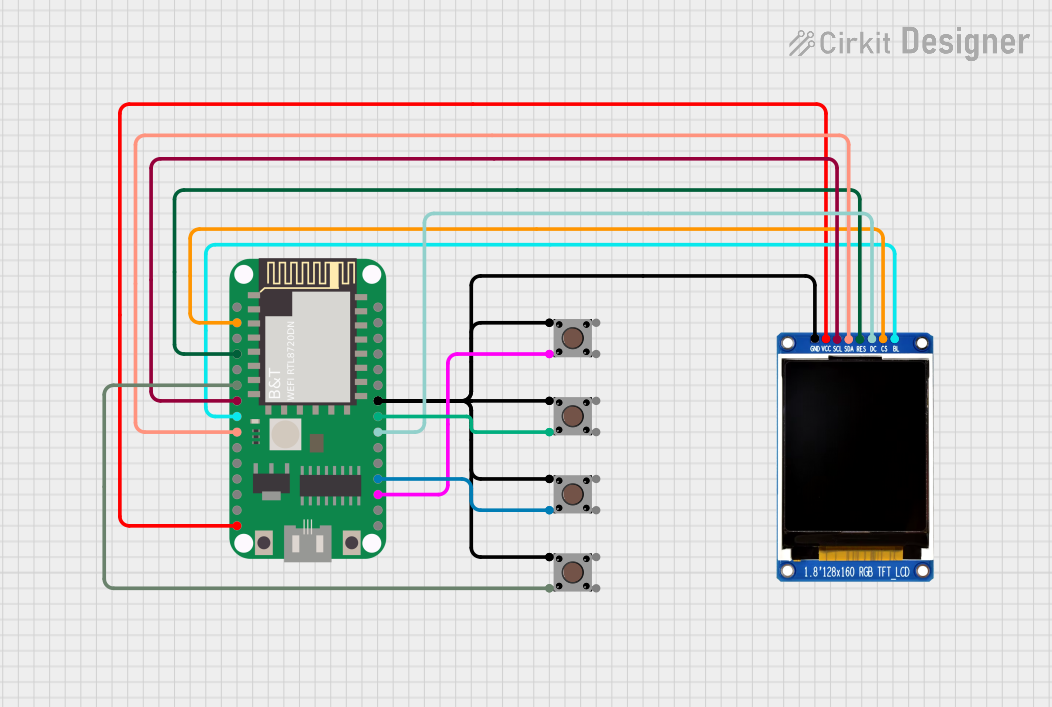 Open Project in Cirkit Designer
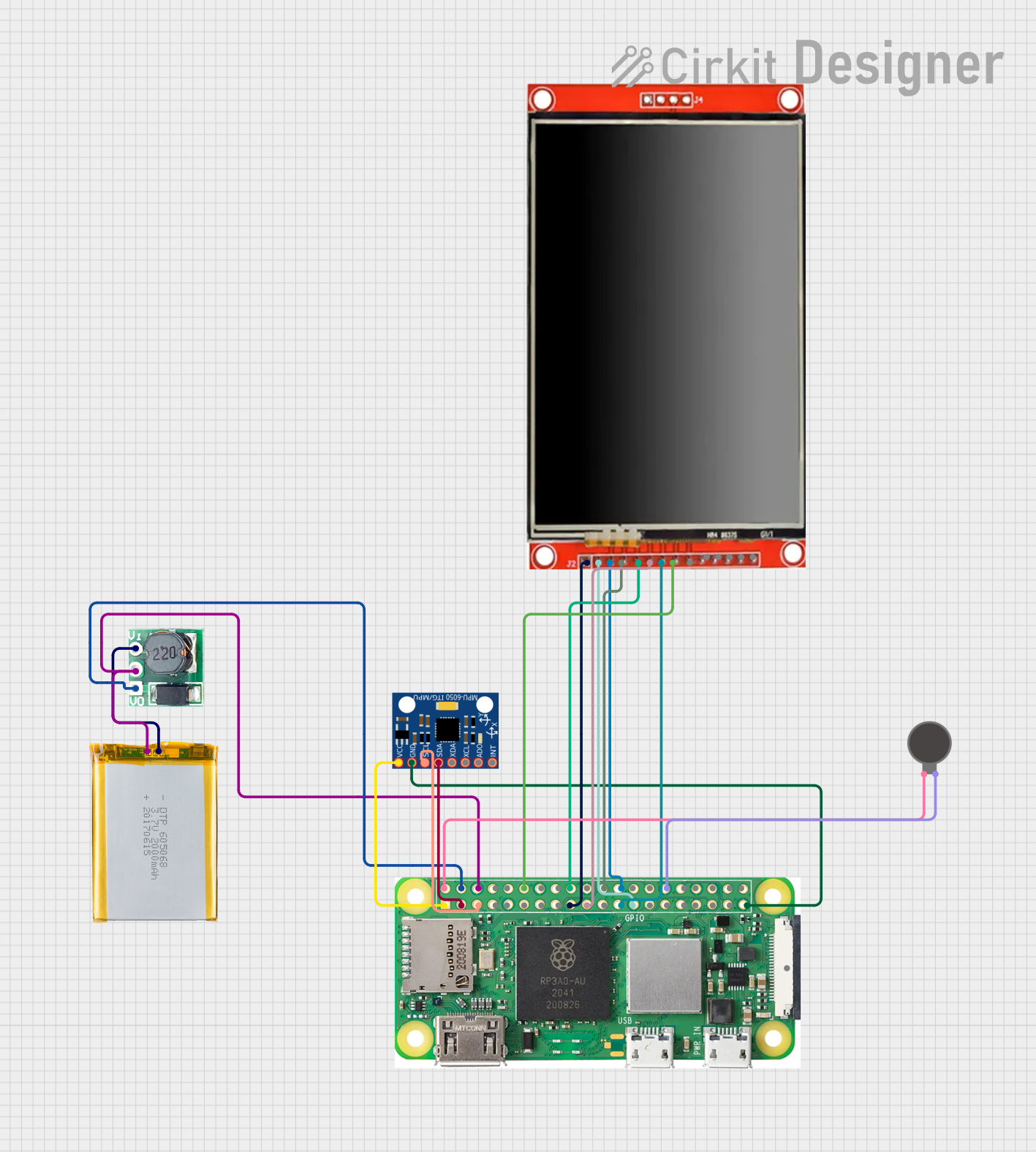 Open Project in Cirkit Designer
Explore Projects Built with 5inch Capacitive Touch Screen LCD (H) Slimmed-down Version, 800×480, HDMI, Toughened Glass Panel, Low Power
Open Project in Cirkit DesignerOpen Project in Cirkit DesignerOpen Project in Cirkit DesignerOpen Project in Cirkit DesignerCommon Applications
- Embedded systems and IoT devices
- Raspberry Pi and Arduino-based projects
- Industrial control panels
- Home automation interfaces
- Portable gaming consoles
- Educational and prototyping purposes
Technical Specifications
Key Technical Details
| Parameter | Specification |
|---|---|
| Display Size | 5 inches |
| Resolution | 800×480 pixels |
| Touch Technology | Capacitive |
| Interface | HDMI |
| Touch Panel Interface | USB |
| Glass Panel | Toughened glass |
| Power Supply Voltage | 5V (via USB) |
| Power Consumption | Low power |
| Dimensions | 121.11mm × 76.31mm |
| Weight | ~158g |
| Operating Temperature | -20°C to 70°C |
Pin Configuration and Descriptions
HDMI Interface
| Pin Name | Description |
|---|---|
| HDMI | HDMI input for video signal |
USB Interface
| Pin Name | Description |
|---|---|
| USB | USB input for touch functionality |
Power Supply
| Pin Name | Description |
|---|---|
| USB 5V | Power supply for the display module |
Usage Instructions
Connecting the Display
- Power Supply: Connect the display to a 5V power source using a USB cable.
- HDMI Connection: Use an HDMI cable to connect the display to your device (e.g., Raspberry Pi, PC, or other HDMI-enabled devices).
- Touch Functionality: Plug the USB cable into your device to enable the capacitive touch feature.
Using with Raspberry Pi
- Connect the HDMI cable to the Raspberry Pi's HDMI port.
- Plug the USB cable into one of the Raspberry Pi's USB ports.
- Power on the Raspberry Pi. The display should automatically detect the HDMI signal and display the output.
- For touch functionality, ensure the USB connection is properly established.
Using with Arduino UNO
The display is not directly compatible with Arduino UNO due to the lack of an HDMI interface. However, it can be used as a secondary display when paired with an HDMI-enabled microcontroller or development board.
Important Considerations
- Ensure the HDMI cable is securely connected to avoid signal loss.
- Use a high-quality USB cable to maintain stable touch functionality.
- Avoid exposing the display to extreme temperatures or physical impacts, even though it is protected by toughened glass.
Example Code for Raspberry Pi
Below is an example Python script to test the touch functionality using the evdev library on Raspberry Pi:
Import necessary libraries
import evdev from evdev import InputDevice, categorize, ecodes
List all input devices
devices = [evdev.InputDevice(path) for path in evdev.list_devices()] for device in devices: print(device.path, device.name, device.phys)
Replace 'eventX' with the correct event number for the touch screen
touch_device = InputDevice('/dev/input/eventX')
print("Touch screen is ready. Touch the screen to see events.")
Read touch events
for event in touch_device.read_loop(): if event.type == ecodes.EV_ABS: absevent = categorize(event) print(f"Touch event: {absevent.event.code}, Value: {absevent.event.value}")
> **Note**: Replace `/dev/input/eventX` with the correct event file for the touch screen. You can identify the correct file by running the script and checking the output.

---
Troubleshooting and FAQs
Common Issues
No Display Output
- Ensure the HDMI cable is properly connected.
- Verify that the power supply is sufficient (5V via USB).
- Check if the source device is outputting a compatible resolution (800×480).
Touch Functionality Not Working
- Confirm that the USB cable is securely connected to the source device.
- Ensure the correct drivers are installed on the host device (e.g., Raspberry Pi).
- Check if the touch screen is detected as an input device using
evdevor similar tools.
Screen Flickering
- Use a high-quality HDMI cable to prevent signal interference.
- Ensure the power supply is stable and not fluctuating.
Display Not Centered
- Adjust the resolution settings on the source device to match 800×480.
- Use the display settings menu on your operating system to align the output.
FAQs
Q: Can this display be used with a PC?
A: Yes, the display can be connected to a PC via HDMI for video output and USB for touch functionality.
Q: Does the display support multi-touch?
A: Yes, the capacitive touch panel supports multi-touch functionality.
Q: Is the display compatible with all Raspberry Pi models?
A: The display is compatible with Raspberry Pi models that have an HDMI output, such as Raspberry Pi 4, 3, and Zero (with an HDMI adapter).
Q: Can I use this display outdoors?
A: While the toughened glass provides durability, the display is not waterproof or sunlight-readable. Use it in shaded or indoor environments for optimal performance.
This documentation provides a comprehensive guide to using the 5inch Capacitive Touch Screen LCD (H) Slimmed-down Version. For further assistance, refer to the official Waveshare documentation or contact their support team.