
How to Use 2.9" Tri-Color E-Ink: Examples, Pinouts, and Specs
 Design with 2.9" Tri-Color E-Ink in Cirkit Designer
Introduction
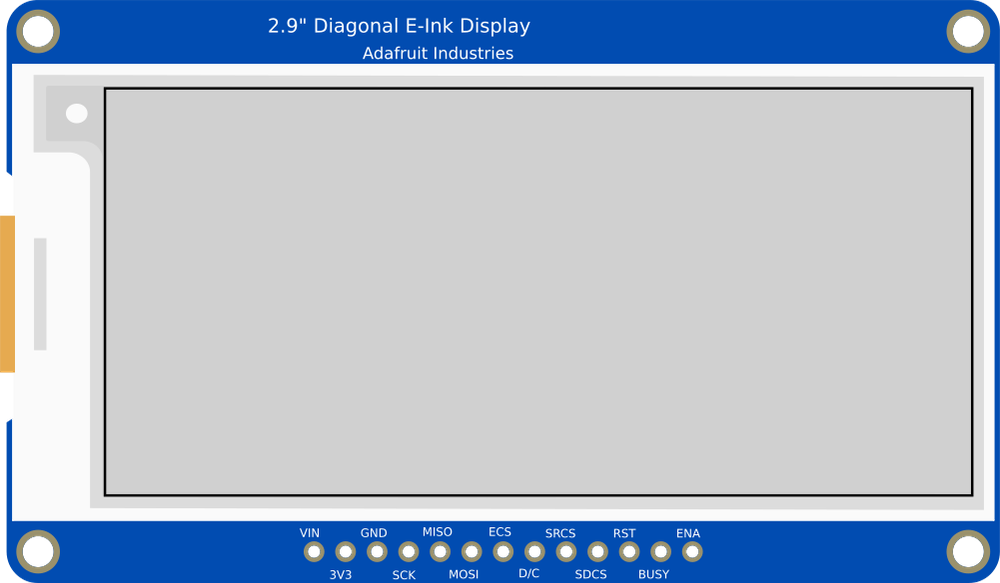
The Adafruit 2.9" Tri-Color E-Ink display is a versatile electronic paper display (EPD) module that offers a high-contrast, low-power solution for displaying static images and text. This display uses microcapsule technology to render content in three colors: black, white, and red. Unlike traditional displays, E-Ink technology retains the displayed content even when power is removed, making it ideal for applications requiring minimal energy consumption.
Explore Projects Built with 2.9" Tri-Color E-Ink
 Open Project in Cirkit Designer
 Open Project in Cirkit Designer
 Open Project in Cirkit Designer
 Open Project in Cirkit Designer
Explore Projects Built with 2.9" Tri-Color E-Ink
Open Project in Cirkit DesignerOpen Project in Cirkit DesignerOpen Project in Cirkit DesignerOpen Project in Cirkit DesignerCommon Applications and Use Cases
- Digital signage: Perfect for price tags, shelf labels, and public information displays.
- IoT devices: Used in smart home devices, weather stations, and e-readers.
- Wearables: Suitable for low-power smartwatches or badges.
- Prototyping: Ideal for hobbyists and developers working on low-power, high-visibility projects.
Technical Specifications
Below are the key technical details for the Adafruit 2.9" Tri-Color E-Ink display:
| Specification | Details |
|---|---|
| Manufacturer | Adafruit Industries |
| Part ID | Adafruit 2.9" Tri-Color E-Ink |
| Display Size | 2.9 inches (diagonal) |
| Resolution | 296 x 128 pixels |
| Colors | Black, White, Red |
| Interface | SPI (Serial Peripheral Interface) |
| Operating Voltage | 3.3V (logic level) |
| Power Consumption | Ultra-low power (only consumes power during updates) |
| Refresh Time | ~15 seconds (full refresh) |
| Viewing Angle | Nearly 180° |
| Dimensions | 79mm x 36.7mm x 1.18mm |
| Weight | ~10g |
Pin Configuration and Descriptions
The display module uses an SPI interface for communication. Below is the pinout:
| Pin Name | Pin Number | Description |
|---|---|---|
| VCC | 1 | Power supply input (3.3V). |
| GND | 2 | Ground connection. |
| DIN | 3 | SPI data input (MOSI). |
| CLK | 4 | SPI clock input (SCK). |
| CS | 5 | Chip select (active low). |
| DC | 6 | Data/Command control pin. High for data, low for command. |
| RST | 7 | Reset pin. Active low to reset the display. |
| BUSY | 8 | Busy status pin. High when the display is busy refreshing. |
Usage Instructions
How to Use the Component in a Circuit
- Power Supply: Connect the VCC pin to a 3.3V power source and GND to ground.
- SPI Communication: Connect the SPI pins (DIN, CLK, CS) to the corresponding SPI pins on your microcontroller.
- Control Pins:
- Connect the DC pin to a GPIO pin on your microcontroller to toggle between data and command modes.
- Connect the RST pin to a GPIO pin for resetting the display.
- Connect the BUSY pin to a GPIO pin to monitor the display's busy status.
- Library Setup: Use the Adafruit EPD library to control the display. Install the library via the Arduino IDE Library Manager.
Important Considerations and Best Practices
- Refresh Time: The display requires ~15 seconds for a full refresh. Avoid frequent updates to minimize wear.
- Power Consumption: The display only consumes power during updates. Disconnect power when not in use to save energy.
- Handling: Avoid bending or applying pressure to the display, as it is fragile.
- Temperature Range: Operate the display within the recommended temperature range (0°C to 50°C) for optimal performance.
Example Code for Arduino UNO
Below is an example of how to use the Adafruit 2.9" Tri-Color E-Ink display with an Arduino UNO:
#include <Adafruit_GFX.h>       // Core graphics library
#include <Adafruit_EPD.h>       // E-Ink display library

// Pin definitions for the E-Ink display
#define EPD_CS   10  // Chip select pin
#define EPD_DC    9  // Data/Command pin
#define SRAM_CS   8  // SRAM chip select (not used in this example)
#define EPD_RESET 6  // Reset pin
#define EPD_BUSY  7  // Busy pin

// Initialize the display object
Adafruit_IL0373 display(296, 128, EPD_DC, EPD_RESET, EPD_CS, SRAM_CS, EPD_BUSY);

void setup() {
  // Initialize serial communication for debugging
  Serial.begin(115200);
  Serial.println("Initializing E-Ink display...");

  // Initialize the display
  display.begin();

  // Clear the display
  display.clearBuffer();
  display.display();

  // Draw text on the display
  display.setTextSize(2);  // Set text size
  display.setTextColor(EPD_BLACK);  // Set text color
  display.setCursor(10, 10);  // Set cursor position
  display.print("Hello, World!");

  // Draw a red rectangle
  display.fillRect(10, 50, 100, 30, EPD_RED);

  // Update the display with the new content
  display.display();
}

void loop() {
  // The display retains its content without needing updates
}
Notes on the Code
- The
Adafruit_IL0373class is used for this specific E-Ink display. - The
display.display()function updates the screen with the current buffer content. - The
clearBuffer()function clears the display buffer before drawing new content.
Troubleshooting and FAQs
Common Issues and Solutions
Display Not Updating:
- Ensure all connections are secure and match the pin configuration.
- Verify that the SPI pins on the microcontroller are correctly configured.
- Check the power supply voltage (3.3V) and ensure it is stable.
Busy Pin Stuck High:
- Wait for the display to complete its refresh cycle (~15 seconds).
- Ensure the
BUSYpin is connected to the correct GPIO pin.
Faint or Incorrect Colors:
- Ensure the display is refreshed completely before drawing new content.
- Avoid operating the display outside the recommended temperature range.
Library Errors:
- Confirm that the Adafruit EPD library is installed and up to date.
- Check for compatibility between the library and your microcontroller.
FAQs
Q: Can I use this display with a 5V microcontroller?
A: No, the display operates at 3.3V logic levels. Use a level shifter if your microcontroller operates at 5V.
Q: How long does the display retain its content without power?
A: The display retains its content indefinitely as long as it is not refreshed.
Q: Can I display grayscale images?
A: No, this display supports only three colors: black, white, and red.
Q: Is the refresh time adjustable?
A: No, the refresh time is determined by the display's hardware and cannot be changed.
For additional support, refer to the Adafruit documentation or community forums.