
How to Use Arcade Button (red): Examples, Pinouts, and Specs
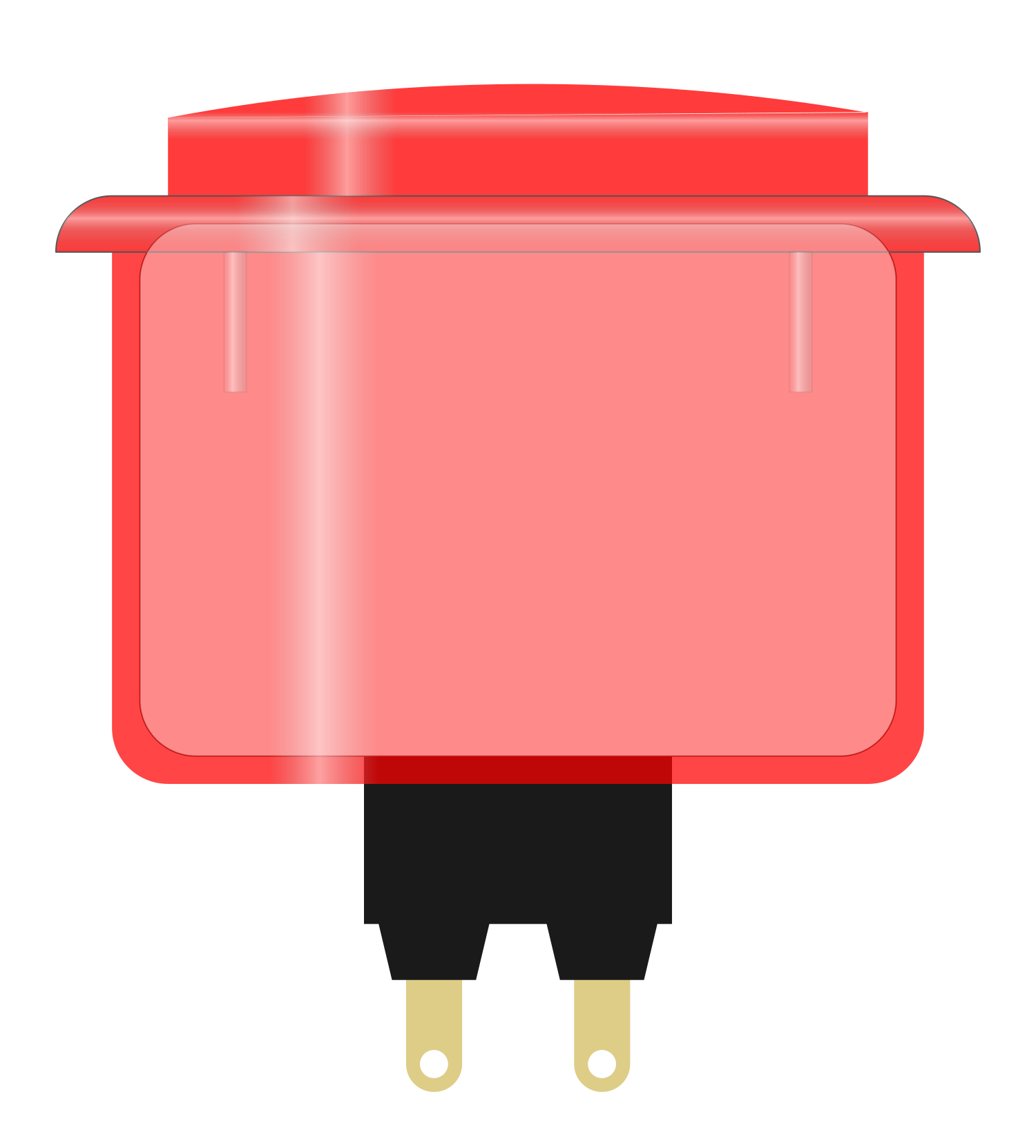
 Design with Arcade Button (red) in Cirkit Designer
Introduction
The Arcade Button (Red) is a push-button switch designed for user interaction in electronic systems. It is widely recognized for its bright red color, which ensures high visibility, and its tactile response, which provides satisfying feedback when pressed. This component is commonly used in arcade machines, gaming consoles, DIY electronics projects, and interactive installations. Its durable construction and ease of use make it a popular choice for hobbyists and professionals alike.
Explore Projects Built with Arcade Button (red)
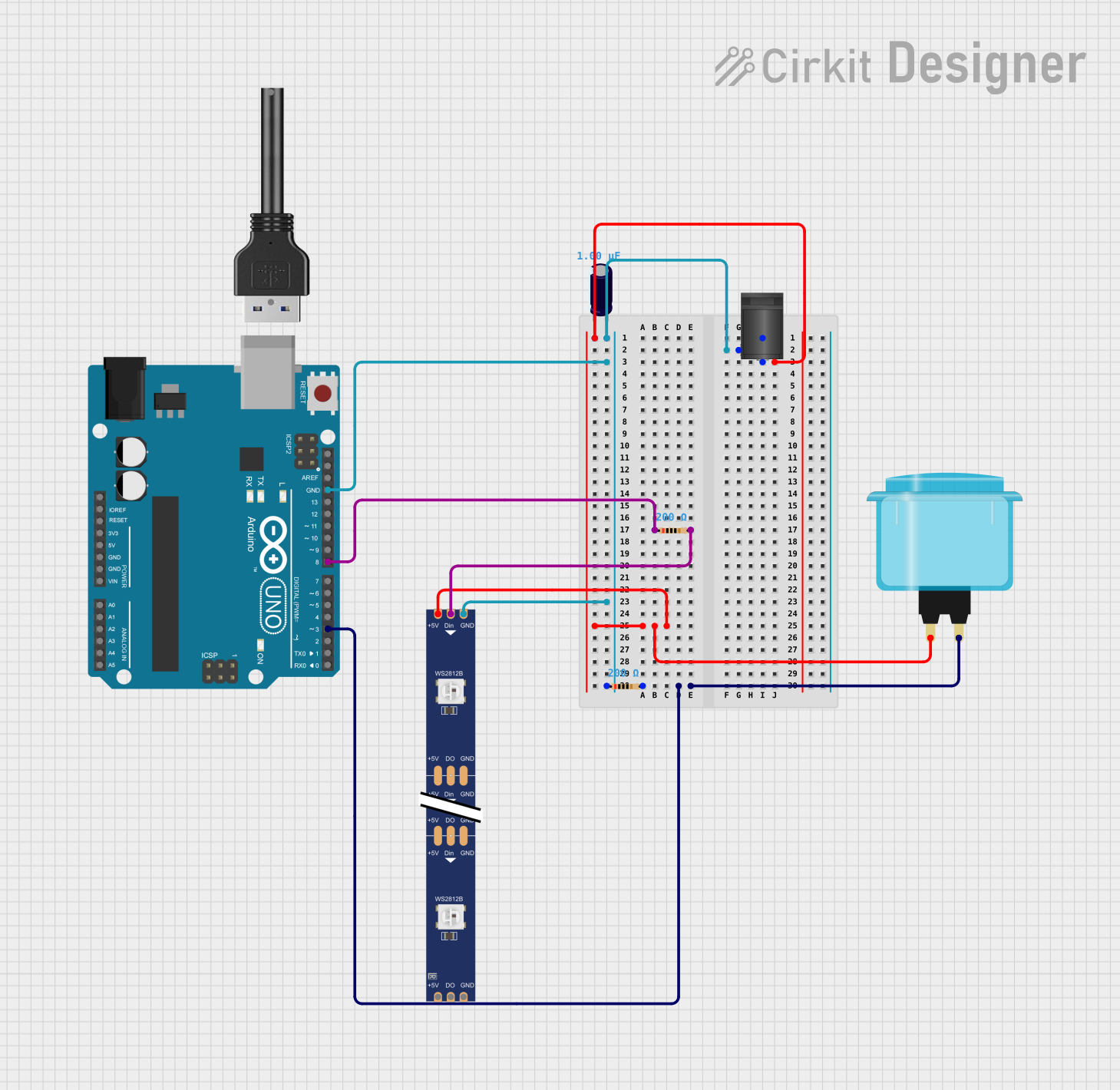 Open Project in Cirkit Designer
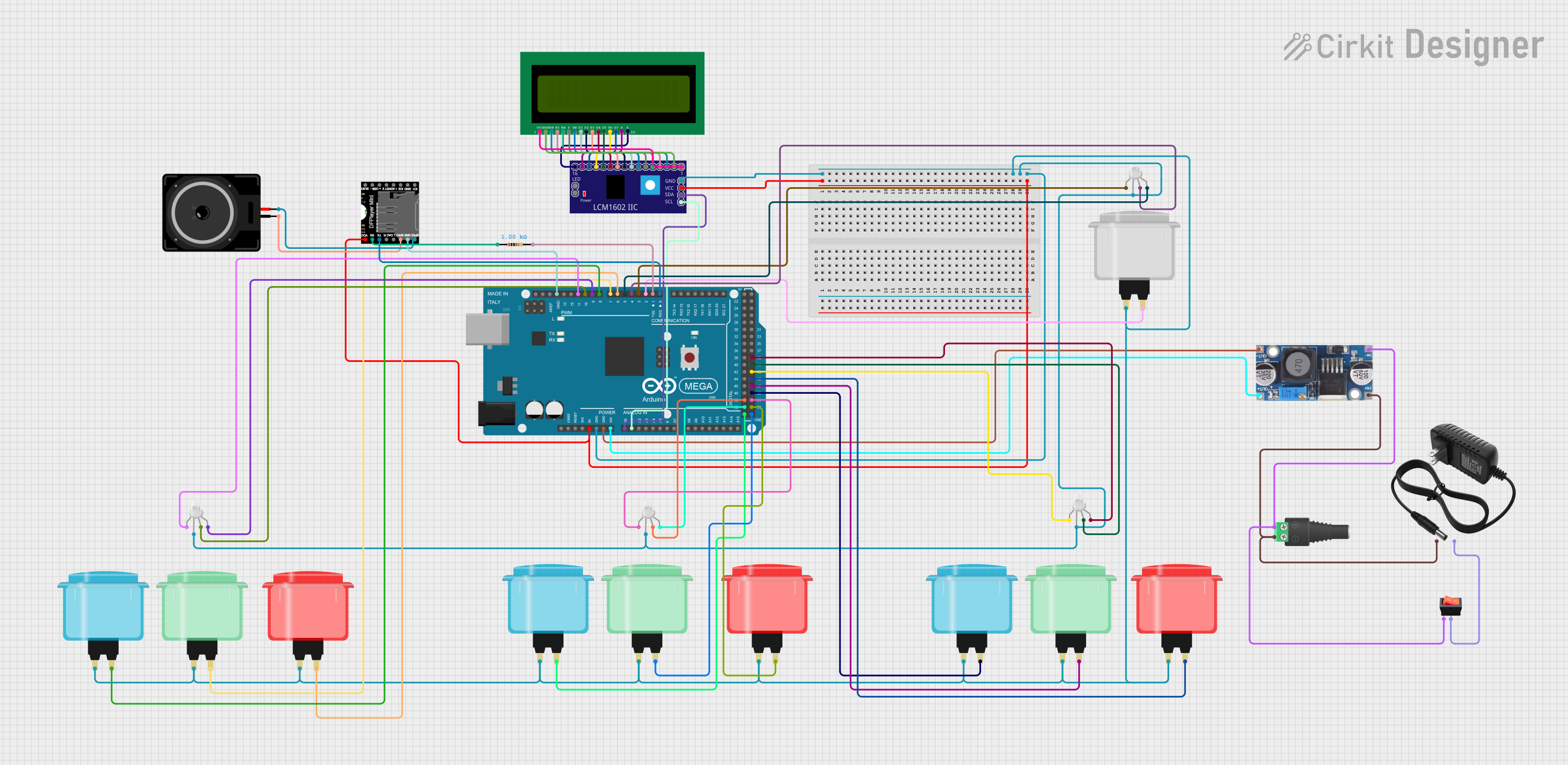 Open Project in Cirkit Designer
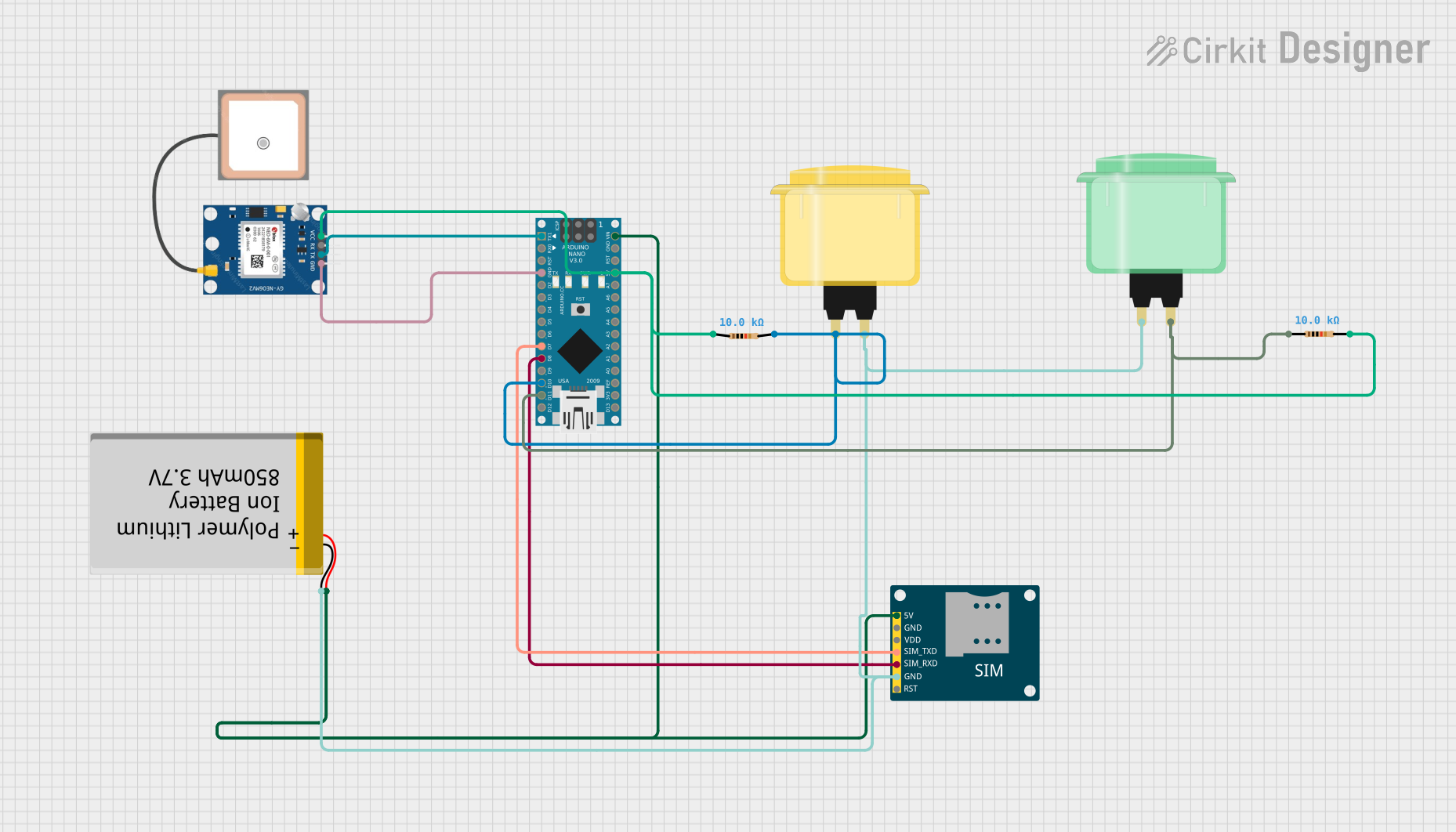 Open Project in Cirkit Designer
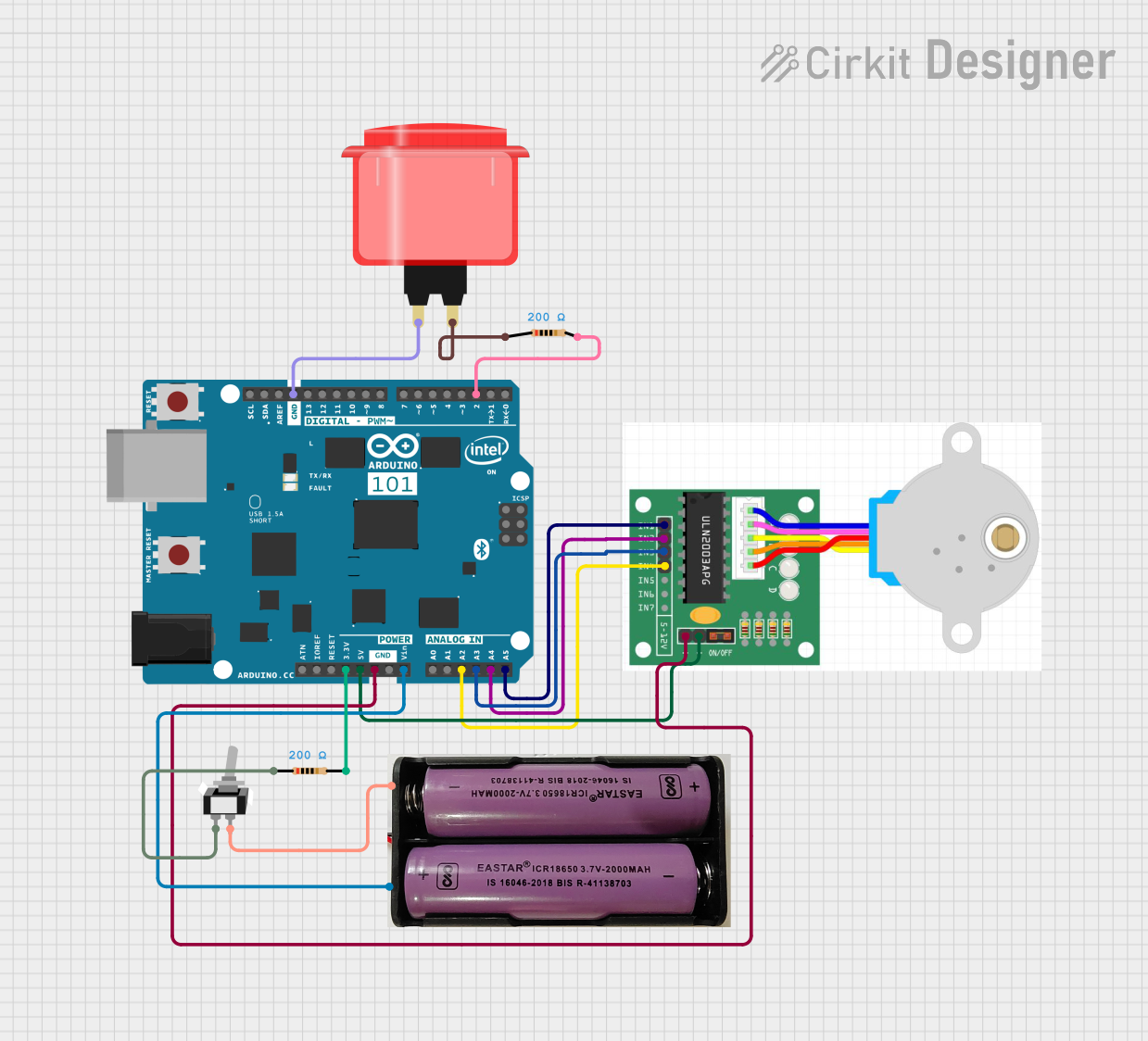 Open Project in Cirkit Designer
Explore Projects Built with Arcade Button (red)
Open Project in Cirkit DesignerOpen Project in Cirkit DesignerOpen Project in Cirkit DesignerOpen Project in Cirkit DesignerCommon Applications:
- Arcade gaming machines
- DIY gaming controllers
- Interactive kiosks
- Simulators and control panels
- Educational electronics projects
Technical Specifications
The Arcade Button (Red) is a simple, momentary push-button switch. Below are its key technical details:
| Parameter | Specification |
|---|---|
| Button Type | Momentary Push-Button |
| Color | Red |
| Operating Voltage | 3.3V to 12V (logic-level compatible) |
| Maximum Current | 1A |
| Contact Resistance | ≤ 50 mΩ |
| Insulation Resistance | ≥ 100 MΩ |
| Actuation Force | ~150g |
| Button Diameter | 30mm |
| Mounting Hole Diameter | 28mm |
| Terminal Type | Solder or quick-connect terminals |
| Lifespan | ≥ 1,000,000 cycles |
Pin Configuration and Descriptions
The Arcade Button (Red) typically has two terminals for connection:
| Pin | Description |
|---|---|
| NO | Normally Open terminal; connects when button is pressed |
| COM | Common terminal; connects to the circuit ground or signal |
Usage Instructions
How to Use the Arcade Button in a Circuit
Mounting the Button:
- Drill a 28mm hole in your panel or enclosure.
- Insert the button into the hole and secure it using the included mounting nut.
Wiring the Button:
- Connect the COM terminal to the ground or signal reference of your circuit.
- Connect the NO terminal to the input pin of your microcontroller or circuit.
Testing the Button:
- When the button is pressed, the circuit between the COM and NO terminals will close, allowing current to flow.
Example: Connecting to an Arduino UNO
The Arcade Button can be easily interfaced with an Arduino UNO for simple input detection. Below is an example circuit and code:
Circuit:
- Connect the COM terminal of the button to the Arduino's GND pin.
- Connect the NO terminal of the button to Digital Pin 2 on the Arduino.
- Use a 10kΩ pull-down resistor between Digital Pin 2 and GND to ensure a stable signal.
Code:
// Arcade Button Example with Arduino UNO
// This code reads the state of the button and turns on an LED when pressed.

const int buttonPin = 2;  // Pin connected to the button's NO terminal
const int ledPin = 13;    // Pin connected to the onboard LED

void setup() {
  pinMode(buttonPin, INPUT);  // Set button pin as input
  pinMode(ledPin, OUTPUT);   // Set LED pin as output
  digitalWrite(ledPin, LOW); // Ensure LED is off initially
}

void loop() {
  int buttonState = digitalRead(buttonPin); // Read the button state

  if (buttonState == HIGH) {
    // If button is pressed, turn on the LED
    digitalWrite(ledPin, HIGH);
  } else {
    // If button is not pressed, turn off the LED
    digitalWrite(ledPin, LOW);
  }
}
Important Considerations:
- Debouncing: Mechanical buttons like the Arcade Button may produce multiple signals (bounces) when pressed. Use software debouncing techniques or external components (e.g., capacitors) to ensure stable input.
- Voltage Compatibility: Ensure the button is used within its operating voltage range (3.3V to 12V).
- Mounting: Secure the button firmly to prevent movement during operation.
Troubleshooting and FAQs
Common Issues and Solutions
| Issue | Possible Cause | Solution |
|---|---|---|
| Button does not respond | Loose or incorrect wiring | Check and secure all connections. |
| Button triggers multiple signals | Signal bouncing due to mechanical contacts | Implement software debouncing in your code. |
| Button feels stuck or unresponsive | Dirt or debris inside the button mechanism | Clean the button with compressed air or alcohol. |
| Button does not fit in the panel | Incorrect hole size | Ensure the mounting hole is exactly 28mm. |
FAQs
Can I use this button with a Raspberry Pi?
- Yes, the Arcade Button can be used with a Raspberry Pi. Connect it to a GPIO pin and use a pull-down resistor for stable input.
Is the button waterproof?
- No, the Arcade Button is not waterproof. Avoid using it in environments with high moisture or water exposure.
Can I use this button for high-power applications?
- No, the button is rated for a maximum current of 1A. For high-power applications, use a relay or transistor to handle the load.
How do I debounce the button in software?
- Use a delay or a state-checking algorithm in your code to filter out signal bounces. Libraries like
Bounce2for Arduino can also help.
- Use a delay or a state-checking algorithm in your code to filter out signal bounces. Libraries like
By following this documentation, you can effectively integrate the Arcade Button (Red) into your projects and troubleshoot any issues that arise.