
How to Use roborobo IR sensor: Examples, Pinouts, and Specs
 Design with roborobo IR sensor in Cirkit Designer
Introduction
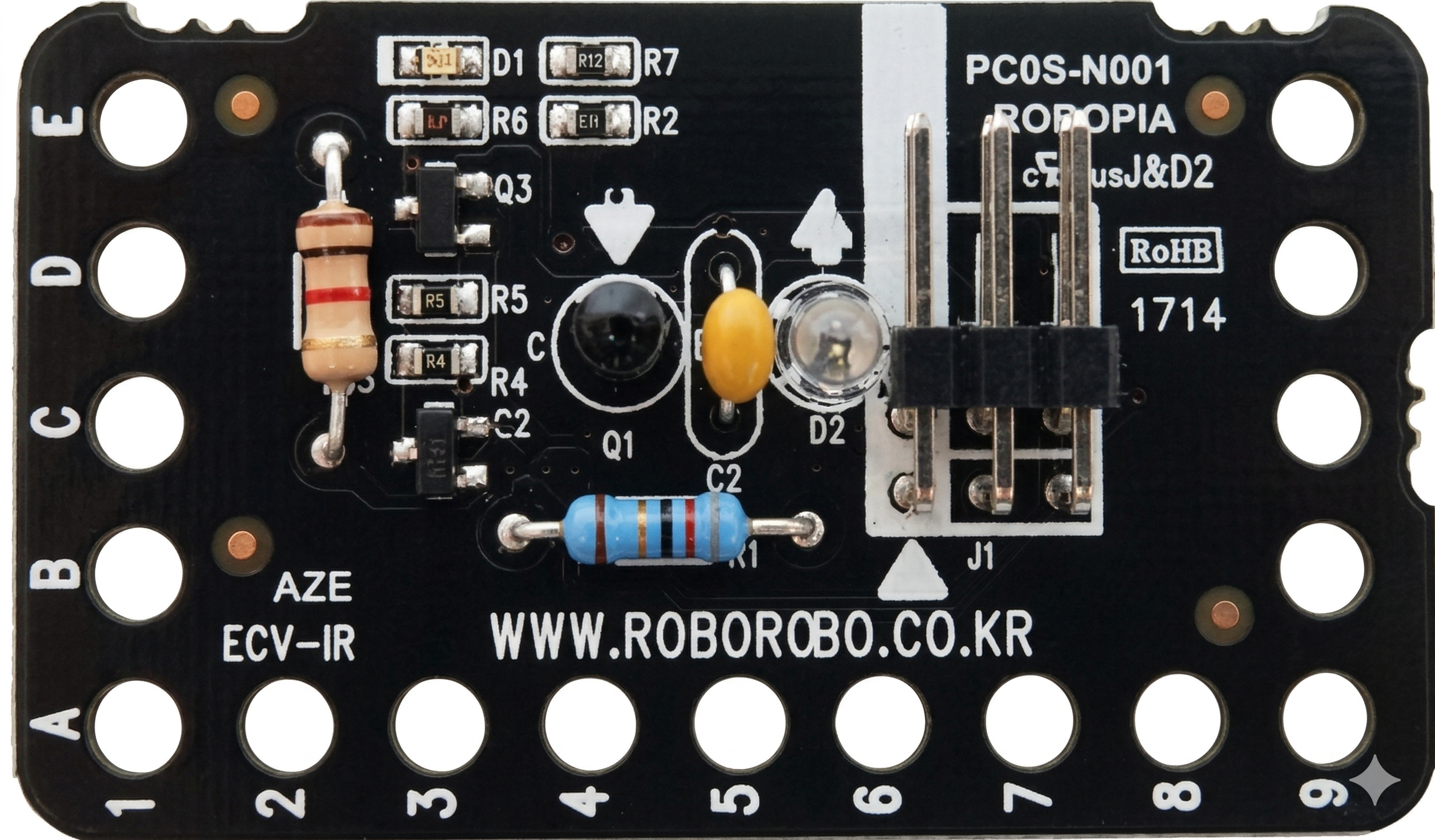
The RoboRobo IR Sensor is a versatile infrared sensor designed for robotics applications. It detects infrared light and is commonly used for tasks such as obstacle avoidance, line following, and proximity detection. This sensor is an essential component in robotics projects, enabling robots to interact with their environment effectively.
Explore Projects Built with roborobo IR sensor
 Open Project in Cirkit Designer
 Open Project in Cirkit Designer
 Open Project in Cirkit Designer
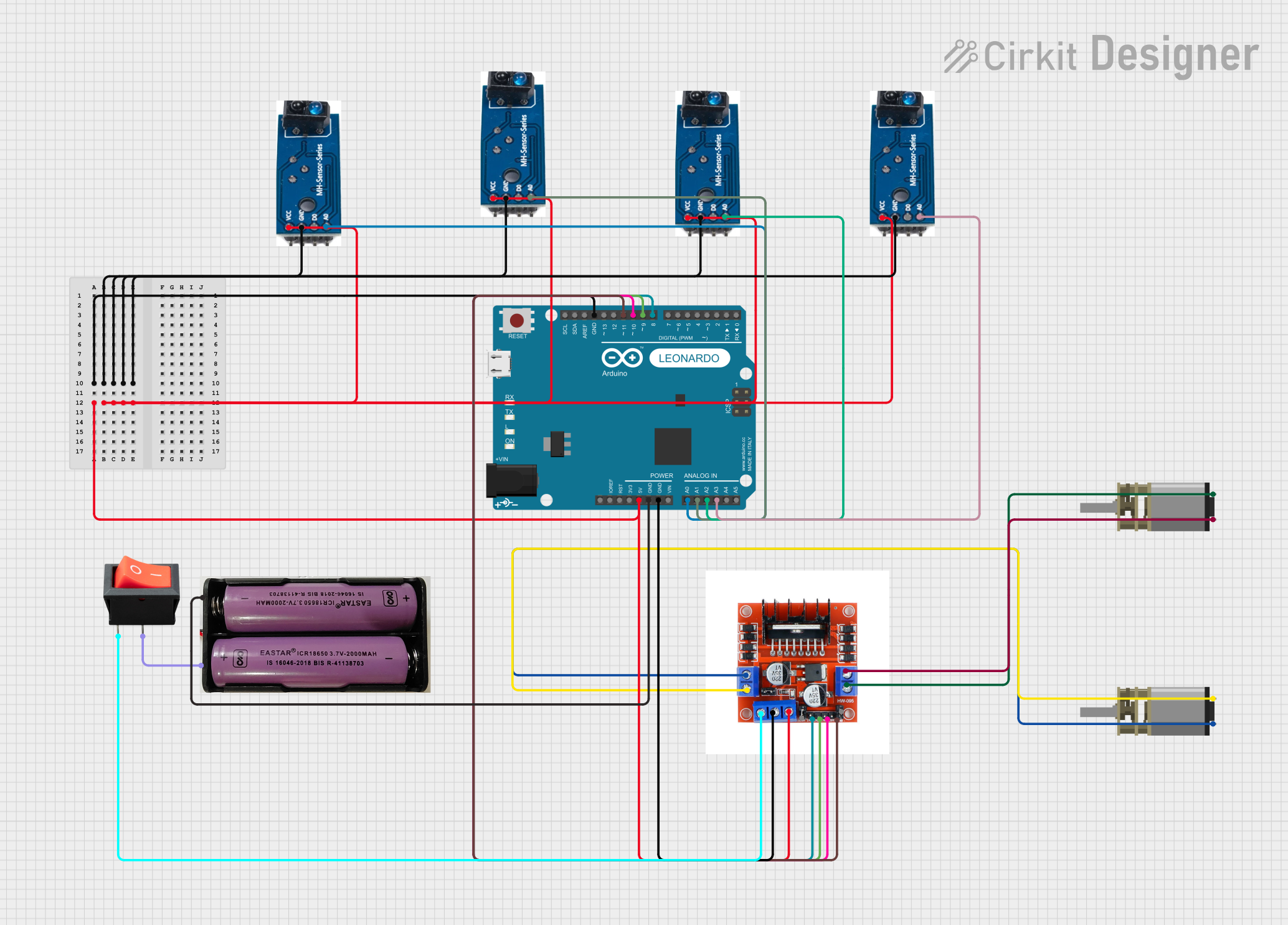 Open Project in Cirkit Designer
Explore Projects Built with roborobo IR sensor
Open Project in Cirkit DesignerOpen Project in Cirkit DesignerOpen Project in Cirkit DesignerOpen Project in Cirkit DesignerCommon Applications and Use Cases
- Obstacle detection and avoidance in autonomous robots
- Line-following robots for navigation
- Proximity sensing in interactive devices
- Edge detection for robotic platforms
- General-purpose IR light detection in DIY electronics projects
Technical Specifications
The RoboRobo IR Sensor is designed to be compact, efficient, and easy to integrate into various projects. Below are its key technical details:
Key Specifications
| Parameter | Value |
|---|---|
| Operating Voltage | 3.3V to 5V |
| Operating Current | < 20mA |
| Detection Range | 2 cm to 30 cm (adjustable) |
| Output Type | Digital (High/Low) |
| Sensor Type | Infrared (IR) |
| Dimensions | 30mm x 15mm x 10mm |
| Weight | 5 grams |
Pin Configuration and Descriptions
The RoboRobo IR Sensor typically has a 3-pin interface for easy connection to microcontrollers or other devices. Below is the pinout:
| Pin Number | Pin Name | Description |
|---|---|---|
| 1 | VCC | Power supply pin (3.3V to 5V) |
| 2 | GND | Ground pin |
| 3 | OUT | Digital output pin (High when no obstacle, Low when obstacle detected) |
Usage Instructions
The RoboRobo IR Sensor is straightforward to use and can be connected to a microcontroller, such as an Arduino UNO, for various applications. Follow the steps below to integrate the sensor into your project:
Connecting the Sensor
- Power the Sensor: Connect the
VCCpin to the 5V pin on your microcontroller and theGNDpin to the ground. - Connect the Output: Attach the
OUTpin to a digital input pin on your microcontroller (e.g., pin 2 on an Arduino UNO). - Adjust the Sensitivity: Use the onboard potentiometer to adjust the detection range as needed.
Sample Arduino Code
Below is an example of how to use the RoboRobo IR Sensor with an Arduino UNO for obstacle detection:
// Define the pin connected to the sensor's OUT pin
const int sensorPin = 2;
// Define the onboard LED pin (for visual feedback)
const int ledPin = 13;

void setup() {
  pinMode(sensorPin, INPUT); // Set the sensor pin as input
  pinMode(ledPin, OUTPUT);   // Set the LED pin as output
  Serial.begin(9600);        // Initialize serial communication
}

void loop() {
  int sensorValue = digitalRead(sensorPin); // Read the sensor output

  if (sensorValue == LOW) {
    // Obstacle detected
    digitalWrite(ledPin, HIGH); // Turn on the LED
    Serial.println("Obstacle detected!");
  } else {
    // No obstacle
    digitalWrite(ledPin, LOW);  // Turn off the LED
    Serial.println("No obstacle.");
  }

  delay(100); // Small delay for stability
}
Important Considerations and Best Practices
- Power Supply: Ensure the sensor is powered within its operating voltage range (3.3V to 5V).
- Ambient Light: Avoid using the sensor in environments with excessive IR interference (e.g., direct sunlight).
- Mounting: Position the sensor at an appropriate height and angle for optimal detection.
- Sensitivity Adjustment: Use the onboard potentiometer to fine-tune the detection range based on your application.
Troubleshooting and FAQs
Common Issues and Solutions
Sensor Not Detecting Obstacles:
- Ensure the sensor is powered correctly (check VCC and GND connections).
- Verify that the detection range is properly adjusted using the potentiometer.
- Check for obstructions on the sensor's IR emitter or receiver.
False Positives or Erratic Behavior:
- Reduce ambient IR interference by shielding the sensor from direct sunlight or other IR sources.
- Ensure stable power supply to the sensor.
No Output Signal:
- Confirm the
OUTpin is connected to the correct digital input pin on the microcontroller. - Test the sensor with a multimeter to verify its functionality.
- Confirm the
Frequently Asked Questions
Q: Can the RoboRobo IR Sensor detect transparent objects?
A: The sensor may have difficulty detecting transparent or highly reflective objects due to the nature of IR light reflection.
Q: How do I increase the detection range?
A: Use the onboard potentiometer to adjust the sensitivity. Turning it clockwise typically increases the range.
Q: Can I use multiple RoboRobo IR Sensors in the same project?
A: Yes, but ensure each sensor is positioned to avoid interference from the others' IR signals.
Q: Is the sensor compatible with 3.3V microcontrollers?
A: Yes, the sensor operates within a voltage range of 3.3V to 5V, making it compatible with most microcontrollers.
By following this documentation, you can effectively integrate the RoboRobo IR Sensor into your robotics or electronics projects.