
How to Use Joystick: Examples, Pinouts, and Specs
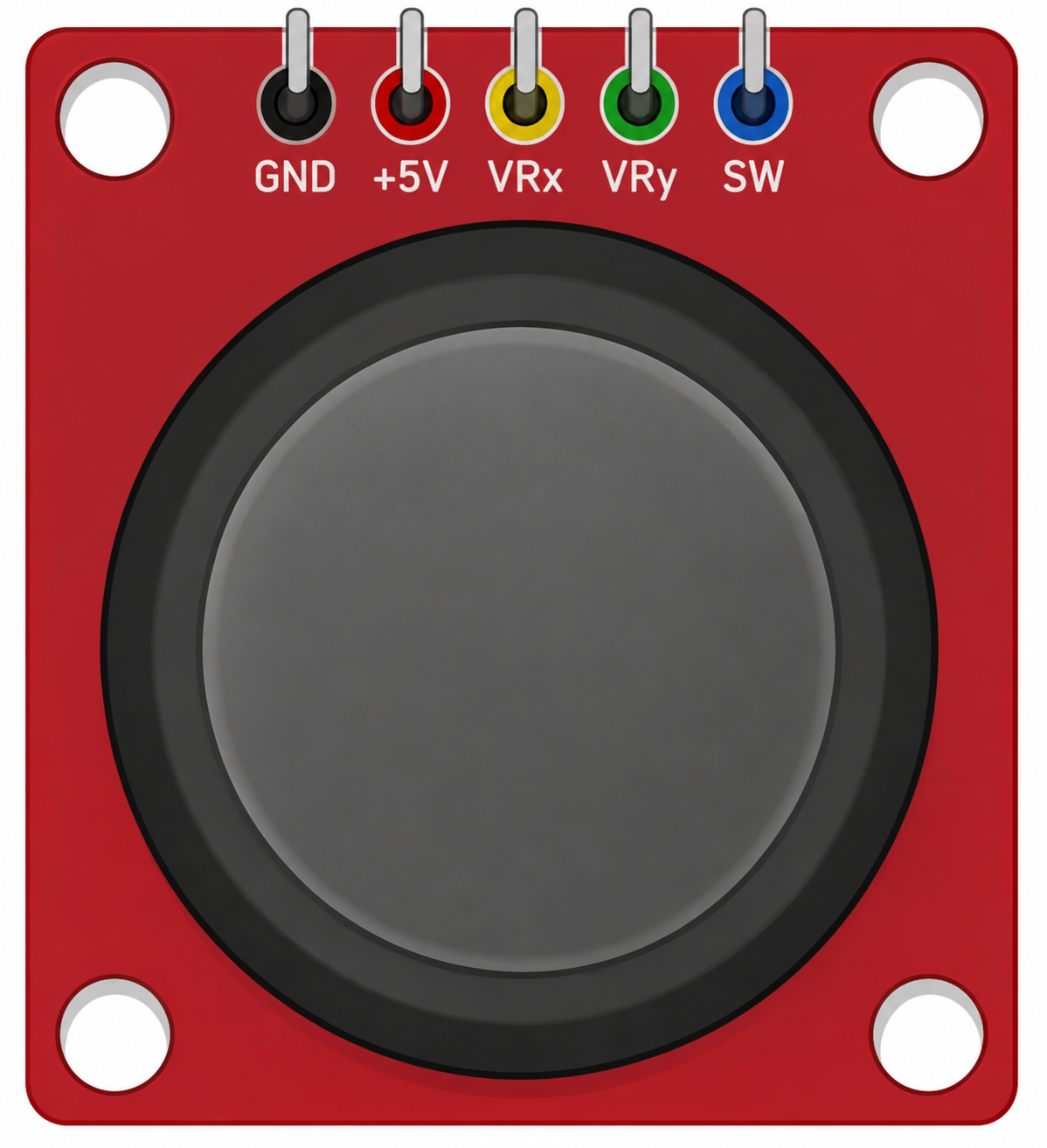
 Design with Joystick in Cirkit Designer
Introduction
A joystick is an input device used to control video games or computer graphics, consisting of a stick that pivots on a base and reports its angle or direction to the device it is controlling. Joysticks are widely used in applications such as gaming consoles, robotics, drones, and other systems requiring precise directional control. They typically provide two-axis analog outputs (X and Y) and may include additional features like a push-button for added functionality.
Explore Projects Built with Joystick
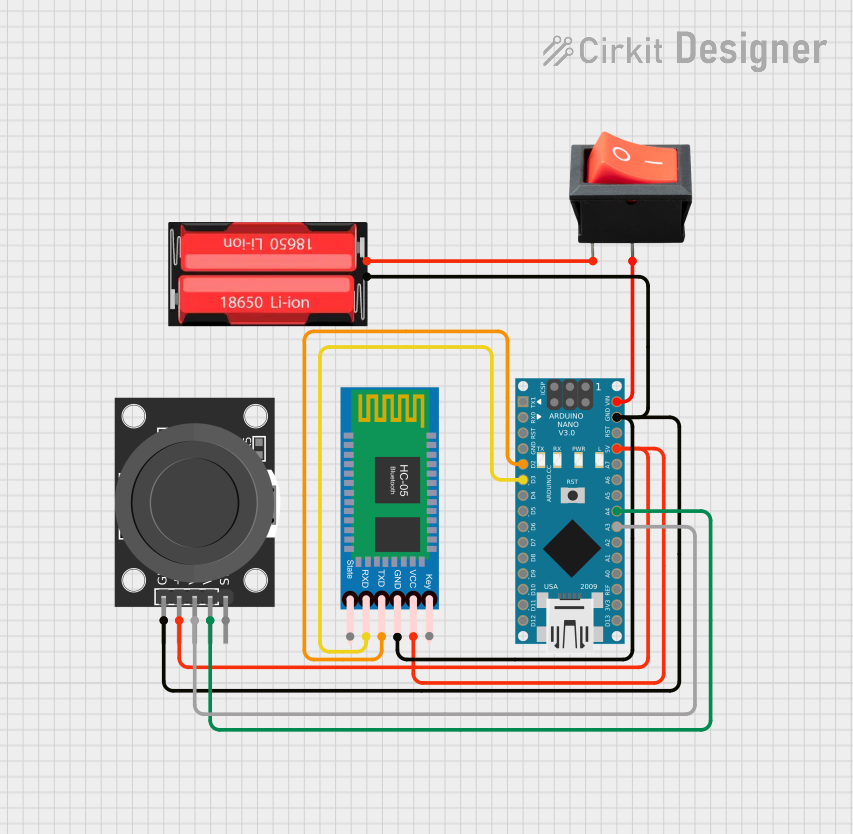 Open Project in Cirkit Designer
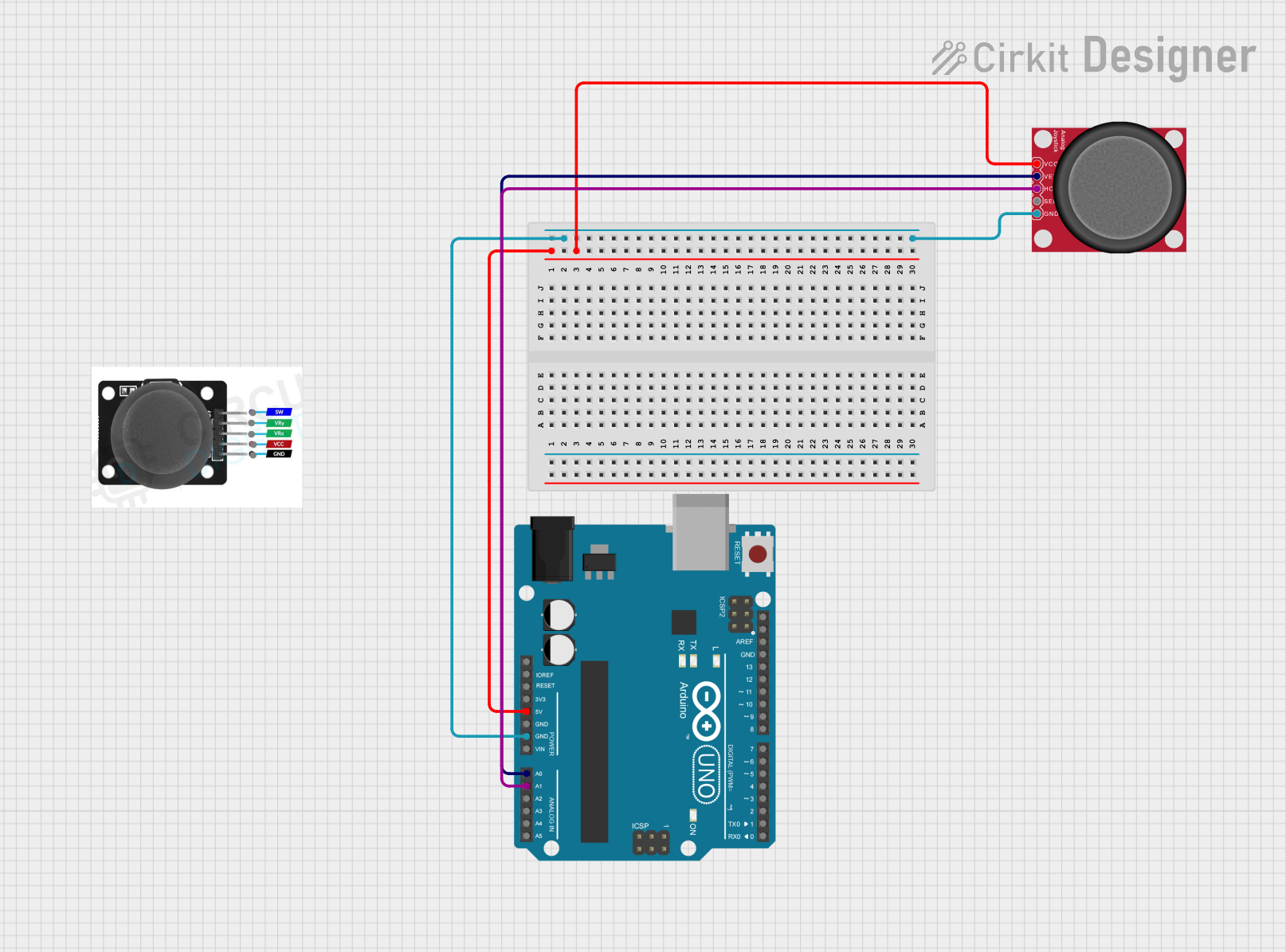 Open Project in Cirkit Designer
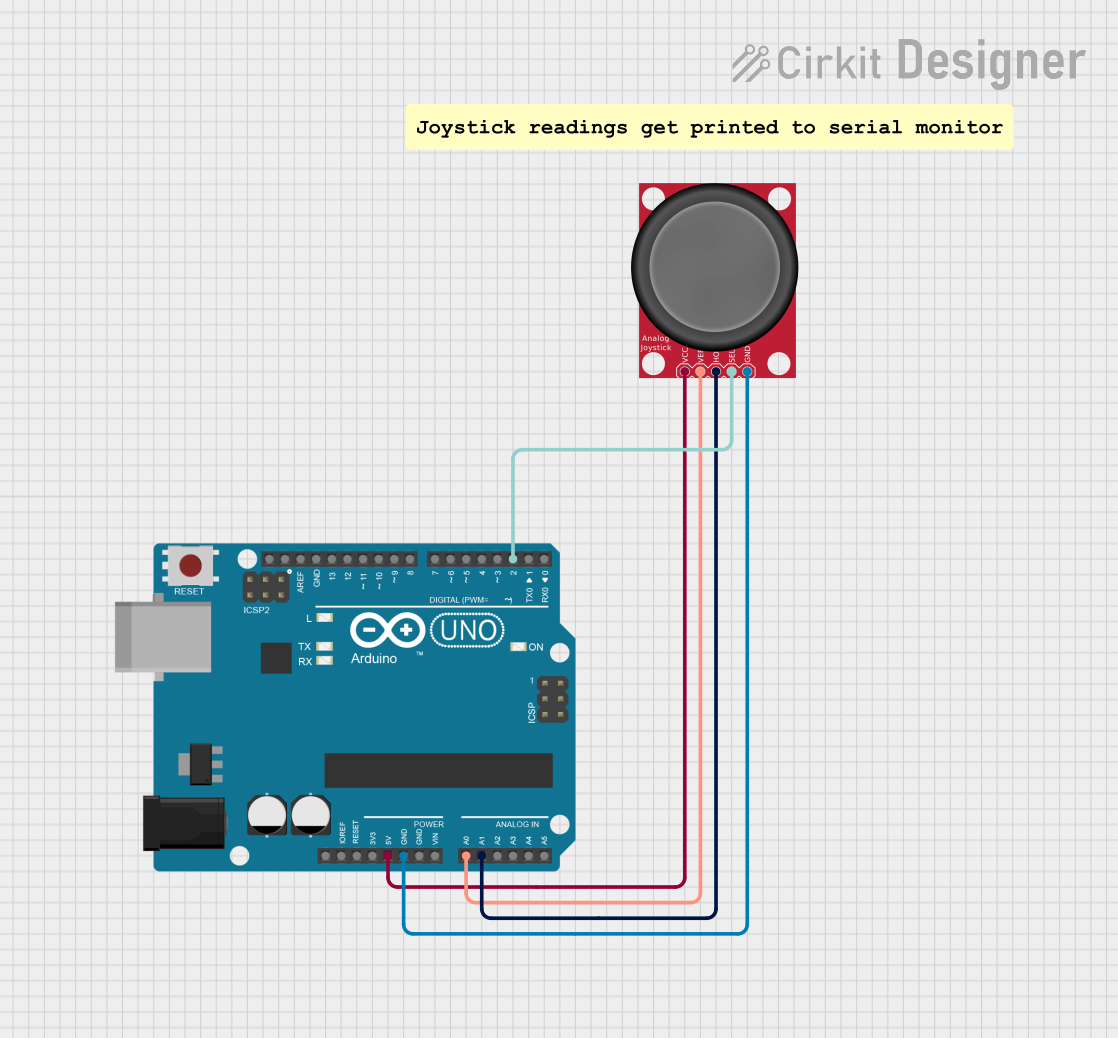 Open Project in Cirkit Designer
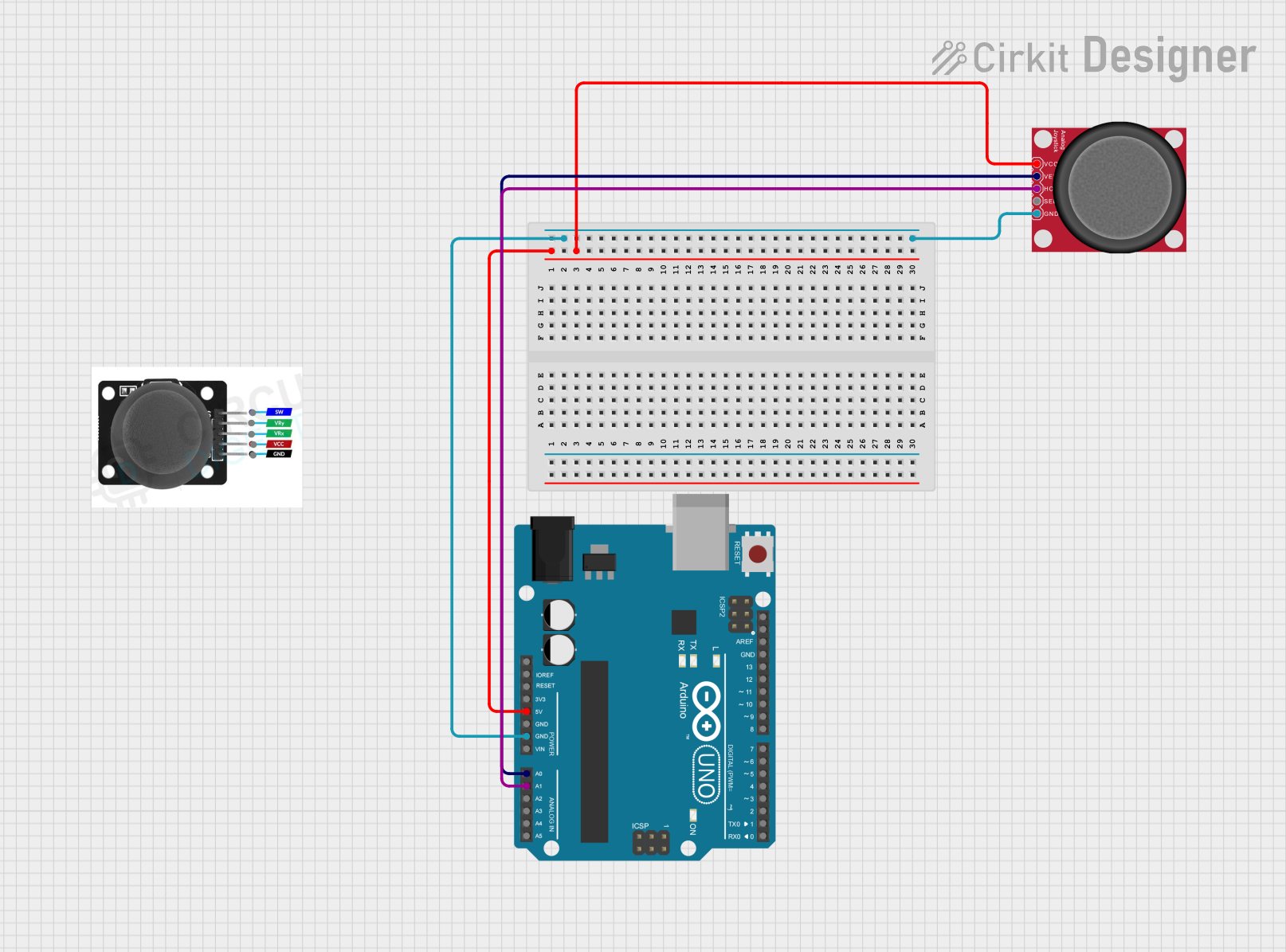 Open Project in Cirkit Designer
Explore Projects Built with Joystick
Open Project in Cirkit DesignerOpen Project in Cirkit DesignerOpen Project in Cirkit DesignerOpen Project in Cirkit DesignerTechnical Specifications
- Type: Analog joystick module
- Operating Voltage: 3.3V to 5V
- Output: Analog voltage for X and Y axes, digital signal for the push-button
- Axes: Two (X and Y)
- Push-Button: Integrated momentary switch
- Dimensions: Approximately 34mm x 26mm x 32mm
Pin Configuration and Descriptions
| Pin | Name | Description |
|---|---|---|
| 1 | GND | Ground connection |
| 2 | VCC | Power supply (3.3V or 5V) |
| 3 | VRx | Analog output for the X-axis (horizontal movement) |
| 4 | VRy | Analog output for the Y-axis (vertical movement) |
| 5 | SW | Digital output for the push-button (active LOW, connected to ground when pressed) |
Usage Instructions
How to Use the Joystick in a Circuit
- Power the Joystick: Connect the
VCCpin to a 3.3V or 5V power source and theGNDpin to ground. - Read Analog Outputs: Connect the
VRxandVRypins to the analog input pins of a microcontroller (e.g., Arduino) to read the X and Y axis positions. - Use the Push-Button: Connect the
SWpin to a digital input pin of the microcontroller. Use a pull-up resistor if necessary, as the button output is active LOW. - Calibrate the Joystick: The joystick outputs a voltage range corresponding to its position. Typically, the center position outputs approximately half of the supply voltage (e.g., ~2.5V for a 5V supply). Ensure your code accounts for this.
Important Considerations and Best Practices
- Debouncing: When using the push-button, implement software debouncing to avoid false triggers.
- Voltage Compatibility: Ensure the joystick's operating voltage matches your microcontroller's input voltage range.
- Mechanical Limits: Avoid applying excessive force to the joystick to prevent damage.
- Noise Filtering: Use capacitors or software filtering to reduce noise in the analog signals.
Example Code for Arduino UNO
Below is an example of how to interface the joystick with an Arduino UNO to read the X and Y axis values and detect button presses.
// Define pin connections
const int VRxPin = A0; // X-axis connected to analog pin A0
const int VRyPin = A1; // Y-axis connected to analog pin A1
const int SWPin = 2;   // Push-button connected to digital pin 2

void setup() {
  // Initialize serial communication for debugging
  Serial.begin(9600);

  // Configure the push-button pin as input with internal pull-up resistor
  pinMode(SWPin, INPUT_PULLUP);
}

void loop() {
  // Read the X and Y axis values (0-1023 for 10-bit ADC)
  int xValue = analogRead(VRxPin);
  int yValue = analogRead(VRyPin);

  // Read the push-button state (LOW when pressed)
  bool buttonPressed = (digitalRead(SWPin) == LOW);

  // Print the joystick values to the Serial Monitor
  Serial.print("X: ");
  Serial.print(xValue);
  Serial.print(" | Y: ");
  Serial.print(yValue);
  Serial.print(" | Button: ");
  Serial.println(buttonPressed ? "Pressed" : "Released");

  // Add a small delay for stability
  delay(100);
}
Troubleshooting and FAQs
Common Issues
No Output or Incorrect Readings:
- Cause: Loose or incorrect wiring.
- Solution: Double-check all connections and ensure the joystick is powered correctly.
Push-Button Not Responding:
- Cause: Missing pull-up resistor or incorrect pin configuration.
- Solution: Use the
INPUT_PULLUPmode in your code or add an external pull-up resistor.
Noisy Analog Signals:
- Cause: Electrical noise or unstable power supply.
- Solution: Add decoupling capacitors near the joystick's power pins or use software filtering.
Joystick Not Centered:
- Cause: Manufacturing tolerances or wear and tear.
- Solution: Calibrate the joystick in software by determining the center values for X and Y axes.
FAQs
Q: Can I use the joystick with a 3.3V microcontroller like ESP32?
A: Yes, the joystick operates at 3.3V and 5V, making it compatible with 3.3V systems.Q: How do I extend the joystick's cable length?
A: Use shielded cables to minimize noise and signal degradation over longer distances.Q: Can I use the joystick for digital-only applications?
A: Yes, but you will only use the push-button (SW pin) in such cases. The analog outputs (VRx and VRy) will not be utilized.Q: What is the typical lifespan of a joystick?
A: Most joysticks are rated for thousands of cycles, but lifespan depends on usage and handling.
By following this documentation, you can effectively integrate and troubleshoot a joystick in your projects.