Cirkit Designer LogoCirkit DesignerYour all-in-one circuit design IDE Launch Cirkit Designer App

How to Use ESP8266 WIFI: Examples, Pinouts, and Specs

Image of ESP8266 WIFIDesign with ESP8266 WIFI in Cirkit Designer

Introduction

The ESP8266 is a low-cost Wi-Fi microchip with a full TCP/IP stack and microcontroller capability. It is widely used in Internet of Things (IoT) applications to enable wireless connectivity for devices. The ESP8266 can operate as both a standalone microcontroller or as a Wi-Fi module for other microcontrollers, making it a versatile choice for a variety of projects.

Explore Projects Built with ESP8266 WIFI

Use Cirkit Designer to design, explore, and prototype these projects online. Some projects support real-time simulation. Click "Open Project" to start designing instantly!
Image of ESP8266 WiFi Module Serial Interface with Pushbutton Control: A project utilizing ESP8266 WIFI in a practical application
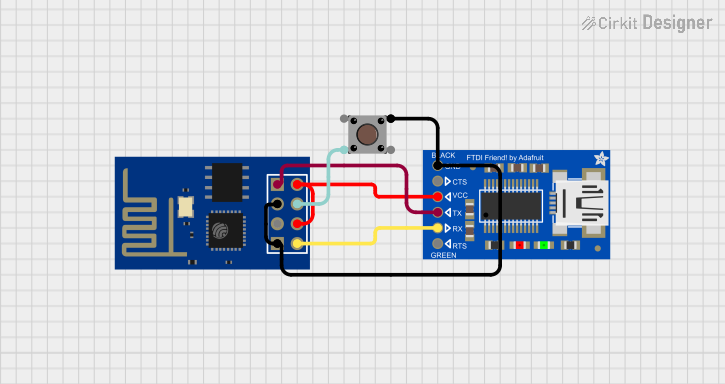
ESP8266 WiFi Module Serial Interface with Pushbutton Control

This circuit features an ESP8266 ESP-01 WiFi module interfaced with an Adafruit FTDI Friend for serial communication. The ESP8266's TXD and RXD pins are connected to the FTDI's RX and TX pins respectively, allowing for data exchange between the microcontroller and a computer. Additionally, a pushbutton is connected to the ESP8266's reset pin, enabling manual resets of the module.

Open Project in Cirkit Designer

Common Applications and Use Cases

Technical Specifications

Key Technical Details

Pin Configuration and Descriptions

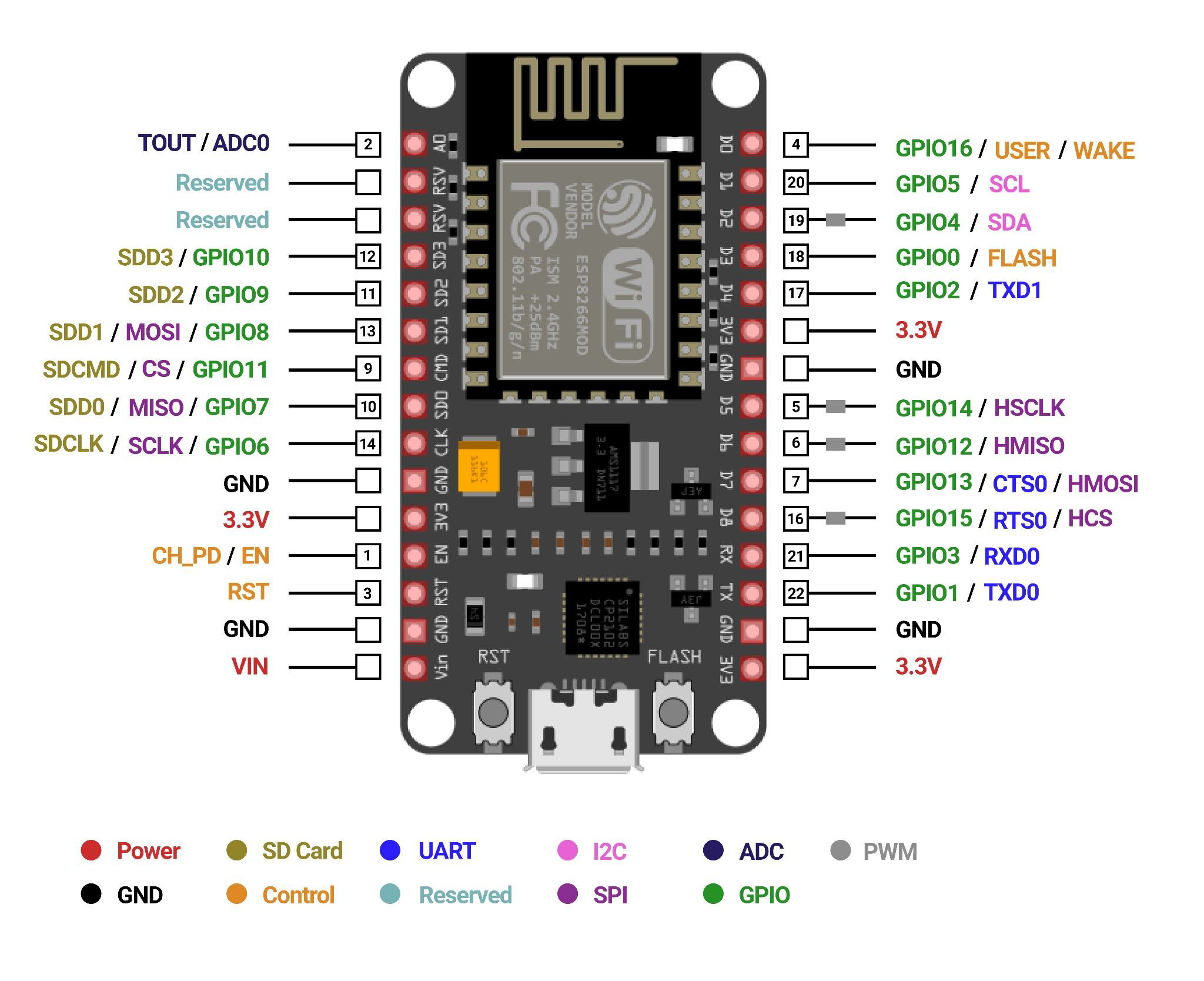
The ESP8266 is available in various module formats, such as ESP-01, ESP-12E, and NodeMCU. Below is the pin configuration for the ESP-12E module, one of the most commonly used versions.

Pin Name Description
1 GND Ground pin. Connect to the ground of the power supply.
2 GPIO0 General-purpose I/O pin. Used for boot mode selection during startup.
3 GPIO2 General-purpose I/O pin.
4 GPIO4 General-purpose I/O pin.
5 GPIO5 General-purpose I/O pin.
6 RXD UART Receive pin. Used for serial communication.
7 TXD UART Transmit pin. Used for serial communication.
8 CH_PD (EN) Chip enable pin. Must be pulled high for the module to function.
9 VCC Power supply pin. Connect to 3.3V.
10 RST Reset pin. Pull low to reset the module.
11 ADC (A0) Analog-to-digital converter input. Accepts voltages between 0V and 1V.
12 GPIO12 (MISO) General-purpose I/O pin or SPI MISO (Master In Slave Out).
13 GPIO13 (MOSI) General-purpose I/O pin or SPI MOSI (Master Out Slave In).
14 GPIO14 (SCLK) General-purpose I/O pin or SPI clock.
15 GPIO15 (CS) General-purpose I/O pin or SPI chip select.
16 GPIO16 General-purpose I/O pin. Can also be used for deep sleep wake-up.

Usage Instructions

How to Use the ESP8266 in a Circuit

  1. Power Supply: Ensure the ESP8266 is powered with a stable 3.3V supply. Do not exceed 3.6V, as this may damage the module.
  2. Connections:
    • Connect the GND pin to the ground of your circuit.
    • Connect the VCC pin to a 3.3V power source.
    • Pull the CH_PD (EN) pin high (connect to 3.3V) to enable the module.
    • Use the RXD and TXD pins for serial communication with a microcontroller or computer.
  3. Boot Mode Selection:
    • For normal operation, pull GPIO0 high.
    • For firmware flashing, pull GPIO0 low during power-up or reset.
  4. Programming: The ESP8266 can be programmed using the Arduino IDE or other tools like NodeMCU firmware. Use a USB-to-serial adapter for uploading code.

Important Considerations and Best Practices

Example Code for Arduino UNO

Below is an example of using the ESP8266 to connect to a Wi-Fi network and send data to a server.

#include <ESP8266WiFi.h> // Include the ESP8266 WiFi library

// Replace with your network credentials
const char* ssid = "Your_SSID";
const char* password = "Your_PASSWORD";

void setup() {
  Serial.begin(115200); // Start serial communication at 115200 baud
  delay(10);

  // Connect to Wi-Fi
  Serial.println("Connecting to Wi-Fi...");
  WiFi.begin(ssid, password);

  while (WiFi.status() != WL_CONNECTED) {
    delay(500);
    Serial.print("."); // Print dots while connecting
  }

  Serial.println("\nWi-Fi connected!");
  Serial.print("IP Address: ");
  Serial.println(WiFi.localIP()); // Print the assigned IP address
}

void loop() {
  // Add your main code here
}

Troubleshooting and FAQs

Common Issues and Solutions

  1. ESP8266 Not Responding:

    • Ensure the CH_PD (EN) pin is pulled high.
    • Verify the power supply is stable and provides sufficient current (at least 300 mA).
    • Check the serial connection and baud rate settings.
  2. Wi-Fi Connection Fails:

    • Double-check the SSID and password.
    • Ensure the router is within range and supports 2.4 GHz Wi-Fi (ESP8266 does not support 5 GHz).
  3. Module Overheating:

    • Verify the power supply voltage is within the 3.0V to 3.6V range.
    • Reduce the Wi-Fi transmission power if possible.
  4. GPIO Pins Not Working:

    • Ensure the pins are not being used for other functions (e.g., boot mode selection).
    • Avoid exceeding the maximum current rating of the GPIO pins.

FAQs

This documentation provides a comprehensive guide to using the ESP8266 Wi-Fi module effectively in your projects.