
How to Use Obstacle Detector: Examples, Pinouts, and Specs
 Design with Obstacle Detector in Cirkit Designer
Introduction
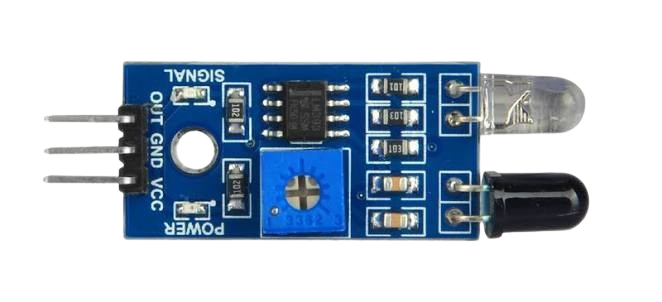
The Obstacle Detector (IR Module), manufactured by Arduino, is a compact and efficient sensor designed to detect obstacles in the path of a moving object. It uses infrared (IR) technology to sense the presence of objects within its detection range. This module is widely used in robotics, autonomous vehicles, and other applications where collision prevention is critical. Its simple design and ease of integration make it a popular choice for both hobbyists and professionals.
Explore Projects Built with Obstacle Detector
 Open Project in Cirkit Designer
 Open Project in Cirkit Designer
 Open Project in Cirkit Designer
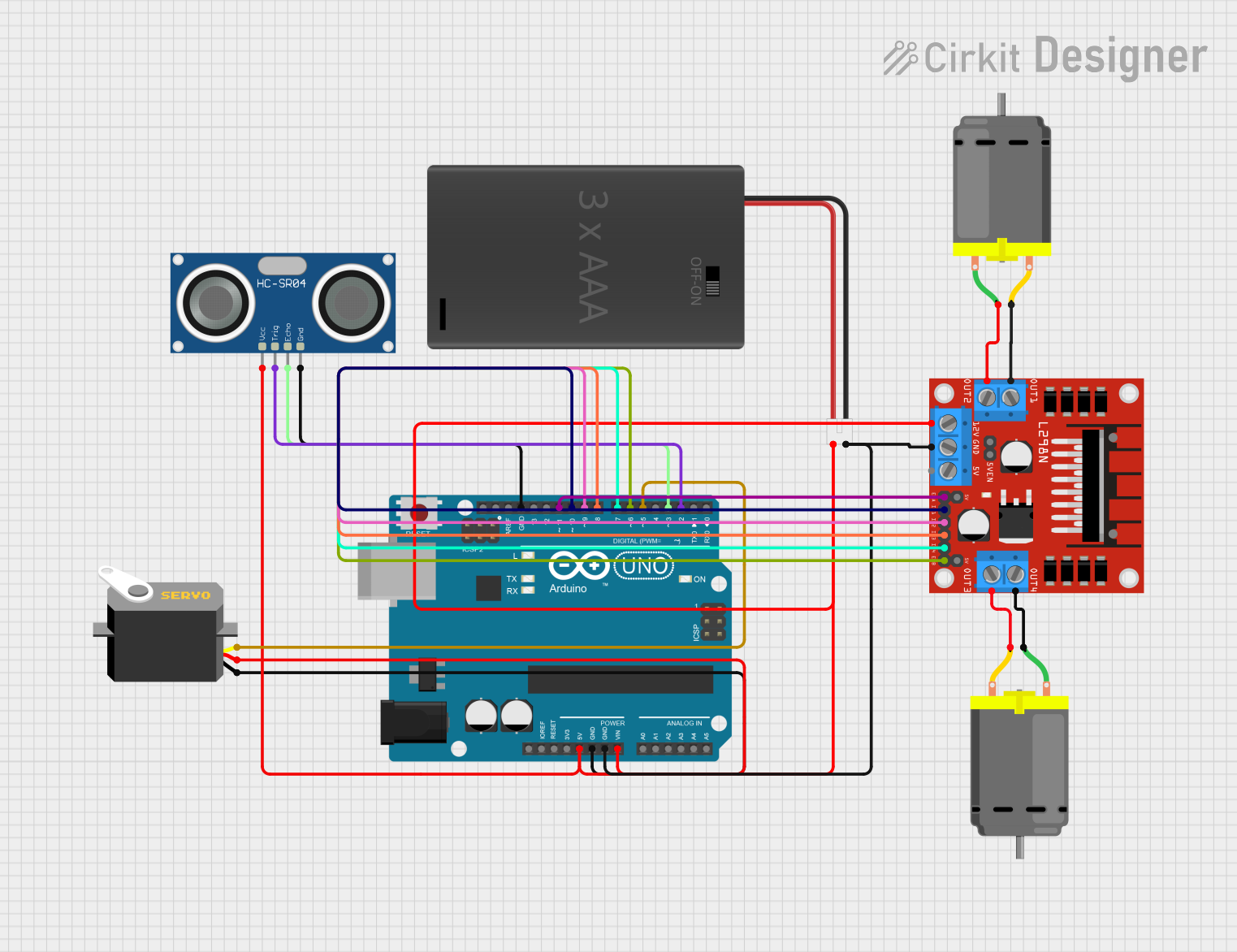 Open Project in Cirkit Designer
Explore Projects Built with Obstacle Detector
Open Project in Cirkit DesignerOpen Project in Cirkit DesignerOpen Project in Cirkit DesignerOpen Project in Cirkit DesignerCommon Applications and Use Cases
- Autonomous robots for obstacle avoidance
- Line-following robots
- Proximity detection in industrial automation
- Smart home devices for motion sensing
- Collision prevention in drones and vehicles
Technical Specifications
The following table outlines the key technical details of the Arduino IR Module:
| Parameter | Specification |
|---|---|
| Operating Voltage | 3.3V to 5V DC |
| Operating Current | 20mA (typical) |
| Detection Range | 2cm to 30cm (adjustable via potentiometer) |
| Output Type | Digital (High/Low) |
| IR Wavelength | 940nm |
| Dimensions | 3.1cm x 1.5cm x 0.7cm |
| Operating Temperature | -10°C to 50°C |
Pin Configuration and Descriptions
The IR Module has a 3-pin interface, as described in the table below:
| Pin | Name | Description |
|---|---|---|
| 1 | VCC | Power supply pin (3.3V to 5V DC) |
| 2 | GND | Ground pin |
| 3 | OUT | Digital output pin (High when no obstacle, Low when obstacle detected) |
Usage Instructions
How to Use the Component in a Circuit
- Power the Module: Connect the
VCCpin to a 3.3V or 5V power source and theGNDpin to the ground of your circuit. - Connect the Output: Attach the
OUTpin to a digital input pin on your microcontroller (e.g., Arduino UNO). - Adjust the Sensitivity: Use the onboard potentiometer to adjust the detection range of the sensor. Turn clockwise to increase the range and counterclockwise to decrease it.
- Test the Module: Place an object within the detection range and observe the output pin. The
OUTpin will go LOW when an obstacle is detected.
Important Considerations and Best Practices
- Ambient Light Interference: The IR Module may be affected by strong ambient light. Use it in controlled lighting conditions for optimal performance.
- Mounting Position: Ensure the sensor is mounted at an appropriate angle to detect obstacles effectively.
- Power Supply: Use a stable power source to avoid erratic behavior.
- Avoid Overheating: Prolonged exposure to high temperatures may degrade the sensor's performance.
Example Code for Arduino UNO
Below is an example code snippet to interface the IR Module with an Arduino UNO:
// Define the pin connected to the IR Module's OUT pin
const int IR_Sensor_Pin = 2; // Digital pin 2

// Define the onboard LED pin (for testing purposes)
const int LED_Pin = 13;

void setup() {
  pinMode(IR_Sensor_Pin, INPUT); // Set IR sensor pin as input
  pinMode(LED_Pin, OUTPUT);      // Set LED pin as output
  Serial.begin(9600);            // Initialize serial communication
}

void loop() {
  int sensorValue = digitalRead(IR_Sensor_Pin); // Read the sensor output

  if (sensorValue == LOW) {
    // Obstacle detected
    digitalWrite(LED_Pin, HIGH); // Turn on LED
    Serial.println("Obstacle detected!");
  } else {
    // No obstacle
    digitalWrite(LED_Pin, LOW);  // Turn off LED
    Serial.println("No obstacle.");
  }

  delay(100); // Small delay for stability
}
Troubleshooting and FAQs
Common Issues Users Might Face
Sensor Not Detecting Obstacles:
- Ensure the
VCCandGNDpins are connected properly. - Check the potentiometer adjustment and increase the detection range if needed.
- Verify that the obstacle is within the sensor's detection range (2cm to 30cm).
- Ensure the
False Positives or Erratic Behavior:
- Reduce ambient light interference by shielding the sensor.
- Use a stable power supply to avoid fluctuations.
Output Pin Always HIGH or LOW:
- Inspect the wiring for loose connections.
- Test the module with a multimeter to ensure it is functioning correctly.
Solutions and Tips for Troubleshooting
- Testing the Module: Use an LED or multimeter to verify the output pin's behavior when an obstacle is placed in front of the sensor.
- Recalibrating the Sensor: Adjust the potentiometer to fine-tune the detection range.
- Replacing Components: If the module is damaged, consider replacing it with a new one.
By following this documentation, users can effectively integrate the Arduino IR Module into their projects and troubleshoot common issues with ease.