
How to Use LCD TFT 1.44: Examples, Pinouts, and Specs
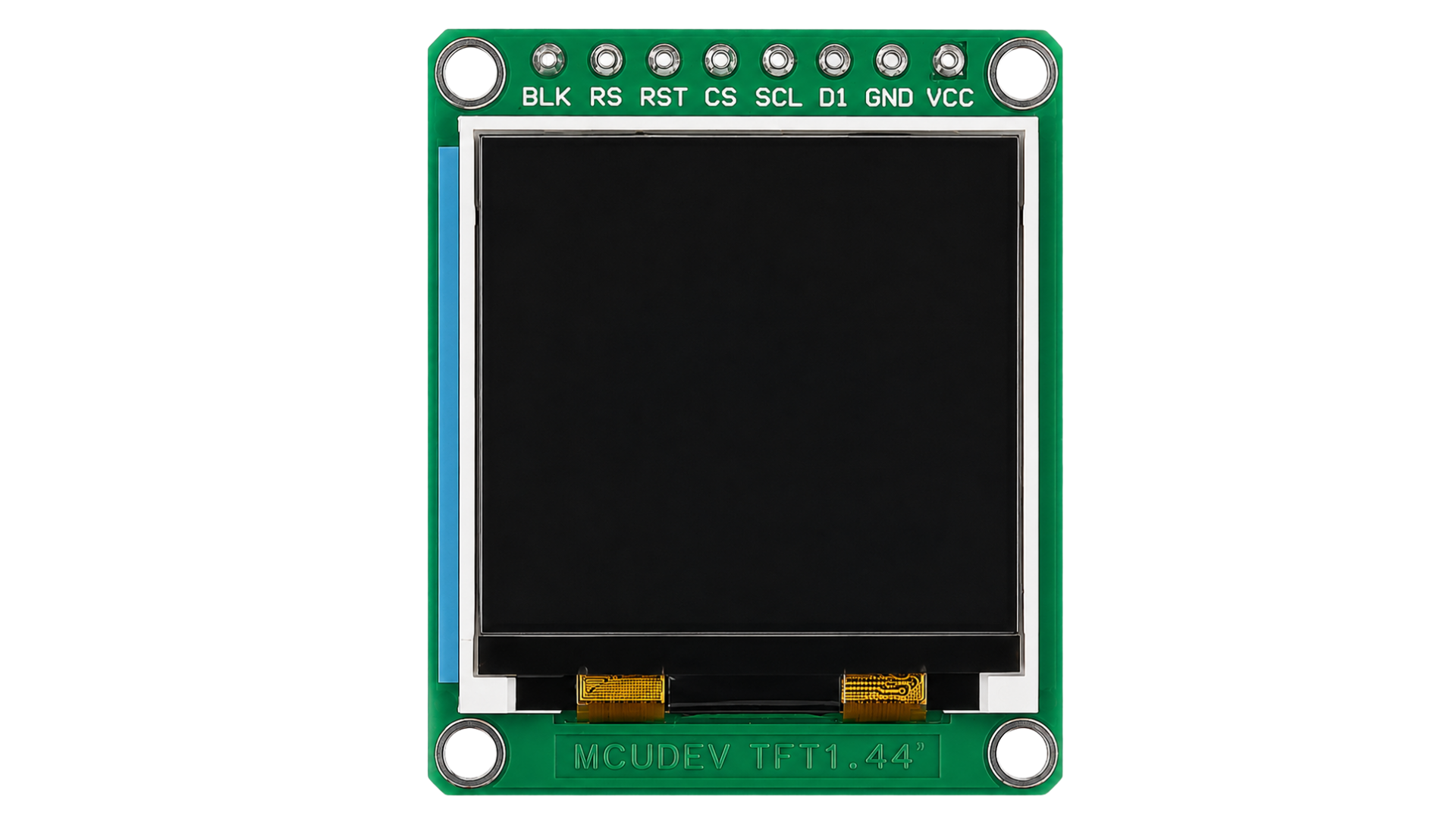
 Design with LCD TFT 1.44 in Cirkit Designer
Introduction
The LCD TFT 1.44 is a 1.44-inch thin-film transistor (TFT) liquid crystal display (LCD) that delivers high-resolution color output. This compact display module is ideal for applications requiring vibrant graphics and text in a small form factor. It is commonly used in embedded systems, handheld devices, and DIY electronics projects.
Explore Projects Built with LCD TFT 1.44
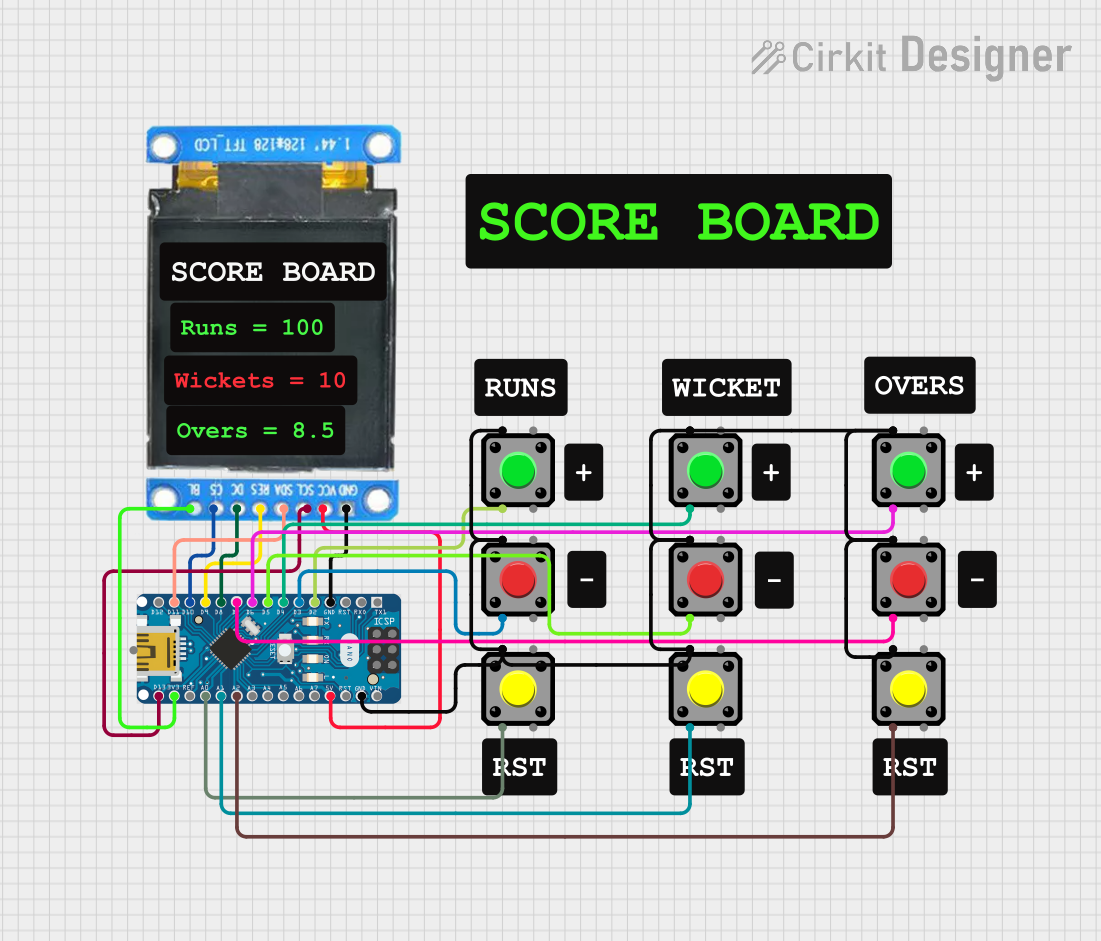 Open Project in Cirkit Designer
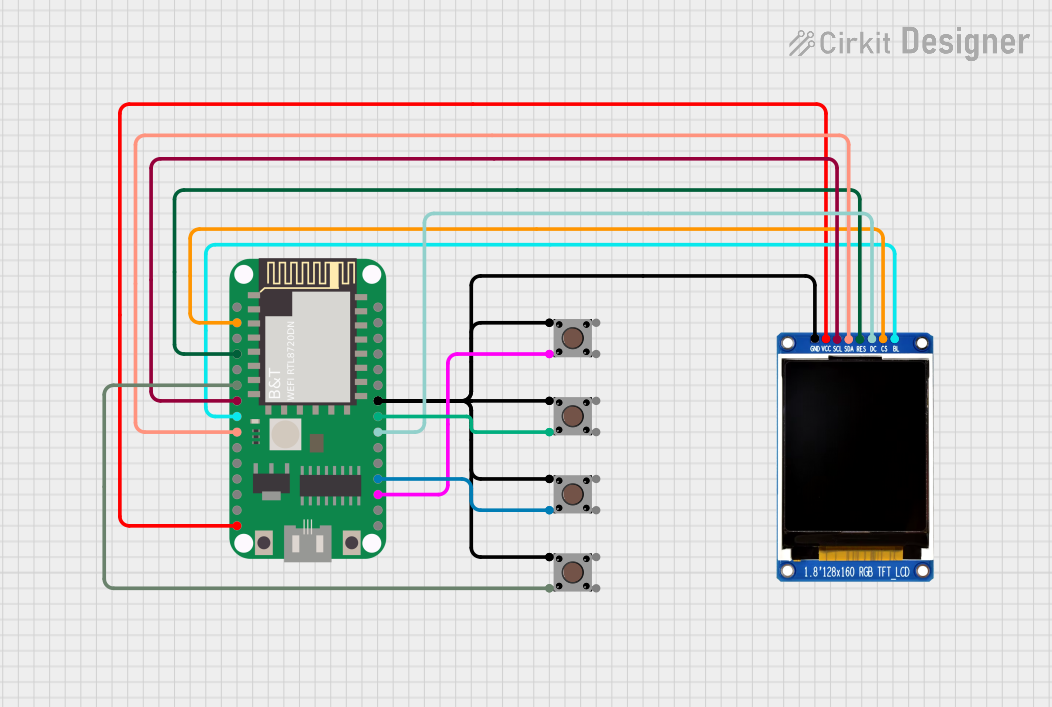 Open Project in Cirkit Designer
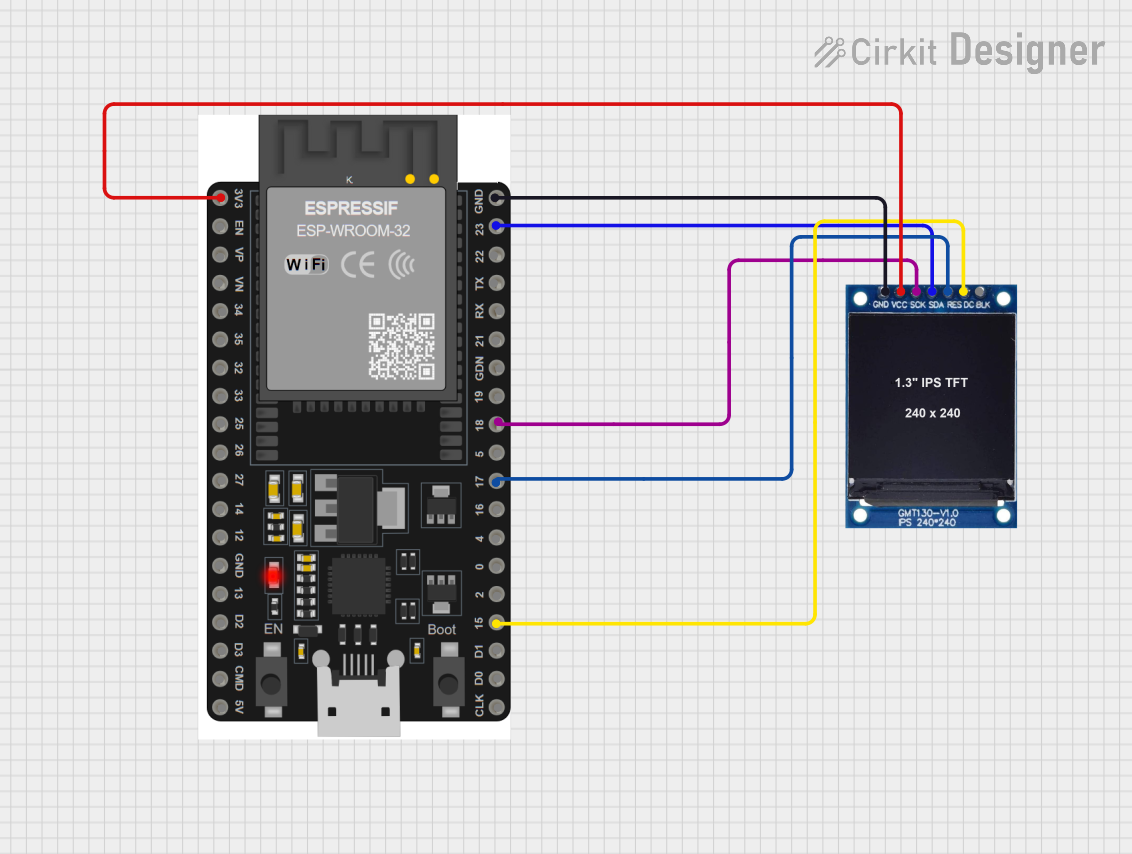 Open Project in Cirkit Designer
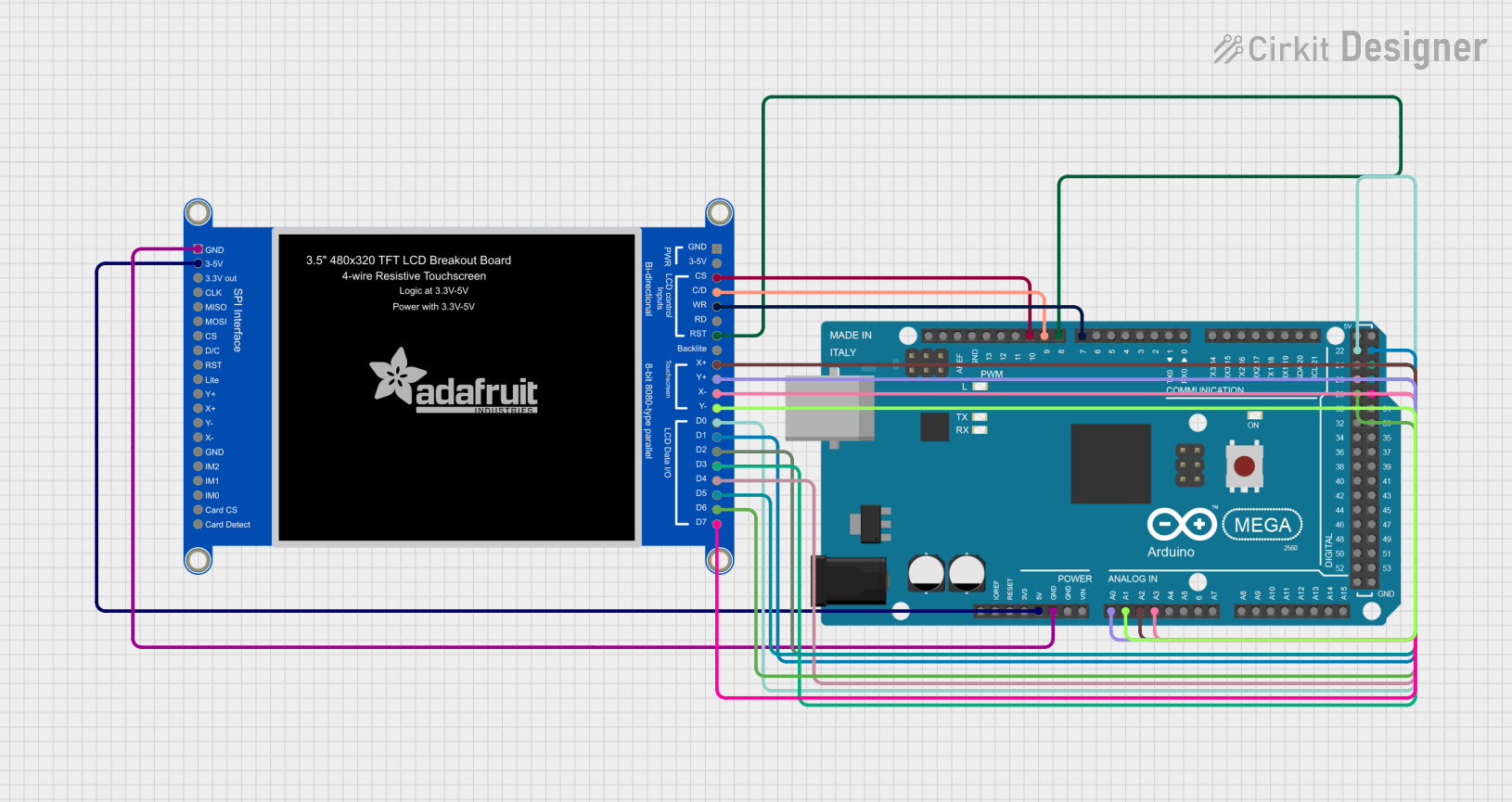 Open Project in Cirkit Designer
Explore Projects Built with LCD TFT 1.44
Open Project in Cirkit DesignerOpen Project in Cirkit DesignerOpen Project in Cirkit DesignerOpen Project in Cirkit DesignerCommon Applications
- Portable electronic devices
- Wearable technology
- DIY projects and prototyping
- Graphical user interfaces (GUIs) for microcontroller-based systems
- Educational and hobbyist projects
Technical Specifications
Below are the key technical details for the LCD TFT 1.44 module:
| Parameter | Value |
|---|---|
| Display Type | TFT LCD |
| Screen Size | 1.44 inches |
| Resolution | 128 x 128 pixels |
| Color Depth | 65K colors (16-bit RGB) |
| Interface Type | SPI (Serial Peripheral Interface) |
| Operating Voltage | 3.3V to 5V |
| Backlight Voltage | 3.3V |
| Current Consumption | ~50mA (with backlight on) |
| Dimensions | 40mm x 35mm x 5mm |
Pin Configuration and Descriptions
The LCD TFT 1.44 module typically has an 8-pin interface. Below is the pinout and description:
| Pin | Name | Description |
|---|---|---|
| 1 | GND | Ground connection |
| 2 | VCC | Power supply (3.3V or 5V) |
| 3 | SCL | Serial Clock Line for SPI communication |
| 4 | SDA | Serial Data Line for SPI communication |
| 5 | RES | Reset pin (active low) |
| 6 | DC | Data/Command control pin (High for data, Low for command) |
| 7 | CS | Chip Select (active low) |
| 8 | BL | Backlight control (connect to VCC for always-on backlight or PWM for dimming) |
Usage Instructions
Connecting the LCD TFT 1.44 to an Arduino UNO
To use the LCD TFT 1.44 with an Arduino UNO, follow these steps:
Wiring: Connect the module to the Arduino UNO as shown below:
- GND → GND
- VCC → 5V
- SCL → Pin 13 (SPI Clock)
- SDA → Pin 11 (SPI MOSI)
- RES → Pin 8
- DC → Pin 9
- CS → Pin 10
- BL → 5V (or connect to a PWM pin for brightness control)
Install Required Libraries:
- Install the
Adafruit_GFXandAdafruit_ST7735libraries from the Arduino Library Manager.
- Install the
Example Code: Use the following code to display text and graphics on the screen:
// Include necessary libraries
#include <Adafruit_GFX.h>       // Graphics library for drawing shapes and text
#include <Adafruit_ST7735.h>   // Library for ST7735-based TFT displays
#include <SPI.h>               // SPI communication library

// Define pin connections
#define TFT_CS     10  // Chip Select pin
#define TFT_RST    8   // Reset pin
#define TFT_DC     9   // Data/Command pin

// Initialize the display object
Adafruit_ST7735 tft = Adafruit_ST7735(TFT_CS, TFT_DC, TFT_RST);

void setup() {
  // Initialize the display
  tft.initR(INITR_144GREENTAB);  // Initialize for 1.44" TFT with green tab
  tft.fillScreen(ST77XX_BLACK); // Clear the screen with black color

  // Display text
  tft.setTextColor(ST77XX_WHITE); // Set text color to white
  tft.setTextSize(1);             // Set text size
  tft.setCursor(10, 10);          // Set cursor position
  tft.println("Hello, World!");   // Print text to the screen

  // Draw a rectangle
  tft.drawRect(20, 30, 50, 50, ST77XX_RED); // Draw a red rectangle
}

void loop() {
  // Nothing to do in the loop
}
Important Considerations
- Voltage Levels: Ensure the module operates within the specified voltage range (3.3V to 5V). Using higher voltages may damage the display.
- Backlight Control: For adjustable brightness, connect the
BLpin to a PWM-capable pin on your microcontroller. - SPI Speed: Use an appropriate SPI clock speed to ensure reliable communication. A typical value is 4 MHz.
Troubleshooting and FAQs
Common Issues
Blank Screen:
- Cause: Incorrect wiring or insufficient power supply.
- Solution: Double-check all connections and ensure the module is receiving 3.3V or 5V.
Distorted or Noisy Display:
- Cause: SPI communication issues or incorrect initialization.
- Solution: Verify the SPI connections and ensure the correct initialization code is used.
Backlight Not Turning On:
- Cause:
BLpin not connected or insufficient voltage. - Solution: Connect the
BLpin to 3.3V or 5V. For dimming, use a PWM signal.
- Cause:
FAQs
Can I use this module with a 3.3V microcontroller?
- Yes, the module is compatible with 3.3V systems. Ensure all signal lines are at 3.3V levels.
What is the maximum SPI clock speed supported?
- The module typically supports SPI clock speeds up to 15 MHz, but 4 MHz is recommended for stability.
Can I display images on this screen?
- Yes, you can display images by converting them to a compatible format (e.g., BMP) and using the appropriate library functions.
Is the backlight brightness adjustable?
- Yes, connect the
BLpin to a PWM-capable pin on your microcontroller to control brightness.
- Yes, connect the
By following this documentation, you can effectively integrate and use the LCD TFT 1.44 module in your projects.