
How to Use Pantalla 3.5" Táctil Resistiva SPI ILI9488 y XPT2046: Examples, Pinouts, and Specs
 Design with Pantalla 3.5" Táctil Resistiva SPI ILI9488 y XPT2046 in Cirkit Designer
Introduction
The Pantalla 3.5" Táctil Resistiva SPI ILI9488 y XPT2046, manufactured by TZT, is a versatile 3.5-inch resistive touchscreen display designed for embedded systems. It features the ILI9488 driver for high-quality graphics rendering and the XPT2046 controller for precise touch input detection. This display is ideal for creating interactive user interfaces in projects requiring both visual output and touch-based input.
Explore Projects Built with Pantalla 3.5" Táctil Resistiva SPI ILI9488 y XPT2046
 Open Project in Cirkit Designer
 Open Project in Cirkit Designer
 Open Project in Cirkit Designer
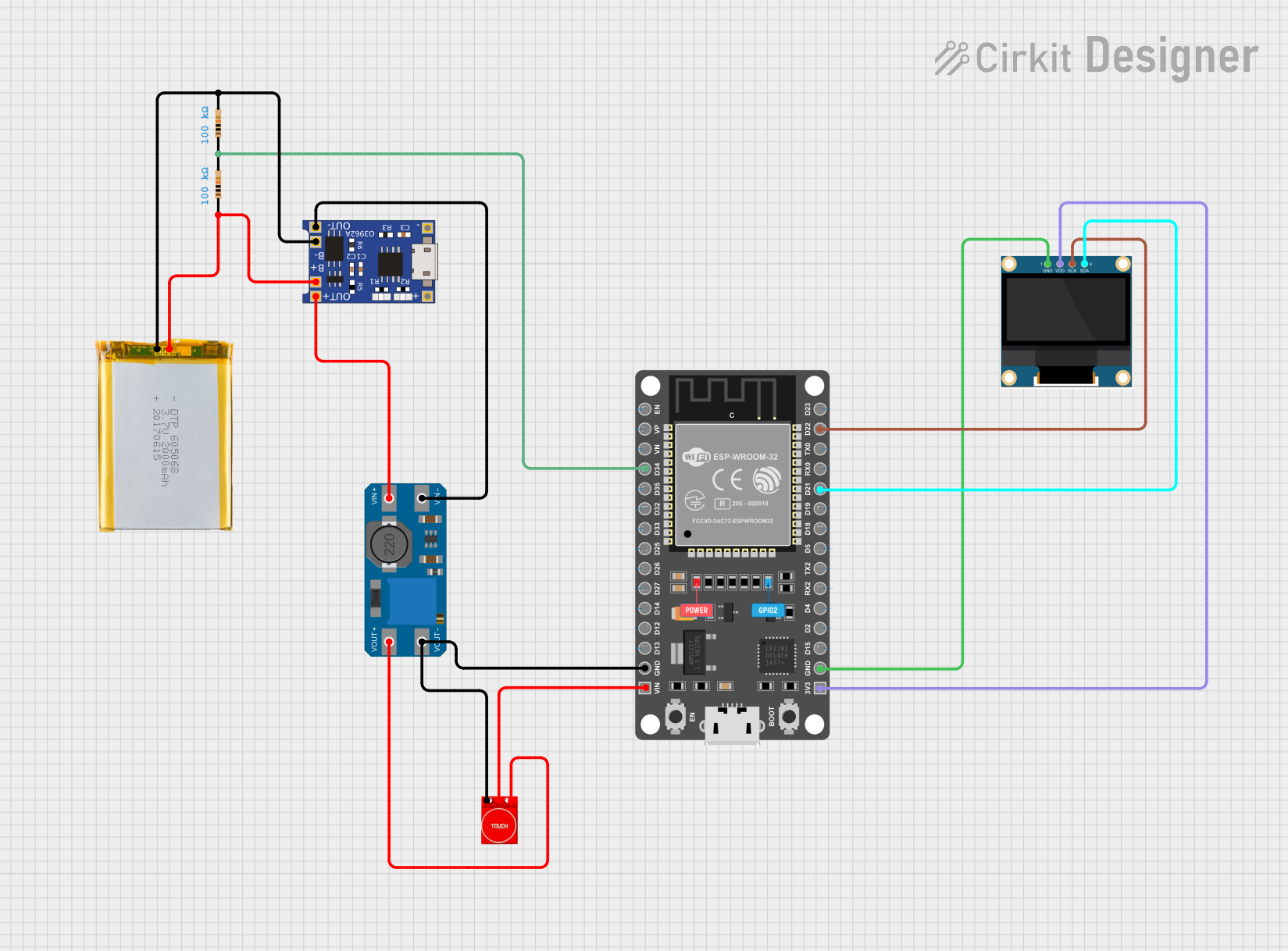 Open Project in Cirkit Designer
Explore Projects Built with Pantalla 3.5" Táctil Resistiva SPI ILI9488 y XPT2046
Open Project in Cirkit DesignerOpen Project in Cirkit DesignerOpen Project in Cirkit DesignerOpen Project in Cirkit DesignerCommon Applications
- Embedded systems and IoT devices
- Industrial control panels
- DIY projects with microcontrollers (e.g., Arduino, Raspberry Pi)
- Portable devices with graphical user interfaces
- Educational and prototyping purposes
Technical Specifications
Key Technical Details
| Parameter | Specification |
|---|---|
| Display Type | 3.5-inch TFT LCD |
| Resolution | 480 x 320 pixels |
| Touchscreen Type | Resistive |
| Display Driver IC | ILI9488 |
| Touch Controller IC | XPT2046 |
| Interface | SPI |
| Operating Voltage | 3.3V / 5V (logic level compatible) |
| Backlight Voltage | 3.3V |
| Backlight Current | ~120mA |
| Dimensions | 85.5mm x 55.8mm x 3.5mm |
| Operating Temperature | -20°C to 70°C |
Pin Configuration
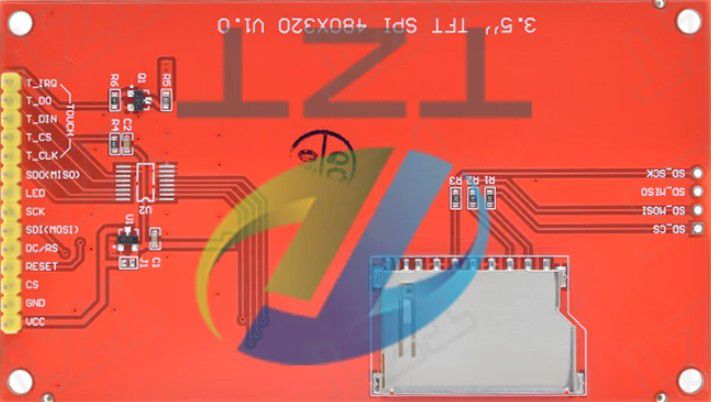
The display module has a 14-pin interface. Below is the pinout description:
| Pin No. | Name | Description |
|---|---|---|
| 1 | GND | Ground |
| 2 | VCC | Power supply (3.3V or 5V) |
| 3 | CS | Chip Select for ILI9488 (active low) |
| 4 | RESET | Reset pin for ILI9488 (active low) |
| 5 | DC | Data/Command control for ILI9488 |
| 6 | SDI | Serial Data Input (MOSI for ILI9488) |
| 7 | SCK | Serial Clock for ILI9488 |
| 8 | LED | Backlight control (connect to 3.3V for always on) |
| 9 | T_CS | Chip Select for XPT2046 (active low) |
| 10 | T_IRQ | Interrupt pin for XPT2046 (active low) |
| 11 | T_DO | Data Output (MISO for XPT2046) |
| 12 | T_DIN | Data Input (MOSI for XPT2046) |
| 13 | T_CLK | Serial Clock for XPT2046 |
| 14 | T_VCC | Power supply for XPT2046 (3.3V or 5V) |
Usage Instructions
Connecting the Display to an Arduino UNO
To use the Pantalla 3.5" Táctil Resistiva SPI with an Arduino UNO, connect the pins as follows:
| Display Pin | Arduino Pin |
|---|---|
| GND | GND |
| VCC | 5V |
| CS | D10 |
| RESET | D9 |
| DC | D8 |
| SDI | D11 |
| SCK | D13 |
| LED | 3.3V |
| T_CS | D4 |
| T_IRQ | D3 |
| T_DO | D12 |
| T_DIN | D11 |
| T_CLK | D13 |
| T_VCC | 5V |
Arduino Code Example
Below is an example of how to initialize and use the display and touchscreen with the Arduino UNO. This example uses the Adafruit_GFX, Adafruit_ILI9488, and XPT2046_Touchscreen libraries.
#include <Adafruit_GFX.h>          // Graphics library for ILI9488
#include <Adafruit_ILI9488.h>      // Driver for ILI9488
#include <XPT2046_Touchscreen.h>   // Touchscreen library for XPT2046

// Define pins for the display
#define TFT_CS   10  // Chip Select for ILI9488
#define TFT_DC   8   // Data/Command for ILI9488
#define TFT_RST  9   // Reset for ILI9488

// Define pins for the touchscreen
#define TOUCH_CS 4   // Chip Select for XPT2046
#define TOUCH_IRQ 3  // Interrupt pin for XPT2046

// Create display and touchscreen objects
Adafruit_ILI9488 tft = Adafruit_ILI9488(TFT_CS, TFT_DC, TFT_RST);
XPT2046_Touchscreen ts(TOUCH_CS, TOUCH_IRQ);

void setup() {
  // Initialize serial communication for debugging
  Serial.begin(9600);

  // Initialize the display
  tft.begin();
  tft.setRotation(1);  // Set display orientation
  tft.fillScreen(ILI9488_BLACK);  // Clear the screen

  // Initialize the touchscreen
  if (!ts.begin()) {
    Serial.println("Touchscreen initialization failed!");
  } else {
    Serial.println("Touchscreen initialized successfully.");
  }
}

void loop() {
  // Check if the touchscreen is being touched
  if (ts.touched()) {
    TS_Point p = ts.getPoint();  // Get touch coordinates

    // Map touch coordinates to screen dimensions
    int x = map(p.x, 200, 3800, 0, tft.width());
    int y = map(p.y, 200, 3800, 0, tft.height());

    // Draw a circle at the touch point
    tft.fillCircle(x, y, 5, ILI9488_RED);

    // Print touch coordinates to the serial monitor
    Serial.print("Touch at: ");
    Serial.print("X=");
    Serial.print(x);
    Serial.print(", Y=");
    Serial.println(y);
  }
}
Important Considerations
- Power Supply: Ensure the display is powered with the correct voltage (3.3V or 5V). Incorrect voltage may damage the module.
- SPI Speed: Use a moderate SPI clock speed (e.g., 4 MHz) to ensure stable communication.
- Touch Calibration: The touchscreen may require calibration for accurate touch detection. Adjust the
map()function values in the code as needed. - Backlight Control: The backlight pin (LED) can be connected to a PWM pin for brightness control.
Troubleshooting and FAQs
Common Issues
No Display Output:
- Verify all connections are secure and match the pinout table.
- Ensure the power supply voltage is correct.
- Check if the
Adafruit_ILI9488library is properly installed.
Touchscreen Not Responding:
- Confirm the
XPT2046_Touchscreenlibrary is installed. - Check the
T_CSandT_IRQconnections. - Ensure the touchscreen is not physically damaged.
- Confirm the
Incorrect Touch Coordinates:
- Adjust the
map()function values in the code to calibrate the touchscreen. - Ensure the display orientation (
setRotation()) matches the touch mapping.
- Adjust the
Tips for Troubleshooting
- Use a multimeter to check for continuity and proper voltage levels.
- Test the display and touchscreen separately to isolate issues.
- Refer to the library documentation for additional configuration options.
By following this documentation, you can successfully integrate the Pantalla 3.5" Táctil Resistiva SPI ILI9488 y XPT2046 into your projects and create interactive user interfaces with ease.