
How to Use Nokia 5110 LCD: Examples, Pinouts, and Specs
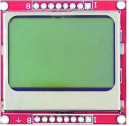
 Design with Nokia 5110 LCD in Cirkit Designer
Introduction
The Nokia 5110 LCD is a compact graphical display module originally used in Nokia 5110 mobile phones. It features a resolution of 84x48 pixels, making it ideal for displaying text, simple graphics, and custom icons in embedded systems. This LCD is lightweight, power-efficient, and easy to interface with microcontrollers, making it a popular choice for hobbyists and professionals alike.
Explore Projects Built with Nokia 5110 LCD
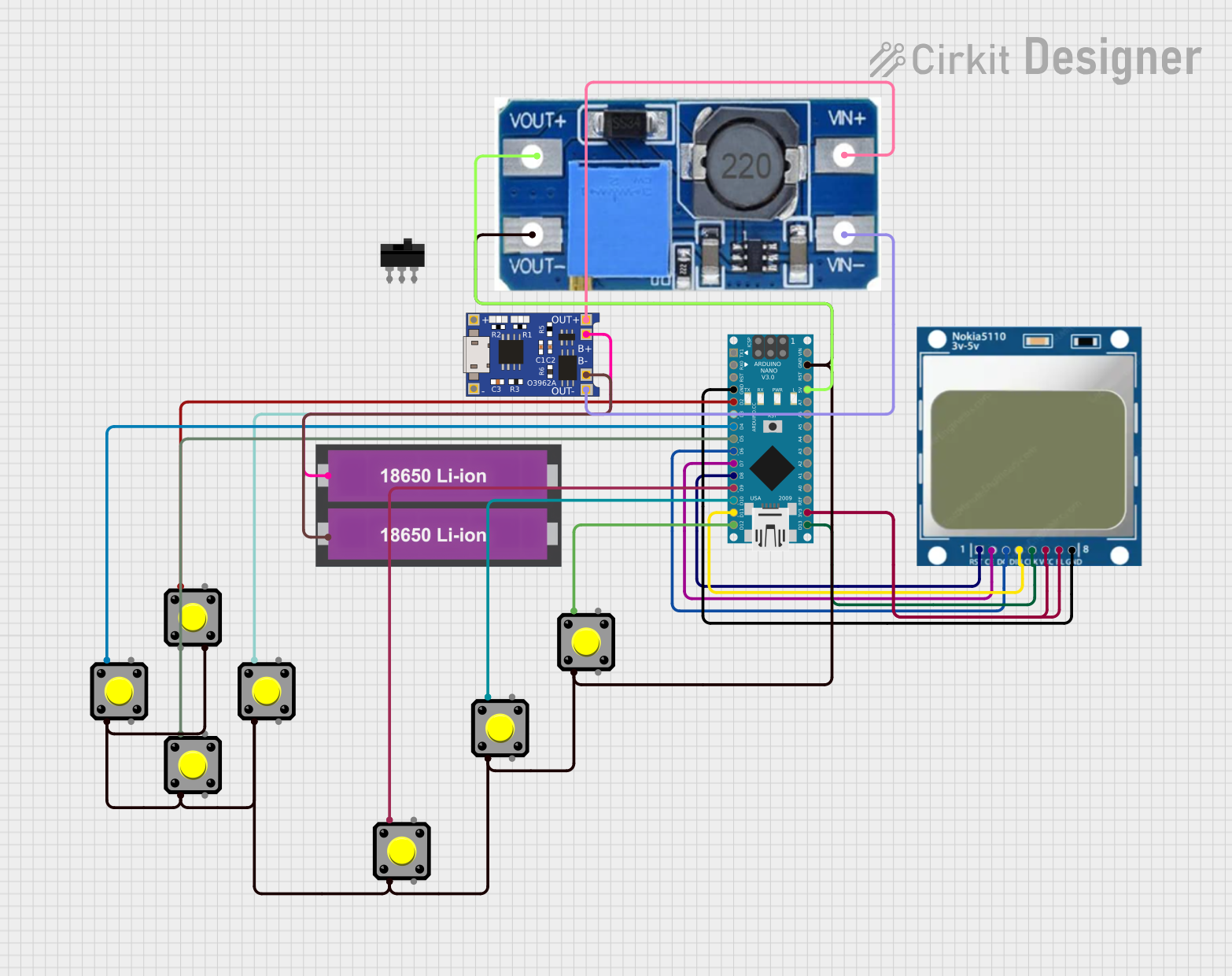 Open Project in Cirkit Designer
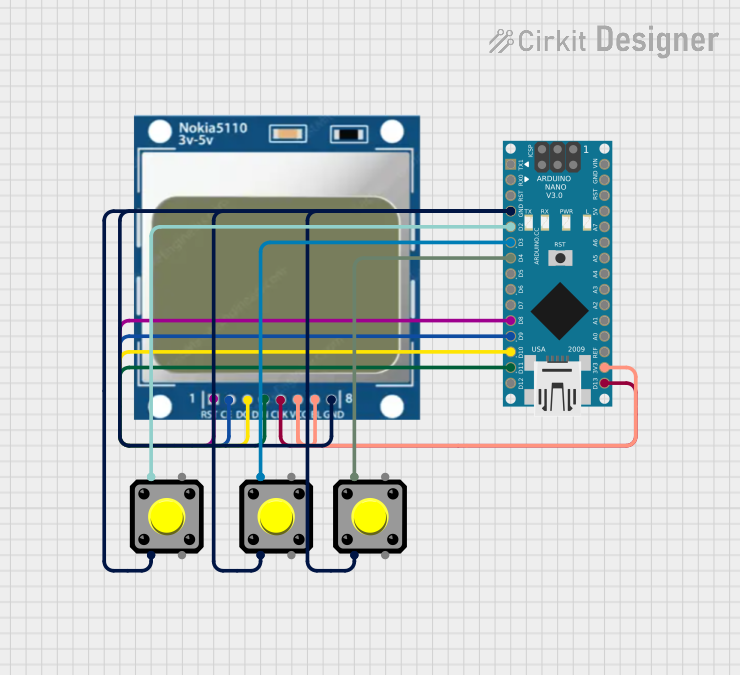 Open Project in Cirkit Designer
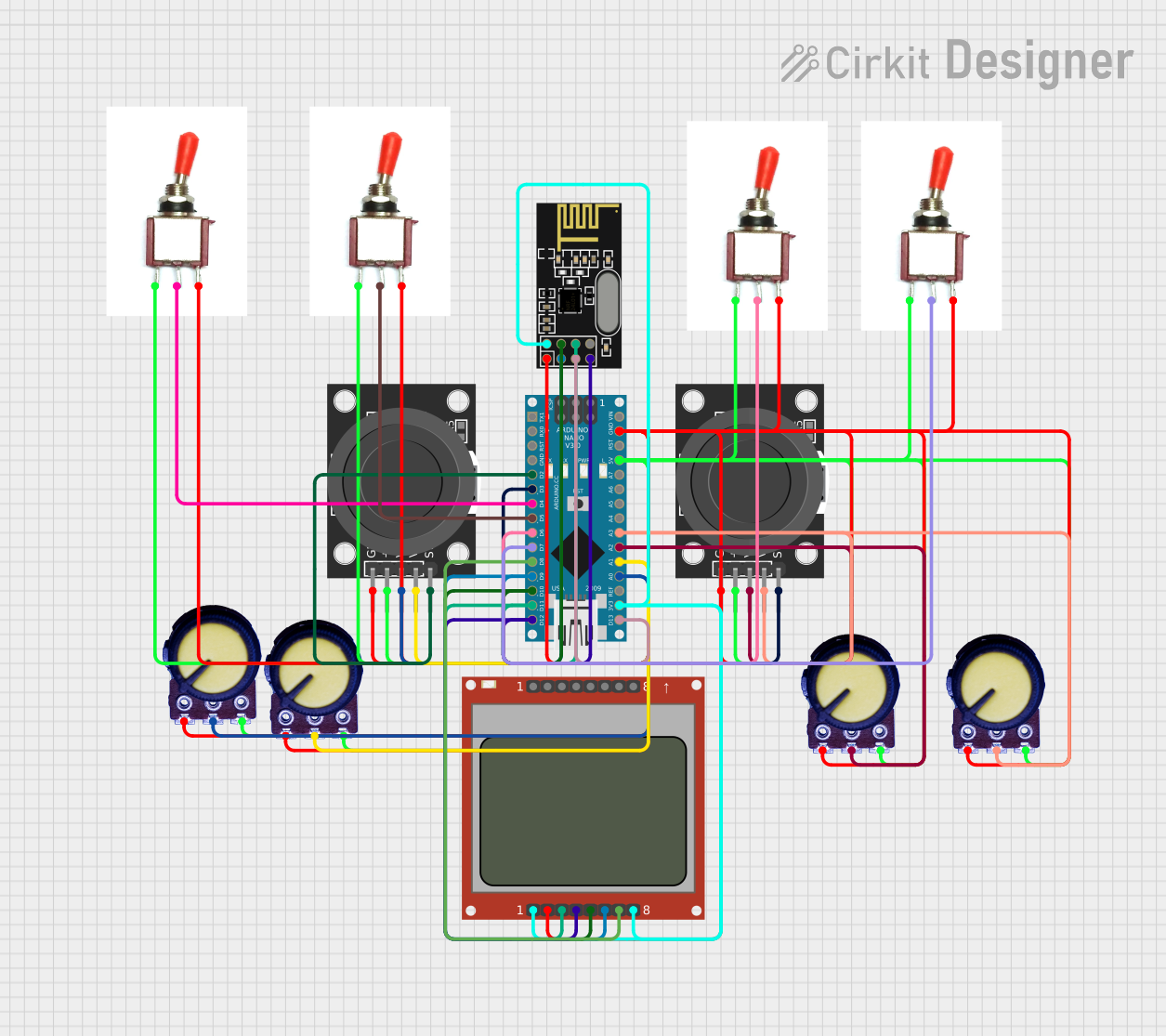 Open Project in Cirkit Designer
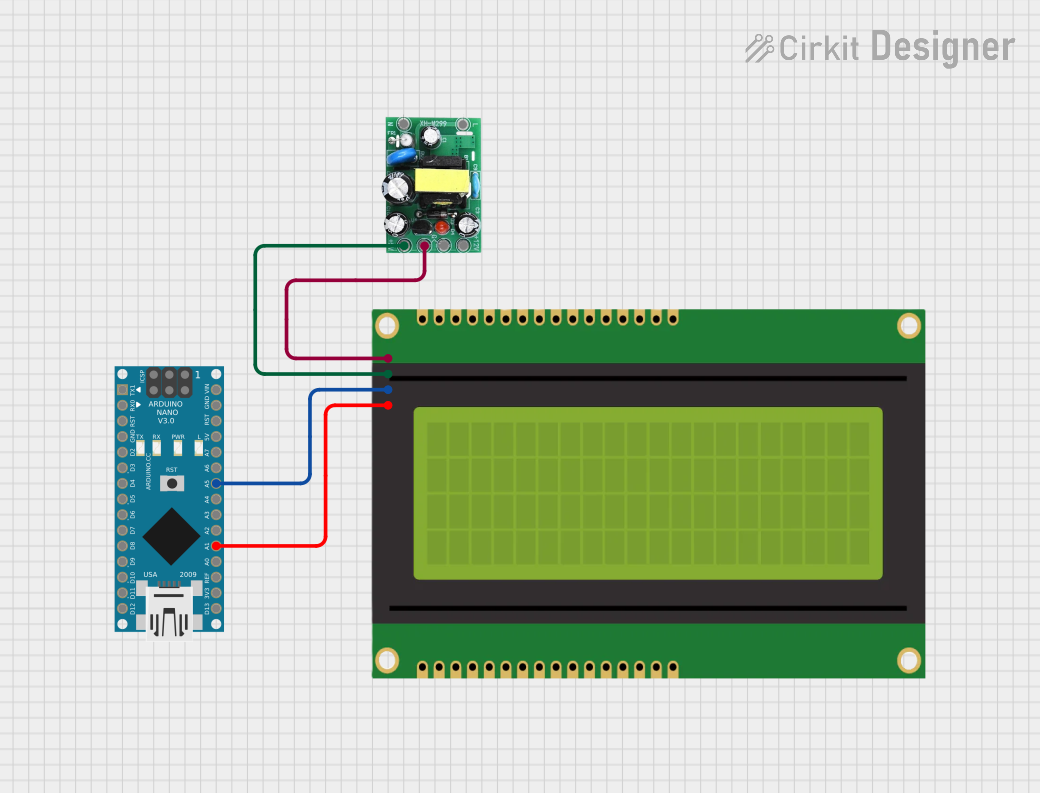 Open Project in Cirkit Designer
Explore Projects Built with Nokia 5110 LCD
Open Project in Cirkit DesignerOpen Project in Cirkit DesignerOpen Project in Cirkit DesignerOpen Project in Cirkit DesignerCommon Applications and Use Cases
- Displaying sensor data in IoT projects
- Creating graphical user interfaces for embedded systems
- Visualizing data in robotics and automation projects
- Educational projects and prototyping
Technical Specifications
The Nokia 5110 LCD is based on the PCD8544 controller, which simplifies communication with microcontrollers. Below are the key technical details:
| Parameter | Value |
|---|---|
| Resolution | 84x48 pixels |
| Operating Voltage | 2.7V to 3.3V |
| Backlight Voltage | 3.3V (optional, via resistor) |
| Communication Protocol | SPI (Serial Peripheral Interface) |
| Power Consumption | ~0.4mA (without backlight) |
| Dimensions | 43.6mm x 43.1mm x 5.8mm |
Pin Configuration and Descriptions
The Nokia 5110 LCD has 8 pins, as described in the table below:
| Pin | Name | Description |
|---|---|---|
| 1 | RST | Reset pin. Resets the display when pulled LOW. |
| 2 | CE | Chip Enable. Active LOW signal to enable communication with the display. |
| 3 | DC | Data/Command. HIGH for data, LOW for command mode. |
| 4 | DIN | Data Input. Serial data input for SPI communication. |
| 5 | CLK | Clock. Serial clock input for SPI communication. |
| 6 | VCC | Power supply. Connect to 3.3V. |
| 7 | BL | Backlight. Connect to 3.3V via a resistor (optional, for backlight control). |
| 8 | GND | Ground. Connect to the ground of the power supply. |
Usage Instructions
How to Use the Nokia 5110 LCD in a Circuit
- Power Supply: Connect the VCC pin to a 3.3V power source and the GND pin to ground.
- SPI Communication: Connect the DIN, CLK, and CE pins to the corresponding SPI pins on your microcontroller.
- Control Pins: Connect the RST and DC pins to GPIO pins on your microcontroller for reset and data/command control.
- Backlight (Optional): If you want to use the backlight, connect the BL pin to 3.3V through a current-limiting resistor (e.g., 330Ω).
Important Considerations and Best Practices
- Voltage Levels: Ensure all signal lines operate at 3.3V logic levels. If using a 5V microcontroller (e.g., Arduino UNO), use level shifters or resistors to step down the voltage.
- Backlight Power: The backlight is optional and can be omitted to save power.
- Initialization: The display requires proper initialization commands to function correctly. Use a library or write your own initialization code.
Example Code for Arduino UNO
Below is an example of how to use the Nokia 5110 LCD with an Arduino UNO. This code uses the popular Adafruit_PCD8544 library.
#include <Adafruit_GFX.h>       // Graphics library for drawing shapes and text
#include <Adafruit_PCD8544.h>   // Library for Nokia 5110 LCD

// Pin definitions for the Nokia 5110 LCD
#define RST_PIN  8  // Reset pin
#define CE_PIN   7  // Chip Enable pin
#define DC_PIN   6  // Data/Command pin
#define DIN_PIN  5  // Data Input pin
#define CLK_PIN  4  // Clock pin

// Create an instance of the display
Adafruit_PCD8544 display = Adafruit_PCD8544(CLK_PIN, DIN_PIN, DC_PIN, CE_PIN, RST_PIN);

void setup() {
  // Initialize the display
  display.begin();
  display.setContrast(50);  // Adjust contrast (0-100)

  // Clear the display buffer
  display.clearDisplay();

  // Display a message
  display.setTextSize(1);       // Set text size (1 = small, 2 = large)
  display.setTextColor(BLACK); // Set text color
  display.setCursor(0, 0);     // Set cursor position (x, y)
  display.println("Hello, World!");
  display.display();           // Update the display with the buffer content
}

void loop() {
  // Nothing to do here
}
Notes:
- Install the
Adafruit_GFXandAdafruit_PCD8544libraries via the Arduino Library Manager before running the code. - Adjust the contrast value in the
setContrast()function to suit your display.
Troubleshooting and FAQs
Common Issues and Solutions
Display Not Turning On:
- Ensure the VCC and GND pins are properly connected.
- Verify that the backlight pin (BL) is connected correctly if using the backlight.
No Output on the Screen:
- Check the SPI connections (DIN, CLK, CE) and ensure they match the microcontroller pins.
- Verify that the RST and DC pins are correctly connected and controlled in the code.
Faint or No Text/Graphics:
- Adjust the contrast using the
setContrast()function in the code. - Ensure the power supply voltage is stable and within the specified range.
- Adjust the contrast using the
Flickering or Unstable Display:
- Use shorter wires for SPI connections to reduce noise.
- Add decoupling capacitors (e.g., 0.1µF) near the VCC and GND pins.
FAQs
Q: Can I use the Nokia 5110 LCD with a 5V microcontroller?
A: Yes, but you must use level shifters or resistors to step down the 5V logic signals to 3.3V.
Q: How do I display custom graphics?
A: Use the Adafruit_GFX library to draw shapes or convert images to a bitmap format compatible with the display.
Q: Can I control the backlight brightness?
A: Yes, by connecting the BL pin to a PWM-capable pin on your microcontroller and using PWM to adjust brightness.
Q: Is the display suitable for outdoor use?
A: The Nokia 5110 LCD is not designed for outdoor use and may be difficult to read in bright sunlight.
This concludes the documentation for the Nokia 5110 LCD.