
How to Use LED RGB: Examples, Pinouts, and Specs

 Design with LED RGB in Cirkit Designer
Introduction
The RGB LED is a Light Emitting Diode capable of emitting multiple colors by combining red, green, and blue light at varying intensities. Manufactured by Arduino with the part ID "Uno," this versatile component is widely used in applications such as displays, status indicators, and decorative lighting. By adjusting the brightness of each color channel, users can create a wide spectrum of colors, making it ideal for projects requiring dynamic lighting effects.
Explore Projects Built with LED RGB
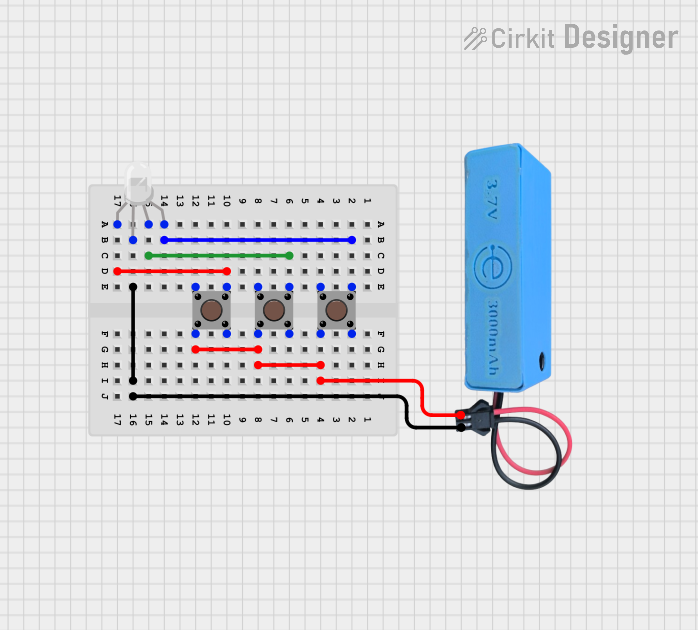 Open Project in Cirkit Designer
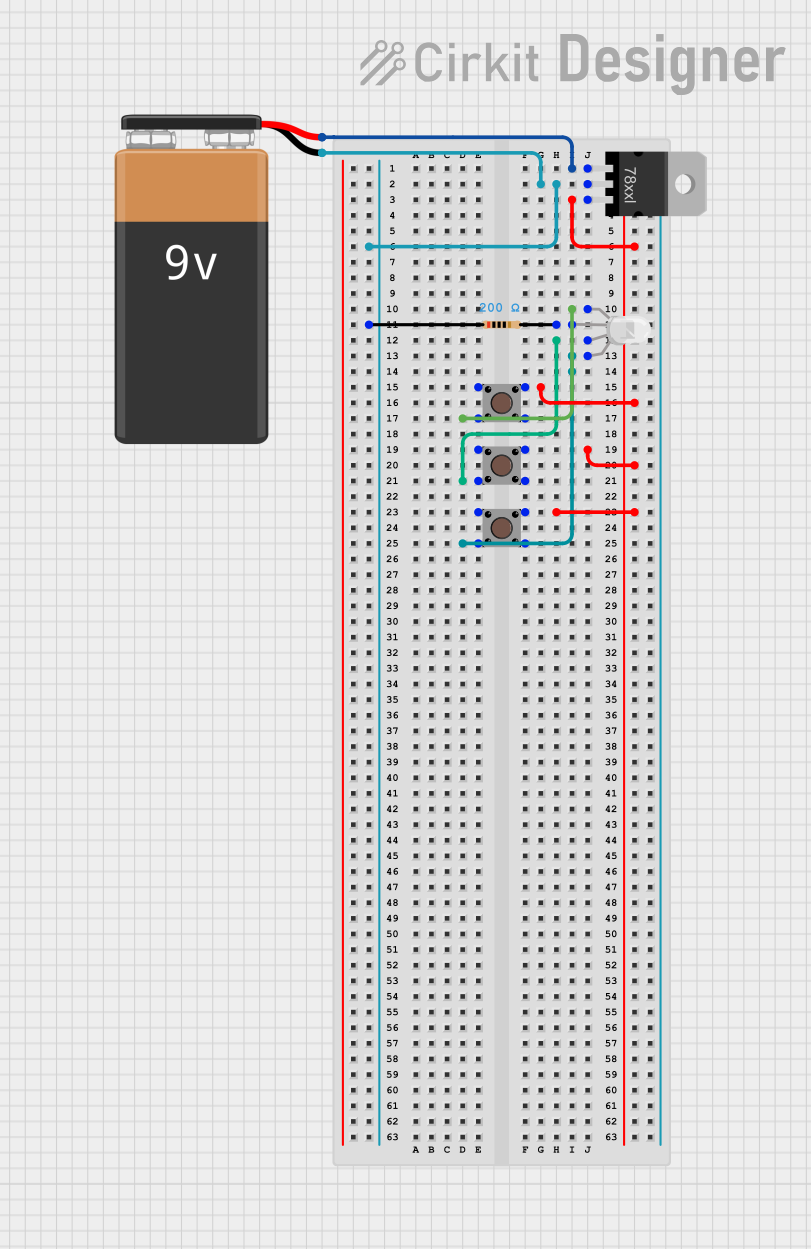 Open Project in Cirkit Designer
 Open Project in Cirkit Designer
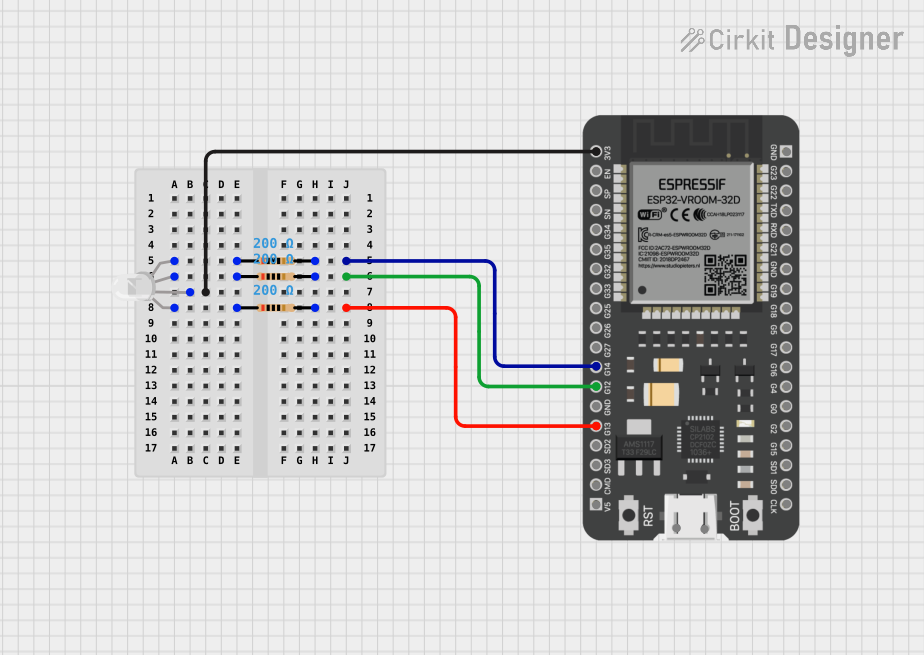 Open Project in Cirkit Designer
Explore Projects Built with LED RGB
Open Project in Cirkit DesignerOpen Project in Cirkit DesignerOpen Project in Cirkit DesignerOpen Project in Cirkit DesignerTechnical Specifications
- Manufacturer: Arduino
- Part ID: Uno
- Type: RGB LED (Common Cathode or Common Anode)
- Forward Voltage:
- Red: 1.8V - 2.2V
- Green: 3.0V - 3.2V
- Blue: 3.0V - 3.2V
- Forward Current: 20mA (per color channel)
- Power Dissipation: ~60mW (maximum)
- Viewing Angle: 120°
- Lifespan: ~50,000 hours
Pin Configuration and Descriptions
The RGB LED typically has four pins. The configuration depends on whether it is a Common Cathode or Common Anode type.
| Pin Number | Pin Name | Description |
|---|---|---|
| 1 | Red (R) | Controls the red color channel. Connect to a current-limiting resistor. |
| 2 | Common Cathode/Anode | Common connection for all LEDs. Cathode (-) for Common Cathode, Anode (+) for Common Anode. |
| 3 | Green (G) | Controls the green color channel. Connect to a current-limiting resistor. |
| 4 | Blue (B) | Controls the blue color channel. Connect to a current-limiting resistor. |
Note: Always use appropriate resistors to limit current and prevent damage to the LED.
Usage Instructions
How to Use the RGB LED in a Circuit
- Identify the Type: Determine whether your RGB LED is Common Cathode or Common Anode.
- Connect the Pins:
- For a Common Cathode LED, connect the cathode pin to ground (GND).
- For a Common Anode LED, connect the anode pin to the positive voltage supply (VCC).
- Use Resistors: Connect a resistor (typically 220Ω to 330Ω) in series with each color channel (Red, Green, Blue) to limit the current.
- Control the Colors: Use a microcontroller (e.g., Arduino Uno) or external circuitry to control the brightness of each channel via Pulse Width Modulation (PWM).
Example: Connecting to an Arduino Uno
Below is an example of how to connect and control an RGB LED using an Arduino Uno.
Circuit Diagram
- Connect the Red, Green, and Blue pins of the RGB LED to Arduino PWM pins (e.g., pins 9, 10, and 11) through 220Ω resistors.
- Connect the Common Cathode pin to GND.
Arduino Code
// Define the RGB LED pins
const int redPin = 9;   // Red channel connected to pin 9
const int greenPin = 10; // Green channel connected to pin 10
const int bluePin = 11;  // Blue channel connected to pin 11

void setup() {
  // Set the RGB pins as output
  pinMode(redPin, OUTPUT);
  pinMode(greenPin, OUTPUT);
  pinMode(bluePin, OUTPUT);
}

void loop() {
  // Example: Cycle through colors
  setColor(255, 0, 0);  // Red
  delay(1000);          // Wait 1 second
  setColor(0, 255, 0);  // Green
  delay(1000);          // Wait 1 second
  setColor(0, 0, 255);  // Blue
  delay(1000);          // Wait 1 second
  setColor(255, 255, 0); // Yellow
  delay(1000);          // Wait 1 second
}

// Function to set RGB LED color
void setColor(int red, int green, int blue) {
  analogWrite(redPin, red);   // Set red channel brightness
  analogWrite(greenPin, green); // Set green channel brightness
  analogWrite(bluePin, blue);  // Set blue channel brightness
}
Important Considerations and Best Practices
- Resistor Selection: Always use appropriate resistors to limit current and prevent damage to the LED.
- PWM Control: Use PWM pins on the Arduino to control brightness and create smooth color transitions.
- Heat Management: Avoid exceeding the maximum current rating to prevent overheating.
- Common Cathode vs. Common Anode: Ensure your circuit matches the type of RGB LED you are using.
Troubleshooting and FAQs
Common Issues
LED Not Lighting Up:
- Check the connections and ensure the correct pin configuration.
- Verify that the resistors are properly connected and not too high in value.
- Ensure the LED is not damaged by testing it with a multimeter.
Incorrect Colors:
- Verify the pin connections for each color channel.
- Check the code to ensure the correct PWM values are being sent.
Dim or Flickering Light:
- Ensure the power supply provides sufficient current.
- Check for loose connections or faulty resistors.
FAQs
Q: Can I use the RGB LED without a microcontroller?
A: Yes, you can use simple switches or potentiometers to control the brightness of each channel manually.
Q: How do I create custom colors?
A: By adjusting the PWM values for the red, green, and blue channels, you can mix colors to create a wide spectrum.
Q: What happens if I connect the LED without resistors?
A: Without resistors, the LED may draw excessive current, leading to overheating and permanent damage.
Q: Can I use the RGB LED with a 3.3V microcontroller?
A: Yes, but ensure the forward voltage of each channel is compatible, and adjust resistor values accordingly.
This documentation provides a comprehensive guide to using the Arduino RGB LED (part ID: Uno) effectively in your projects.