
How to Use Nextion display: Examples, Pinouts, and Specs
 Design with Nextion display in Cirkit Designer
Introduction
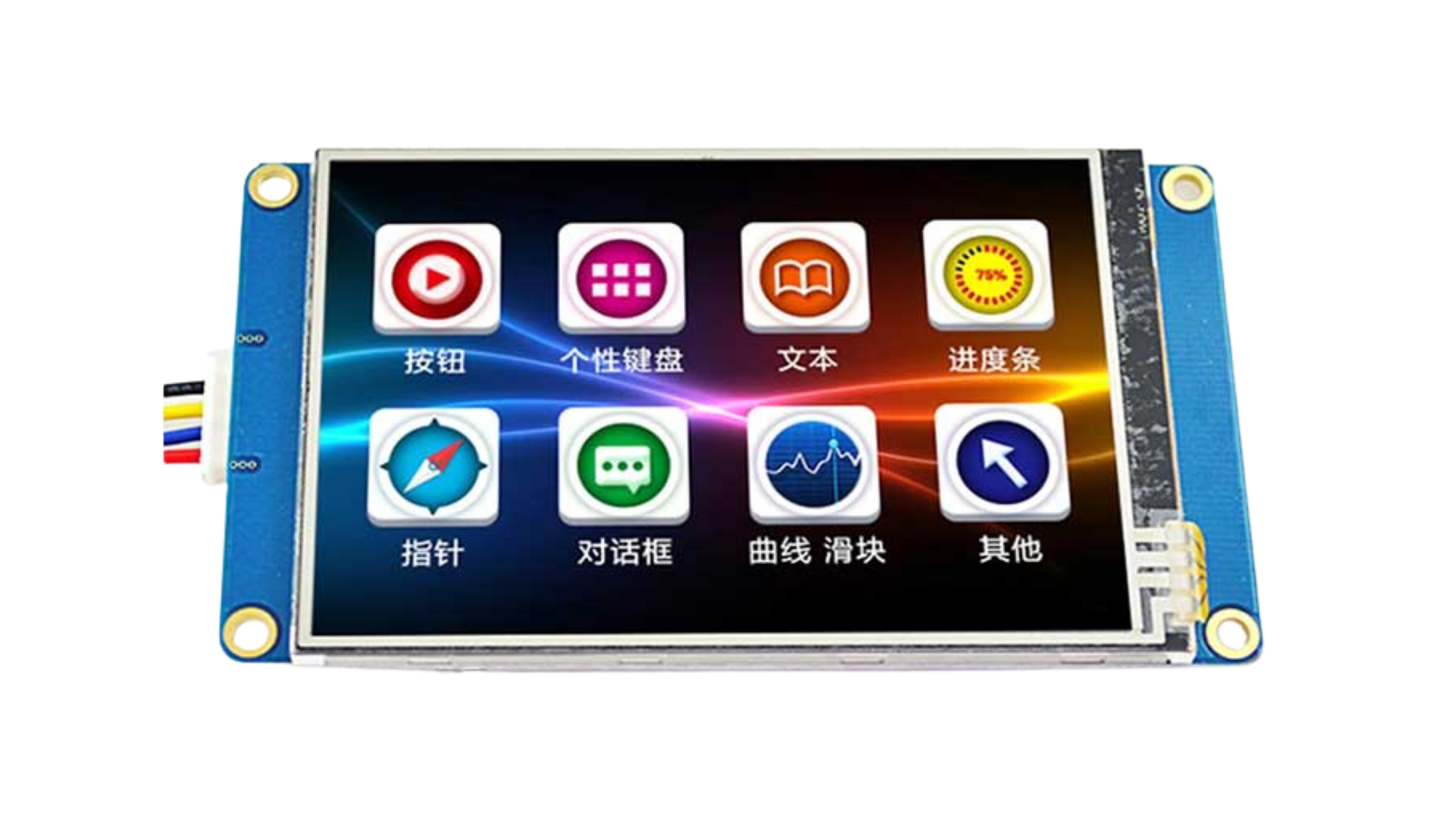
The Nextion display is a smart display module that integrates a touchscreen interface with a built-in microcontroller. It is designed to simplify the process of creating graphical user interfaces (GUIs) for embedded systems. By offloading the GUI processing to the display itself, the Nextion module reduces the workload on the host microcontroller or microprocessor.
Nextion displays are widely used in applications such as:
- Home automation systems
- Industrial control panels
- IoT devices
- Medical equipment
- Automotive dashboards
- Consumer electronics
With its user-friendly Nextion Editor software, developers can design and program GUIs without requiring advanced programming skills.
Explore Projects Built with Nextion display
 Open Project in Cirkit Designer
 Open Project in Cirkit Designer
 Open Project in Cirkit Designer
 Open Project in Cirkit Designer
Explore Projects Built with Nextion display
Open Project in Cirkit DesignerOpen Project in Cirkit DesignerOpen Project in Cirkit DesignerOpen Project in Cirkit DesignerTechnical Specifications
Below are the key technical details for the Nextion display (specific values may vary depending on the model):
| Parameter | Specification |
|---|---|
| Display Type | TFT LCD with resistive or capacitive touchscreen |
| Screen Sizes | 2.4", 2.8", 3.2", 3.5", 4.3", 5.0", 7.0", etc. |
| Resolution | 320x240 (QVGA) to 1024x600 (depending on model) |
| Communication Interface | UART (TTL, 3.3V or 5V logic levels) |
| Input Voltage | 4.75V to 7V (via external power supply) |
| Power Consumption | ~200mA (varies by model and brightness settings) |
| Flash Memory | 4MB to 16MB (for GUI storage) |
| RAM | 3584 bytes |
| Operating Temperature | -20°C to 70°C |
| Touchscreen Type | Resistive or Capacitive (model-dependent) |
Pin Configuration and Descriptions
The Nextion display typically has a 4-pin interface for communication and power:
| Pin | Name | Description |
|---|---|---|
| 1 | VCC | Power supply input (4.75V to 7V) |
| 2 | GND | Ground |
| 3 | TX | UART Transmit (data sent from Nextion to host) |
| 4 | RX | UART Receive (data sent from host to Nextion) |
Usage Instructions
Connecting the Nextion Display to an Arduino UNO
To use the Nextion display with an Arduino UNO, follow these steps:
Wiring:
- Connect the
VCCpin of the Nextion display to the 5V pin on the Arduino. - Connect the
GNDpin of the Nextion display to the GND pin on the Arduino. - Connect the
TXpin of the Nextion display to the Arduino's digital pin 2 (via a voltage divider if required). - Connect the
RXpin of the Nextion display to the Arduino's digital pin 3.
- Connect the
Install the Nextion Library:
- Download and install the official Nextion library from the Arduino IDE Library Manager.
Design the GUI:
- Use the Nextion Editor software to design your GUI. Upload the
.tftfile to the display using a microSD card.
- Use the Nextion Editor software to design your GUI. Upload the
Arduino Code Example: Below is an example code snippet to display a message on the Nextion display:
#include <Nextion.h> // Define Nextion objects (page ID, component ID, component name) NexText t0 = NexText(0, 1, "t0"); // Textbox on page 0, ID 1, named "t0" // Define software serial for communication #include <SoftwareSerial.h> SoftwareSerial nextion(2, 3); // RX, TX void setup() { // Initialize serial communication with Nextion nextion.begin(9600); Serial.begin(9600); // Initialize the Nextion library nexInit(); // Set initial text on the display t0.setText("Hello, Nextion!"); } void loop() { // Handle any incoming events from the Nextion display nexLoop(nex_listen_list); }Note: Ensure the baud rate in the Nextion Editor matches the baud rate in the Arduino code.
Important Considerations and Best Practices
- Power Supply: Use a stable power source to avoid display flickering or unexpected resets.
- Voltage Levels: Ensure the UART communication voltage levels match (3.3V or 5V). Use a voltage divider or level shifter if necessary.
- GUI Design: Optimize your GUI design to minimize memory usage and improve performance.
- Debugging: Use the Nextion Editor's simulator to test your GUI before uploading it to the hardware.
Troubleshooting and FAQs
Common Issues and Solutions
Display Not Powering On:
- Verify the power supply voltage and current are within the specified range.
- Check the wiring connections for loose or incorrect connections.
No Communication Between Arduino and Nextion:
- Ensure the TX and RX pins are correctly connected.
- Verify the baud rate in the Arduino code matches the Nextion display settings.
- Check for proper grounding between the Arduino and the Nextion display.
GUI Not Displaying Correctly:
- Confirm the
.tftfile was uploaded correctly to the display via the microSD card. - Ensure the GUI design is compatible with the display's resolution.
- Confirm the
Touchscreen Not Responding:
- Check if the touchscreen type (resistive or capacitive) matches your expectations.
- Verify the GUI design includes touch-enabled components.
FAQs
Q: Can I use the Nextion display with other microcontrollers?
A: Yes, the Nextion display can be used with any microcontroller or microprocessor that supports UART communication, such as ESP32, Raspberry Pi, or STM32.
Q: How do I update the firmware on the Nextion display?
A: Use the Nextion Editor to generate a .tft file and upload it to the display via a microSD card.
Q: Can I use multiple Nextion displays in a single project?
A: Yes, you can use multiple displays by connecting them to separate UART ports or using a multiplexer.
Q: Is the Nextion Editor software free?
A: Yes, the Nextion Editor is free to download and use for designing GUIs.