
How to Use W5100 Ethernet Controller: Examples, Pinouts, and Specs

 Design with W5100 Ethernet Controller in Cirkit Designer
Introduction
The W5100 Ethernet Controller is a network interface controller designed to simplify the process of connecting microcontrollers to the internet via Ethernet. It features an integrated TCP/IP stack, which eliminates the need for external software to handle network protocols. The W5100 supports up to four simultaneous socket connections, making it ideal for applications requiring multiple network communications.
Explore Projects Built with W5100 Ethernet Controller
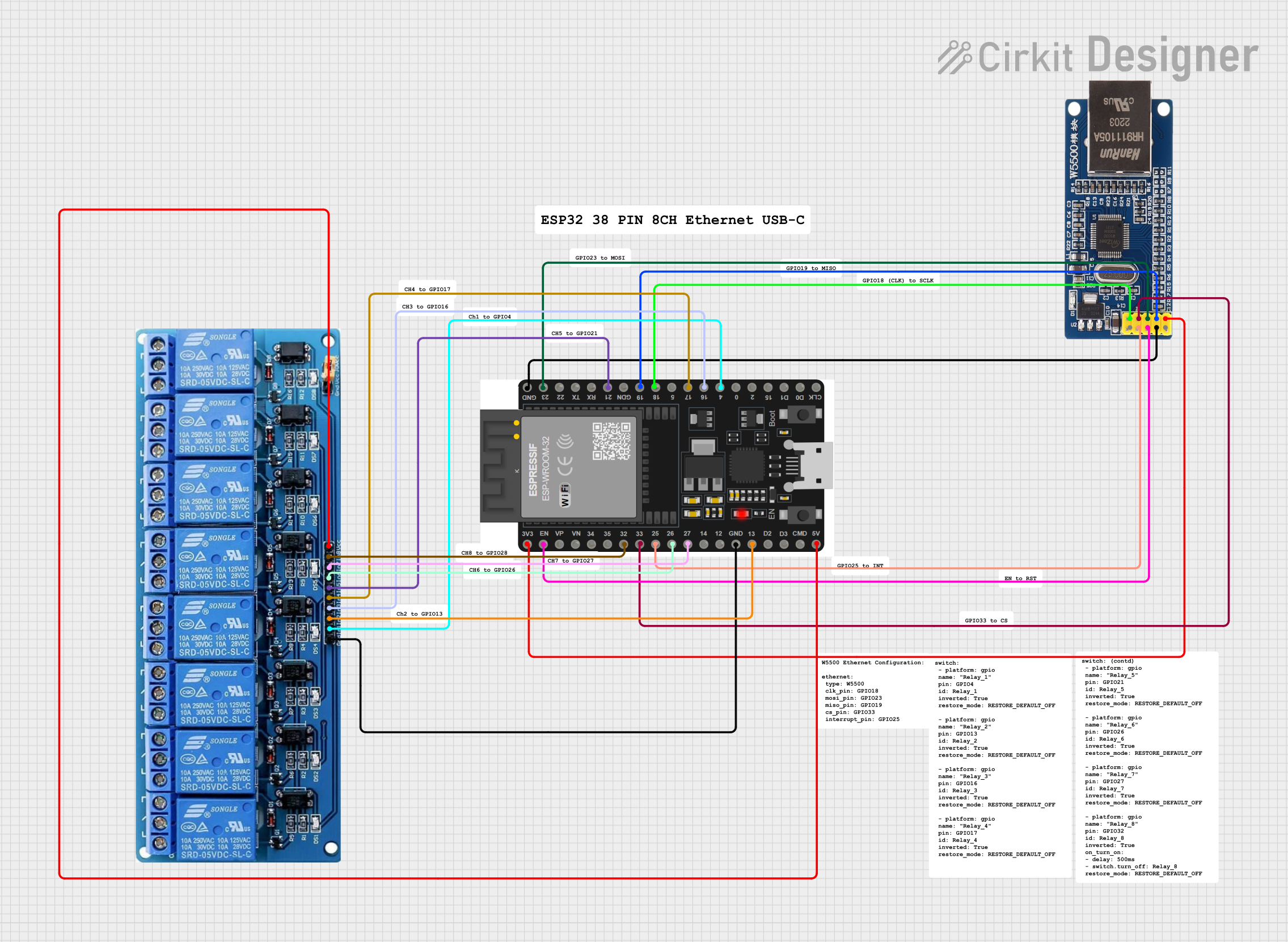 Open Project in Cirkit Designer
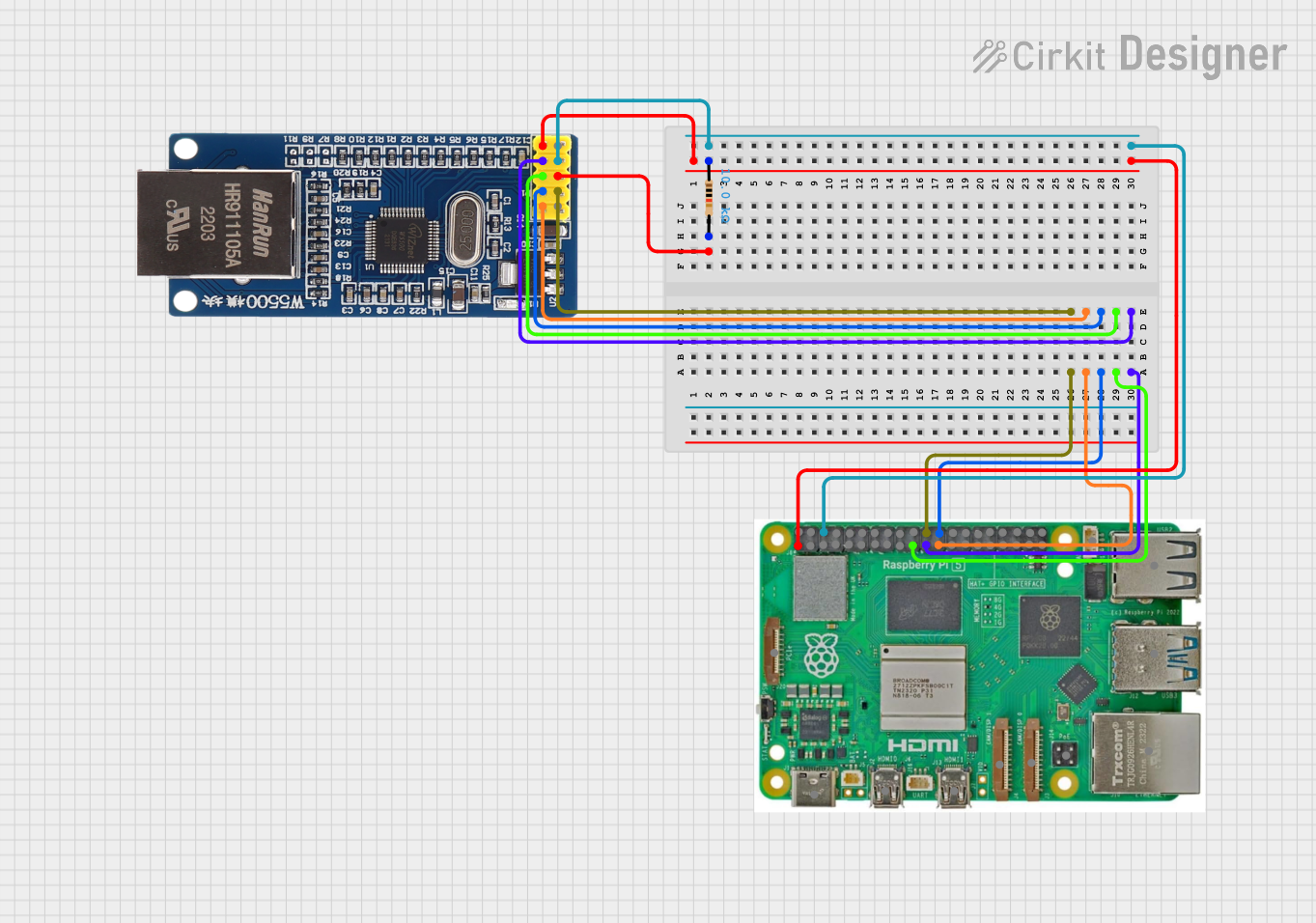 Open Project in Cirkit Designer
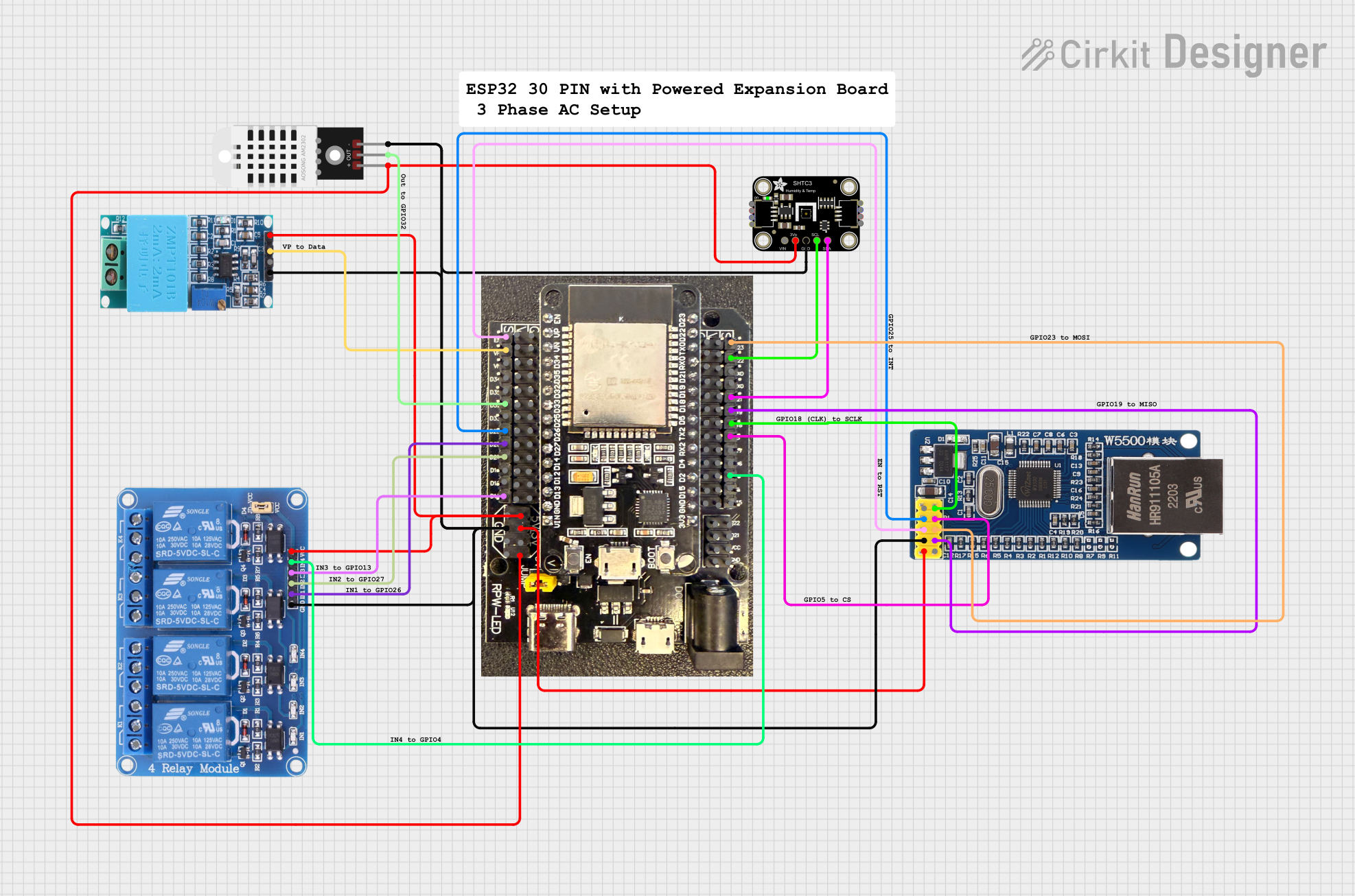 Open Project in Cirkit Designer
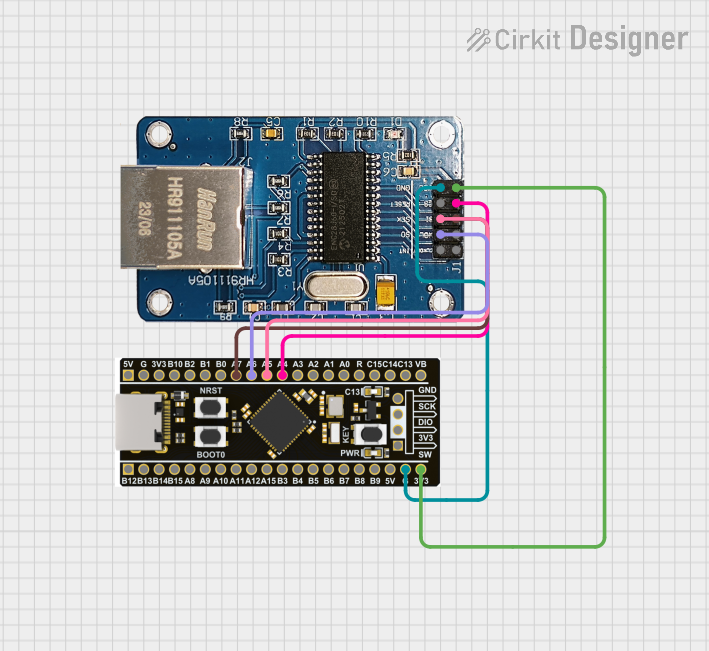 Open Project in Cirkit Designer
Explore Projects Built with W5100 Ethernet Controller
Open Project in Cirkit DesignerOpen Project in Cirkit DesignerOpen Project in Cirkit DesignerOpen Project in Cirkit DesignerCommon Applications and Use Cases
- IoT (Internet of Things) devices
- Home automation systems
- Web servers and data logging
- Remote monitoring and control
- Industrial automation and networking
Technical Specifications
The W5100 Ethernet Controller is a robust and versatile component with the following key specifications:
| Parameter | Value |
|---|---|
| Operating Voltage | 3.3V (5V tolerant I/O pins) |
| Power Consumption | 132 mA (typical) |
| Communication Protocol | SPI (Serial Peripheral Interface) |
| Ethernet Speed | 10/100 Mbps |
| Socket Connections | Up to 4 simultaneous sockets |
| Integrated Features | TCP/IP stack, MAC, and PHY |
| Package Type | LQFP-48 |
Pin Configuration and Descriptions
The W5100 comes in a 48-pin LQFP package. Below is a summary of the key pins:
| Pin Name | Pin Number | Description |
|---|---|---|
| VCC | 1 | Power supply input (3.3V) |
| GND | 2, 25 | Ground |
| SCSn | 10 | SPI chip select (active low) |
| SCLK | 11 | SPI clock input |
| MOSI | 12 | SPI master-out, slave-in |
| MISO | 13 | SPI master-in, slave-out |
| RESET | 15 | Reset input (active low) |
| INTn | 16 | Interrupt output (active low) |
| TX+ | 43 | Ethernet transmit positive |
| TX- | 44 | Ethernet transmit negative |
| RX+ | 45 | Ethernet receive positive |
| RX- | 46 | Ethernet receive negative |
For a complete pinout, refer to the W5100 datasheet.
Usage Instructions
How to Use the W5100 in a Circuit
- Power Supply: Connect the VCC pin to a 3.3V power source and GND to ground. Ensure proper decoupling capacitors are placed near the power pins.
- SPI Communication: Connect the SPI pins (SCSn, SCLK, MOSI, MISO) to the corresponding SPI pins on your microcontroller. Use a pull-up resistor on the SCSn pin if necessary.
- Ethernet Connection: Connect the TX+/TX- and RX+/RX- pins to an Ethernet transformer and RJ45 connector for network communication.
- Reset: Use the RESET pin to initialize the W5100. Pull it low momentarily to reset the device.
- Interrupts: Optionally, connect the INTn pin to a microcontroller GPIO pin to handle interrupts.
Important Considerations and Best Practices
- Voltage Levels: While the W5100 operates at 3.3V, its I/O pins are 5V tolerant, making it compatible with 5V microcontrollers.
- SPI Speed: Ensure the SPI clock speed does not exceed 14 MHz for reliable communication.
- Ethernet Transformer: Use a suitable Ethernet transformer to isolate the W5100 from the Ethernet cable.
- Heat Dissipation: The W5100 can generate heat during operation. Ensure proper ventilation or heat sinking if used in high-temperature environments.
Example: Using the W5100 with Arduino UNO
The W5100 is commonly used with Arduino boards for Ethernet-based projects. Below is an example of how to use the W5100 with an Arduino UNO:
Circuit Connections
- Connect the W5100 SPI pins (SCSn, SCLK, MOSI, MISO) to the Arduino's SPI pins:
- SCSn → Pin 10 (SS)
- SCLK → Pin 13 (SCK)
- MOSI → Pin 11 (MOSI)
- MISO → Pin 12 (MISO)
- Connect the RESET pin to the Arduino's RESET pin.
- Connect the VCC and GND pins to the Arduino's 3.3V and GND pins, respectively.
Arduino Code Example
#include <SPI.h>
#include <Ethernet.h>

// MAC address for the Ethernet shield
byte mac[] = { 0xDE, 0xAD, 0xBE, 0xEF, 0xFE, 0xED };

// IP address for the device
IPAddress ip(192, 168, 1, 177);

// Initialize the Ethernet server on port 80
EthernetServer server(80);

void setup() {
  // Start the Ethernet connection
  Ethernet.begin(mac, ip);

  // Start the server
  server.begin();

  // Print the IP address to the serial monitor
  Serial.begin(9600);
  Serial.print("Server is at ");
  Serial.println(Ethernet.localIP());
}

void loop() {
  // Listen for incoming clients
  EthernetClient client = server.available();
  if (client) {
    Serial.println("New client connected");
    while (client.connected()) {
      if (client.available()) {
        char c = client.read();
        Serial.write(c); // Echo the received data to the serial monitor

        // Respond to the client
        client.println("HTTP/1.1 200 OK");
        client.println("Content-Type: text/html");
        client.println();
        client.println("<h1>Hello from W5100!</h1>");
        break;
      }
    }
    // Close the connection
    client.stop();
    Serial.println("Client disconnected");
  }
}
Troubleshooting and FAQs
Common Issues and Solutions
No Ethernet Connection:
- Ensure the Ethernet cable is properly connected.
- Verify the IP address and network settings in the code.
- Check the Ethernet transformer and RJ45 connections.
SPI Communication Failure:
- Verify the SPI connections between the W5100 and the microcontroller.
- Ensure the SPI clock speed is within the W5100's specifications.
- Check for loose or damaged wires.
Device Overheating:
- Ensure proper ventilation or use a heat sink.
- Check for excessive current draw in the circuit.
Interrupts Not Working:
- Verify the INTn pin is correctly connected to the microcontroller.
- Ensure the interrupt is properly configured in the microcontroller's code.
FAQs
Q: Can the W5100 work with 5V microcontrollers?
A: Yes, the W5100's I/O pins are 5V tolerant, making it compatible with 5V microcontrollers like the Arduino UNO.
Q: How many devices can the W5100 communicate with simultaneously?
A: The W5100 supports up to four simultaneous socket connections.
Q: What is the maximum Ethernet speed supported by the W5100?
A: The W5100 supports 10/100 Mbps Ethernet speeds.
Q: Do I need an external TCP/IP stack to use the W5100?
A: No, the W5100 has a built-in TCP/IP stack, simplifying network communication.