
Cirkit Designer
Your all-in-one circuit design IDE
Home /
Component Documentation
How to Use LCD 16x2 attached i2c: Examples, Pinouts, and Specs
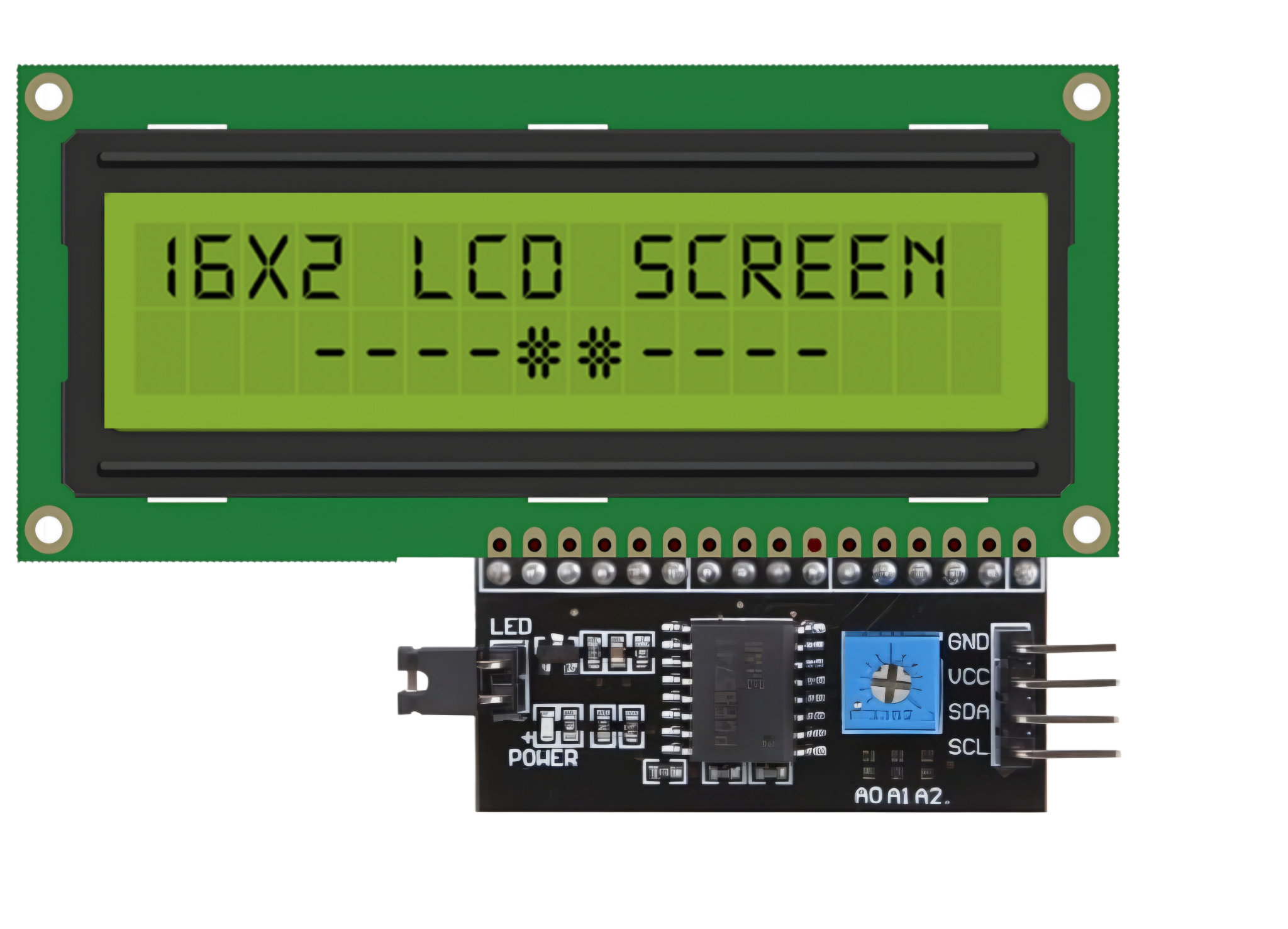
 Design with LCD 16x2 attached i2c in Cirkit Designer
Introduction
The LCD 16x2 with I2C interface is a 16-character by 2-line alphanumeric display module. It features an integrated I2C (Inter-Integrated Circuit) communication interface, which significantly reduces the number of pins required to connect the display to a microcontroller. This makes it an ideal choice for projects where pin availability is limited or where simplified wiring is desired.
Explore Projects Built with LCD 16x2 attached i2c
I2C LCD Display Module with Power Supply Interface
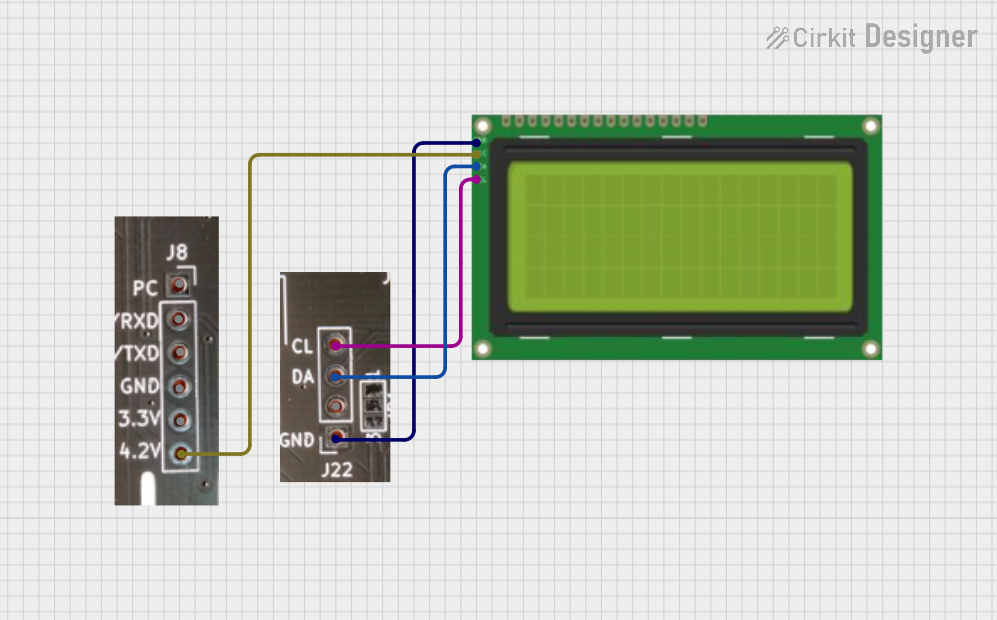
This circuit interfaces a 20x4 I2C LCD display with a power source and an I2C communication bus. The LCD is powered by a 4.2V supply from a connector and communicates via I2C through another connector, which provides the SCL and SDA lines as well as ground.
Open Project in Cirkit DesignerArduino Leonardo Controlled LCD Display with I2C Interface
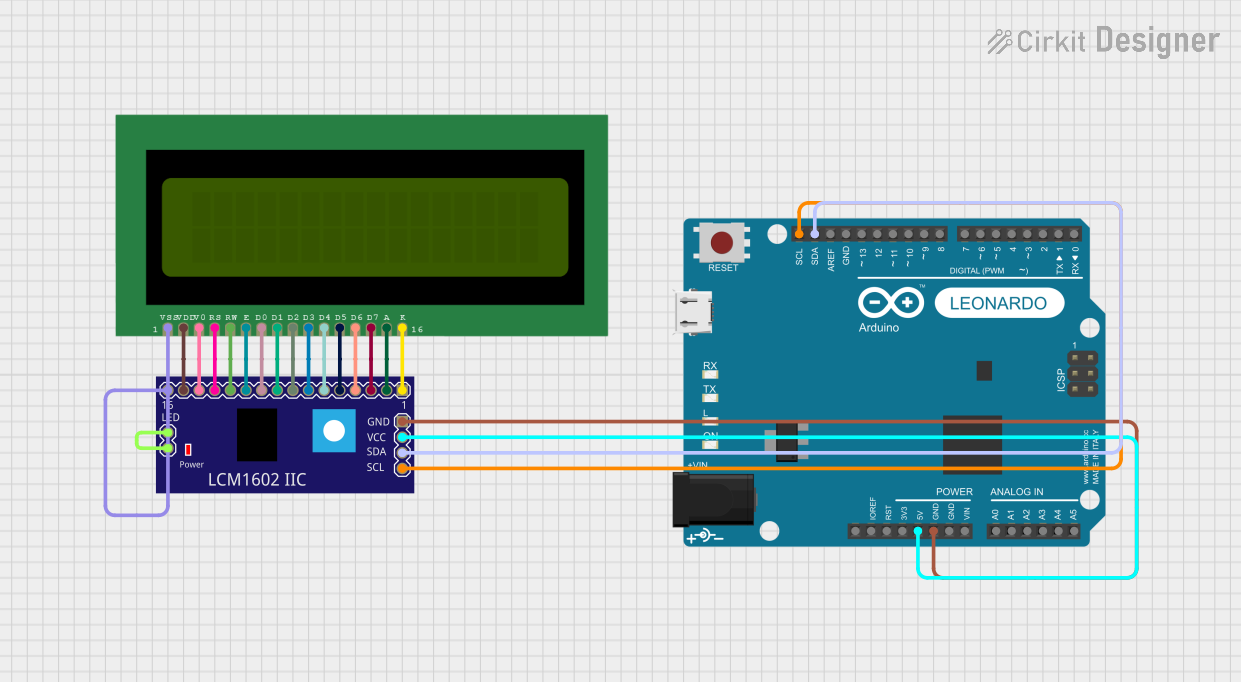
This circuit connects an Arduino Leonardo microcontroller to a 16x2 LCD display via an LCM1602 IIC interface module, enabling the display of text on the LCD. The Arduino is programmed to display the messages 'TEST LCD i2C' and 'KelasRobot.com' on the LCD. The IIC module facilitates communication between the Arduino and the LCD using the I2C protocol, simplifying the wiring and pin usage.
Open Project in Cirkit DesignerA-Star 32U4 Mini and I2C LCD Screen Battery-Powered Display
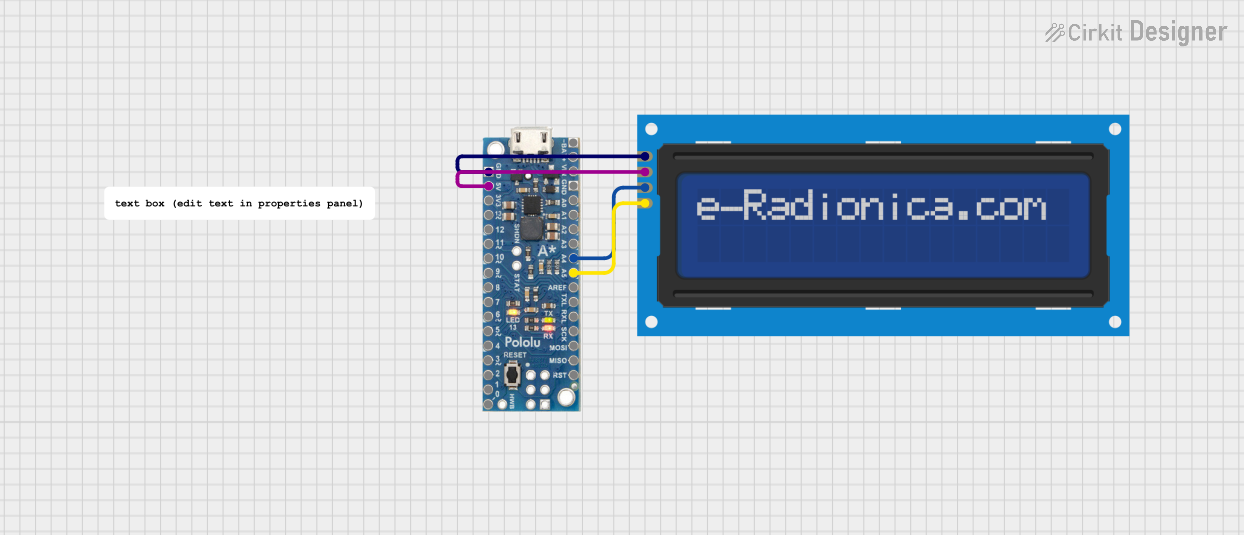
This circuit features an A-Star 32U4 Mini microcontroller connected to a 16x2 I2C LCD screen. The microcontroller provides power and ground to the LCD, and communicates with it via the I2C protocol using the A4 (SDA) and A5 (SCL) pins.
Open Project in Cirkit DesignerArduino Mega 2560 I2C LCD Display Interface
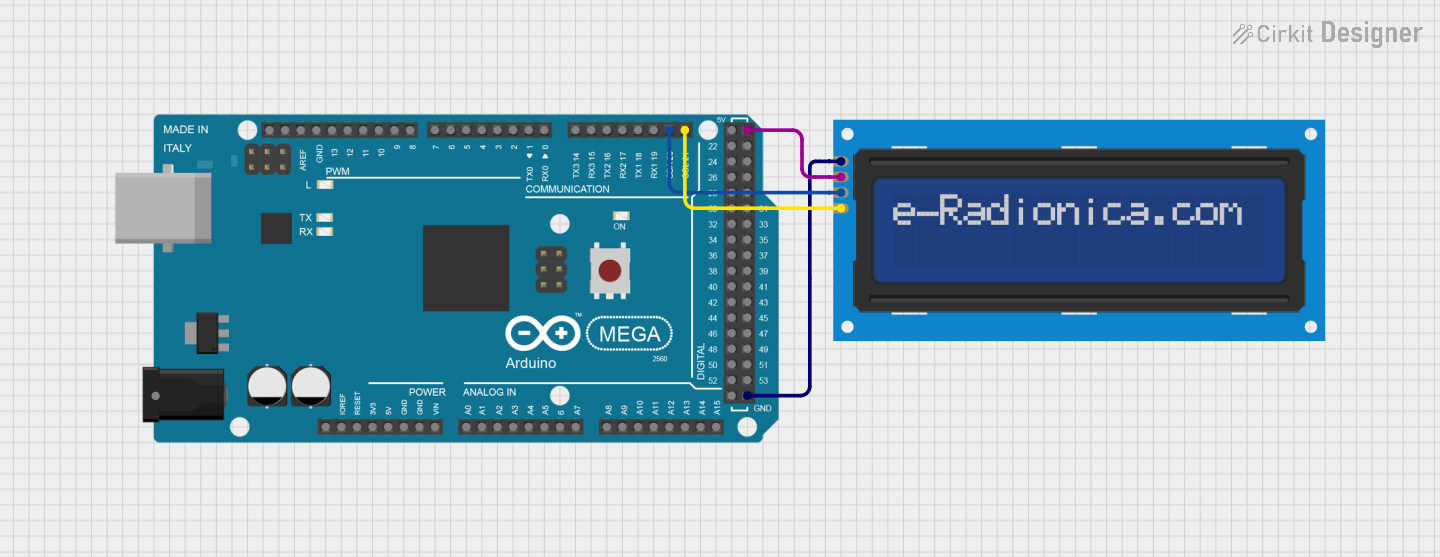
This circuit consists of an Arduino Mega 2560 microcontroller connected to a 16x2 I2C LCD screen. The LCD screen is powered by the Arduino's 5V and GND pins, and communicates with the Arduino via the I2C protocol using the SCL and SDA pins.
Open Project in Cirkit DesignerExplore Projects Built with LCD 16x2 attached i2c
I2C LCD Display Module with Power Supply Interface
This circuit interfaces a 20x4 I2C LCD display with a power source and an I2C communication bus. The LCD is powered by a 4.2V supply from a connector and communicates via I2C through another connector, which provides the SCL and SDA lines as well as ground.
Open Project in Cirkit DesignerArduino Leonardo Controlled LCD Display with I2C Interface
This circuit connects an Arduino Leonardo microcontroller to a 16x2 LCD display via an LCM1602 IIC interface module, enabling the display of text on the LCD. The Arduino is programmed to display the messages 'TEST LCD i2C' and 'KelasRobot.com' on the LCD. The IIC module facilitates communication between the Arduino and the LCD using the I2C protocol, simplifying the wiring and pin usage.
Open Project in Cirkit DesignerA-Star 32U4 Mini and I2C LCD Screen Battery-Powered Display
This circuit features an A-Star 32U4 Mini microcontroller connected to a 16x2 I2C LCD screen. The microcontroller provides power and ground to the LCD, and communicates with it via the I2C protocol using the A4 (SDA) and A5 (SCL) pins.
Open Project in Cirkit DesignerArduino Mega 2560 I2C LCD Display Interface
This circuit consists of an Arduino Mega 2560 microcontroller connected to a 16x2 I2C LCD screen. The LCD screen is powered by the Arduino's 5V and GND pins, and communicates with the Arduino via the I2C protocol using the SCL and SDA pins.
Open Project in Cirkit DesignerCommon Applications and Use Cases
- Displaying sensor readings in real-time
- User interfaces for embedded systems
- Menu systems for microcontroller-based projects
- Educational and prototyping purposes
- IoT devices requiring simple text output
Technical Specifications
Key Technical Details
- Display Type: 16x2 character LCD
- Interface: I2C (2-wire communication)
- Operating Voltage: 5V DC
- Backlight: LED (usually white or green)
- Contrast Adjustment: Via onboard potentiometer
- I2C Address: Typically
0x27or0x3F(configurable on some modules) - Dimensions: Approximately 80mm x 36mm x 12mm
- Operating Temperature: -20°C to +70°C
Pin Configuration and Descriptions
The I2C interface reduces the connection to just four pins:
| Pin Name | Description | Connection to Microcontroller |
|---|---|---|
| VCC | Power supply (5V) | 5V |
| GND | Ground | GND |
| SDA | Serial Data Line for I2C | Connect to I2C SDA pin |
| SCL | Serial Clock Line for I2C | Connect to I2C SCL pin |
Usage Instructions
How to Use the Component in a Circuit
- Wiring: Connect the LCD module to your microcontroller as follows:
- VCC to the 5V pin of the microcontroller.
- GND to the ground pin of the microcontroller.
- SDA to the SDA pin of the microcontroller (e.g., A4 on Arduino UNO).
- SCL to the SCL pin of the microcontroller (e.g., A5 on Arduino UNO).
- Install Required Libraries:
- Use the Arduino IDE Library Manager to install the
LiquidCrystal_I2Clibrary.
- Use the Arduino IDE Library Manager to install the
- Adjust the I2C Address:
- Check the I2C address of your module (commonly
0x27or0x3F). If unsure, use an I2C scanner sketch to determine the address.
- Check the I2C address of your module (commonly
Example Code for Arduino UNO
#include <Wire.h>
#include <LiquidCrystal_I2C.h>

// Initialize the LCD with the I2C address (e.g., 0x27) and dimensions (16x2)
LiquidCrystal_I2C lcd(0x27, 16, 2);

void setup() {
  lcd.init(); // Initialize the LCD
  lcd.backlight(); // Turn on the backlight

  // Display a welcome message
  lcd.setCursor(0, 0); // Set cursor to the first row, first column
  lcd.print("Hello, World!"); // Print text on the first row
  lcd.setCursor(0, 1); // Set cursor to the second row, first column
  lcd.print("I2C LCD Ready!"); // Print text on the second row
}

void loop() {
  // Example: Update the display with a counter
  static int counter = 0;
  lcd.setCursor(0, 1); // Set cursor to the second row
  lcd.print("Count: "); // Print label
  lcd.print(counter++); // Print the counter value
  delay(1000); // Wait for 1 second
}
Important Considerations and Best Practices
- Power Supply: Ensure the module is powered with 5V. Using incorrect voltage may damage the display.
- Contrast Adjustment: Use the onboard potentiometer to adjust the contrast for optimal visibility.
- I2C Address Conflicts: If multiple I2C devices are connected, ensure each has a unique address.
- Backlight Control: Some modules allow backlight control via software. Use
lcd.backlight()to turn it on andlcd.noBacklight()to turn it off.
Troubleshooting and FAQs
Common Issues and Solutions
No Display Output:
- Verify the wiring connections (VCC, GND, SDA, SCL).
- Check the I2C address and ensure it matches the one in your code.
- Adjust the contrast potentiometer.
Garbage Characters on Display:
- Ensure the correct library (
LiquidCrystal_I2C) is installed and used. - Double-check the I2C address.
- Ensure the correct library (
Backlight Not Working:
- Confirm that the backlight control pin is properly configured in the library.
- Check for any physical damage to the module.
I2C Communication Errors:
- Use an I2C scanner sketch to confirm the module's address.
- Ensure pull-up resistors are present on the SDA and SCL lines (most modules include them).
FAQs
Q: Can I use this module with a 3.3V microcontroller?
- A: Yes, but you may need a logic level shifter for the SDA and SCL lines.
Q: How do I find the I2C address of my module?
- A: Use an I2C scanner sketch available in the Arduino IDE examples.
Q: Can I display custom characters?
- A: Yes, the
LiquidCrystal_I2Clibrary supports custom character creation.
- A: Yes, the
Q: Is it possible to control multiple LCDs with one microcontroller?
- A: Yes, as long as each LCD has a unique I2C address.