
How to Use LUX Sensor: Examples, Pinouts, and Specs
 Design with LUX Sensor in Cirkit Designer
Introduction
A LUX sensor is an electronic component designed to measure the intensity of light in a given environment, typically in lux units. Lux is a standard unit of illuminance, representing the amount of light per unit area. These sensors are widely used in applications such as automatic lighting control, environmental monitoring, photography, and agriculture. By providing real-time light intensity data, LUX sensors enable systems to adapt to changing lighting conditions efficiently.
Common applications include:
- Automatic brightness adjustment in displays and lighting systems
- Smart home automation for energy-efficient lighting
- Monitoring light levels in greenhouses or outdoor environments
- Photography and videography for optimal exposure settings
Explore Projects Built with LUX Sensor
 Open Project in Cirkit Designer
 Open Project in Cirkit Designer
 Open Project in Cirkit Designer
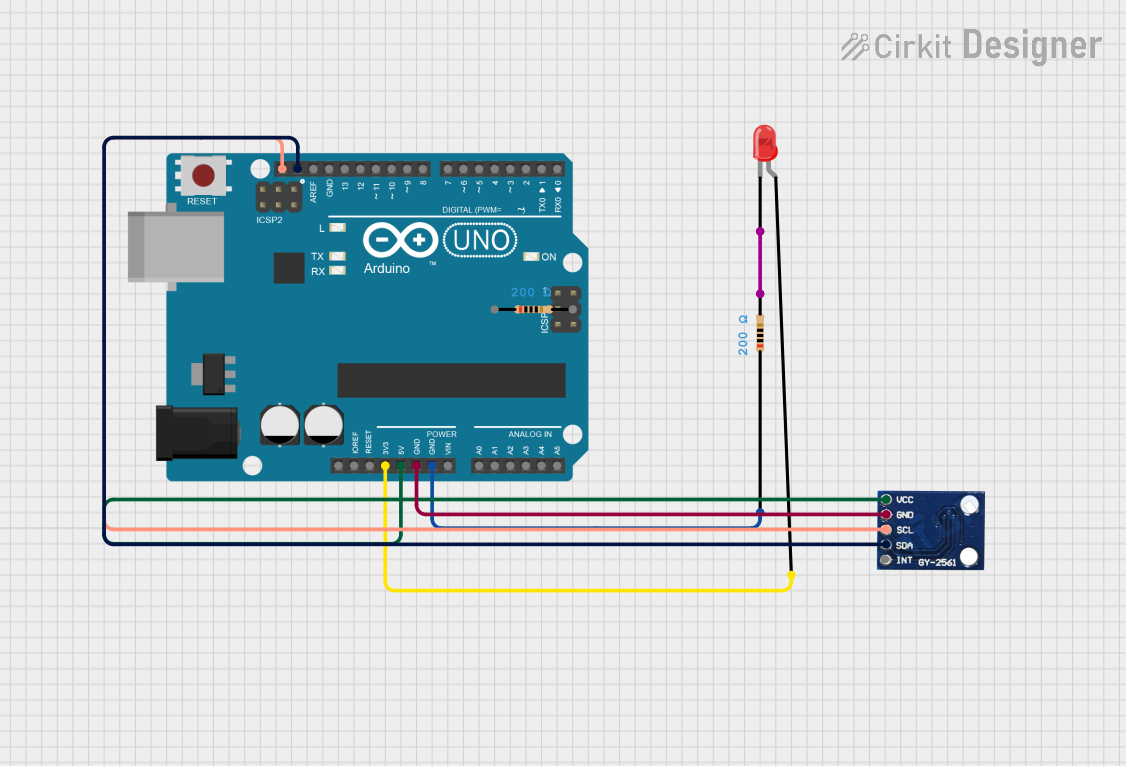 Open Project in Cirkit Designer
Explore Projects Built with LUX Sensor
Open Project in Cirkit DesignerOpen Project in Cirkit DesignerOpen Project in Cirkit DesignerOpen Project in Cirkit DesignerTechnical Specifications
Below are the general technical specifications for a typical LUX sensor. Note that specific models may vary slightly in their parameters.
| Parameter | Value |
|---|---|
| Operating Voltage | 3.0V to 5.5V |
| Operating Current | 0.5mA to 1mA |
| Measurement Range | 0.01 lux to 40,000 lux (typical) |
| Output Type | Analog or Digital (I2C, SPI) |
| Response Time | 100ms to 500ms |
| Operating Temperature | -40°C to +85°C |
Pin Configuration
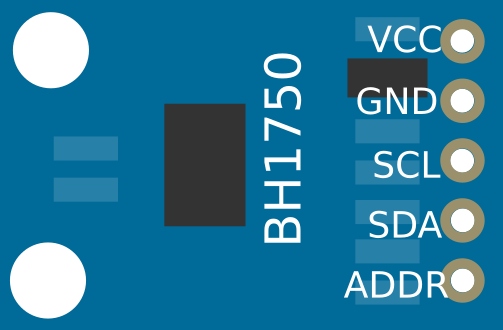
The pin configuration for a common LUX sensor module (e.g., BH1750 or TSL2561) is as follows:
Analog LUX Sensor Pinout
| Pin Name | Description |
|---|---|
| VCC | Power supply input (3.0V to 5.5V) |
| GND | Ground connection |
| OUT | Analog output signal proportional to light intensity |
Digital LUX Sensor Pinout (e.g., I2C-based)
| Pin Name | Description |
|---|---|
| VCC | Power supply input (3.0V to 5.5V) |
| GND | Ground connection |
| SDA | Serial Data Line for I2C communication |
| SCL | Serial Clock Line for I2C communication |
Usage Instructions
How to Use the LUX Sensor in a Circuit
- Power the Sensor: Connect the VCC pin to a 3.3V or 5V power source and the GND pin to the ground.
- Connect the Output:
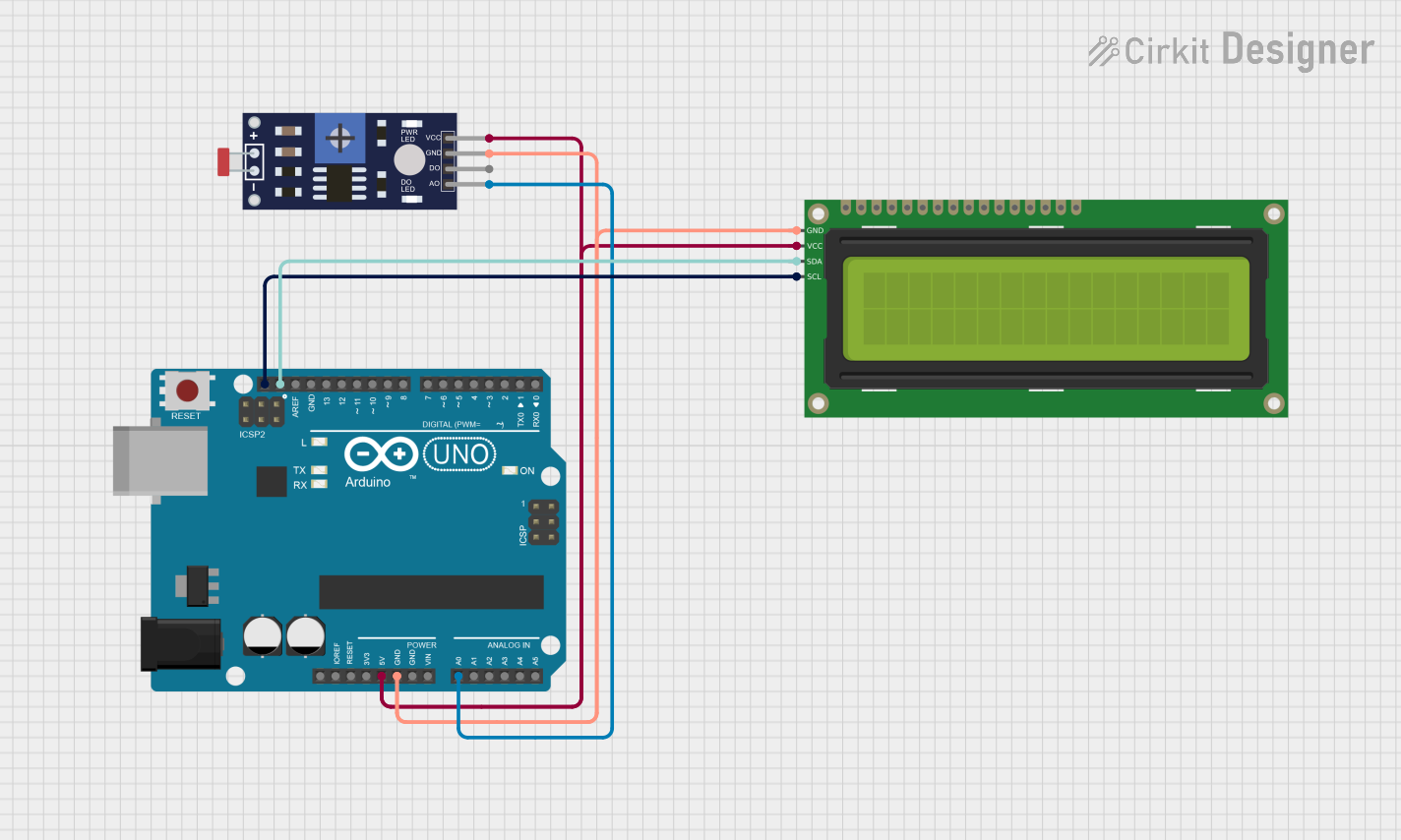
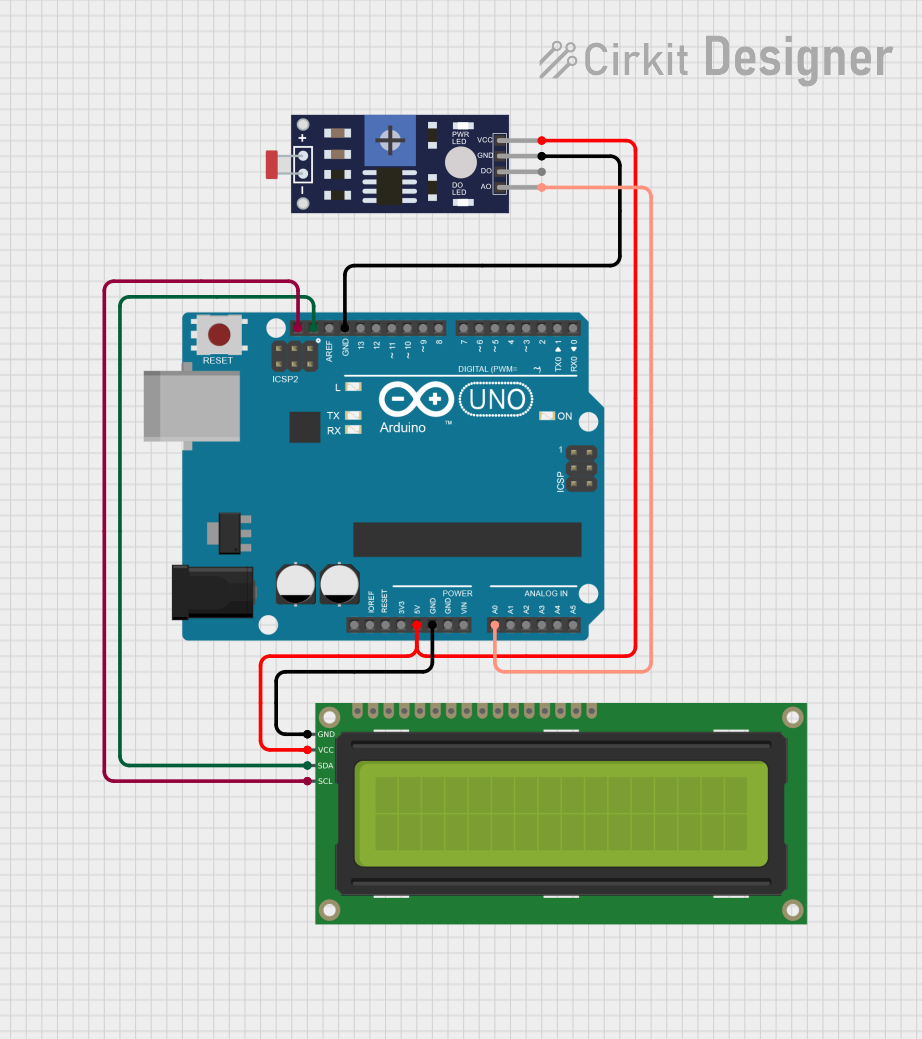
- For analog sensors, connect the OUT pin to an analog input pin on your microcontroller.
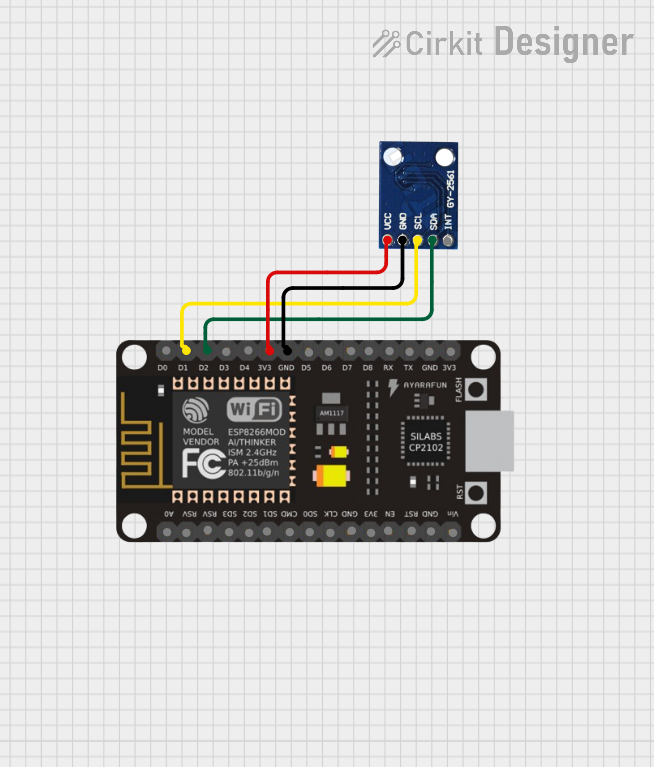
- For digital sensors, connect the SDA and SCL pins to the corresponding I2C pins on your microcontroller.
- Pull-Up Resistors (for I2C): If using a digital LUX sensor, ensure that pull-up resistors (typically 4.7kΩ) are connected to the SDA and SCL lines.
- Read Data: Use the microcontroller to read the output signal or communicate via I2C to retrieve light intensity data.
Important Considerations and Best Practices
- Placement: Ensure the sensor is placed in an unobstructed area to accurately measure ambient light.
- Calibration: Some sensors may require calibration to provide accurate lux readings.
- Power Supply: Use a stable power source to avoid noise in the output signal.
- Interference: Avoid placing the sensor near strong light sources or reflective surfaces that could distort readings.
Example Code for Arduino UNO
Below is an example of how to use a BH1750 digital LUX sensor with an Arduino UNO:
#include <Wire.h>
#include <BH1750.h>

// Create an instance of the BH1750 sensor
BH1750 luxSensor;

void setup() {
  Serial.begin(9600); // Initialize serial communication at 9600 baud
  Wire.begin();       // Initialize I2C communication

  // Initialize the BH1750 sensor
  if (luxSensor.begin()) {
    Serial.println("BH1750 initialized successfully.");
  } else {
    Serial.println("Error initializing BH1750. Check connections.");
    while (1); // Halt execution if initialization fails
  }
}

void loop() {
  // Read light intensity in lux
  float lux = luxSensor.readLightLevel();

  // Print the lux value to the Serial Monitor
  Serial.print("Light Intensity: ");
  Serial.print(lux);
  Serial.println(" lux");

  delay(1000); // Wait for 1 second before the next reading
}
Notes on the Code
- The
BH1750library must be installed in the Arduino IDE. You can install it via the Library Manager. - Ensure the SDA and SCL pins of the sensor are connected to the appropriate pins on the Arduino UNO (A4 and A5, respectively, for most boards).
Troubleshooting and FAQs
Common Issues
No Output or Incorrect Readings
- Cause: Loose or incorrect wiring.
- Solution: Double-check all connections, ensuring VCC, GND, SDA, and SCL are properly connected.
Sensor Not Detected (I2C)
- Cause: Incorrect I2C address or missing pull-up resistors.
- Solution: Verify the sensor's I2C address (default is often
0x23or0x5C) and ensure pull-up resistors are in place.
Fluctuating Readings
- Cause: Electrical noise or unstable power supply.
- Solution: Use a decoupling capacitor (e.g., 0.1µF) across the VCC and GND pins.
Readings Saturate at Maximum Value
- Cause: Sensor exposed to light levels beyond its range.
- Solution: Use a sensor with a higher lux range or reduce the light intensity.
FAQs
Q: Can I use the LUX sensor outdoors?
A: Yes, but ensure the sensor is protected from moisture and extreme environmental conditions.
Q: How do I extend the measurement range of the sensor?
A: Some sensors allow configuration of gain or integration time to extend the range. Refer to the sensor's datasheet for details.
Q: Can I use multiple LUX sensors on the same I2C bus?
A: Yes, but each sensor must have a unique I2C address. Some sensors allow address configuration via pins or software.
By following this documentation, you can effectively integrate a LUX sensor into your projects for accurate light intensity measurement.