Cirkit Designer LogoCirkit DesignerYour all-in-one circuit design IDE Launch Cirkit Designer App

How to Use MLX90640 Adafruit Thermal Sensor: Examples, Pinouts, and Specs

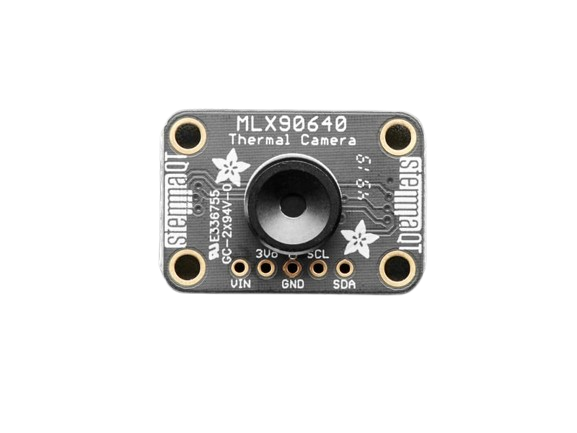
Image of MLX90640 Adafruit Thermal SensorDesign with MLX90640 Adafruit Thermal Sensor in Cirkit Designer

Introduction

The MLX90640 Adafruit Thermal Sensor is a high-resolution infrared (IR) thermal camera module designed for non-contact temperature measurement and thermal imaging. Manufactured by Adafruit, this sensor features a 32x24 pixel IR sensor array, enabling it to detect temperature variations across a wide field of view. It is compact, versatile, and ideal for applications requiring precise thermal data.

Explore Projects Built with MLX90640 Adafruit Thermal Sensor

Use Cirkit Designer to design, explore, and prototype these projects online. Some projects support real-time simulation. Click "Open Project" to start designing instantly!
Image of Raspberry Pi 4B and mlx90614 Infrared Thermometer with Logic Level Conversion: A project utilizing MLX90640 Adafruit Thermal Sensor in a practical application

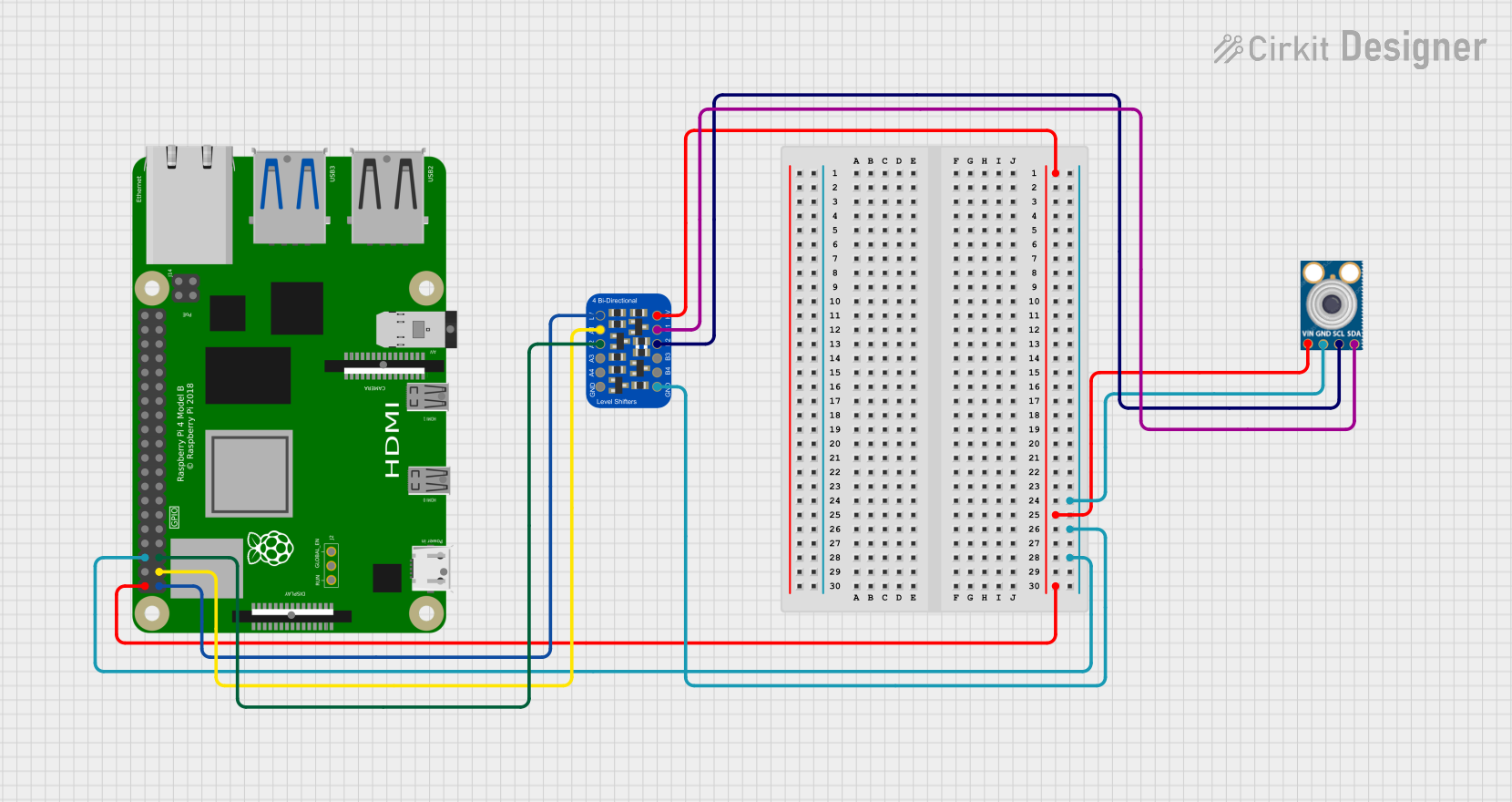
Raspberry Pi 4B and mlx90614 Infrared Thermometer with Logic Level Conversion

This circuit connects a Raspberry Pi 4B to an MLX90614 infrared temperature sensor using an Adafruit 4-channel I2C-safe Bi-directional Logic Level Converter. The level converter is used to safely step down the 5V I2C signals from the Raspberry Pi to the 3.3V needed by the MLX90614 sensor, ensuring compatibility between the devices. Ground connections are shared among all components, and the sensor is powered by the Raspberry Pi's 5V supply through the level converter.

Open Project in Cirkit Designer
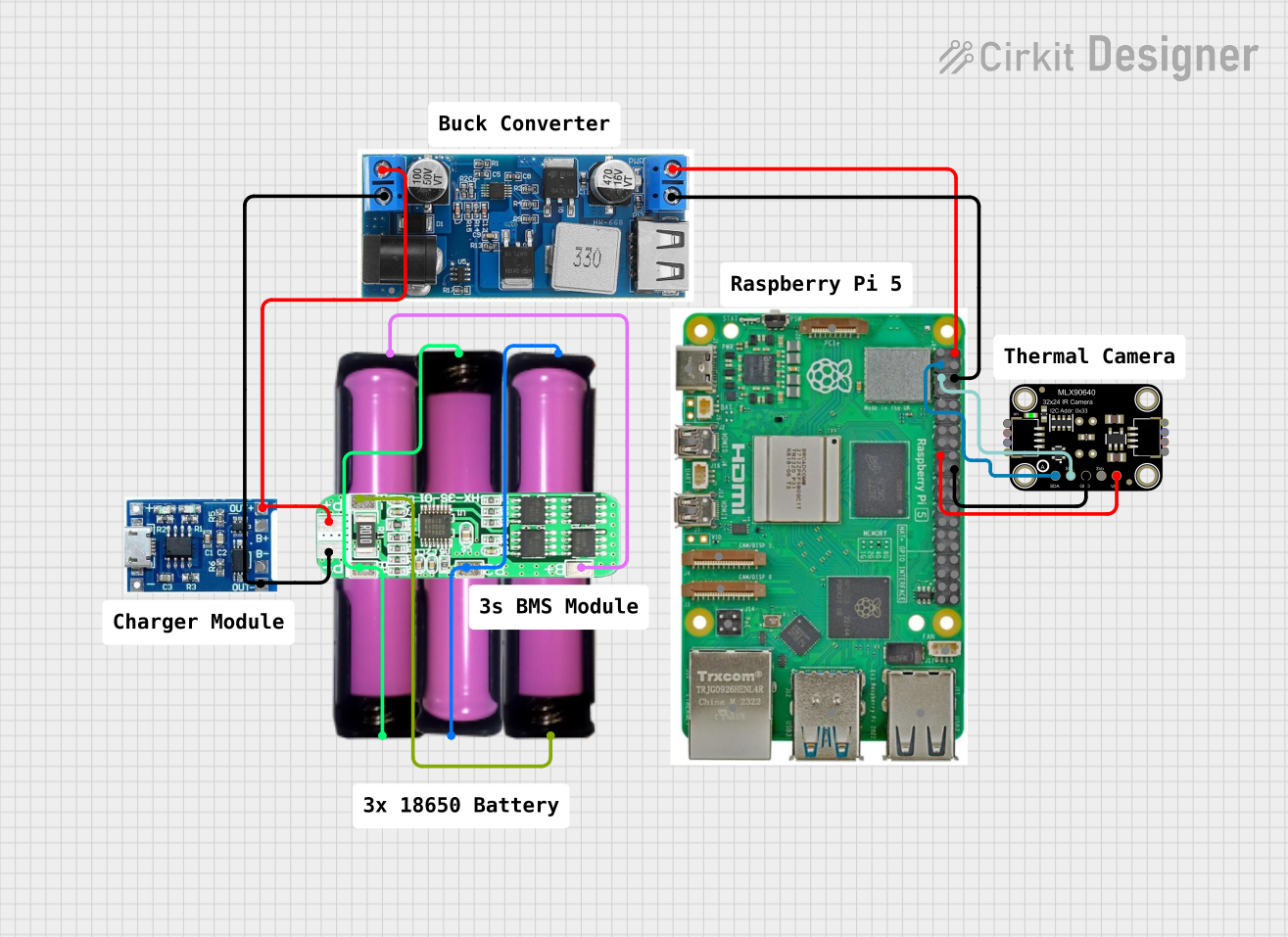
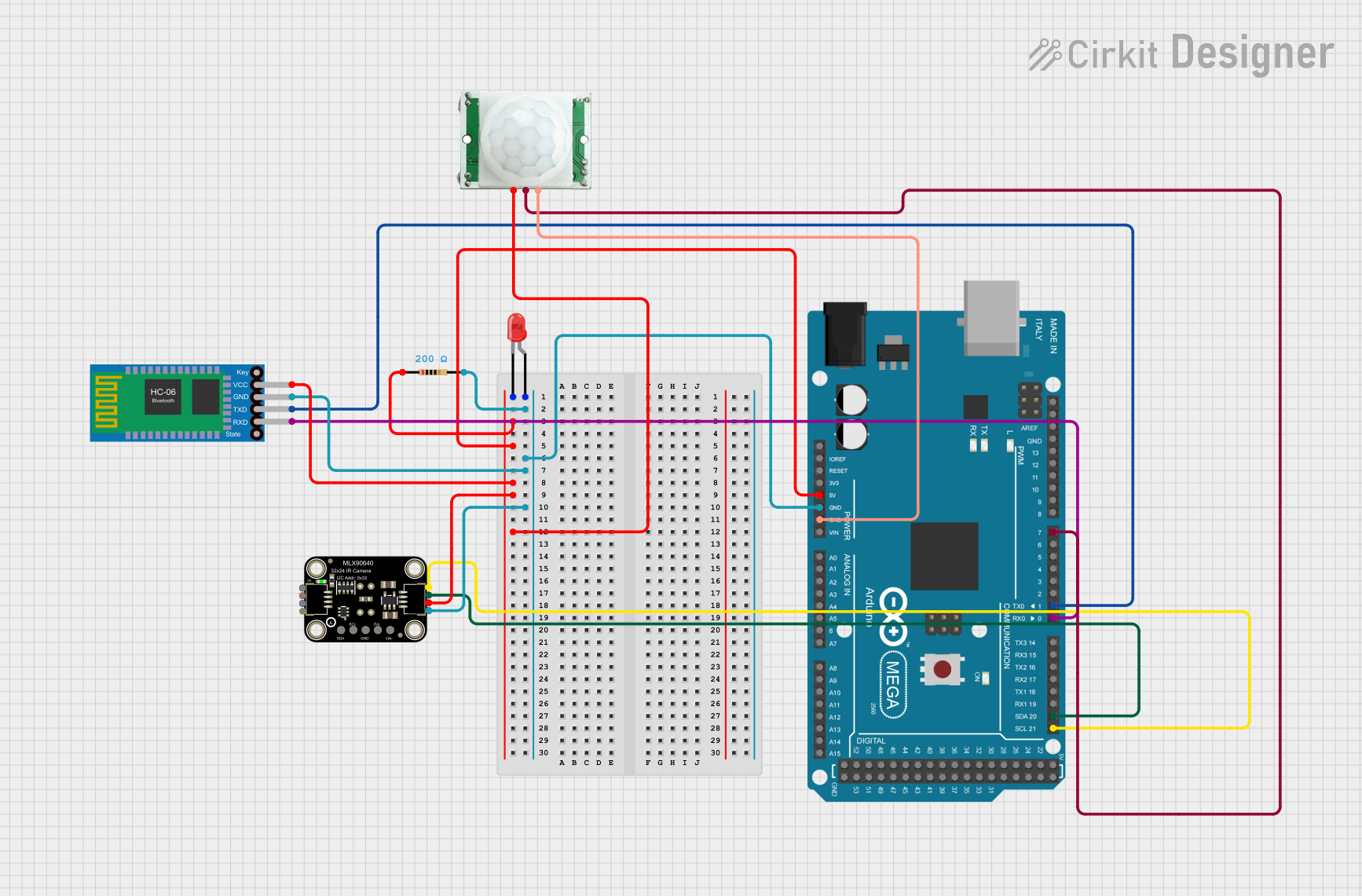
Image of Raspberry Pi 5 and MLX90640 Thermal Camera Imaging System with Battery Backup: A project utilizing MLX90640 Adafruit Thermal Sensor in a practical application
Raspberry Pi 5 and MLX90640 Thermal Camera Imaging System with Battery Backup

This circuit features a Raspberry Pi 5 connected to an Adafruit MLX90640 Thermal Camera via I2C communication lines (GPIO 2 and GPIO 3 for SDA and SCL, respectively) and powered by a 24/12V buck converter. The buck converter steps down voltage from a 3S 10A Li-ion 18650 battery pack, which is managed by a charger protection board and charged through a lipo battery charger module. The Raspberry Pi runs code to capture and process thermal images from the camera.

Open Project in Cirkit Designer
Image of Arduino Mega 2560 Based Motion-Activated Thermal Camera with Bluetooth Connectivity: A project utilizing MLX90640 Adafruit Thermal Sensor in a practical application
Arduino Mega 2560 Based Motion-Activated Thermal Camera with Bluetooth Connectivity

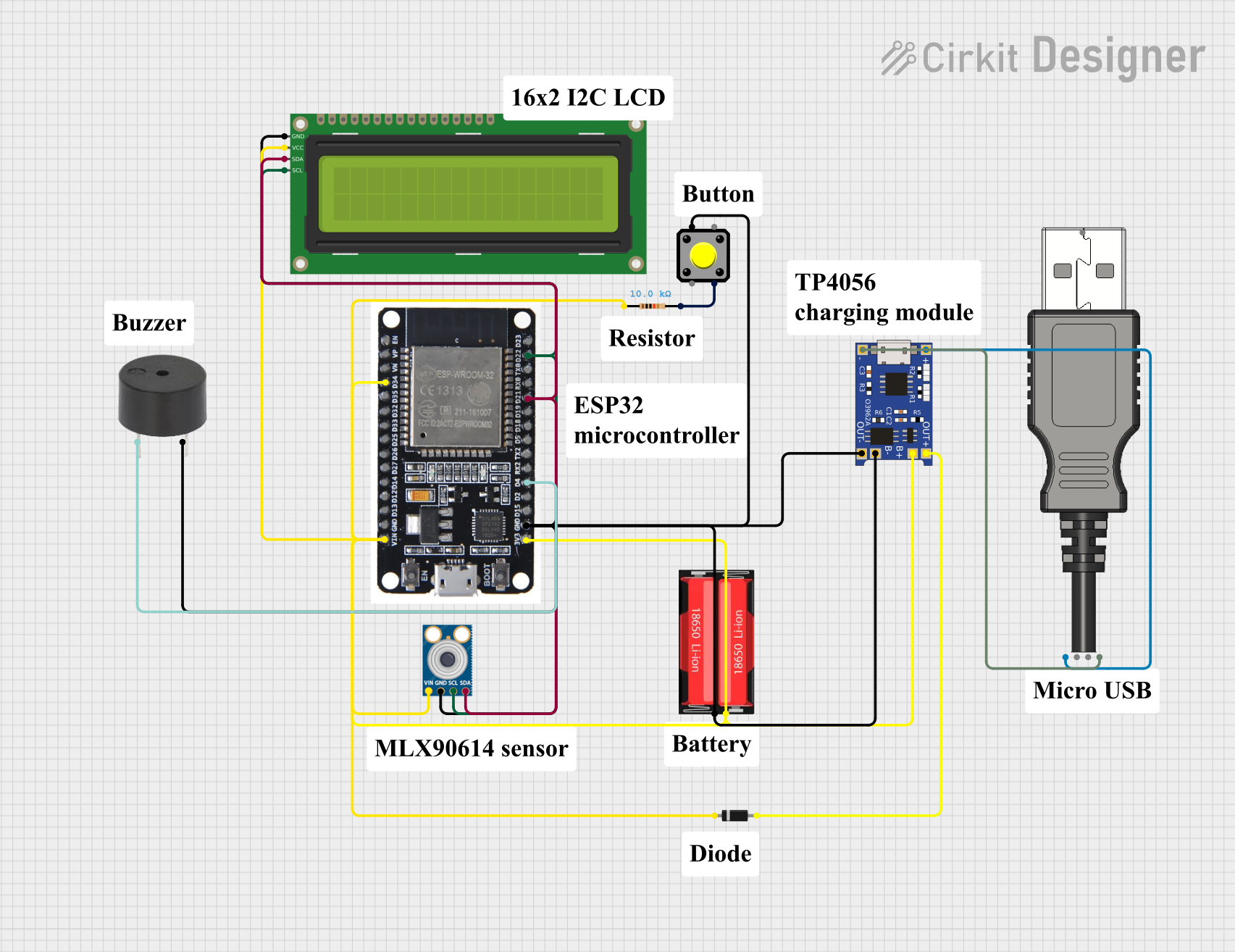
This circuit features an Arduino Mega 2560 microcontroller interfaced with a PIR motion sensor, a Bluetooth HC-06 module, and an Adafruit MLX90640 thermal camera. The Arduino controls an LED through a resistor, receives motion detection signals, communicates via Bluetooth, and processes thermal images. The microcontroller's code structure is set up but contains no specific functionality yet.

Open Project in Cirkit Designer

Common Applications and Use Cases

Technical Specifications

The following table outlines the key technical details of the MLX90640 Adafruit Thermal Sensor:

Parameter Value
Manufacturer Adafruit
Part ID Adafruit MLX90640 IR Thermal Camera
Sensor Resolution 32x24 pixels
Field of View (FoV) 55°x35° (Standard) or 110°x75° (Wide Angle)
Temperature Range -40°C to 300°C
Accuracy ±1°C (typical, for 0°C to 50°C range)
Interface I2C
Operating Voltage 3.3V to 5V
Current Consumption ~23mA
Refresh Rate 0.5Hz to 64Hz
Dimensions 20mm x 20mm x 5mm

Pin Configuration and Descriptions

The MLX90640 module has the following pinout:

Pin Name Description
1 VIN Power input (3.3V to 5V)
2 GND Ground
3 SDA I2C data line
4 SCL I2C clock line

Usage Instructions

How to Use the MLX90640 in a Circuit

  1. Power the Sensor: Connect the VIN pin to a 3.3V or 5V power source and the GND pin to ground.
  2. I2C Communication: Connect the SDA and SCL pins to the corresponding I2C pins on your microcontroller (e.g., Arduino UNO).
  3. Pull-Up Resistors: Ensure that the I2C lines have appropriate pull-up resistors (typically 4.7kΩ).
  4. Install Libraries: Use the Adafruit MLX90640 library for easy integration with Arduino or other platforms.
  5. Read Data: Use the library functions to read temperature data and process the thermal image.

Important Considerations and Best Practices

Example Code for Arduino UNO

Below is an example of how to use the MLX90640 with an Arduino UNO:

#include <Wire.h>
#include <Adafruit_MLX90640.h>

// Create an instance of the MLX90640 object
Adafruit_MLX90640 mlx;

// Define the frame buffer to store temperature data
float frame[32 * 24]; // 32x24 resolution

void setup() {
  Serial.begin(115200);
  while (!Serial); // Wait for Serial Monitor to open

  Serial.println("Initializing MLX90640...");

  // Initialize the MLX90640 sensor
  if (!mlx.begin(0x33)) { // Default I2C address is 0x33
    Serial.println("Failed to find MLX90640 sensor. Check wiring!");
    while (1);
  }

  // Set the refresh rate to 8Hz
  mlx.setMode(MLX90640_INTERLEAVED);
  mlx.setRefreshRate(MLX90640_8_HZ);

  Serial.println("MLX90640 initialized successfully!");
}

void loop() {
  // Read thermal data into the frame buffer
  if (mlx.getFrame(frame) != 0) {
    Serial.println("Failed to read frame data!");
    return;
  }

  // Print the temperature data
  for (int i = 0; i < 32 * 24; i++) {
    Serial.print(frame[i], 2); // Print temperature with 2 decimal places
    Serial.print(" ");
    if ((i + 1) % 32 == 0) { // Newline after every 32 pixels
      Serial.println();
    }
  }

  delay(125); // Delay to match the refresh rate (8Hz = 125ms)
}

Troubleshooting and FAQs

Common Issues and Solutions

  1. Sensor Not Detected

    • Cause: Incorrect wiring or I2C address mismatch.
    • Solution: Verify the connections and ensure the I2C address matches the one in the code.
  2. Inaccurate Temperature Readings

    • Cause: Reflective surfaces or environmental interference.
    • Solution: Avoid reflective surfaces and ensure the sensor is not exposed to direct sunlight.
  3. Data Read Errors

    • Cause: I2C communication issues.
    • Solution: Check pull-up resistors on the I2C lines and ensure proper clock speed (typically 100kHz or 400kHz).
  4. Slow Refresh Rate

    • Cause: Default refresh rate is too low.
    • Solution: Increase the refresh rate using the setRefreshRate() function, but note the trade-off with power consumption.

FAQs