
How to Use lcd i2c 20x4: Examples, Pinouts, and Specs
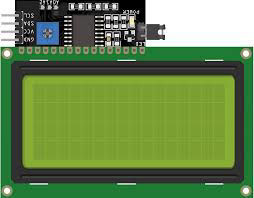
 Design with lcd i2c 20x4 in Cirkit Designer
Introduction
The LCD I2C 20x4 is a 20-character by 4-line alphanumeric liquid crystal display that uses I2C (Inter-Integrated Circuit) communication for simplified interfacing with microcontrollers. This module is ideal for applications requiring a compact and efficient way to display text or simple graphics. The I2C interface reduces the number of pins required for connection, making it perfect for projects with limited GPIO availability.
Explore Projects Built with lcd i2c 20x4
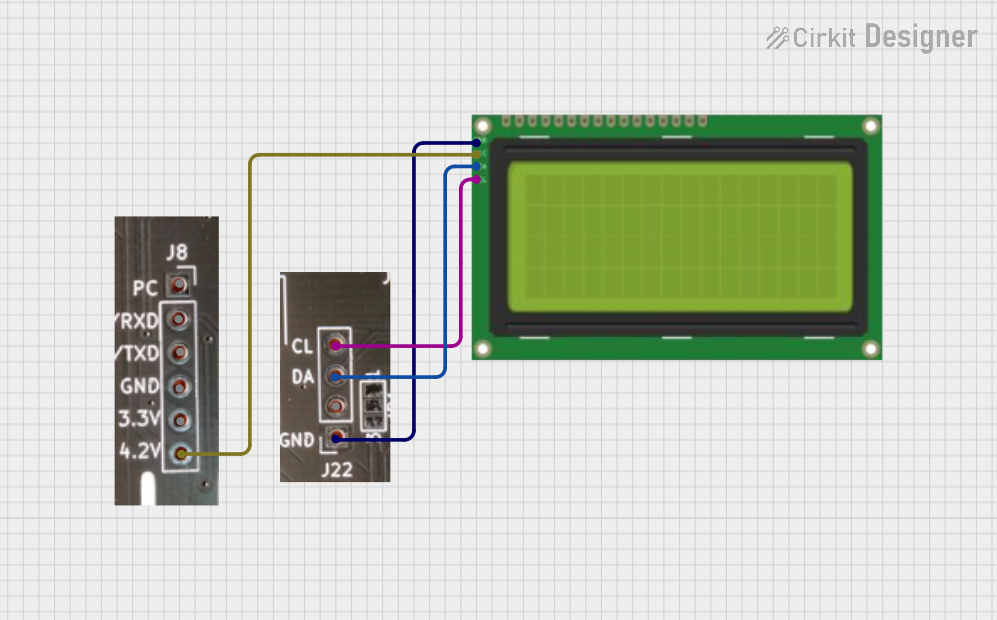 Open Project in Cirkit Designer
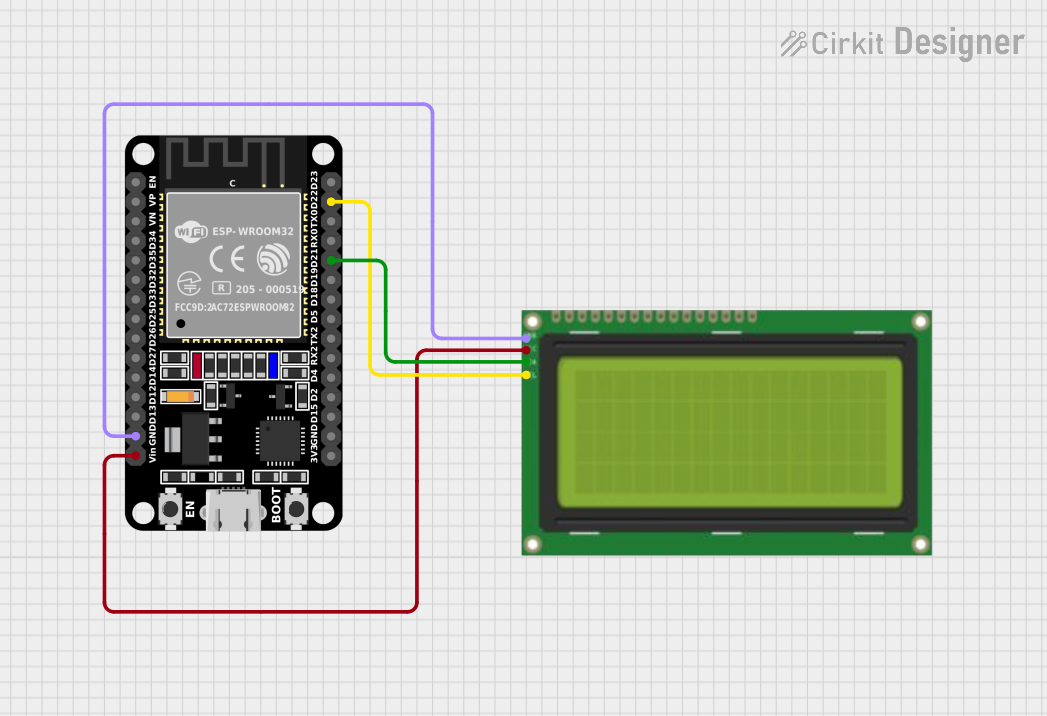 Open Project in Cirkit Designer
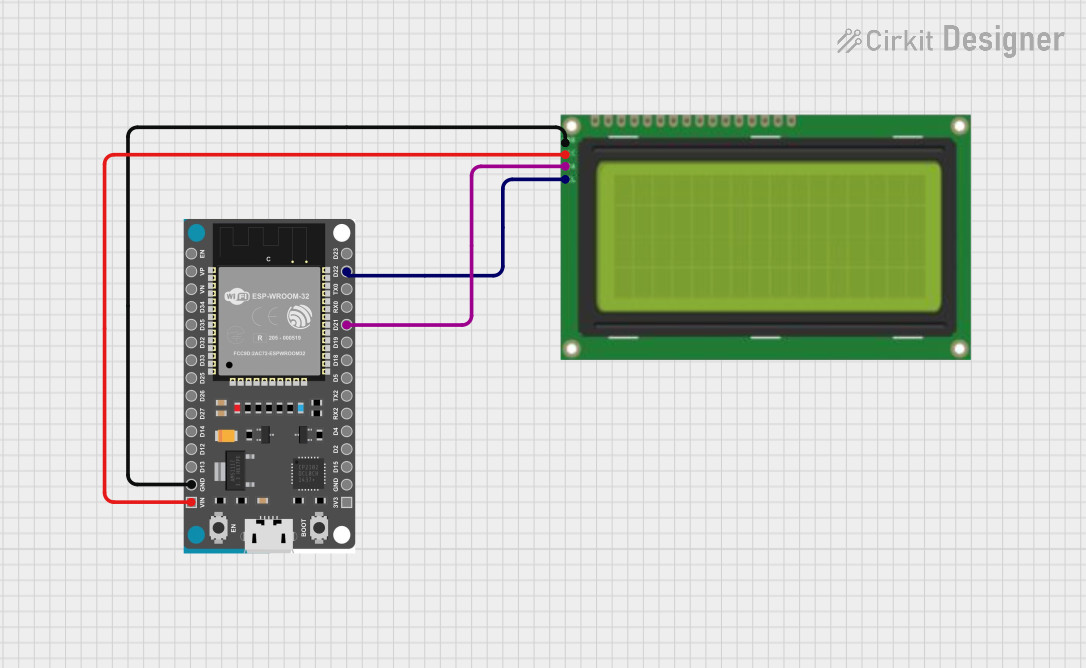 Open Project in Cirkit Designer
 Open Project in Cirkit Designer
Explore Projects Built with lcd i2c 20x4
Open Project in Cirkit DesignerOpen Project in Cirkit DesignerOpen Project in Cirkit DesignerOpen Project in Cirkit DesignerCommon Applications and Use Cases
- Embedded systems and microcontroller projects
- Home automation displays
- Industrial control panels
- Educational and prototyping purposes
- IoT devices for status or data display
Technical Specifications
The following table outlines the key technical details of the LCD I2C 20x4 module:
| Parameter | Specification |
|---|---|
| Display Type | 20x4 Alphanumeric LCD |
| Communication Protocol | I2C |
| Operating Voltage | 5V DC |
| Backlight | LED (adjustable brightness) |
| Contrast Adjustment | Potentiometer (onboard) |
| I2C Address (Default) | 0x27 (can vary, check datasheet) |
| Operating Temperature | -20°C to 70°C |
| Dimensions | 98mm x 60mm x 12mm |
Pin Configuration and Descriptions
The LCD I2C 20x4 module typically has a 4-pin header for I2C communication. The pin configuration is as follows:
| Pin | Name | Description |
|---|---|---|
| 1 | GND | Ground (0V) |
| 2 | VCC | Power supply (5V DC) |
| 3 | SDA | Serial Data Line for I2C communication |
| 4 | SCL | Serial Clock Line for I2C communication |
Usage Instructions
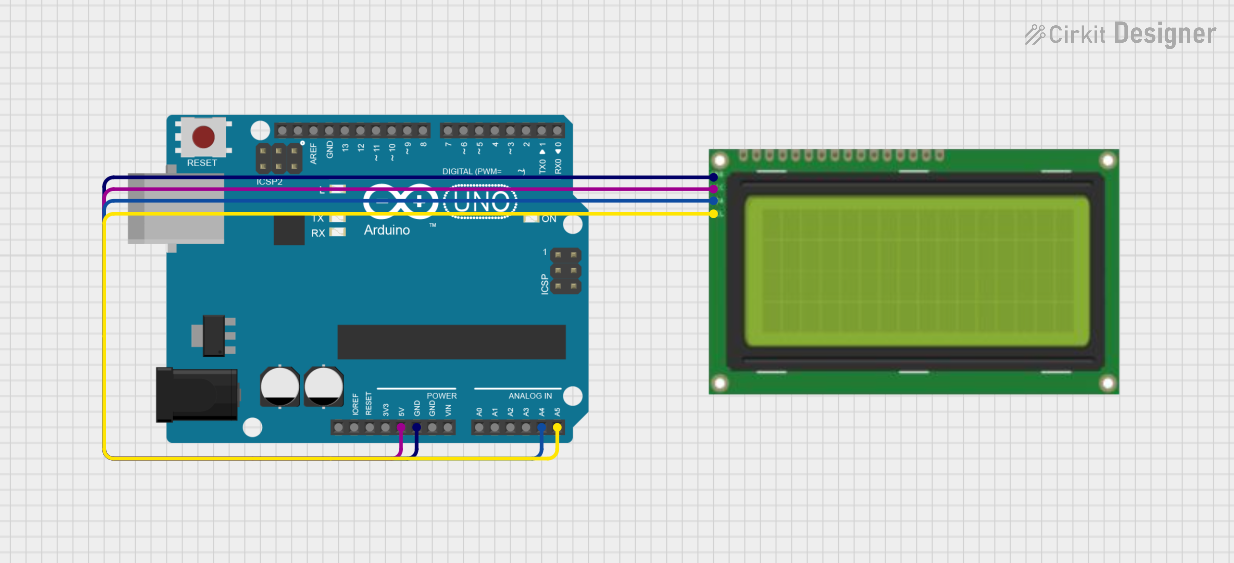
How to Use the LCD I2C 20x4 in a Circuit
Connect the Module:
- Connect the
GNDpin to the ground of your microcontroller. - Connect the
VCCpin to the 5V power supply of your microcontroller. - Connect the
SDApin to the I2C data line (e.g., A4 on Arduino UNO). - Connect the
SCLpin to the I2C clock line (e.g., A5 on Arduino UNO).
- Connect the
Install Required Libraries:
- For Arduino, install the
LiquidCrystal_I2Clibrary via the Library Manager in the Arduino IDE.
- For Arduino, install the
Write and Upload Code:
- Use the following example code to display text on the LCD:
#include <Wire.h>
#include <LiquidCrystal_I2C.h>

// Initialize the LCD with I2C address 0x27 and a 20x4 display size
LiquidCrystal_I2C lcd(0x27, 20, 4);

void setup() {
  lcd.init(); // Initialize the LCD
  lcd.backlight(); // Turn on the backlight

  // Display a welcome message
  lcd.setCursor(0, 0); // Set cursor to column 0, row 0
  lcd.print("Hello, World!");

  lcd.setCursor(0, 1); // Set cursor to column 0, row 1
  lcd.print("LCD I2C 20x4");

  lcd.setCursor(0, 2); // Set cursor to column 0, row 2
  lcd.print("Line 3 Example");

  lcd.setCursor(0, 3); // Set cursor to column 0, row 3
  lcd.print("Line 4 Example");
}

void loop() {
  // No actions in the loop for this example
}
Important Considerations and Best Practices
- I2C Address: The default I2C address is typically
0x27, but it may vary depending on the module. Use an I2C scanner sketch to detect the correct address if needed. - Power Supply: Ensure a stable 5V power supply to avoid flickering or malfunctioning of the display.
- Contrast Adjustment: Use the onboard potentiometer to adjust the contrast for optimal visibility.
- Backlight Control: The backlight can be turned on or off programmatically using the
lcd.backlight()andlcd.noBacklight()functions.
Troubleshooting and FAQs
Common Issues and Solutions
Display Not Turning On:
- Verify the power connections (
GNDandVCC). - Check the I2C address and ensure it matches the one in your code.
- Verify the power connections (
Text Not Displaying:
- Ensure the
LiquidCrystal_I2Clibrary is installed and included in your code. - Double-check the
SDAandSCLconnections to the correct pins on your microcontroller.
- Ensure the
Flickering or Dim Display:
- Check the power supply voltage and current capacity.
- Adjust the contrast using the onboard potentiometer.
I2C Address Not Detected:
- Run an I2C scanner sketch to identify the correct address.
- Ensure the
SDAandSCLlines are properly connected and not swapped.
FAQs
Q: Can I use the LCD I2C 20x4 with a 3.3V microcontroller?
A: While the module is designed for 5V operation, some modules may work with 3.3V logic. However, it is recommended to use a logic level shifter for reliable communication.
Q: How do I clear the display?
A: Use the lcd.clear() function in your code to clear all text from the display.
Q: Can I display custom characters?
A: Yes, the LiquidCrystal_I2C library supports custom characters. Refer to the library documentation for details on creating and displaying custom characters.
Q: What is the maximum cable length for I2C communication?
A: The maximum length depends on the pull-up resistor values and the operating speed of the I2C bus. For typical applications, keep the cable length under 1 meter to ensure reliable communication.
By following this documentation, you can effectively integrate and use the LCD I2C 20x4 module in your projects.