
How to Use TFT display 1.9" 170x320: Examples, Pinouts, and Specs
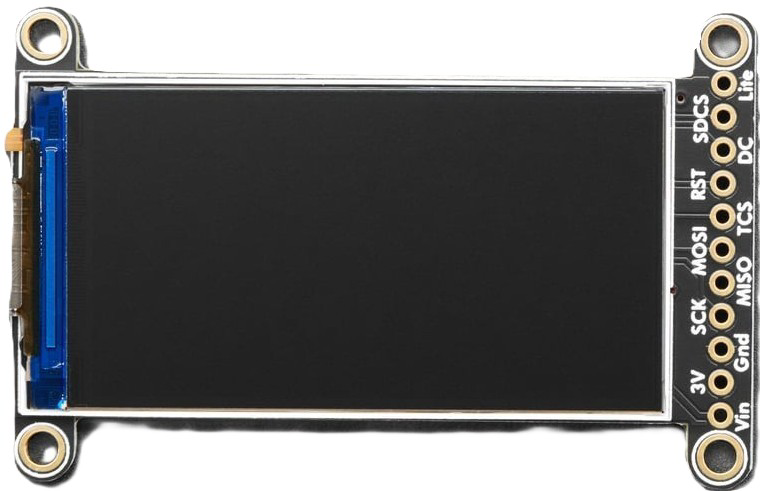
 Design with TFT display 1.9" 170x320 in Cirkit Designer
Introduction
The Adafruit ST7789 is a 1.9-inch thin-film transistor (TFT) display with a resolution of 170x320 pixels. It is designed for use in a wide range of electronic projects, offering vibrant colors and a crisp display for text, images, and graphics. This display is ideal for applications requiring a compact, high-quality screen, such as handheld devices, IoT projects, and user interfaces for embedded systems.
Explore Projects Built with TFT display 1.9" 170x320
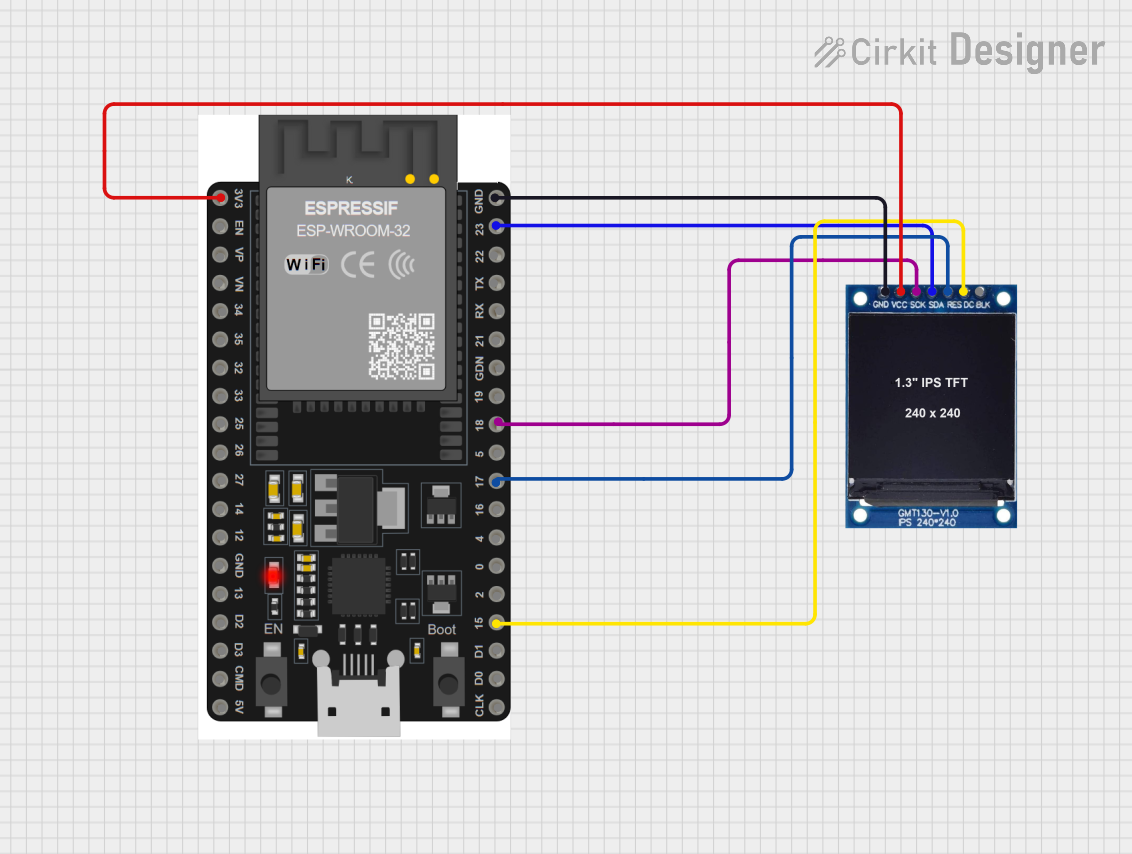 Open Project in Cirkit Designer
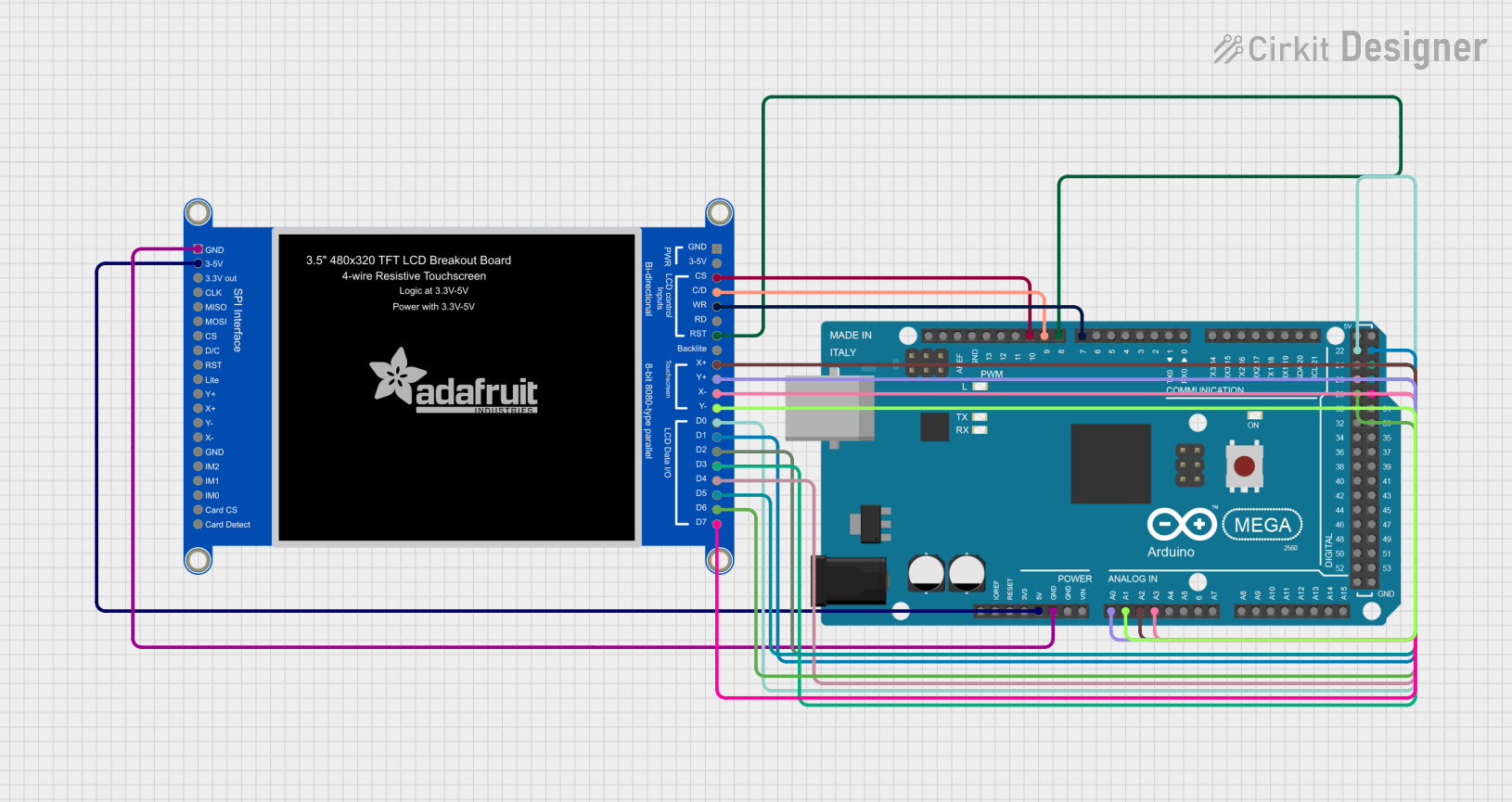 Open Project in Cirkit Designer
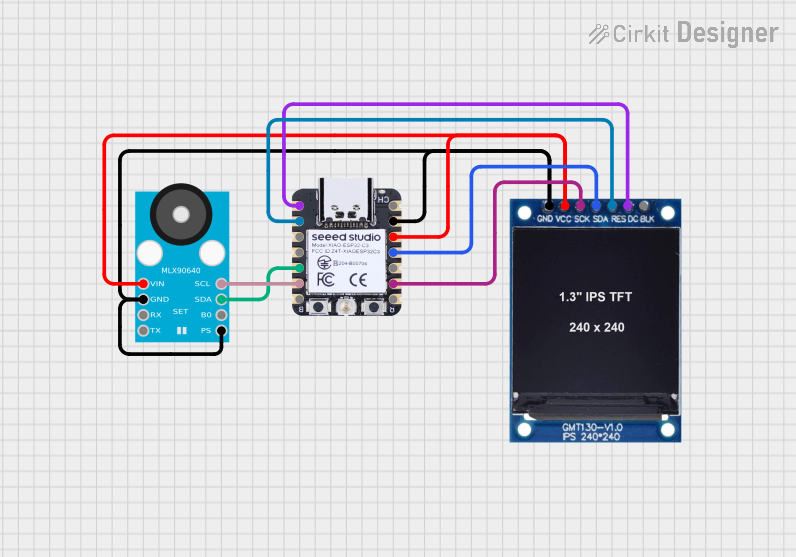 Open Project in Cirkit Designer
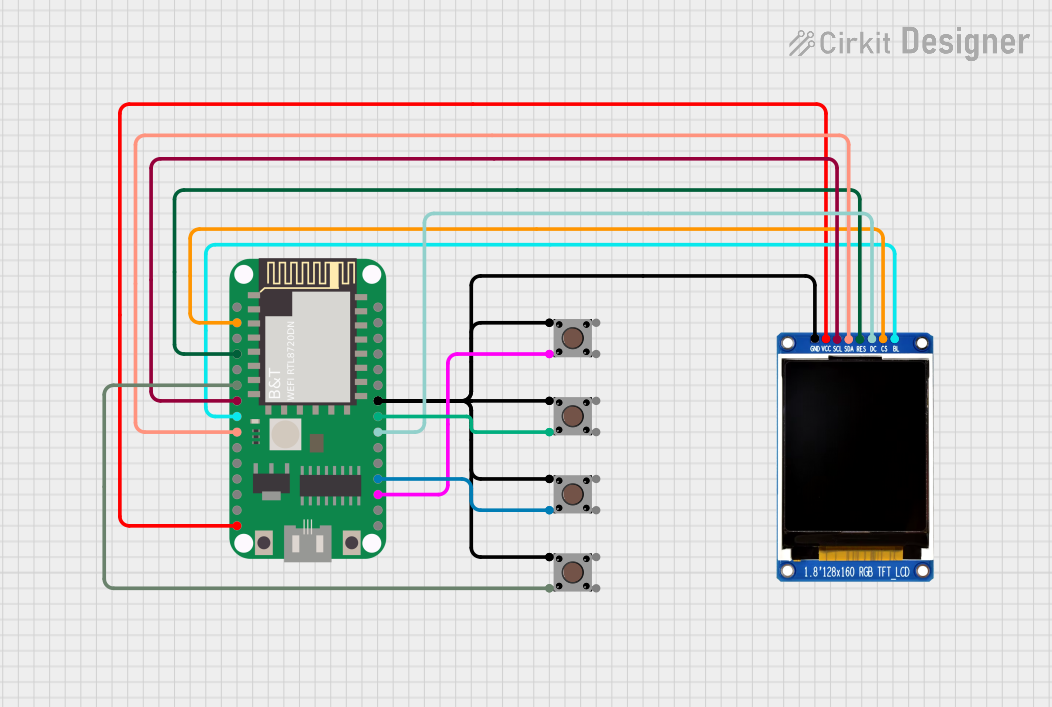 Open Project in Cirkit Designer
Explore Projects Built with TFT display 1.9" 170x320
Open Project in Cirkit DesignerOpen Project in Cirkit DesignerOpen Project in Cirkit DesignerOpen Project in Cirkit DesignerCommon Applications
- Handheld devices and portable electronics
- IoT dashboards and smart home displays
- Wearable devices
- Embedded system user interfaces
- Educational and hobbyist projects
Technical Specifications
Key Technical Details
| Parameter | Value |
|---|---|
| Manufacturer | Adafruit |
| Manufacturer Part ID | ST7789 |
| Display Type | TFT (Thin-Film Transistor) |
| Diagonal Size | 1.9 inches |
| Resolution | 170x320 pixels |
| Color Depth | 18-bit (262,144 colors) |
| Interface | SPI (Serial Peripheral Interface) |
| Operating Voltage | 3.3V (logic level) |
| Backlight Voltage | 3.0V to 3.3V |
| Current Consumption | ~20mA (backlight on) |
| Dimensions | 36mm x 52mm x 4.3mm |
Pin Configuration
The Adafruit ST7789 TFT display has the following pinout:
| Pin Name | Description | Notes |
|---|---|---|
| VIN | Power input (3.3V or 5V) | Connect to 3.3V or 5V supply |
| GND | Ground | Connect to ground |
| SCK | Serial Clock (SPI) | Connect to Arduino SCK (D13) |
| MOSI | Master Out Slave In (SPI Data) | Connect to Arduino MOSI (D11) |
| CS | Chip Select | Active low, connect to a GPIO |
| DC | Data/Command | Connect to a GPIO |
| RST | Reset | Connect to a GPIO or reset pin |
| BL | Backlight Control | Optional, connect to 3.3V or PWM |
Usage Instructions
Connecting the Display to an Arduino UNO
To use the Adafruit ST7789 TFT display with an Arduino UNO, follow these steps:
Wiring the Display:
- Connect the
VINpin to the 5V pin on the Arduino. - Connect the
GNDpin to the GND pin on the Arduino. - Connect the
SCKpin to the Arduino'sD13(SPI clock). - Connect the
MOSIpin to the Arduino'sD11(SPI data). - Connect the
CSpin to a digital pin (e.g.,D10). - Connect the
DCpin to another digital pin (e.g.,D9). - Connect the
RSTpin to another digital pin (e.g.,D8). - Optionally, connect the
BLpin to 3.3V or a PWM-capable pin for backlight control.
- Connect the
Install Required Libraries:
- Install the
Adafruit_GFXandAdafruit_ST7789libraries from the Arduino Library Manager.
- Install the
Example Code: Use the following example code to initialize and display graphics on the screen:
// Include necessary libraries
#include <Adafruit_GFX.h>    // Core graphics library
#include <Adafruit_ST7789.h> // ST7789 driver library
#include <SPI.h>             // SPI library

// Define pin connections
#define TFT_CS    10  // Chip select pin
#define TFT_DC     9  // Data/command pin
#define TFT_RST    8  // Reset pin

// Create an instance of the display
Adafruit_ST7789 tft = Adafruit_ST7789(TFT_CS, TFT_DC, TFT_RST);

void setup() {
  // Initialize serial communication for debugging
  Serial.begin(9600);
  Serial.println("TFT Display Test");

  // Initialize the display
  tft.init(170, 320); // Initialize with resolution 170x320
  tft.setRotation(1); // Set display orientation (1 = landscape)

  // Fill the screen with a color
  tft.fillScreen(ST77XX_BLACK);

  // Display some text
  tft.setTextColor(ST77XX_WHITE);
  tft.setTextSize(2);
  tft.setCursor(10, 10);
  tft.println("Hello, World!");

  // Draw a rectangle
  tft.drawRect(50, 50, 100, 50, ST77XX_RED);
}

void loop() {
  // Nothing to do here
}
Important Considerations
- Voltage Levels: Ensure the logic voltage levels match the display's requirements (3.3V). Use a level shifter if necessary.
- Backlight Control: The backlight pin (
BL) can be connected to a PWM pin for brightness control. - SPI Speed: The SPI clock speed should not exceed the display's maximum supported speed (typically 15-20 MHz).
Troubleshooting and FAQs
Common Issues
No Display Output:
- Verify all connections are secure and match the pinout.
- Ensure the
CS,DC, andRSTpins are correctly defined in the code. - Check the power supply voltage and current.
Flickering or Artifacts:
- Reduce the SPI clock speed in the code.
- Ensure proper grounding between the Arduino and the display.
Backlight Not Turning On:
- Confirm the
BLpin is connected to 3.3V or a PWM pin. - Check for loose connections or insufficient power supply.
- Confirm the
Text or Graphics Not Displaying Properly:
- Verify the resolution and orientation settings in the code.
- Ensure the
Adafruit_GFXandAdafruit_ST7789libraries are up to date.
Tips for Troubleshooting
- Use a multimeter to check voltage levels at the display pins.
- Test the display with example sketches from the
Adafruit_ST7789library to rule out software issues. - If using a breadboard, ensure connections are tight and free of noise.
By following this documentation, you can successfully integrate and use the Adafruit ST7789 TFT display in your projects.