
How to Use DHT11 Temperature & Humidity Sensor: Examples, Pinouts, and Specs
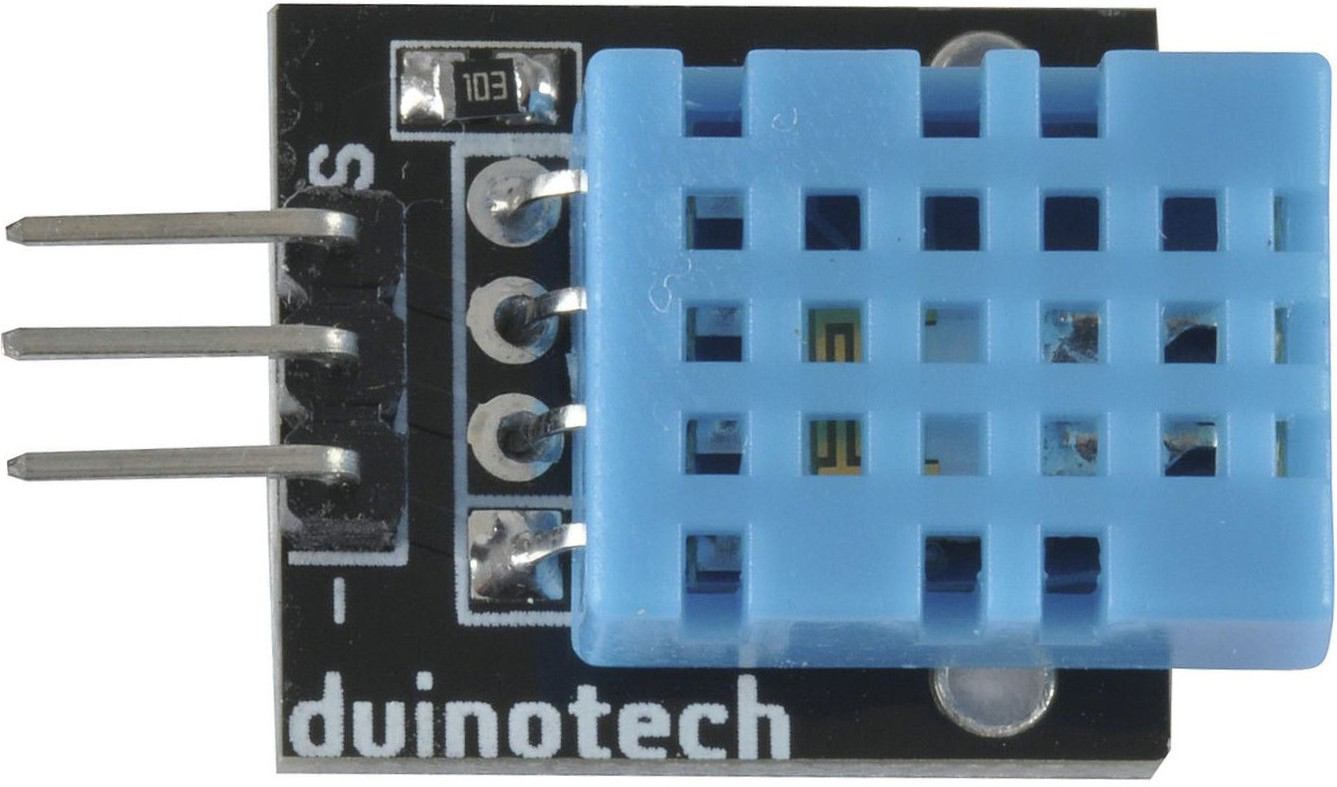
 Design with DHT11 Temperature & Humidity Sensor in Cirkit Designer
Introduction
The DHT11 Temperature & Humidity Sensor (Manufacturer: Duinotech, Part ID: XC4520) is a digital sensor designed to measure temperature and humidity with high accuracy. It is widely used in environmental monitoring and control applications due to its simplicity, reliability, and low cost. The DHT11 outputs calibrated digital signals, making it easy to integrate into microcontroller-based systems.
Explore Projects Built with DHT11 Temperature & Humidity Sensor
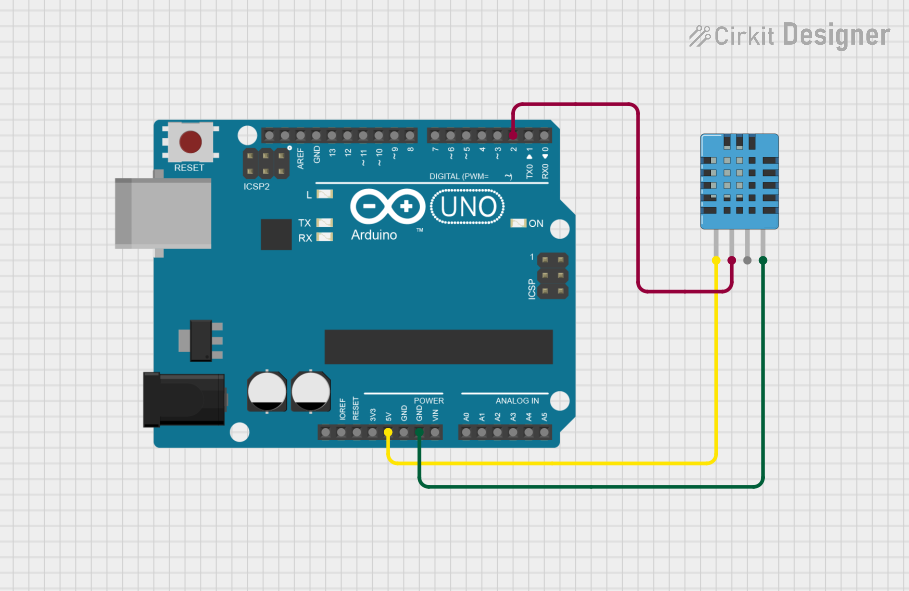 Open Project in Cirkit Designer
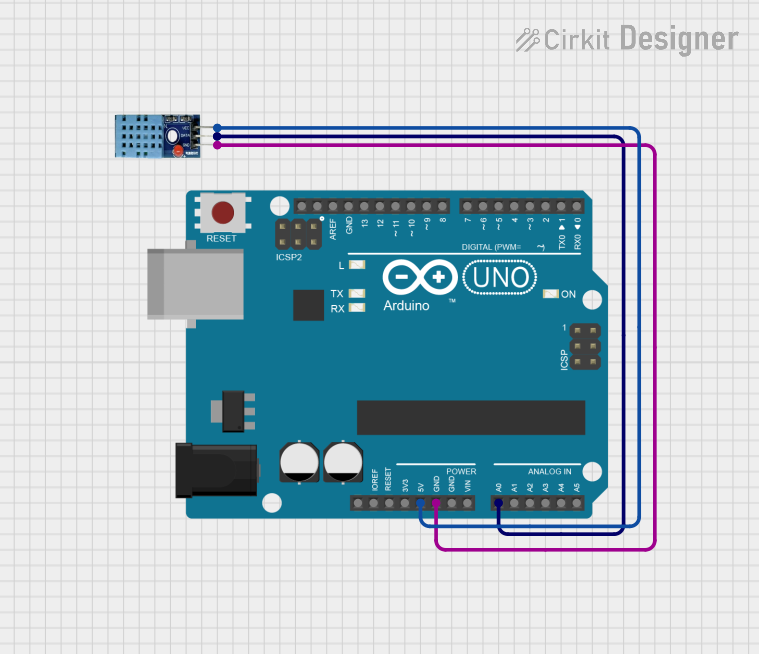 Open Project in Cirkit Designer
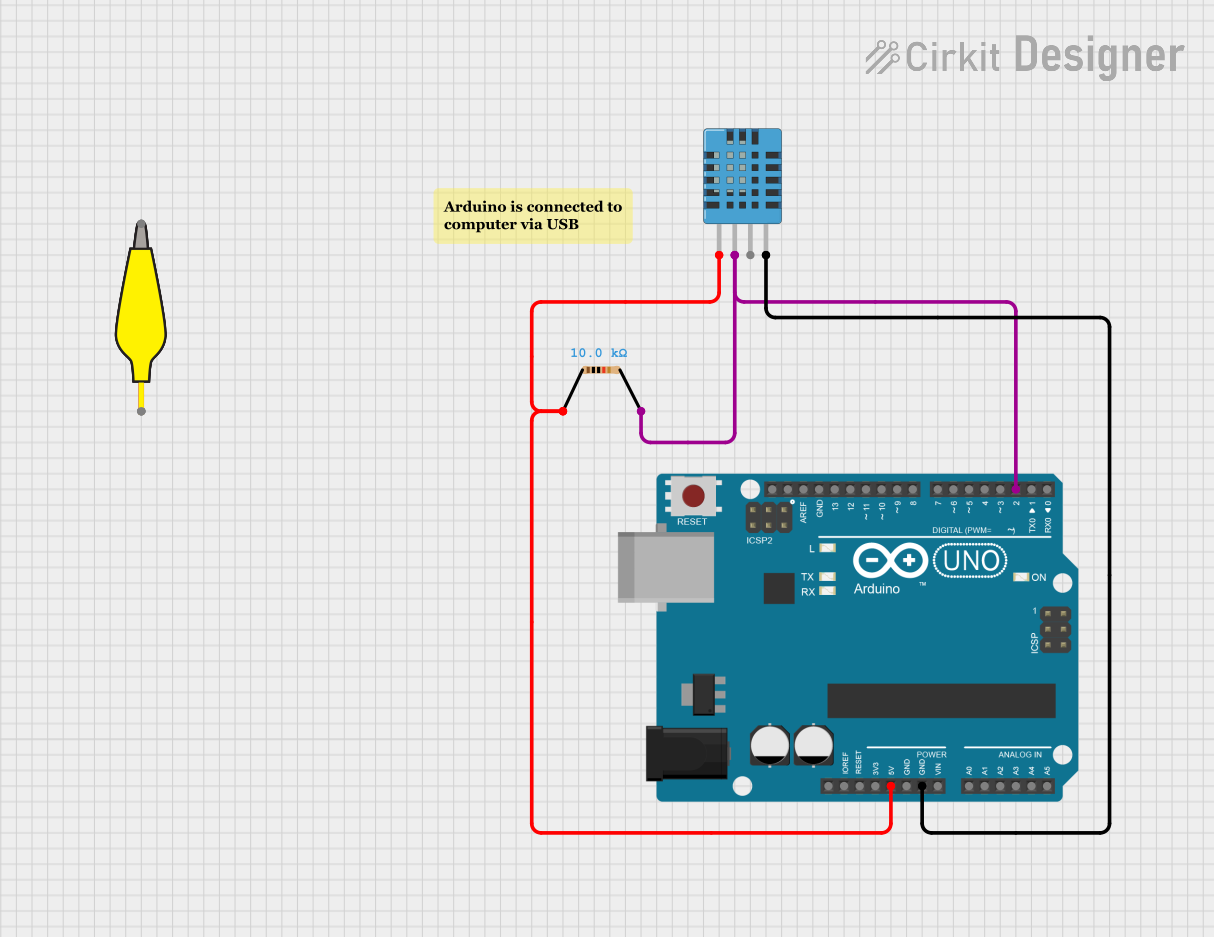 Open Project in Cirkit Designer
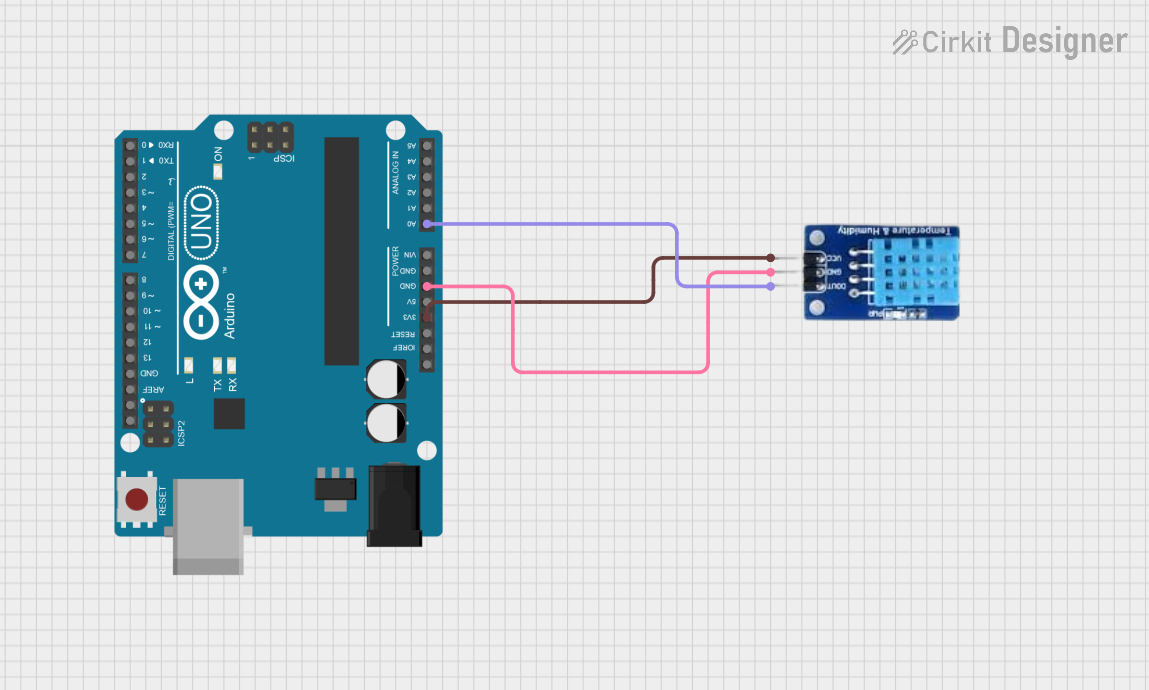 Open Project in Cirkit Designer
Explore Projects Built with DHT11 Temperature & Humidity Sensor
Open Project in Cirkit DesignerOpen Project in Cirkit DesignerOpen Project in Cirkit DesignerOpen Project in Cirkit DesignerCommon Applications
- Home automation systems (e.g., HVAC control)
- Weather monitoring stations
- Greenhouse and agricultural monitoring
- IoT (Internet of Things) devices
- Industrial process control
Technical Specifications
Key Technical Details
| Parameter | Value |
|---|---|
| Operating Voltage | 3.3V to 5.5V |
| Operating Current | 0.3mA (measuring), 60µA (idle) |
| Temperature Range | 0°C to 50°C |
| Temperature Accuracy | ±2°C |
| Humidity Range | 20% to 90% RH |
| Humidity Accuracy | ±5% RH |
| Sampling Period | 1 second |
| Communication Protocol | Single-wire digital signal |
Pin Configuration and Descriptions
| Pin Number | Pin Name | Description |
|---|---|---|
| 1 | VCC | Power supply pin (3.3V to 5.5V) |
| 2 | DATA | Digital data output pin for temperature and humidity readings |
| 3 | NC | Not connected (leave unconnected) |
| 4 | GND | Ground pin |
Usage Instructions
How to Use the DHT11 in a Circuit
- Power the Sensor: Connect the VCC pin to a 3.3V or 5V power source and the GND pin to ground.
- Data Communication: Connect the DATA pin to a microcontroller GPIO pin. Use a 10kΩ pull-up resistor between the DATA pin and VCC to ensure reliable communication.
- Timing Requirements: The DHT11 requires precise timing for data communication. Use a library or pre-written code to handle the protocol.
- Sampling Interval: Allow at least 1 second between consecutive readings to ensure accurate data.
Important Considerations
- Environmental Conditions: Avoid exposing the sensor to extreme temperatures or humidity levels beyond its specified range.
- Placement: Place the sensor in a location with good airflow for accurate readings.
- Wiring Length: Keep the wiring between the sensor and microcontroller as short as possible to minimize signal degradation.
Example Code for Arduino UNO
Below is an example of how to use the DHT11 sensor with an Arduino UNO. This code uses the popular DHT library.
#include <DHT.h>

// Define the DHT11 pin and type
#define DHTPIN 2       // Pin connected to the DATA pin of DHT11
#define DHTTYPE DHT11  // Specify the sensor type (DHT11)

// Initialize the DHT sensor
DHT dht(DHTPIN, DHTTYPE);

void setup() {
  Serial.begin(9600);  // Start serial communication
  Serial.println("DHT11 Sensor Initialization");
  dht.begin();         // Initialize the DHT sensor
}

void loop() {
  delay(2000);  // Wait 2 seconds between readings

  // Read temperature and humidity
  float humidity = dht.readHumidity();
  float temperature = dht.readTemperature();

  // Check if readings are valid
  if (isnan(humidity) || isnan(temperature)) {
    Serial.println("Failed to read from DHT sensor!");
    return;
  }

  // Print the readings to the Serial Monitor
  Serial.print("Humidity: ");
  Serial.print(humidity);
  Serial.print(" %\t");
  Serial.print("Temperature: ");
  Serial.print(temperature);
  Serial.println(" °C");
}
Notes on the Code
- Install the
DHTlibrary from the Arduino Library Manager before uploading the code. - Ensure the DATA pin is connected to the correct GPIO pin (in this case, pin 2).
Troubleshooting and FAQs
Common Issues
No Data Output:
- Cause: Incorrect wiring or missing pull-up resistor.
- Solution: Double-check the wiring and ensure a 10kΩ pull-up resistor is connected between the DATA pin and VCC.
Invalid Readings (e.g., NaN):
- Cause: Timing issues or sensor malfunction.
- Solution: Verify the sampling interval (minimum 1 second) and ensure the sensor is not damaged.
Inconsistent Readings:
- Cause: Poor placement or environmental interference.
- Solution: Place the sensor in a stable environment with good airflow and away from heat sources.
FAQs
Q1: Can I use the DHT11 with a 3.3V microcontroller?
A1: Yes, the DHT11 operates within a voltage range of 3.3V to 5.5V.
Q2: What is the maximum cable length for the DHT11?
A2: The recommended maximum cable length is 20 meters, but shorter lengths are preferred for better signal integrity.
Q3: How do I know if my DHT11 is faulty?
A3: If the sensor consistently outputs invalid readings (e.g., NaN) despite correct wiring and code, it may be damaged and require replacement.