
How to Use trill touch sensor: Examples, Pinouts, and Specs
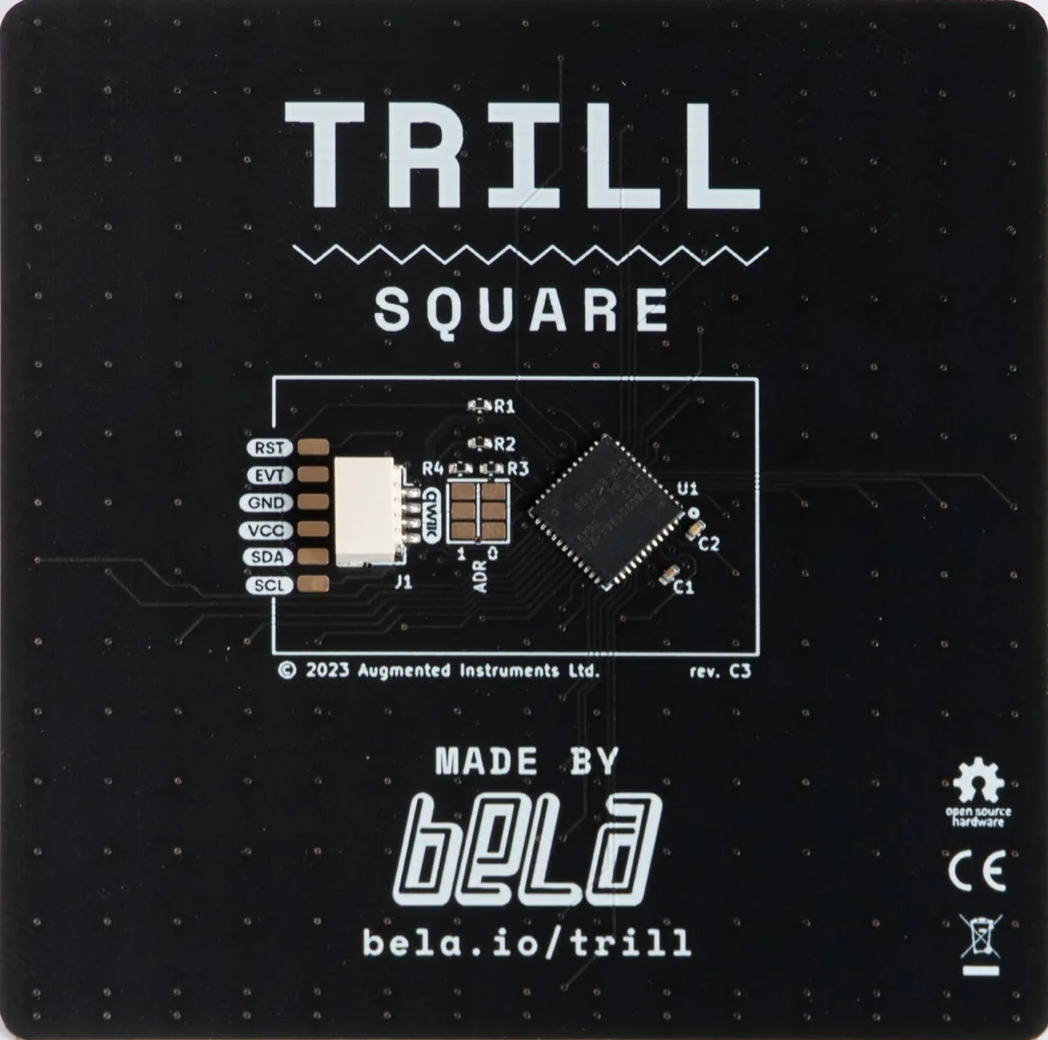
 Design with trill touch sensor in Cirkit Designer
Introduction
The Trill Touch Sensor is a capacitive touch sensor designed to detect touch and proximity. It is widely used in interactive projects to provide intuitive input through touch gestures. The sensor is highly versatile and can be used in applications such as musical instruments, interactive art installations, and user interfaces for embedded systems. Its ability to detect multiple touch points and proximity makes it a powerful tool for creating responsive and engaging user experiences.
Explore Projects Built with trill touch sensor
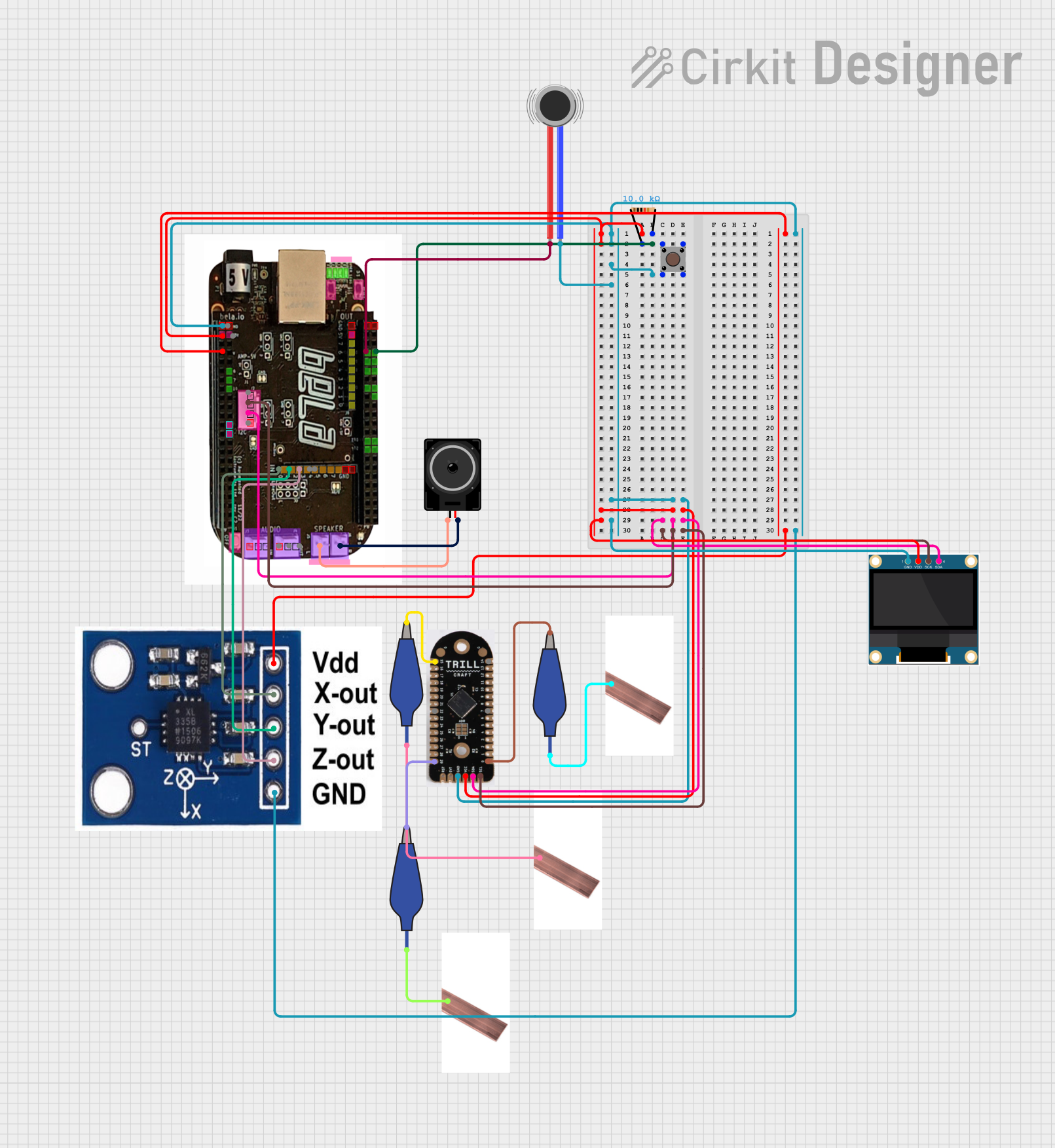 Open Project in Cirkit Designer
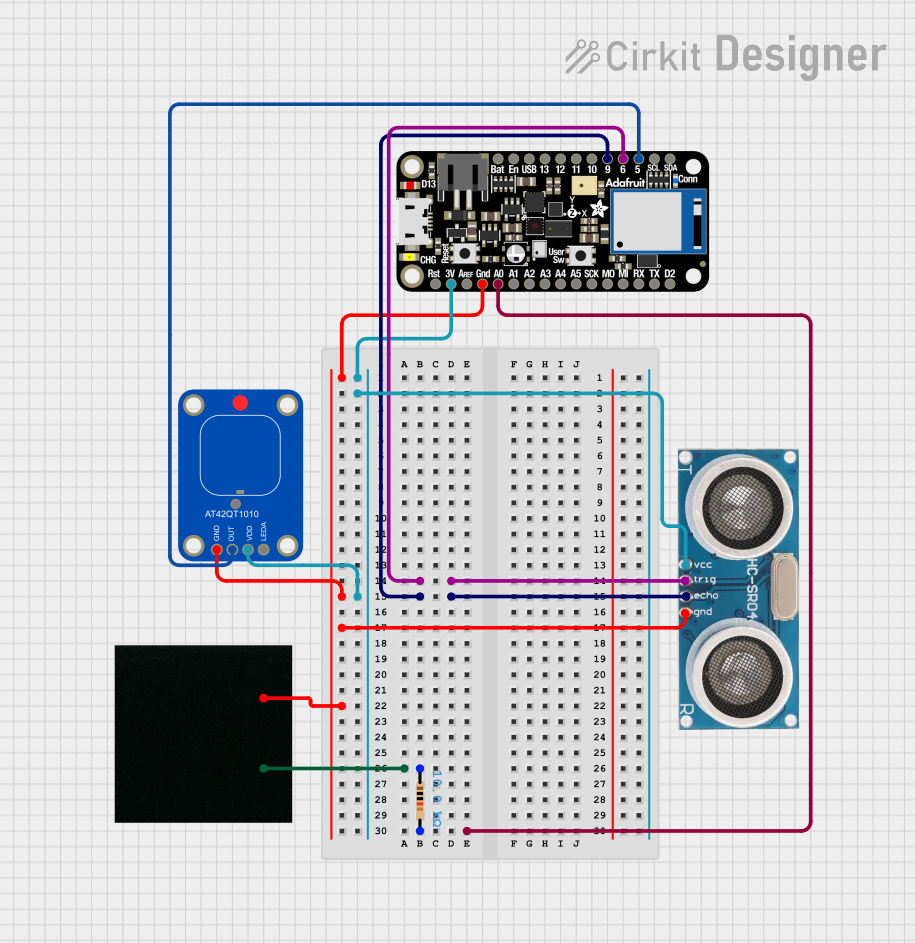 Open Project in Cirkit Designer
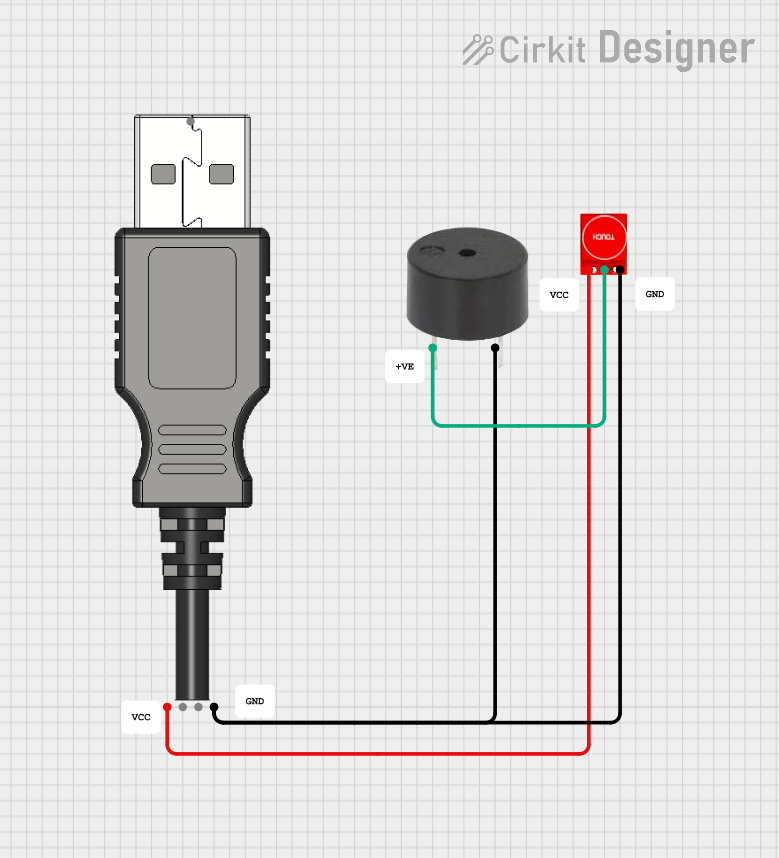 Open Project in Cirkit Designer
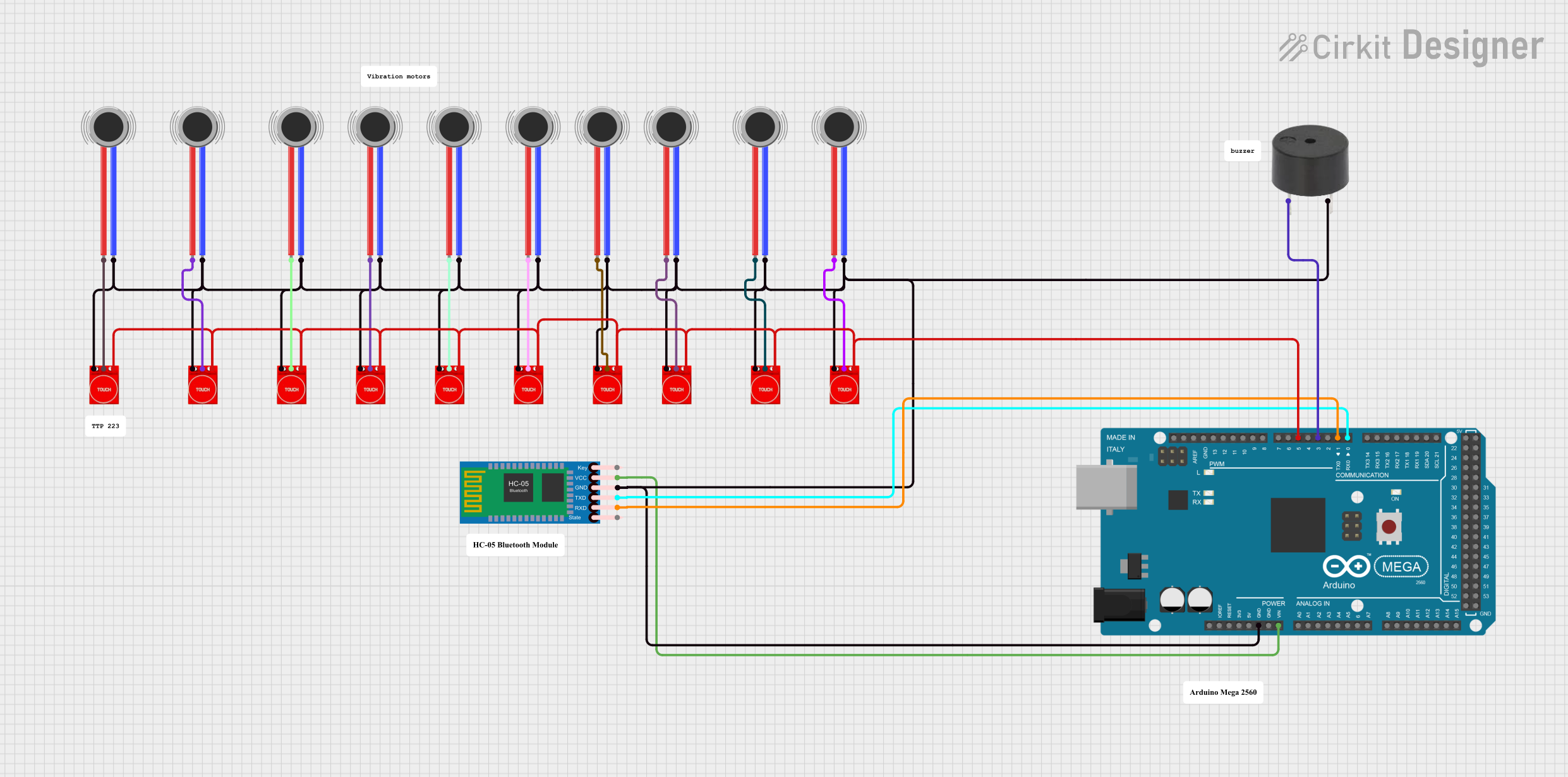 Open Project in Cirkit Designer
Explore Projects Built with trill touch sensor
Open Project in Cirkit DesignerOpen Project in Cirkit DesignerOpen Project in Cirkit DesignerOpen Project in Cirkit DesignerTechnical Specifications
- Operating Voltage: 3.3V (compatible with 5V systems via level shifters)
- Communication Protocol: I²C
- Touch Points: Up to 30 (depending on the specific Trill model)
- Proximity Detection: Supported
- Dimensions: Varies by model (e.g., Trill Bar, Trill Square, etc.)
- Power Consumption: Low power, suitable for battery-powered applications
- I²C Address Range: Configurable via solder jumpers
Pin Configuration and Descriptions
The Trill Touch Sensor typically has the following pinout:
| Pin Name | Description |
|---|---|
| VCC | Power supply input (3.3V recommended) |
| GND | Ground connection |
| SDA | I²C data line for communication with the microcontroller |
| SCL | I²C clock line for communication with the microcontroller |
| ADDR | Address selection pin (used to set the I²C address via solder jumper) |
| INT | Interrupt pin (optional, used for event-driven applications) |
Usage Instructions
How to Use the Trill Touch Sensor in a Circuit
- Power the Sensor: Connect the
VCCpin to a 3.3V power source and theGNDpin to ground. - Connect I²C Lines: Connect the
SDAandSCLpins to the corresponding I²C pins on your microcontroller. For Arduino UNO, useA4forSDAandA5forSCL. - Set the I²C Address: If using multiple Trill sensors, configure unique I²C addresses by adjusting the solder jumper on the
ADDRpin. - Optional Interrupt: If your application requires event-driven touch detection, connect the
INTpin to a digital input pin on your microcontroller.
Important Considerations and Best Practices
- Voltage Compatibility: The Trill sensor operates at 3.3V. If using a 5V microcontroller (e.g., Arduino UNO), use level shifters to avoid damaging the sensor.
- I²C Pull-Up Resistors: Ensure that pull-up resistors (typically 4.7kΩ) are present on the
SDAandSCLlines if not already included in your setup. - Placement: Avoid placing the sensor near high-frequency noise sources or conductive materials that may interfere with touch detection.
- Calibration: Some applications may require calibration to optimize touch sensitivity and accuracy.
Example Code for Arduino UNO
Below is an example of how to use the Trill Touch Sensor with an Arduino UNO:
#include <Wire.h>
#include <Adafruit_Trill.h> // Include the Trill library

Adafruit_Trill trill; // Create a Trill object

void setup() {
  Serial.begin(9600); // Initialize serial communication for debugging
  Wire.begin();       // Initialize I²C communication

  // Initialize the Trill sensor
  if (!trill.begin()) {
    Serial.println("Failed to initialize Trill sensor!");
    while (1); // Halt execution if initialization fails
  }
  Serial.println("Trill sensor initialized successfully.");
}

void loop() {
  // Read touch data from the Trill sensor
  if (trill.read()) {
    Serial.println("Failed to read from Trill sensor!");
    return; // Skip the rest of the loop if read fails
  }

  // Print touch position and size if a touch is detected
  if (trill.numTouches() > 0) {
    for (int i = 0; i < trill.numTouches(); i++) {
      Serial.print("Touch ");
      Serial.print(i);
      Serial.print(": Position = ");
      Serial.print(trill.touchLocation(i));
      Serial.print(", Size = ");
      Serial.println(trill.touchSize(i));
    }
  } else {
    Serial.println("No touch detected.");
  }

  delay(50); // Add a small delay to avoid flooding the serial monitor
}
Troubleshooting and FAQs
Common Issues
Sensor Not Responding:
- Cause: Incorrect wiring or I²C address mismatch.
- Solution: Double-check the wiring and ensure the I²C address matches the configuration in your code.
Inconsistent Touch Detection:
- Cause: Electrical noise or improper grounding.
- Solution: Ensure proper grounding and avoid placing the sensor near noisy components.
No Data on Serial Monitor:
- Cause: Incorrect baud rate or failed initialization.
- Solution: Verify that the baud rate in the Serial Monitor matches the
Serial.begin()value in the code.
FAQs
Can I use multiple Trill sensors in one project? Yes, you can use multiple sensors by configuring unique I²C addresses for each sensor.
Is the Trill sensor compatible with Raspberry Pi? Yes, the Trill sensor can be used with Raspberry Pi via the I²C interface.
How do I clean the sensor surface? Use a soft, lint-free cloth slightly dampened with water or isopropyl alcohol. Avoid abrasive materials.
By following this documentation, you can effectively integrate the Trill Touch Sensor into your projects and troubleshoot common issues with ease.