
How to Use ESP32-S3-Touch-LCD-4.3: Examples, Pinouts, and Specs
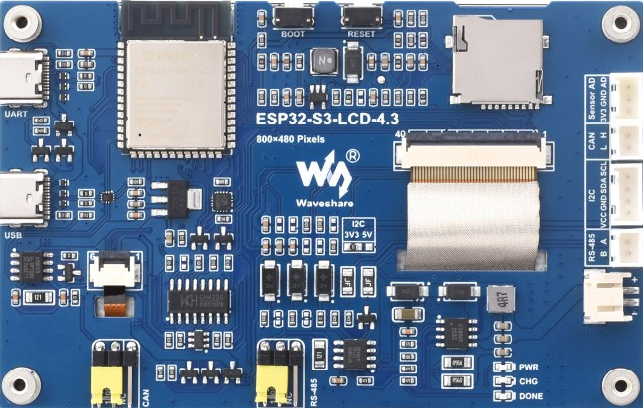
 Design with ESP32-S3-Touch-LCD-4.3 in Cirkit Designer
Introduction
The ESP32-S3-Touch-LCD-4.3 by Waveshare is a versatile 4.3-inch touchscreen display module powered by the ESP32-S3 microcontroller. This module combines a high-resolution display with the powerful capabilities of the ESP32-S3, including dual-core processing, Wi-Fi, and Bluetooth connectivity. It is designed for creating interactive applications, graphical user interfaces (GUIs), and IoT projects.
Explore Projects Built with ESP32-S3-Touch-LCD-4.3
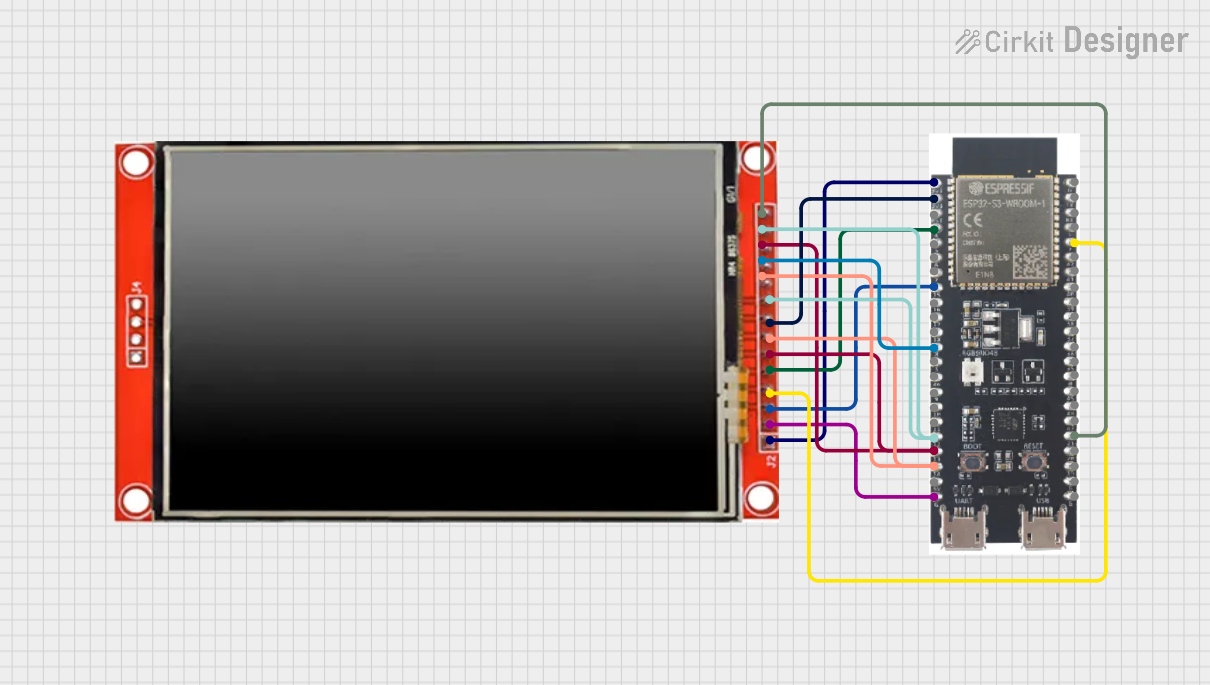 Open Project in Cirkit Designer
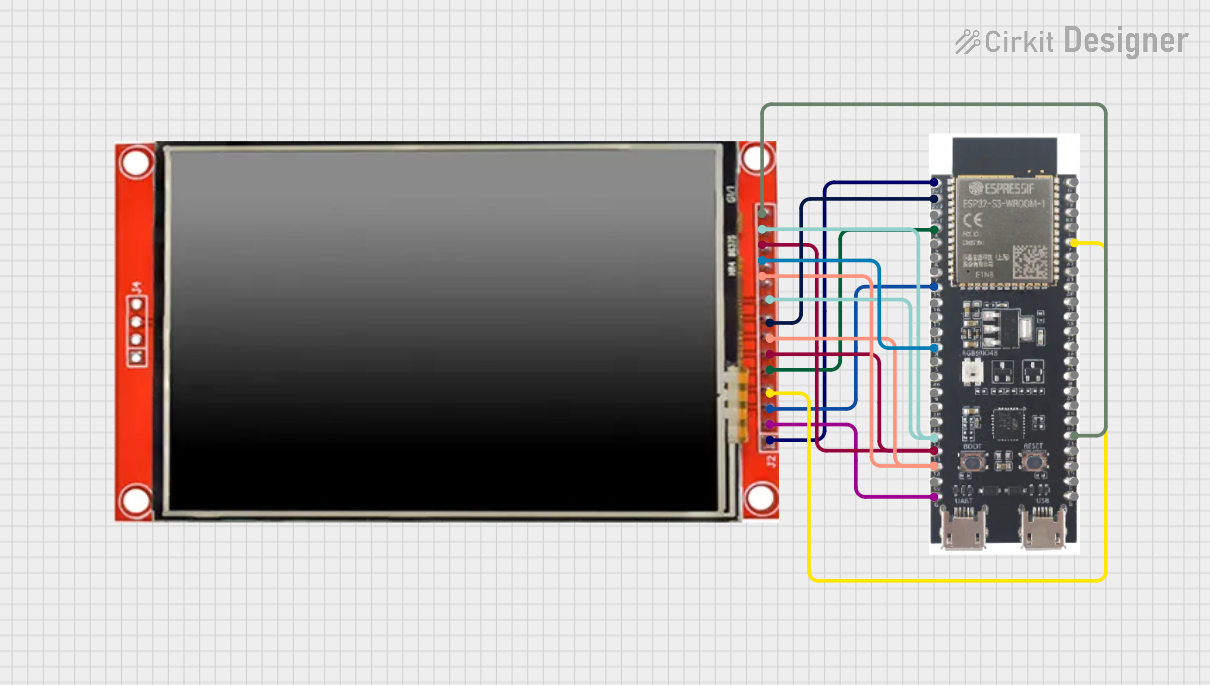 Open Project in Cirkit Designer
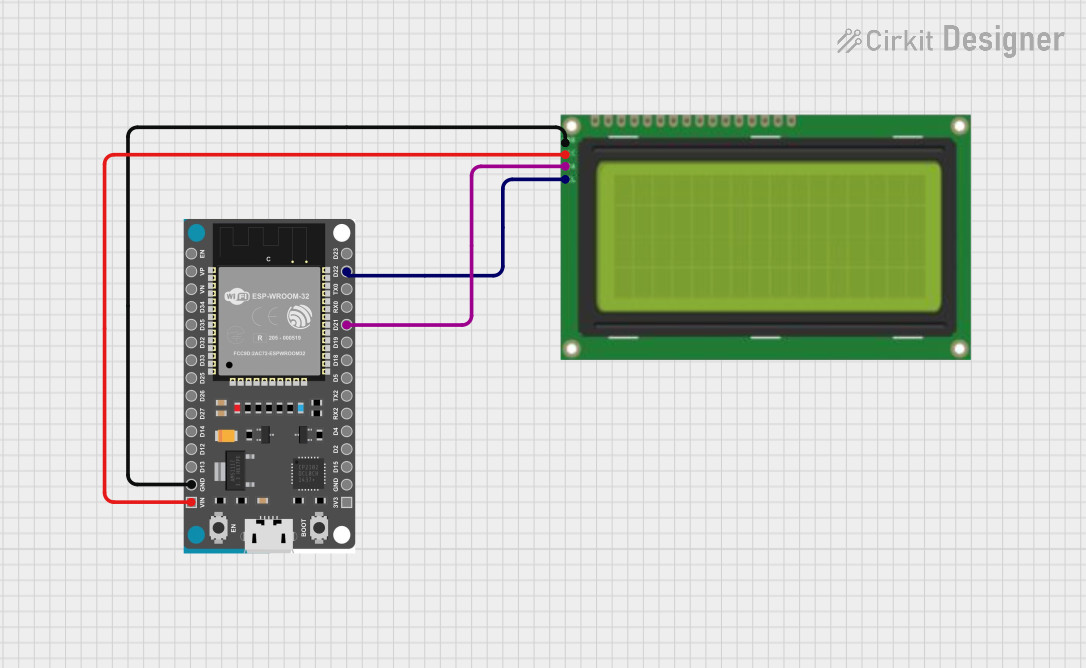 Open Project in Cirkit Designer
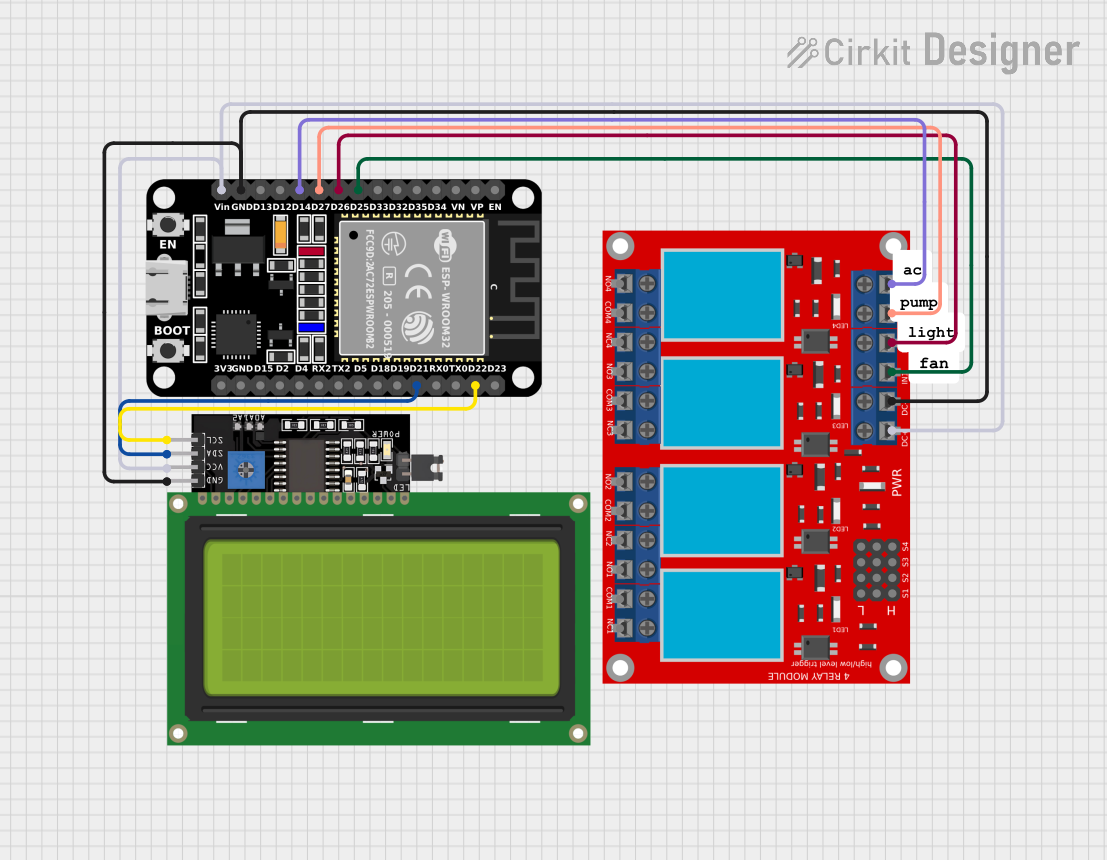 Open Project in Cirkit Designer
Explore Projects Built with ESP32-S3-Touch-LCD-4.3
Open Project in Cirkit DesignerOpen Project in Cirkit DesignerOpen Project in Cirkit DesignerOpen Project in Cirkit DesignerCommon Applications and Use Cases
- Smart home control panels
- IoT dashboards and monitoring systems
- Industrial control interfaces
- Educational and prototyping projects
- Portable devices with touch-based interaction
Technical Specifications
Key Technical Details
| Parameter | Specification |
|---|---|
| Microcontroller | ESP32-S3 |
| Display Size | 4.3 inches |
| Resolution | 800 × 480 pixels |
| Touchscreen Type | Capacitive |
| Connectivity | Wi-Fi 802.11 b/g/n, Bluetooth 5.0 |
| Flash Memory | 16 MB |
| PSRAM | 8 MB |
| Operating Voltage | 5V (via USB-C) |
| Interface | USB-C, GPIO pins |
| Dimensions | 120.5 mm × 75.5 mm × 12.5 mm |
Pin Configuration and Descriptions
The ESP32-S3-Touch-LCD-4.3 features a GPIO header for additional connectivity. Below is the pinout description:
| Pin Name | Function | Description |
|---|---|---|
| 5V | Power Input | Supplies 5V power to the module. |
| GND | Ground | Common ground for the circuit. |
| TX | UART Transmit | Transmits serial data. |
| RX | UART Receive | Receives serial data. |
| GPIO0 | General Purpose I/O | Configurable digital I/O pin. |
| GPIO1 | General Purpose I/O | Configurable digital I/O pin. |
| SDA | I2C Data Line | Data line for I2C communication. |
| SCL | I2C Clock Line | Clock line for I2C communication. |
| SPI_MOSI | SPI Master Out Slave In | Data output for SPI communication. |
| SPI_MISO | SPI Master In Slave Out | Data input for SPI communication. |
| SPI_CLK | SPI Clock | Clock signal for SPI communication. |
| SPI_CS | SPI Chip Select | Selects the SPI device. |
Usage Instructions
How to Use the Component in a Circuit
Powering the Module:
Connect the module to a 5V power source using the USB-C port or the 5V and GND pins.Programming the ESP32-S3:
Use the USB-C port to connect the module to your computer. Install the necessary drivers and use the Arduino IDE or ESP-IDF to upload your code.Connecting Peripherals:
Use the GPIO pins to connect sensors, actuators, or other peripherals. Ensure proper voltage levels and pin configurations.Touchscreen Interface:
The capacitive touchscreen can be used to create interactive GUIs. Libraries like LVGL (Light and Versatile Graphics Library) are recommended for GUI development.
Important Considerations and Best Practices
- Power Supply: Ensure a stable 5V power source to avoid unexpected resets or malfunctions.
- ESD Protection: Handle the touchscreen carefully to prevent electrostatic discharge damage.
- Firmware Updates: Regularly update the ESP32-S3 firmware for optimal performance and security.
- Library Compatibility: Use compatible libraries for touchscreen and display control, such as TFT_eSPI or LVGL.
Example Code for Arduino UNO Integration
Below is an example of how to display text on the touchscreen using the TFT_eSPI library:
#include <TFT_eSPI.h> // Include the TFT_eSPI library

TFT_eSPI tft = TFT_eSPI(); // Create an instance of the display

void setup() {
  tft.init(); // Initialize the display
  tft.setRotation(1); // Set display orientation (1 = landscape)

  tft.fillScreen(TFT_BLACK); // Clear the screen with black color
  tft.setTextColor(TFT_WHITE, TFT_BLACK); // Set text color (white on black)
  tft.setTextSize(2); // Set text size

  tft.setCursor(10, 10); // Set cursor position
  tft.println("Hello, ESP32-S3!"); // Print text to the display
}

void loop() {
  // Add your code here for interactive functionality
}
Note: Ensure the TFT_eSPI library is configured for the ESP32-S3-Touch-LCD-4.3 in the
User_Setup.hfile.
Troubleshooting and FAQs
Common Issues and Solutions
Display Not Turning On:
- Ensure the module is receiving 5V power.
- Check the USB-C cable and power source for faults.
Touchscreen Not Responding:
- Verify that the touchscreen library is correctly initialized in your code.
- Check for loose connections or damaged cables.
Wi-Fi or Bluetooth Not Working:
- Ensure the ESP32-S3 firmware is up to date.
- Verify that the correct Wi-Fi credentials are provided in your code.
Serial Communication Issues:
- Confirm the correct baud rate is set in your code and serial monitor.
- Check the TX and RX connections if using UART.
FAQs
Q: Can I power the module using a battery?
A: Yes, you can use a 5V battery pack with a USB-C output or connect a regulated 5V source to the 5V and GND pins.
Q: What is the maximum touchpoints supported by the touchscreen?
A: The capacitive touchscreen supports up to 5 simultaneous touchpoints.
Q: Is the module compatible with ESP-IDF?
A: Yes, the ESP32-S3-Touch-LCD-4.3 is fully compatible with ESP-IDF for advanced development.
Q: Can I use this module with Raspberry Pi?
A: While the module is designed for ESP32-S3, it can communicate with Raspberry Pi via UART, I2C, or SPI for specific use cases.
Q: What is the recommended GUI library?
A: The LVGL library is highly recommended for creating advanced graphical user interfaces.