
How to Use UGREEN Revodok Pro 109 9 in 1 USB C Hub: Examples, Pinouts, and Specs
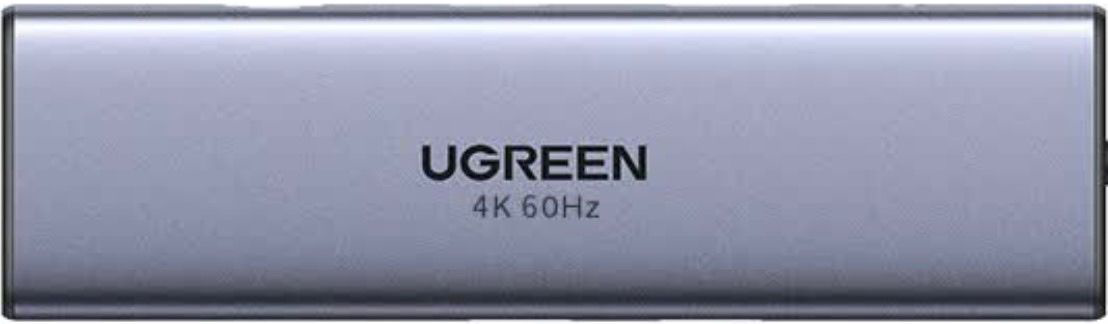
 Design with UGREEN Revodok Pro 109 9 in 1 USB C Hub in Cirkit Designer
Introduction
The UGREEN Revodok Pro 109 9 in 1 USB-C Hub (Manufacturer Part ID: 15532) is a versatile and compact device designed to expand the functionality of a single USB-C port. It provides nine additional ports, including HDMI, USB-A, USB-C, SD card slots, and more, enabling seamless connectivity for multiple devices. This hub is ideal for professionals, students, and anyone looking to enhance their productivity by connecting peripherals, external displays, and storage devices to their laptops or tablets.
Explore Projects Built with UGREEN Revodok Pro 109 9 in 1 USB C Hub
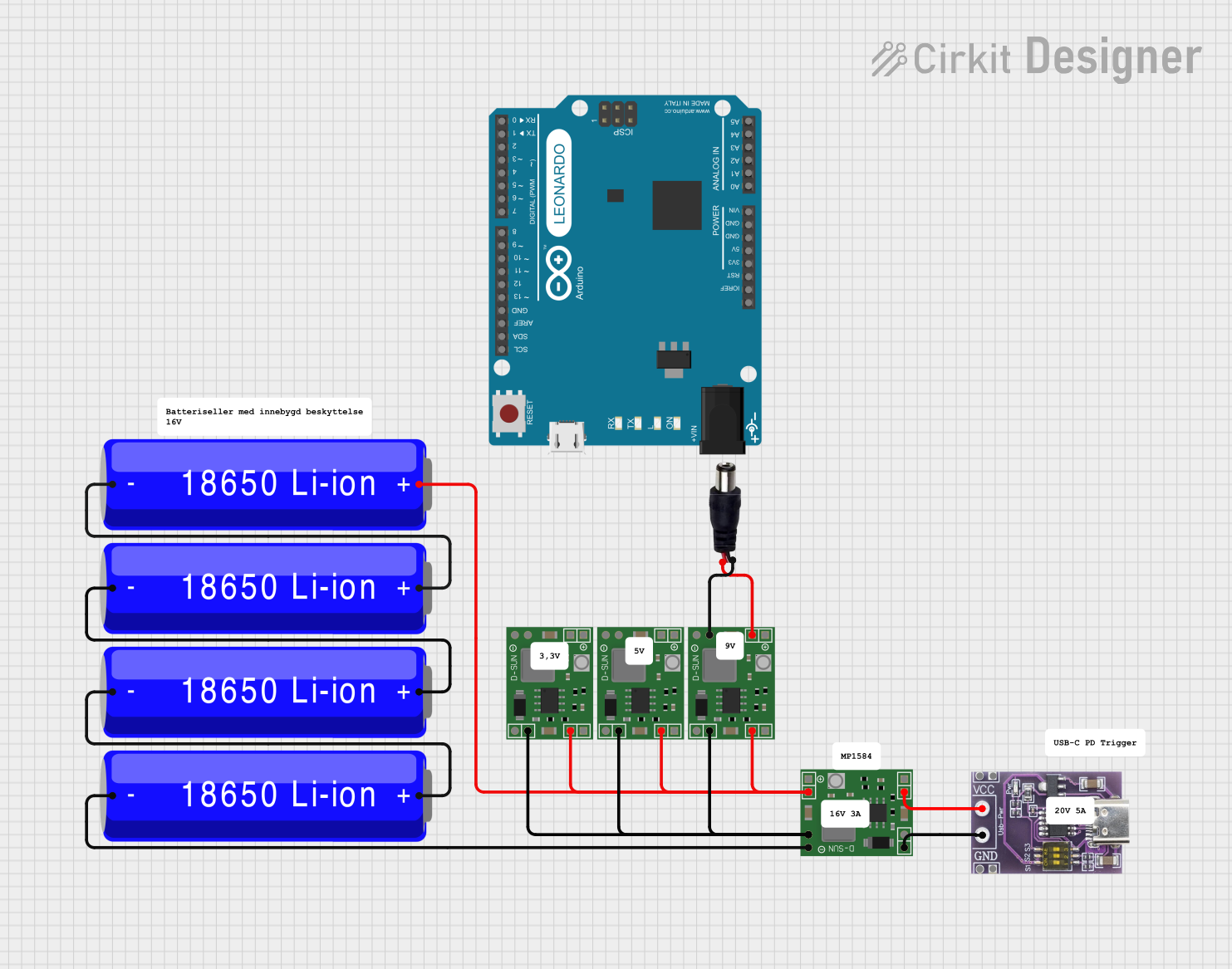 Open Project in Cirkit Designer
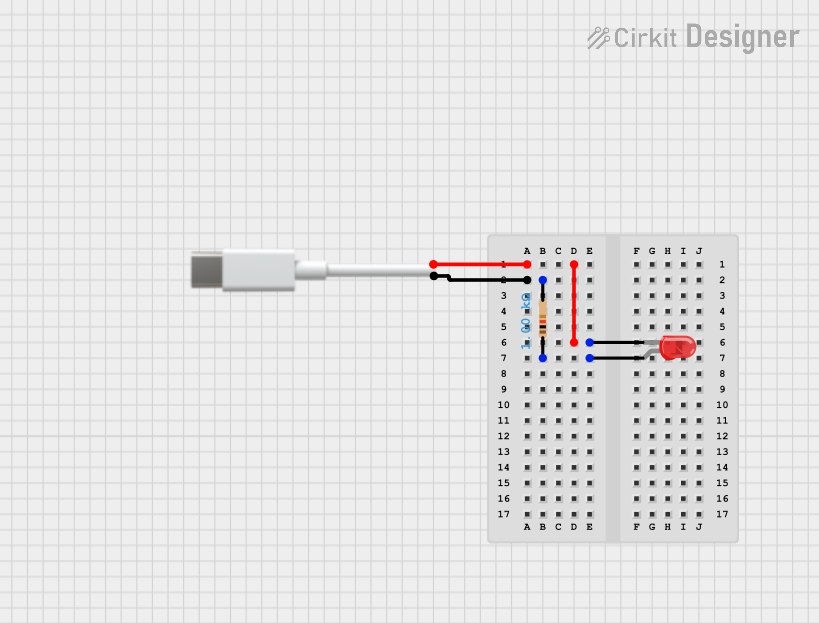 Open Project in Cirkit Designer
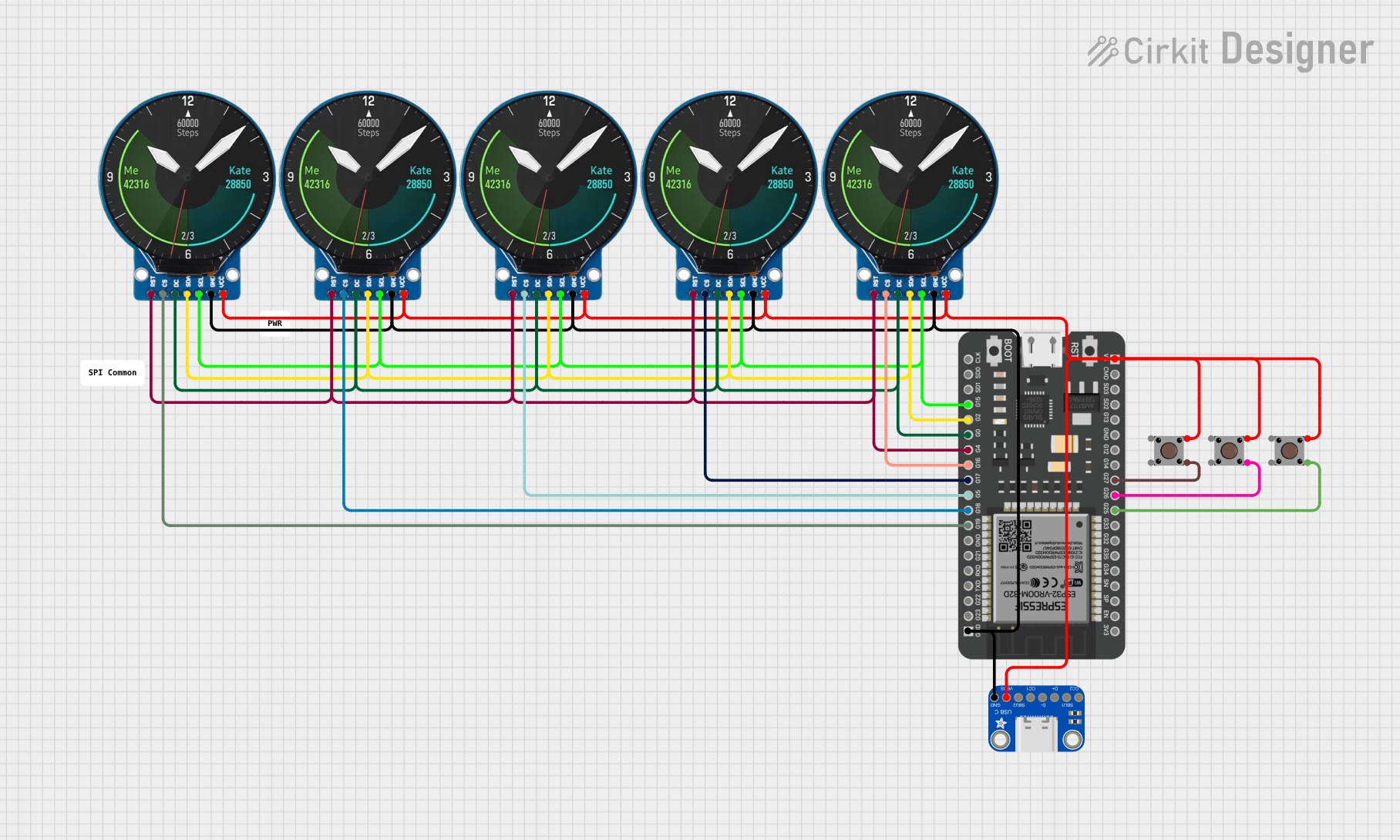 Open Project in Cirkit Designer
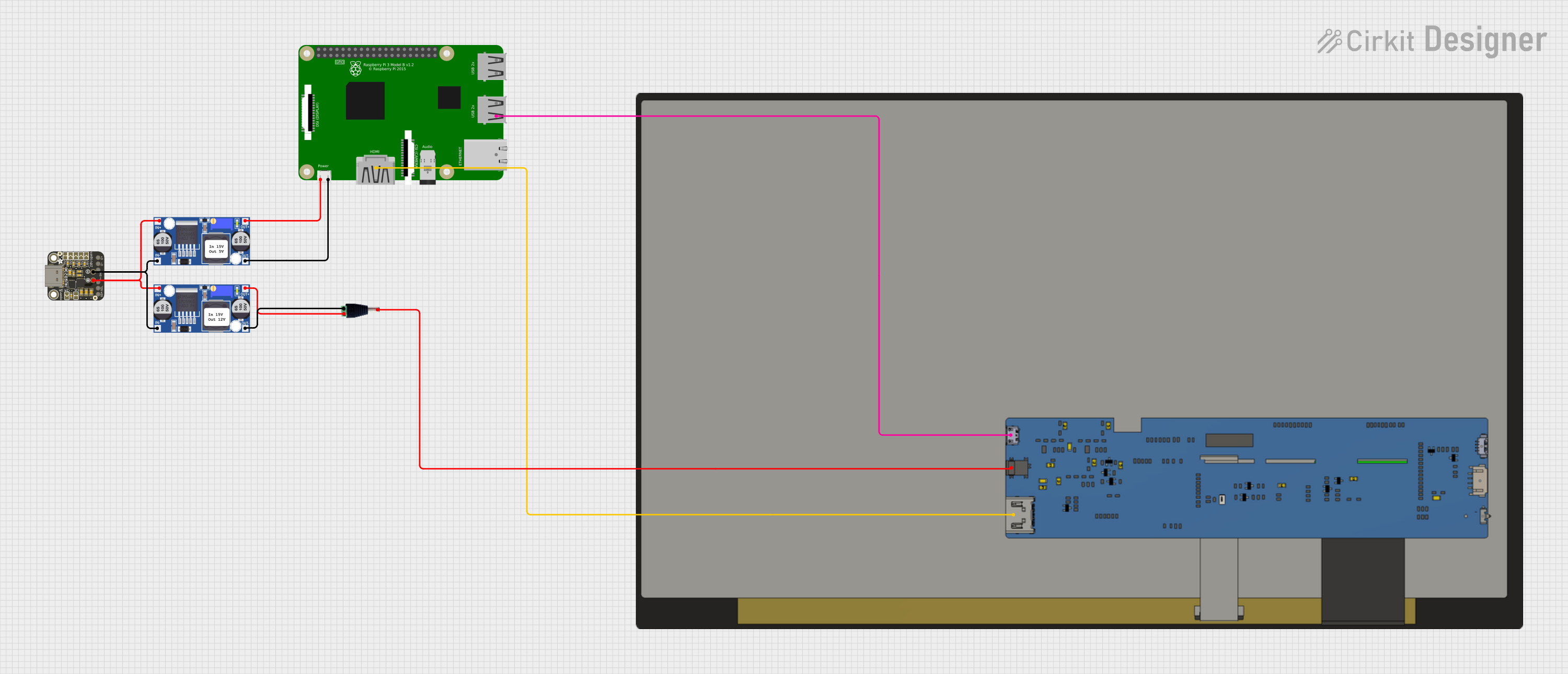 Open Project in Cirkit Designer
Explore Projects Built with UGREEN Revodok Pro 109 9 in 1 USB C Hub
Open Project in Cirkit DesignerOpen Project in Cirkit DesignerOpen Project in Cirkit DesignerOpen Project in Cirkit DesignerCommon Applications and Use Cases
- Connecting external monitors via HDMI for presentations or extended displays.
- Transferring data between devices using USB-A or USB-C ports.
- Reading and writing data to SD and microSD cards.
- Charging devices through the USB-C Power Delivery (PD) port.
- Expanding connectivity for laptops, tablets, and smartphones with limited ports.
Technical Specifications
The following table outlines the key technical details of the UGREEN Revodok Pro 109 9 in 1 USB-C Hub:
| Specification | Details |
|---|---|
| Manufacturer | UGREEN |
| Part ID | 15532 |
| Input Port | USB-C (male) |
| Output Ports | 1x HDMI, 3x USB-A 3.0, 1x USB-C PD, 1x Ethernet, 1x SD, 1x microSD, 1x 3.5mm Audio |
| HDMI Resolution | Up to 4K @ 60Hz (dependent on host device capabilities) |
| USB-A Data Transfer | Up to 5Gbps |
| USB-C PD Charging | Up to 100W (pass-through charging) |
| Ethernet Port | Gigabit Ethernet (10/100/1000 Mbps) |
| SD/microSD Speeds | UHS-I (up to 104MB/s) |
| Audio Port | 3.5mm headphone/microphone combo jack |
| Material | Aluminum alloy + ABS plastic |
| Dimensions | 4.9 x 2.2 x 0.6 inches (125 x 56 x 15 mm) |
| Weight | 120g |
| Compatibility | Windows, macOS, Linux, iPadOS, Android |
Pin Configuration and Descriptions
The UGREEN Revodok Pro 109 does not have traditional pins but features the following ports:
| Port | Description |
|---|---|
| USB-C (Input) | Connects to the host device (e.g., laptop, tablet) via USB-C. |
| HDMI | Outputs video and audio to an external display. Supports up to 4K @ 60Hz. |
| USB-A 3.0 | Three ports for connecting peripherals like keyboards, mice, or flash drives. |
| USB-C PD | Power Delivery port for charging the host device (up to 100W). |
| Ethernet | Provides a stable wired internet connection with Gigabit speeds. |
| SD Slot | Reads and writes data to standard SD cards. |
| microSD Slot | Reads and writes data to microSD cards. |
| 3.5mm Audio | Combo jack for headphones or microphones. |
Usage Instructions
How to Use the UGREEN Revodok Pro 109
Connect the Hub to Your Device:
- Plug the USB-C connector of the hub into the USB-C port of your laptop, tablet, or smartphone.
- Ensure the host device supports USB-C with DisplayPort Alt Mode for HDMI functionality.
Connect Peripherals:
- Use the HDMI port to connect an external monitor or projector.
- Plug in USB-A devices such as keyboards, mice, or external drives.
- Insert SD or microSD cards into the respective slots for data transfer.
- Use the Ethernet port for a wired internet connection.
- Connect headphones or microphones to the 3.5mm audio jack.
Power Delivery (Optional):
- If your host device requires charging, connect a USB-C charger (up to 100W) to the USB-C PD port on the hub.
Important Considerations and Best Practices
- HDMI Compatibility: Ensure your host device supports DisplayPort Alt Mode for HDMI output. Without this, the HDMI port will not function.
- Power Delivery: Use a high-quality USB-C charger to ensure stable pass-through charging.
- Data Transfer: For optimal performance, use USB 3.0-compatible devices with the USB-A ports.
- Ethernet Setup: Install necessary drivers if the Ethernet port is not automatically recognized by your operating system.
- Heat Management: The hub may become warm during extended use. This is normal and within safe operating limits.
Example: Connecting to an Arduino UNO via USB-A
The UGREEN Revodok Pro 109 can be used to connect an Arduino UNO to a laptop for programming and data transfer. Below is an example of Arduino code for basic LED blinking:
// This code blinks an LED connected to pin 13 of the Arduino UNO.
// Ensure the Arduino is connected to the laptop via the USB-A port on the hub.

void setup() {
  pinMode(13, OUTPUT); // Set pin 13 as an output pin
}

void loop() {
  digitalWrite(13, HIGH); // Turn the LED on
  delay(1000);            // Wait for 1 second
  digitalWrite(13, LOW);  // Turn the LED off
  delay(1000);            // Wait for 1 second
}
Troubleshooting and FAQs
Common Issues and Solutions
HDMI Output Not Working:
- Cause: Host device does not support DisplayPort Alt Mode.
- Solution: Verify that your device supports DisplayPort Alt Mode. Check the device's specifications or contact the manufacturer.
USB Devices Not Recognized:
- Cause: Insufficient power supply or incompatible devices.
- Solution: Ensure the hub is connected to a power source via the USB-C PD port if using power-hungry peripherals.
Ethernet Connection Issues:
- Cause: Missing or outdated drivers.
- Solution: Download and install the latest Ethernet drivers from the UGREEN website.
SD/microSD Cards Not Detected:
- Cause: Card not properly inserted or unsupported format.
- Solution: Ensure the card is inserted correctly and formatted in a supported file system (e.g., FAT32, exFAT).
Hub Overheating:
- Cause: Prolonged use or high power draw.
- Solution: Disconnect unused peripherals and allow the hub to cool down.
FAQs
Q: Can I use this hub with my smartphone?
- A: Yes, as long as your smartphone supports USB-C with OTG (On-The-Go) functionality.
Q: Does the hub support dual monitors?
- A: No, the hub supports only a single HDMI output.
Q: Can I charge my laptop through the hub?
- A: Yes, the USB-C PD port supports pass-through charging up to 100W.
Q: Is the hub compatible with macOS?
- A: Yes, the hub is fully compatible with macOS, including M1 and M2 devices.
Q: Does the hub require external power?
- A: No, the hub is bus-powered but can use external power via the USB-C PD port for charging and powering connected devices.