
How to Use SD: Examples, Pinouts, and Specs
 Design with SD in Cirkit Designer
Introduction
- A Secure Digital (SD) card is a non-volatile memory card used for storing data in portable devices such as cameras, smartphones, and tablets. It provides a compact and removable storage solution with varying capacities and speeds.
- Common applications include:
- Storing photos, videos, and audio files in cameras and smartphones.
- Expanding storage for embedded systems and microcontrollers.
- Data logging in IoT devices and industrial applications.
- Bootable storage for single-board computers like Raspberry Pi.
Explore Projects Built with SD
 Open Project in Cirkit Designer
 Open Project in Cirkit Designer
 Open Project in Cirkit Designer
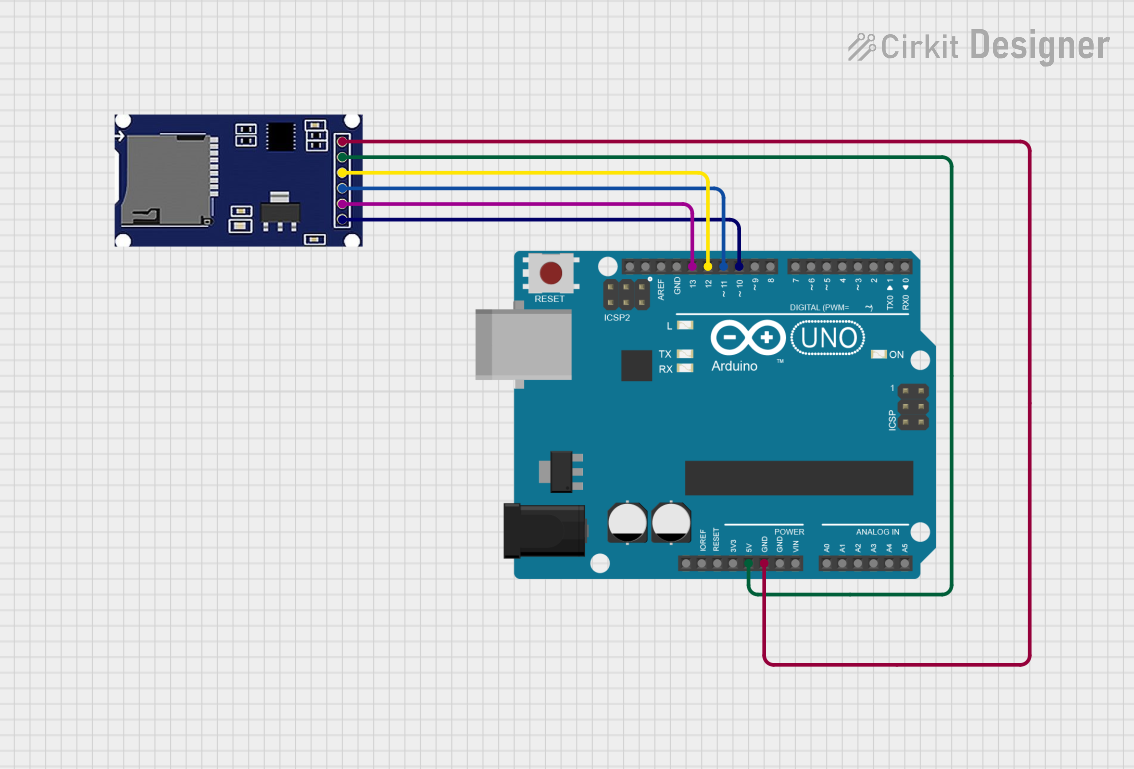 Open Project in Cirkit Designer
Explore Projects Built with SD
Open Project in Cirkit DesignerOpen Project in Cirkit DesignerOpen Project in Cirkit DesignerOpen Project in Cirkit DesignerTechnical Specifications
- Form Factors: Standard SD, miniSD, microSD.
- Capacities: Ranges from 2 MB to 2 TB (SD, SDHC, SDXC, SDUC standards).
- Speed Classes:
- Class 2, 4, 6, 10 (Standard Speed Classes).
- UHS-I, UHS-II, UHS-III (Ultra High-Speed Classes).
- Video Speed Classes (V6, V10, V30, V60, V90).
- Voltage: 2.7V to 3.6V (typical operating range).
- Interface: SPI (Serial Peripheral Interface) or SD bus mode.
- File System: FAT12, FAT16, FAT32, exFAT (depending on capacity).
Pin Configuration and Descriptions
The SD card has 9 pins in its standard form factor. Below is the pinout and description:
| Pin Number | Pin Name | Description |
|---|---|---|
| 1 | DAT2 | Data Line 2 (not used in SPI mode) |
| 2 | CD/DAT3 | Card Detect/Data Line 3 |
| 3 | CMD | Command/Response Line |
| 4 | VDD | Power Supply (2.7V to 3.6V) |
| 5 | CLK | Clock Signal |
| 6 | VSS | Ground |
| 7 | DAT0 | Data Line 0 |
| 8 | DAT1 | Data Line 1 |
| 9 | NC | Not Connected |
For microSD cards, the pinout is similar but in a smaller form factor.
Usage Instructions
How to Use the SD Card in a Circuit
Connection:
- Use an SD card module or breakout board to simplify connections.
- Connect the SD card to a microcontroller using SPI or SD bus mode.
- Ensure proper voltage regulation if the microcontroller operates at 5V (use a level shifter if needed).
Wiring Example (SPI Mode):
- Connect the SD card pins to the microcontroller as follows:
CLKto SPI Clock (SCK).CMDto SPI MOSI (Master Out Slave In).DAT0to SPI MISO (Master In Slave Out).VDDto 3.3V power supply.VSSto Ground.
- Connect the SD card pins to the microcontroller as follows:
Software Setup:
- Use an SD card library (e.g., Arduino SD library) to initialize and communicate with the card.
- Format the SD card with a compatible file system (e.g., FAT32).
Arduino UNO Example Code
#include <SPI.h>
#include <SD.h>

// Define the chip select pin for the SD card module
const int chipSelect = 4;

void setup() {
  Serial.begin(9600);
  while (!Serial) {
    // Wait for the serial port to connect (for native USB boards)
  }

  Serial.println("Initializing SD card...");

  // Initialize the SD card
  if (!SD.begin(chipSelect)) {
    Serial.println("Card failed, or not present");
    // Stop further execution if the card is not detected
    return;
  }
  Serial.println("Card initialized successfully!");

  // Create or open a file on the SD card
  File dataFile = SD.open("example.txt", FILE_WRITE);
  if (dataFile) {
    dataFile.println("Hello, SD card!");
    dataFile.close(); // Close the file to save changes
    Serial.println("Data written to file.");
  } else {
    Serial.println("Error opening file.");
  }
}

void loop() {
  // Nothing to do here
}
Important Considerations and Best Practices
- Always use a level shifter or voltage regulator when interfacing with 5V systems.
- Format the SD card using official tools or operating system utilities to ensure compatibility.
- Avoid removing the SD card while the system is powered on to prevent data corruption.
- Use proper pull-up resistors on the SPI lines if required by your circuit.
Troubleshooting and FAQs
Common Issues
SD Card Not Detected:
- Ensure proper wiring and check for loose connections.
- Verify that the SD card is formatted with a supported file system.
- Check the voltage levels and ensure compatibility with the SD card.
File Write/Read Errors:
- Ensure sufficient free space on the SD card.
- Verify that the file name and path are correct.
- Check for proper initialization in the code.
Slow Performance:
- Use an SD card with a higher speed class for better performance.
- Optimize the code to reduce unnecessary read/write operations.
FAQs
Q: Can I use a microSD card in place of a standard SD card?
A: Yes, with an appropriate adapter, microSD cards can be used in standard SD card slots.Q: What is the maximum capacity supported by an Arduino UNO?
A: The Arduino SD library supports FAT16 and FAT32 file systems, which means it can handle SD cards up to 32 GB.Q: How do I safely remove the SD card from my circuit?
A: Always power down the system or ensure no ongoing read/write operations before removing the SD card to prevent data corruption.Q: Can I use the SD card for real-time data logging?
A: Yes, but ensure the SD card has a high write speed and optimize your code to minimize delays.