
How to Use USB Sound Card: Examples, Pinouts, and Specs
 Design with USB Sound Card in Cirkit Designer
Introduction
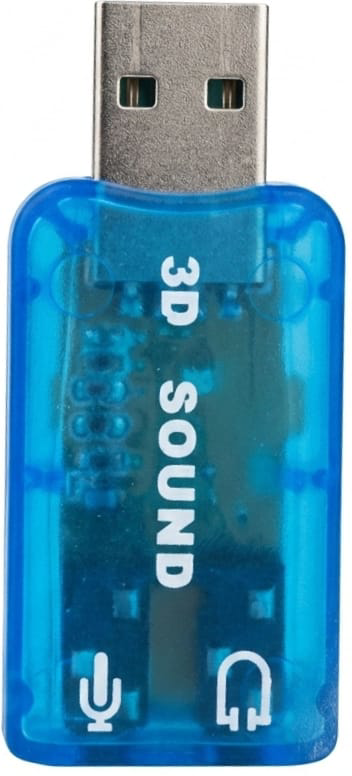
A USB sound card is an external audio device that connects to a computer via a USB port. It serves as an alternative to the computer's built-in sound card, offering enhanced audio input and output capabilities. USB sound cards are commonly used to improve sound quality, add additional audio ports (e.g., microphone and headphone jacks), or enable advanced audio processing features such as surround sound or noise cancellation.
Explore Projects Built with USB Sound Card
 Open Project in Cirkit Designer
 Open Project in Cirkit Designer
 Open Project in Cirkit Designer
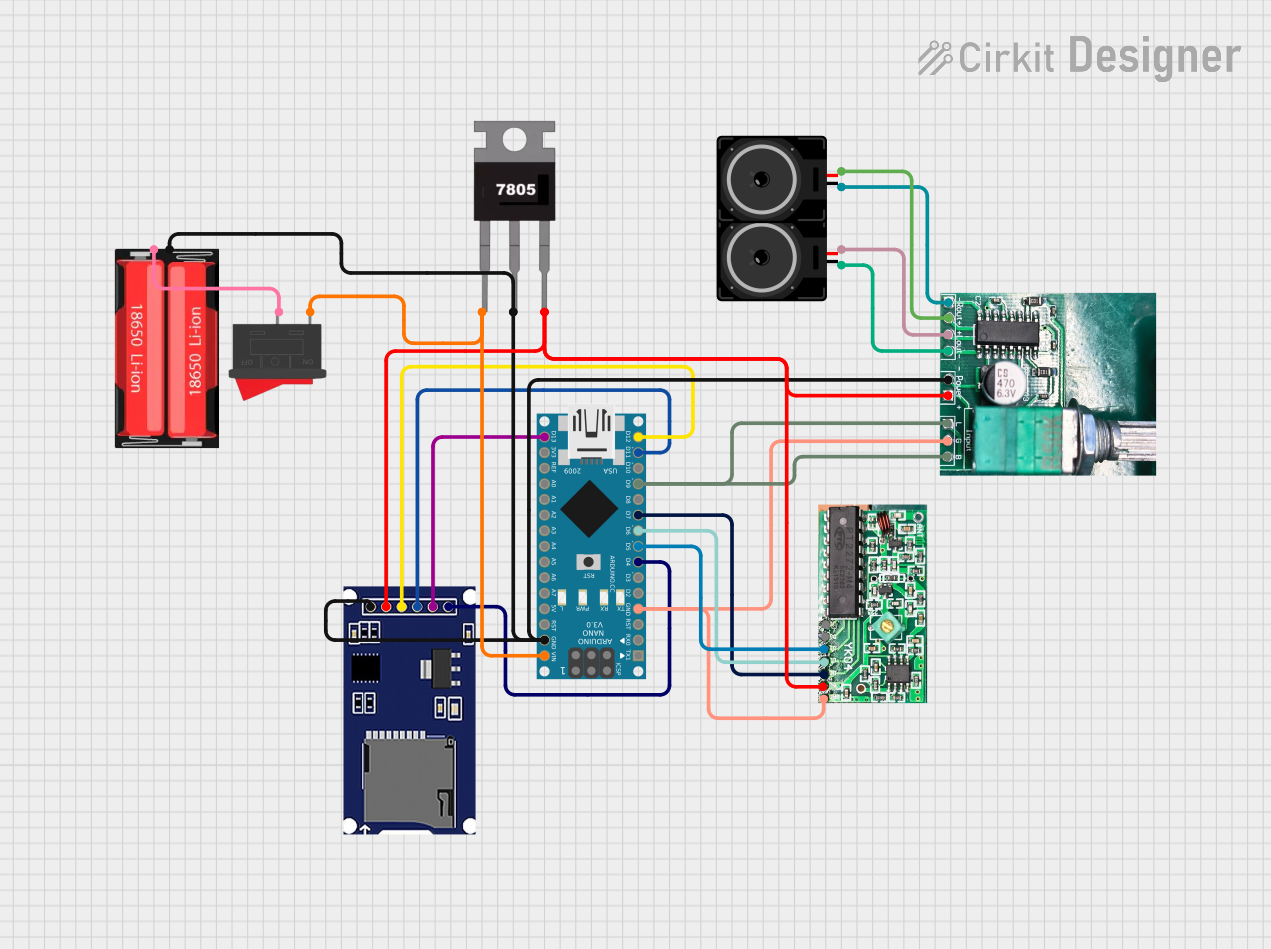 Open Project in Cirkit Designer
Explore Projects Built with USB Sound Card
Open Project in Cirkit DesignerOpen Project in Cirkit DesignerOpen Project in Cirkit DesignerOpen Project in Cirkit DesignerCommon Applications and Use Cases
- Enhancing audio quality for music production, gaming, or video editing.
- Adding audio input/output ports to devices without built-in audio jacks.
- Enabling multi-channel audio for home theater systems.
- Providing a portable audio solution for laptops or desktops.
- Supporting professional audio equipment such as XLR microphones or studio monitors.
Technical Specifications
Below are the general technical specifications for a typical USB sound card. Note that specific models may vary in features and performance.
Key Technical Details
- Interface: USB 2.0 or USB 3.0
- Power Supply: USB bus-powered (5V DC)
- Audio Channels: Stereo (2.0) or Surround Sound (5.1/7.1)
- Sampling Rate: Up to 96 kHz (varies by model)
- Bit Depth: 16-bit or 24-bit
- Input Ports: 3.5mm microphone jack, line-in, or XLR (on advanced models)
- Output Ports: 3.5mm headphone jack, line-out, or RCA connectors
- Compatibility: Windows, macOS, Linux, and some gaming consoles
- Dimensions: Compact and portable (varies by model)
Pin Configuration and Descriptions
USB sound cards typically do not have traditional pins like ICs. Instead, they feature ports and connectors. Below is a table describing the common ports and their functions:
| Port/Connector | Description |
|---|---|
| USB Connector | Connects the sound card to the computer for data transfer and power supply. |
| 3.5mm Microphone In | Accepts input from a microphone for recording or voice communication. |
| 3.5mm Headphone Out | Outputs audio to headphones or speakers. |
| Line-In | Accepts audio input from external devices such as MP3 players or mixers. |
| Line-Out | Outputs audio to external devices such as amplifiers or speakers. |
| Optical Out (TOSLINK) | Provides digital audio output for high-quality sound systems (optional). |
Usage Instructions
How to Use the USB Sound Card in a Circuit
- Connect the USB Sound Card: Plug the USB connector into an available USB port on your computer or compatible device.
- Install Drivers (if required): Some USB sound cards require driver installation. Follow the manufacturer's instructions to download and install the necessary drivers.
- Connect Audio Devices:
- Plug a microphone into the microphone input port.
- Connect headphones or speakers to the headphone output port.
- Use the line-in or line-out ports for additional audio devices as needed.
- Configure Audio Settings:
- On your computer, open the sound settings and select the USB sound card as the default audio input/output device.
- Adjust volume levels and other settings as required.
Important Considerations and Best Practices
- Power Supply: Ensure the USB port provides sufficient power for the sound card to function properly.
- Compatibility: Verify that the sound card is compatible with your operating system and device.
- Audio Quality: Use high-quality cables and connectors to minimize noise and interference.
- Firmware Updates: Check for firmware updates from the manufacturer to improve performance and compatibility.
Example: Using a USB Sound Card with Arduino UNO
While USB sound cards are primarily designed for computers, they can also be used with microcontrollers like the Arduino UNO for audio-related projects. Below is an example of how to send audio signals from an Arduino to a USB sound card using a USB host shield.
Arduino Code Example
#include <USBHostShield.h> // Include the USB Host Shield library

USB usb; // Create a USB object

void setup() {
  Serial.begin(9600); // Initialize serial communication
  if (usb.Init() == -1) {
    Serial.println("USB initialization failed. Check connections.");
    while (1); // Halt the program if initialization fails
  }
  Serial.println("USB sound card connected successfully.");
}

void loop() {
  // Example: Send audio data or control signals to the USB sound card
  // Note: Actual implementation depends on the specific sound card and project
}
Note: The USB Host Shield library must be installed in the Arduino IDE. This example assumes basic familiarity with USB host functionality.
Troubleshooting and FAQs
Common Issues and Solutions
No Sound Output:
- Ensure the USB sound card is selected as the default audio device in your computer's sound settings.
- Check the volume levels and ensure they are not muted.
- Verify that the headphones or speakers are properly connected.
Microphone Not Working:
- Confirm that the microphone is plugged into the correct port.
- Check the input settings in your operating system and ensure the microphone is enabled.
- Test the microphone on another device to rule out hardware issues.
Driver Installation Problems:
- Download the latest drivers from the manufacturer's website.
- Ensure the drivers are compatible with your operating system version.
Static or Noise in Audio:
- Use shielded cables to reduce interference.
- Avoid placing the USB sound card near other electronic devices that may cause electromagnetic interference.
FAQs
Q: Can I use a USB sound card with a smartphone or tablet?
A: Yes, many USB sound cards are compatible with smartphones and tablets via USB OTG (On-The-Go) adapters. Check the sound card's specifications for compatibility.
Q: Does a USB sound card improve audio quality?
A: Yes, a USB sound card can significantly improve audio quality compared to built-in sound cards, especially on devices with limited audio hardware.
Q: Can I use a USB sound card for gaming?
A: Absolutely! Many USB sound cards are designed for gaming and support features like virtual surround sound and low-latency audio.
Q: Do I need external power for a USB sound card?
A: Most USB sound cards are bus-powered and do not require an external power source. However, high-end models with advanced features may need additional power.
By following this documentation, you can effectively use a USB sound card to enhance your audio experience and troubleshoot common issues.