
How to Use LilyPad Arduino USB: Examples, Pinouts, and Specs
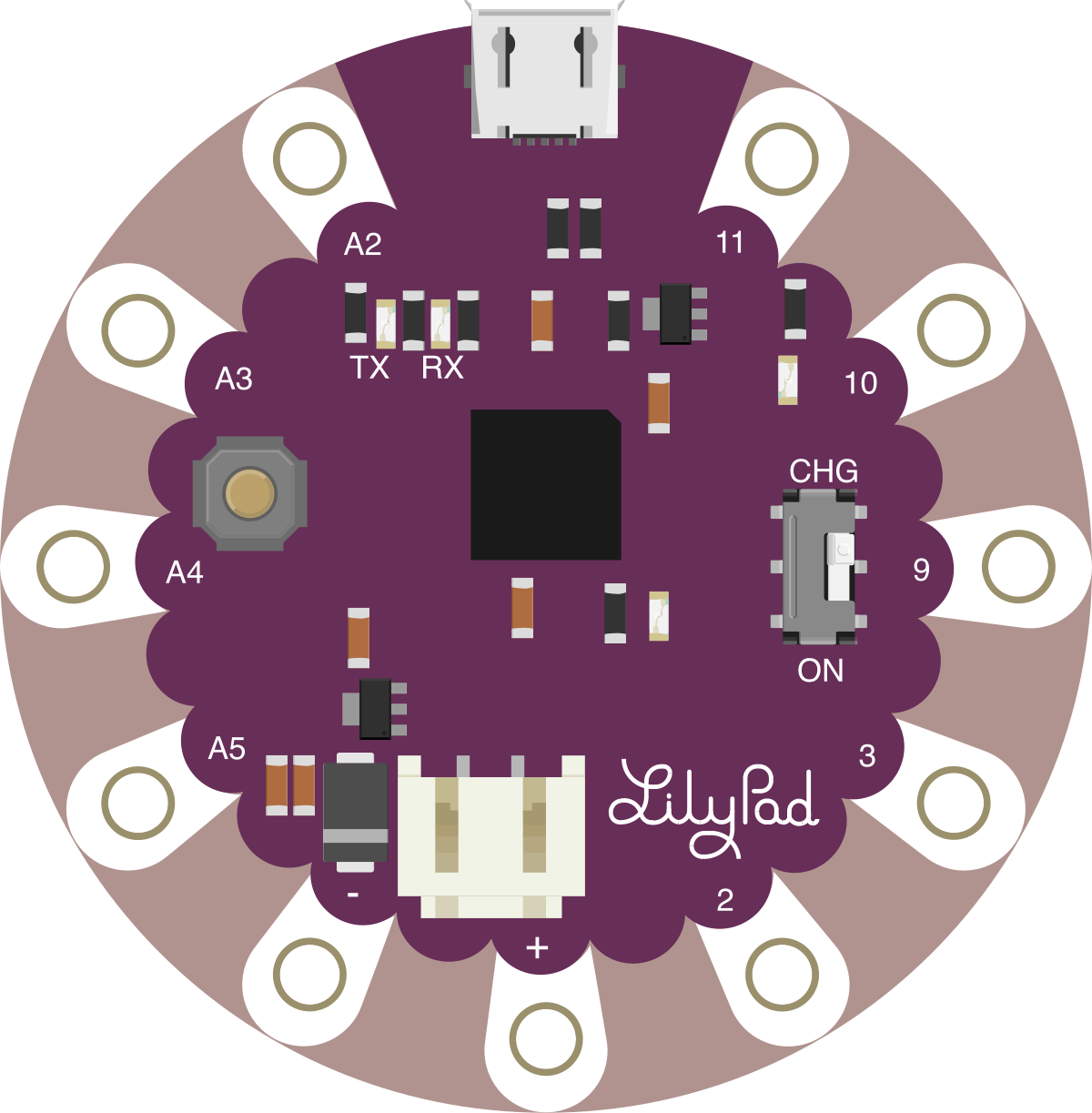
 Design with LilyPad Arduino USB in Cirkit Designer
Introduction
The LilyPad Arduino USB is a microcontroller board specifically designed for wearable electronics and e-textile projects. Its unique sewable design allows it to be easily integrated into fabric using conductive thread, making it ideal for creating interactive garments and accessories. The board features a USB interface for programming and power, eliminating the need for an external programmer. It is compact, lightweight, and optimized for low-power applications, making it a popular choice for wearable technology enthusiasts.
Explore Projects Built with LilyPad Arduino USB
 Open Project in Cirkit Designer
 Open Project in Cirkit Designer
 Open Project in Cirkit Designer
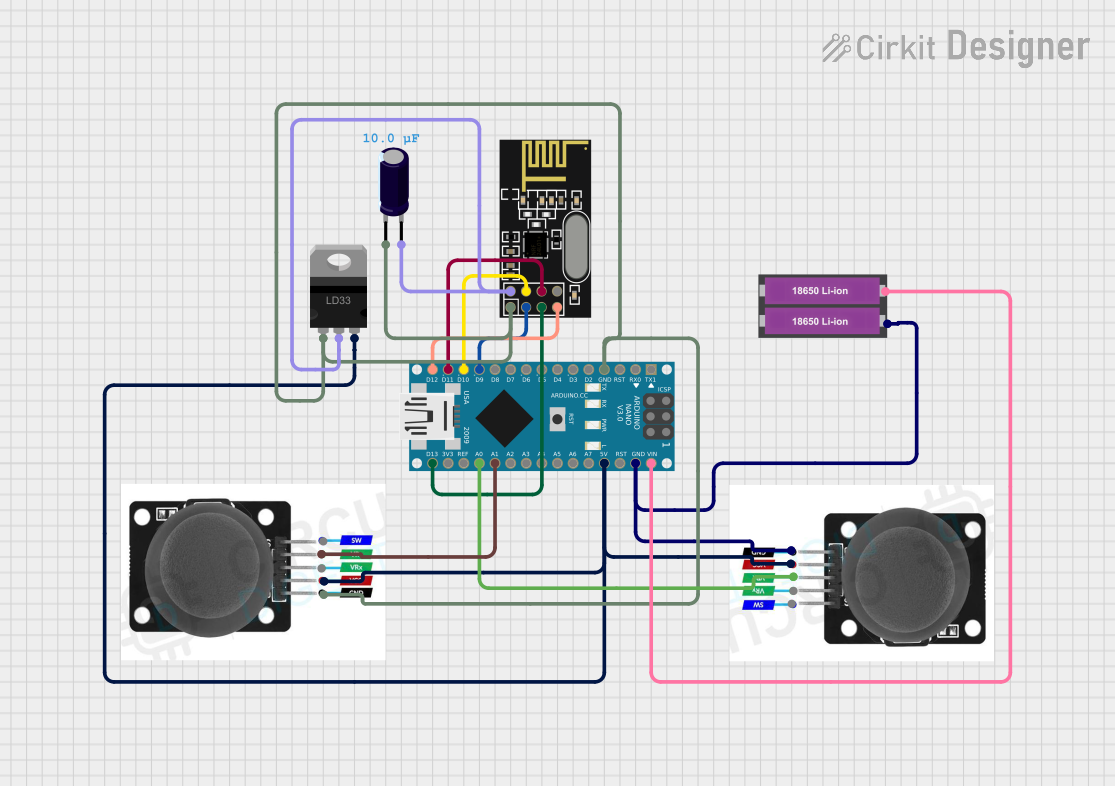 Open Project in Cirkit Designer
Explore Projects Built with LilyPad Arduino USB
Open Project in Cirkit DesignerOpen Project in Cirkit DesignerOpen Project in Cirkit DesignerOpen Project in Cirkit DesignerCommon Applications and Use Cases
- Wearable electronics, such as light-up clothing and accessories
- Interactive e-textile projects
- Prototyping for fashion technology
- Educational projects in electronics and programming
- Low-power, portable devices
Technical Specifications
The LilyPad Arduino USB is based on the ATmega32U4 microcontroller and includes several features tailored for wearable applications.
Key Technical Details
| Specification | Value |
|---|---|
| Microcontroller | ATmega32U4 |
| Operating Voltage | 3.3V |
| Input Voltage (via USB) | 5V |
| Digital I/O Pins | 9 (of which 4 provide PWM output) |
| Analog Input Pins | 4 |
| Flash Memory | 32 KB (4 KB used by bootloader) |
| SRAM | 2.5 KB |
| EEPROM | 1 KB |
| Clock Speed | 8 MHz |
| Dimensions | 50 mm diameter |
| Weight | 8 g |
Pin Configuration and Descriptions
| Pin Name | Description |
|---|---|
| GND | Ground pin for completing the circuit. |
| VCC | 3.3V power supply pin. |
| RAW | Input for an unregulated power source (e.g., battery). |
| TX (D1) | Transmit pin for serial communication. |
| RX (D0) | Receive pin for serial communication. |
| PWM Pins (D3, D5, D6, D9) | Digital pins with Pulse Width Modulation capability. |
| Analog Pins (A0–A3) | Analog input pins for reading sensor data. |
| RST | Reset pin to restart the microcontroller. |
Usage Instructions
The LilyPad Arduino USB is easy to use and program, making it suitable for both beginners and advanced users. Below are the steps and best practices for using the board in your projects.
How to Use the LilyPad Arduino USB in a Circuit
Powering the Board:
- Connect the board to your computer using a USB cable for programming and power.
- Alternatively, use the RAW pin to connect an external power source (e.g., a battery). Ensure the voltage does not exceed 5V.
Programming the Board:
- Install the Arduino IDE on your computer.
- Select "LilyPad Arduino USB" as the board type in the Arduino IDE.
- Write your code and upload it to the board via the USB connection.
Connecting Components:
- Use conductive thread to sew components (e.g., LEDs, sensors) to the board's sewable pads.
- Ensure proper connections between the board and components, following the pin configuration table.
Testing the Circuit:
- After uploading the code, test the circuit to ensure all components function as expected.
- Use a multimeter to check for continuity and proper voltage levels if issues arise.
Important Considerations and Best Practices
- Avoid Short Circuits: Ensure that conductive threads do not overlap or touch unintentionally, as this can cause short circuits.
- Use Proper Insulation: Cover exposed conductive thread with fabric or insulating material to prevent accidental contact.
- Low-Power Design: Optimize your code and circuit to minimize power consumption, especially for battery-powered projects.
- Secure Connections: Sew components tightly to ensure reliable electrical connections.
Example Code for Arduino UNO Integration
The following example demonstrates how to blink an LED connected to pin D9 of the LilyPad Arduino USB:
// This code blinks an LED connected to pin D9 of the LilyPad Arduino USB.
// The LED will turn on for 1 second and off for 1 second in a loop.

void setup() {
  pinMode(9, OUTPUT); // Set pin D9 as an output pin
}

void loop() {
  digitalWrite(9, HIGH); // Turn the LED on
  delay(1000);           // Wait for 1 second
  digitalWrite(9, LOW);  // Turn the LED off
  delay(1000);           // Wait for 1 second
}
Troubleshooting and FAQs
Common Issues and Solutions
The board is not recognized by the computer:
- Ensure the USB cable is properly connected and functional.
- Check that the correct board type ("LilyPad Arduino USB") is selected in the Arduino IDE.
- Install or update the necessary drivers for the ATmega32U4 microcontroller.
Code does not upload to the board:
- Verify that the correct COM port is selected in the Arduino IDE.
- Press the reset button on the board just before uploading the code.
Components are not functioning as expected:
- Double-check the connections and ensure they match the pin configuration.
- Use a multimeter to verify continuity and voltage levels.
Short circuits in the circuit:
- Inspect the conductive thread for unintended overlaps or contact points.
- Use insulating material to separate conductive paths.
FAQs
Q: Can I use the LilyPad Arduino USB with sensors and modules?
A: Yes, the board supports a variety of sensors and modules. Ensure they are compatible with the 3.3V operating voltage.
Q: How do I power the board for wearable projects?
A: You can use a small LiPo battery connected to the RAW pin. Ensure the battery voltage is within the acceptable range.
Q: Is the LilyPad Arduino USB washable?
A: The board itself is not washable. Remove it from the fabric before washing your project.
Q: Can I use the LilyPad Arduino USB with Bluetooth modules?
A: Yes, you can connect Bluetooth modules like the HC-05 or HC-06 to the board for wireless communication.
By following this documentation, you can effectively use the LilyPad Arduino USB to create innovative and interactive wearable electronics projects.