
How to Use WeMos D1R2: Examples, Pinouts, and Specs
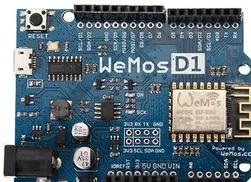
 Design with WeMos D1R2 in Cirkit Designer
Introduction
The WeMos D1R2 is a Wi-Fi-enabled microcontroller board based on the ESP8266 chip, manufactured by Arduino. It is designed for Internet of Things (IoT) applications and offers seamless integration with the Arduino IDE. The board features a USB interface for easy programming, multiple GPIO pins for connecting sensors and actuators, and built-in Wi-Fi capabilities for wireless communication. Its compact design and versatility make it an excellent choice for IoT projects, home automation, and wireless sensor networks.
Explore Projects Built with WeMos D1R2
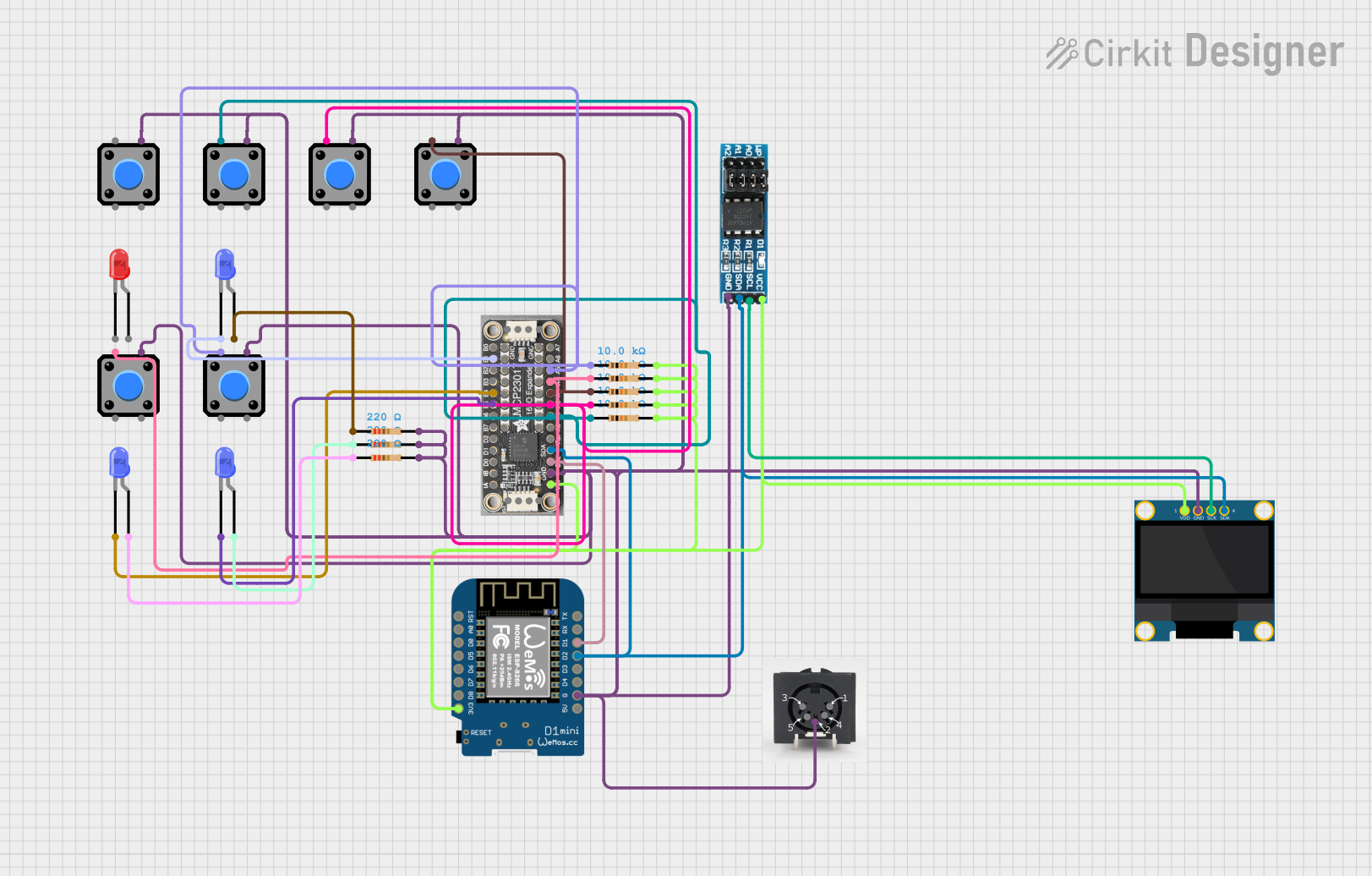 Open Project in Cirkit Designer
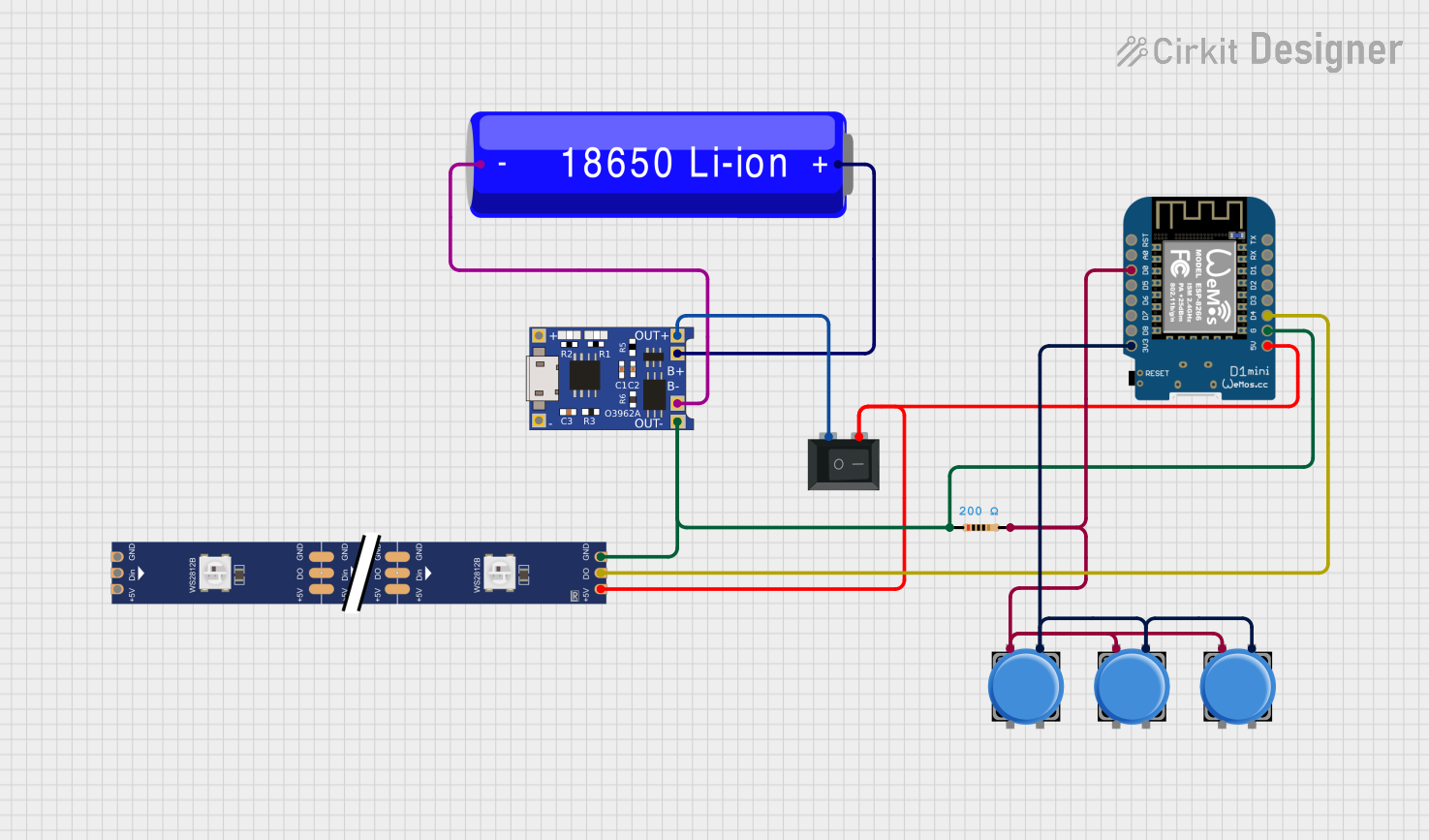 Open Project in Cirkit Designer
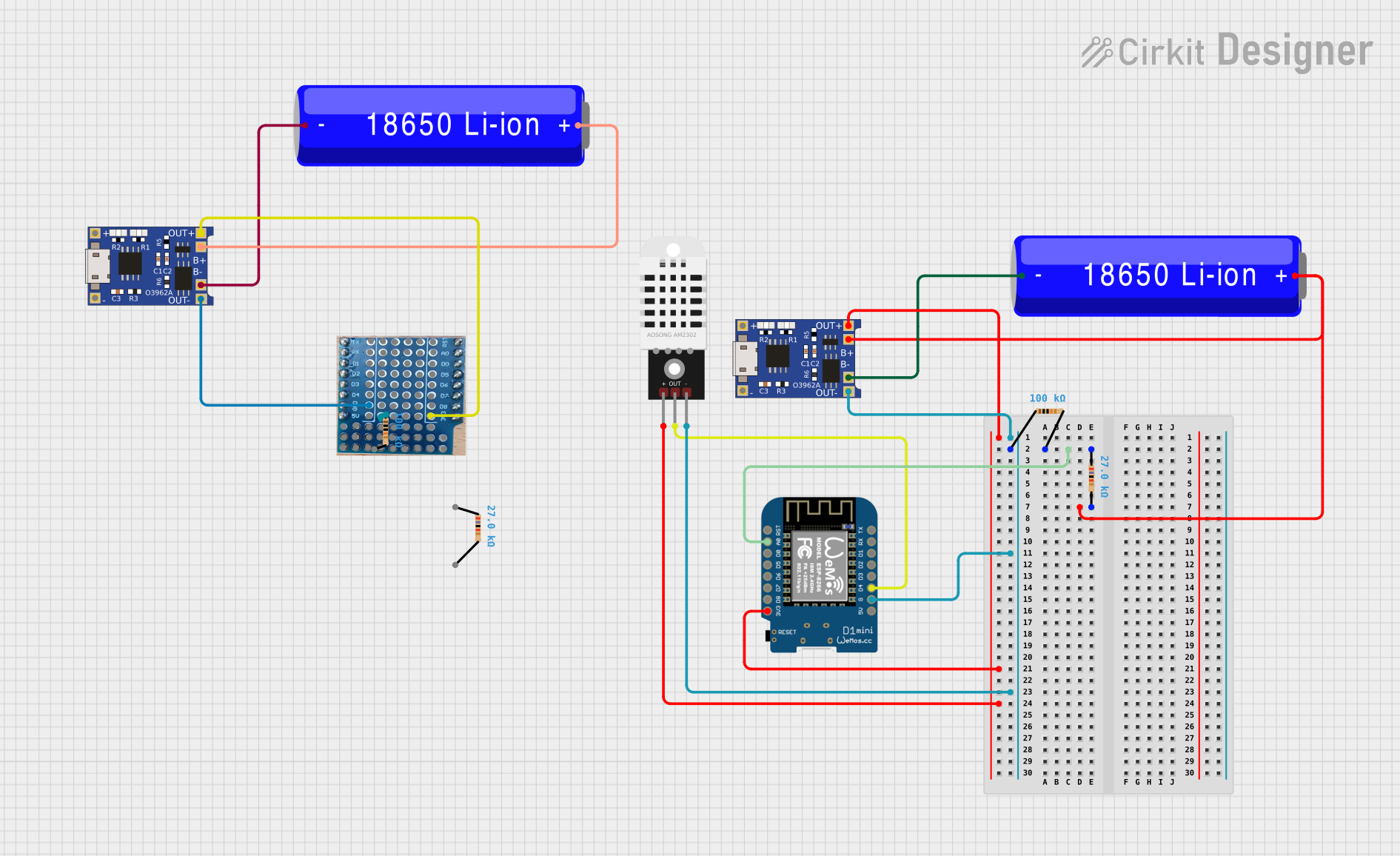 Open Project in Cirkit Designer
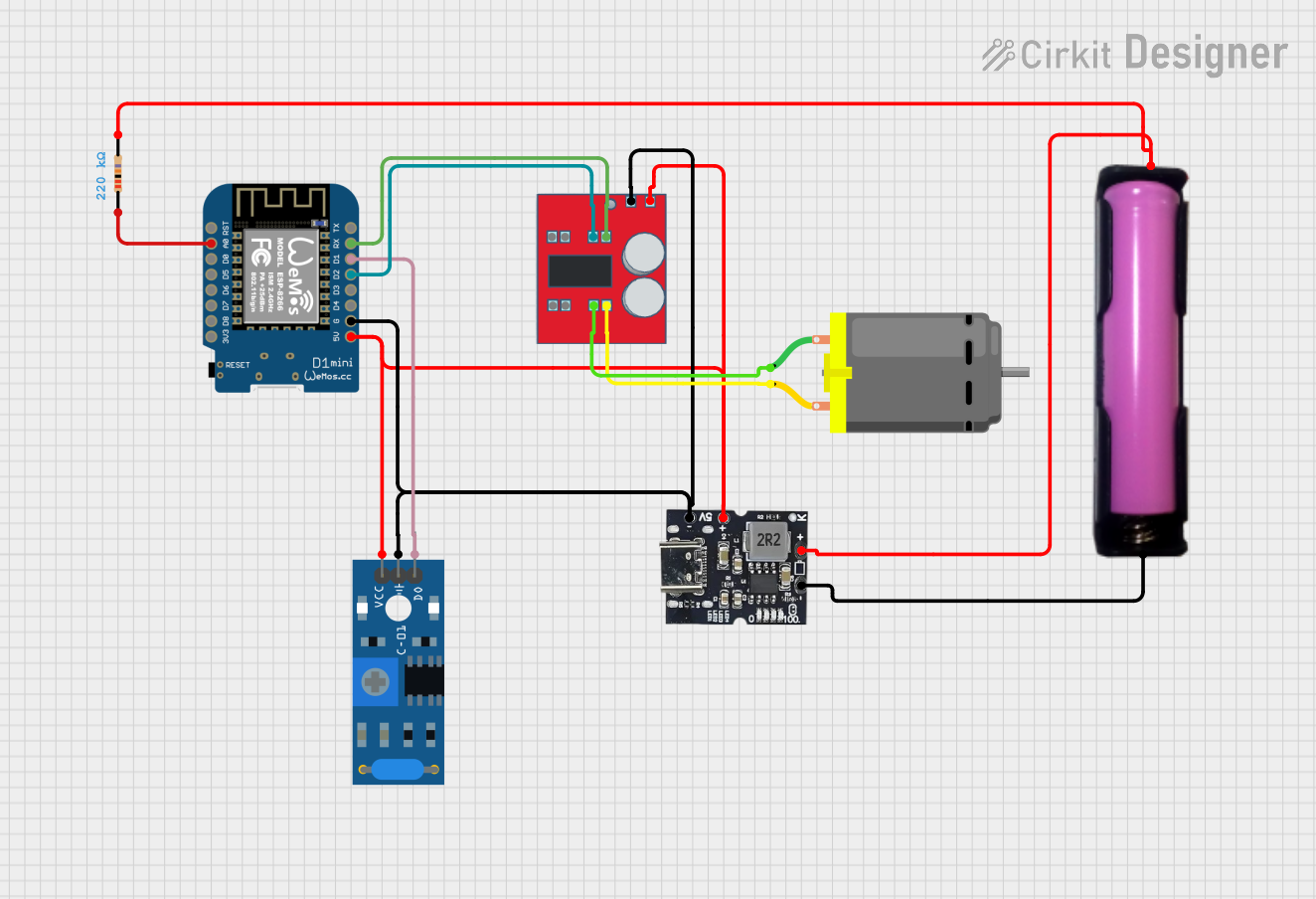 Open Project in Cirkit Designer
Explore Projects Built with WeMos D1R2
Open Project in Cirkit DesignerOpen Project in Cirkit DesignerOpen Project in Cirkit DesignerOpen Project in Cirkit DesignerCommon Applications and Use Cases
- IoT devices and smart home systems
- Wireless data logging and monitoring
- Remote control of appliances and devices
- Environmental sensing and reporting
- Prototyping Wi-Fi-enabled projects
Technical Specifications
Key Technical Details
| Parameter | Specification |
|---|---|
| Microcontroller | ESP8266 |
| Operating Voltage | 3.3V |
| Input Voltage (USB) | 5V |
| Digital I/O Pins | 11 |
| Analog Input Pins | 1 (10-bit resolution) |
| Flash Memory | 4MB |
| Clock Speed | 80 MHz / 160 MHz |
| Wi-Fi Standard | 802.11 b/g/n |
| USB Interface | Micro-USB |
| Dimensions | 68.6mm x 53.4mm |
Pin Configuration and Descriptions
| Pin Name | Pin Type | Description |
|---|---|---|
| D0-D8 | Digital I/O | General-purpose digital input/output pins. Can be used for sensors, LEDs, etc. |
| A0 | Analog Input | Reads analog signals (0-3.3V). Used for sensors like potentiometers or LDRs. |
| GND | Ground | Ground connection for the circuit. |
| 3V3 | Power Output | Provides 3.3V output for powering external components. |
| 5V | Power Output | Provides 5V output for powering external components. |
| TX | UART TX | Transmit pin for serial communication. |
| RX | UART RX | Receive pin for serial communication. |
| RST | Reset | Resets the microcontroller. |
Usage Instructions
How to Use the WeMos D1R2 in a Circuit
Powering the Board:
- Connect the board to your computer using a Micro-USB cable for power and programming.
- Alternatively, supply 5V to the 5V pin or 3.3V to the 3V3 pin for external power.
Programming the Board:
- Install the Arduino IDE on your computer.
- Add the ESP8266 board package to the Arduino IDE by navigating to
File > Preferences, and adding the following URL to the "Additional Board Manager URLs" field:http://arduino.esp8266.com/stable/package_esp8266com_index.json - Go to
Tools > Board > Boards Manager, search for "ESP8266", and install the package. - Select "WeMos D1 R2 & mini" from the
Tools > Boardmenu. - Write your code and upload it to the board using the "Upload" button.
Connecting Components:
- Use the GPIO pins (D0-D8) for digital input/output operations.
- Connect analog sensors to the A0 pin, ensuring the input voltage does not exceed 3.3V.
- Use the GND pin for grounding external components.
Wi-Fi Configuration:
- Use the ESP8266WiFi library in the Arduino IDE to configure and connect to a Wi-Fi network.
Example Code: Connecting to Wi-Fi and Blinking an LED
#include <ESP8266WiFi.h> // Include the Wi-Fi library

// Replace with your network credentials
const char* ssid = "Your_SSID";       // Your Wi-Fi SSID
const char* password = "Your_PASSWORD"; // Your Wi-Fi password

const int ledPin = D4; // LED connected to GPIO D4 (built-in LED)

void setup() {
  pinMode(ledPin, OUTPUT); // Set the LED pin as an output
  Serial.begin(115200);    // Start serial communication at 115200 baud

  // Connect to Wi-Fi
  Serial.print("Connecting to Wi-Fi");
  WiFi.begin(ssid, password);
  while (WiFi.status() != WL_CONNECTED) {
    delay(500);
    Serial.print(".");
  }
  Serial.println("\nWi-Fi connected!");
  Serial.print("IP Address: ");
  Serial.println(WiFi.localIP()); // Print the board's IP address
}

void loop() {
  digitalWrite(ledPin, HIGH); // Turn the LED on
  delay(1000);                // Wait for 1 second
  digitalWrite(ledPin, LOW);  // Turn the LED off
  delay(1000);                // Wait for 1 second
}
Important Considerations and Best Practices
- Voltage Levels: Ensure that all connected components operate at 3.3V logic levels to avoid damaging the board.
- Wi-Fi Signal Strength: Place the board in an area with a strong Wi-Fi signal for reliable connectivity.
- Power Supply: Use a stable power source to prevent unexpected resets or malfunctions.
- GPIO Usage: Avoid using GPIO pins D3 (GPIO0) and D4 (GPIO2) for critical functions, as they are used during boot.
Troubleshooting and FAQs
Common Issues and Solutions
Problem: The board is not detected by the Arduino IDE.
Solution:- Ensure the correct USB drivers are installed for the board.
- Check that the correct board ("WeMos D1 R2 & mini") and port are selected in the Arduino IDE.
Problem: The board fails to connect to Wi-Fi.
Solution:- Double-check the SSID and password in your code.
- Ensure the Wi-Fi network is operational and within range.
- Restart the board and router if necessary.
Problem: The board resets unexpectedly.
Solution:- Verify that the power supply provides sufficient current (at least 500mA).
- Check for loose connections or short circuits in the circuit.
Problem: Analog readings are inaccurate.
Solution:- Ensure the input voltage to the A0 pin does not exceed 3.3V.
- Use a voltage divider if necessary to scale down higher voltages.
FAQs
Q: Can I use the WeMos D1R2 with 5V sensors?
A: Yes, but you will need a logic level shifter to convert 5V signals to 3.3V.Q: Is the WeMos D1R2 compatible with Arduino libraries?
A: Yes, most Arduino libraries are compatible with the ESP8266 platform.Q: How do I reset the board to factory settings?
A: Hold the RST button for a few seconds to reset the board.Q: Can I power the board using batteries?
A: Yes, you can use a 3.7V LiPo battery or a 5V power source with a voltage regulator.