
How to Use Arduino GIGA R1: Examples, Pinouts, and Specs
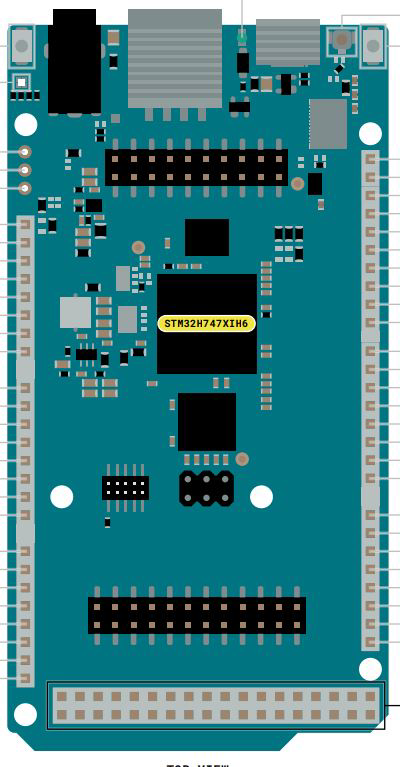
 Design with Arduino GIGA R1 in Cirkit Designer
Introduction
The Arduino GIGA R1 WiFi is a high-performance microcontroller board designed for advanced projects requiring significant processing power and connectivity. It features a dual-core ARM Cortex-M7 and Cortex-M4 architecture, making it ideal for applications such as robotics, IoT, machine learning, and multimedia processing. With its extensive GPIO pins, built-in WiFi and Bluetooth capabilities, and compatibility with a wide range of sensors and modules, the GIGA R1 is a versatile tool for both hobbyists and professionals.
Explore Projects Built with Arduino GIGA R1
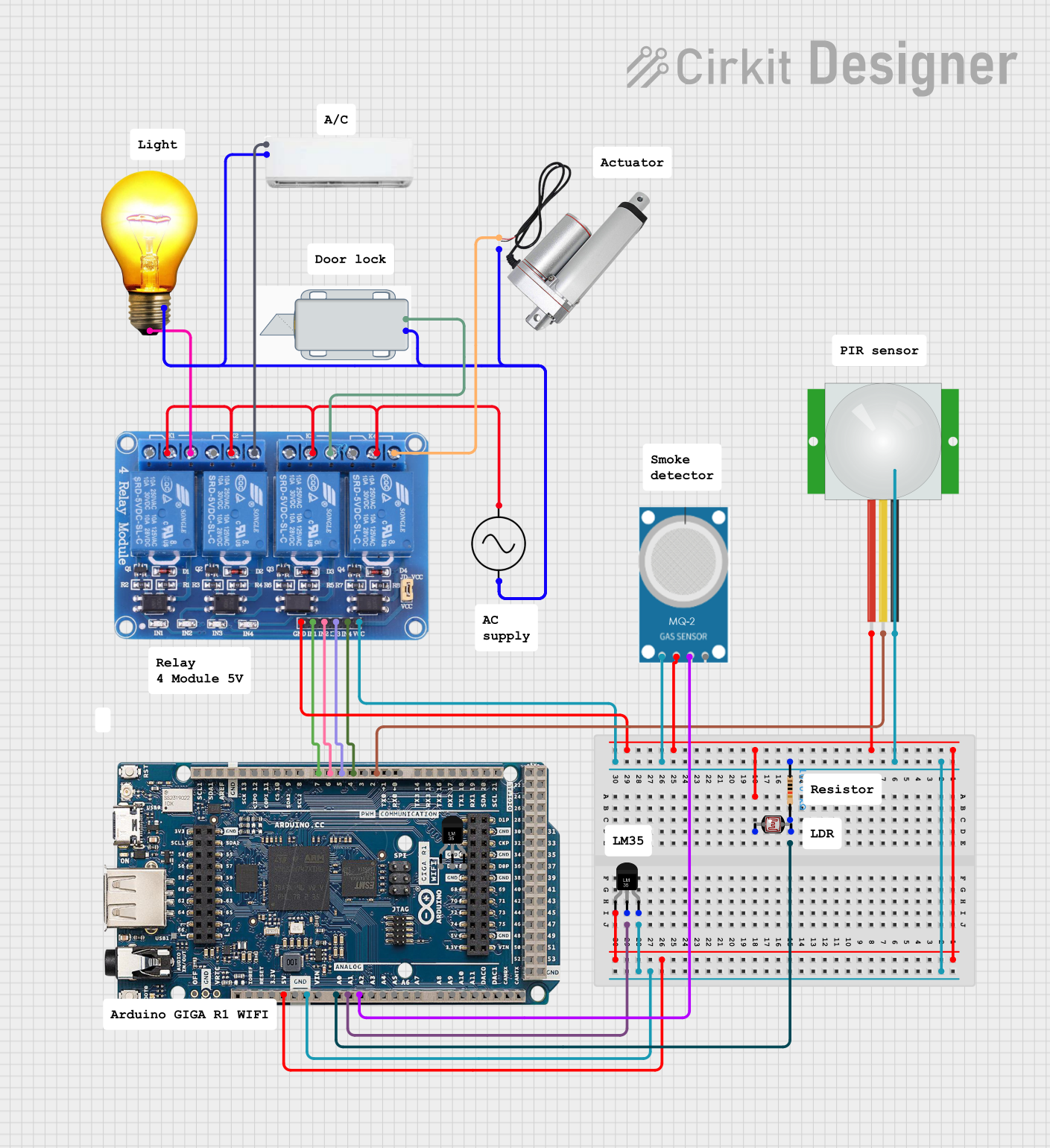 Open Project in Cirkit Designer
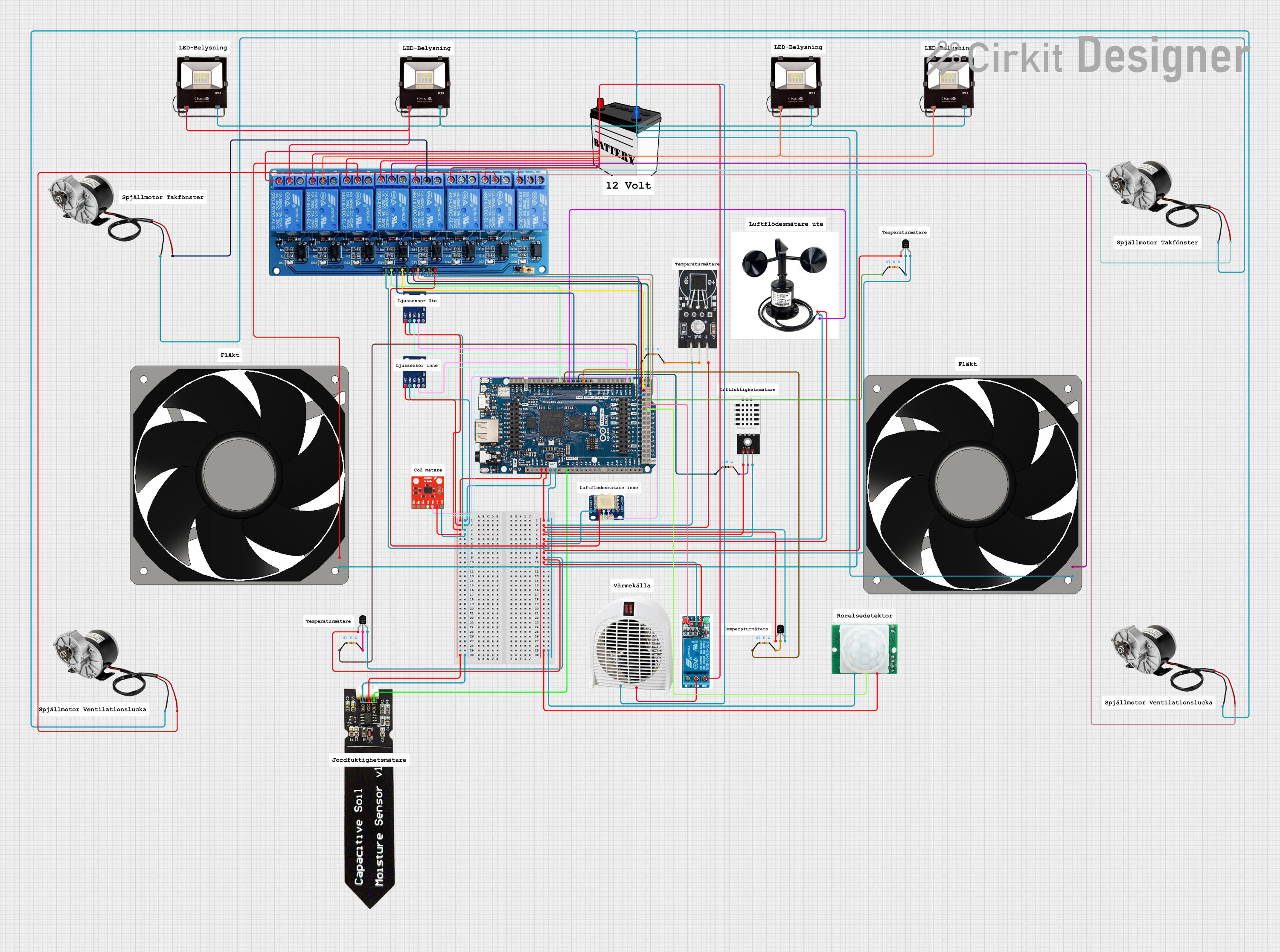 Open Project in Cirkit Designer
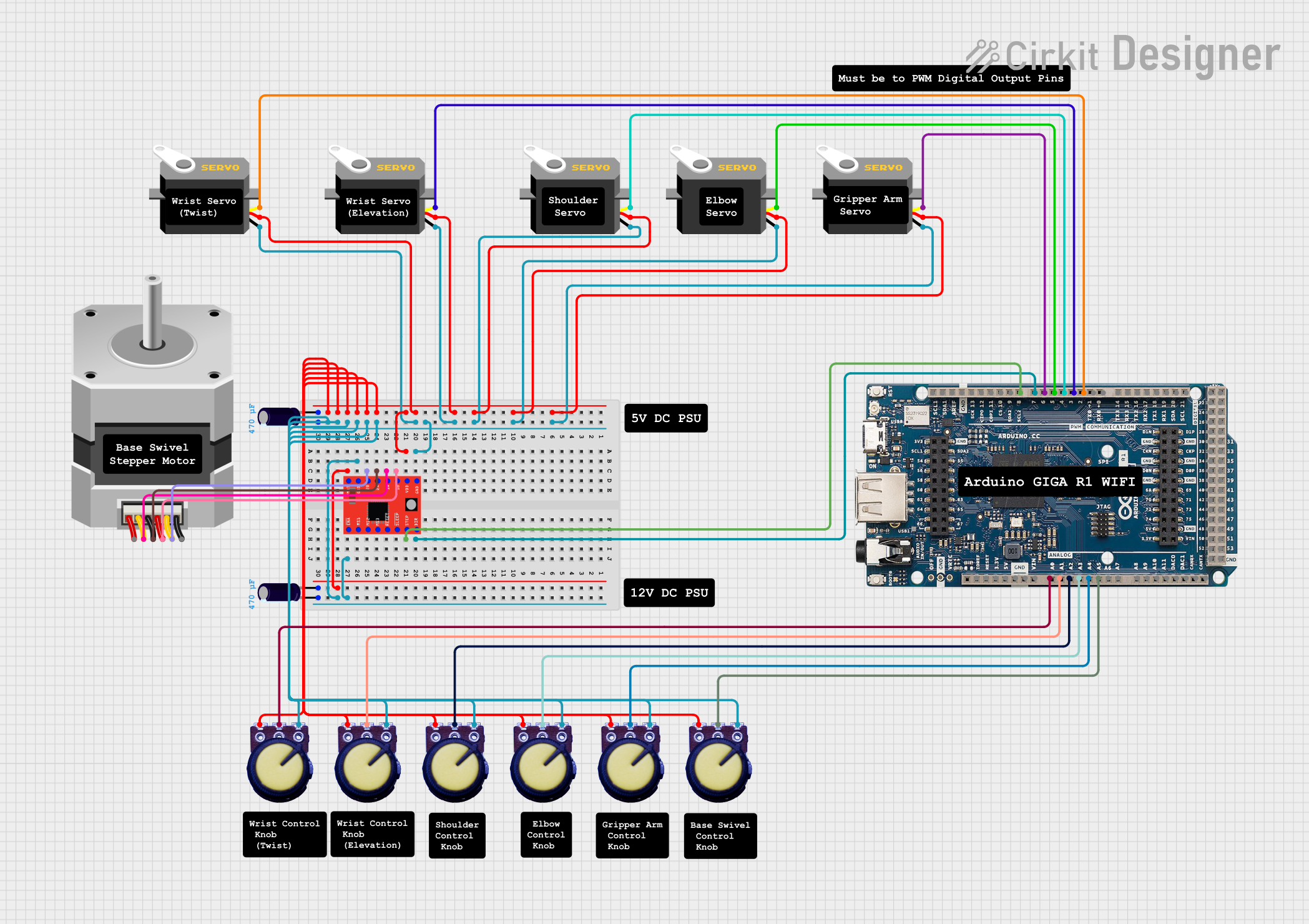 Open Project in Cirkit Designer
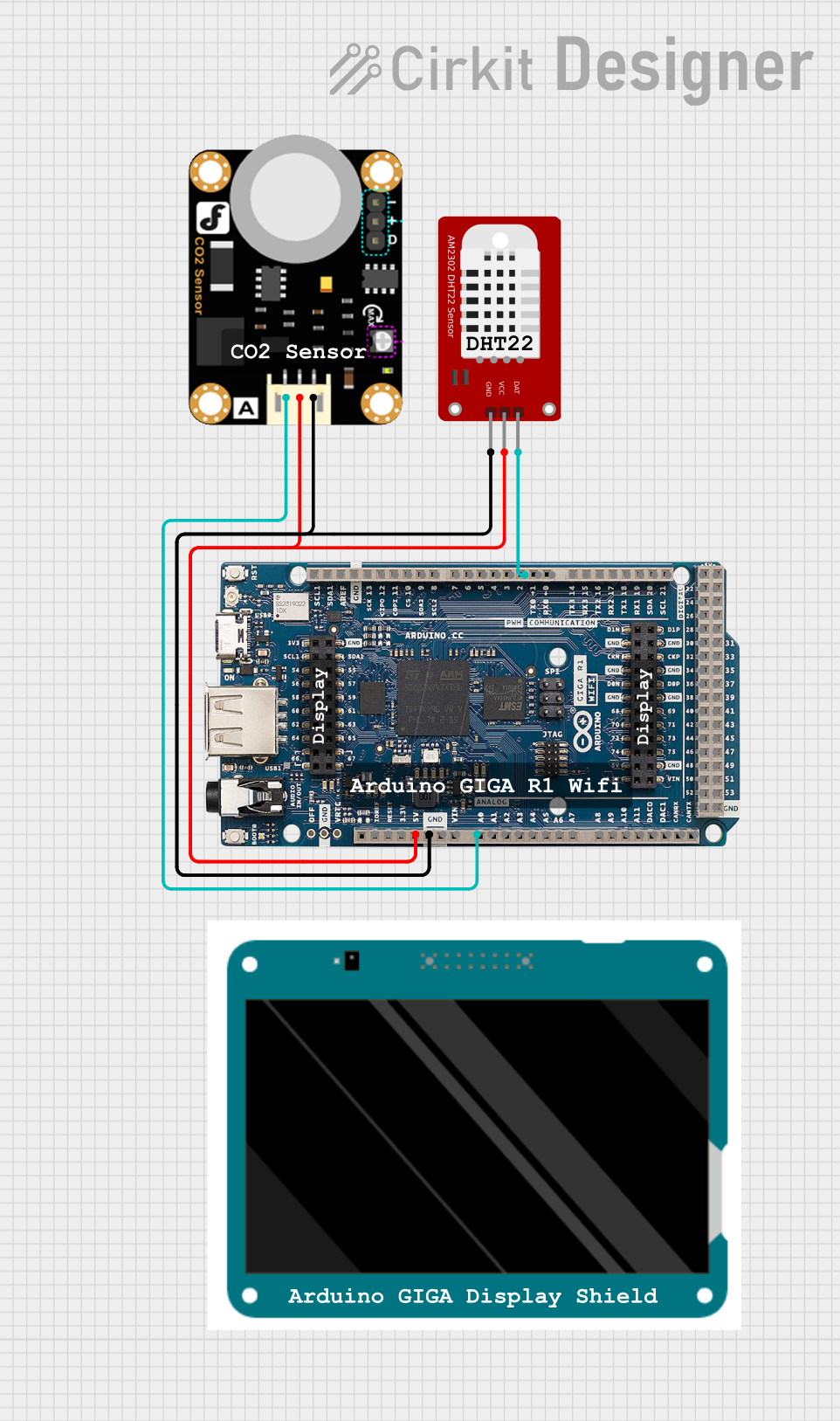 Open Project in Cirkit Designer
Explore Projects Built with Arduino GIGA R1
Open Project in Cirkit DesignerOpen Project in Cirkit DesignerOpen Project in Cirkit DesignerOpen Project in Cirkit DesignerCommon Applications
- Robotics and automation systems
- IoT (Internet of Things) devices
- Machine learning and AI-based projects
- Multimedia processing (e.g., audio and video)
- Data acquisition and real-time monitoring
- Advanced prototyping and research projects
Technical Specifications
Key Technical Details
| Specification | Value |
|---|---|
| Microcontroller | Dual-core ARM Cortex-M7 (480 MHz) and Cortex-M4 (240 MHz) |
| Operating Voltage | 3.3V |
| Input Voltage (VIN) | 7-12V |
| Digital I/O Pins | 76 (12 PWM outputs) |
| Analog Input Pins | 12 (ADC resolution: 12-bit) |
| Analog Output Pins | 2 (DAC resolution: 12-bit) |
| Flash Memory | 16 MB |
| SRAM | 1 MB |
| Connectivity | WiFi, Bluetooth, USB-C, CAN bus, UART, SPI, I2C |
| Power Consumption | ~1.5W (varies based on usage) |
| Dimensions | 102 x 25 mm |
Pin Configuration and Descriptions
The Arduino GIGA R1 WiFi features a rich set of pins for various functionalities. Below is a summary of the pin configuration:
Digital and Analog Pins
| Pin Number | Type | Description |
|---|---|---|
| D0-D53 | Digital I/O | General-purpose digital input/output pins |
| A0-A11 | Analog Input | Analog input pins with 12-bit resolution |
| DAC0, DAC1 | Analog Output | Digital-to-analog converter pins (12-bit) |
Communication Pins
| Pin Number | Type | Description |
|---|---|---|
| TX/RX | UART | Serial communication pins |
| SDA/SCL | I2C | I2C communication pins |
| MOSI/MISO/SCK | SPI | SPI communication pins |
| CANRX/CANTX | CAN Bus | Controller Area Network communication pins |
Power Pins
| Pin Number | Type | Description |
|---|---|---|
| VIN | Power Input | External power input (7-12V) |
| 3.3V | Power Output | 3.3V regulated output |
| 5V | Power Output | 5V regulated output |
| GND | Ground | Ground pins |
Usage Instructions
How to Use the Arduino GIGA R1 in a Circuit
Powering the Board:
- Connect the board to a computer via the USB-C port for programming and power.
- Alternatively, supply external power (7-12V) through the VIN pin or barrel jack.
Programming the Board:
- Install the Arduino IDE (version 2.0 or later) and add the GIGA R1 board via the Boards Manager.
- Select the appropriate port and board type in the IDE.
- Write your code and upload it to the board.
Connecting Peripherals:
- Use the GPIO pins for connecting sensors, actuators, and other modules.
- Ensure proper voltage levels (3.3V logic) to avoid damaging the board.
Using WiFi and Bluetooth:
- The GIGA R1 includes built-in WiFi and Bluetooth modules. Use the
WiFiandBluetoothSeriallibraries in the Arduino IDE to configure and manage wireless communication.
- The GIGA R1 includes built-in WiFi and Bluetooth modules. Use the
Example: Blinking an LED
Here’s a simple example to blink an LED connected to pin D13:
// Define the LED pin
const int ledPin = 13;

void setup() {
  // Set the LED pin as an output
  pinMode(ledPin, OUTPUT);
}

void loop() {
  // Turn the LED on
  digitalWrite(ledPin, HIGH);
  delay(1000); // Wait for 1 second

  // Turn the LED off
  digitalWrite(ledPin, LOW);
  delay(1000); // Wait for 1 second
}
Example: Connecting to WiFi
Below is an example of connecting the GIGA R1 to a WiFi network:
#include <WiFi.h>

// Replace with your network credentials
const char* ssid = "Your_SSID";
const char* password = "Your_PASSWORD";

void setup() {
  // Start the serial communication
  Serial.begin(115200);

  // Connect to WiFi
  Serial.print("Connecting to WiFi...");
  WiFi.begin(ssid, password);

  while (WiFi.status() != WL_CONNECTED) {
    delay(500);
    Serial.print(".");
  }

  // Print the IP address once connected
  Serial.println("\nWiFi connected!");
  Serial.print("IP Address: ");
  Serial.println(WiFi.localIP());
}

void loop() {
  // Add your main code here
}
Important Considerations
- Voltage Levels: The GIGA R1 operates at 3.3V logic. Avoid connecting 5V signals directly to the pins.
- Power Supply: Ensure a stable power supply, especially when using peripherals that draw significant current.
- Dual-Core Programming: Utilize the dual-core architecture for parallel processing. Refer to the official documentation for advanced examples.
Troubleshooting and FAQs
Common Issues and Solutions
The board is not detected by the Arduino IDE:
- Ensure the correct USB-C cable is used (data-capable, not just for charging).
- Verify that the GIGA R1 board is selected in the Boards Manager.
- Check the device manager (Windows) or
ls /dev/tty*(Linux/Mac) for the correct port.
WiFi connection fails:
- Double-check the SSID and password.
- Ensure the WiFi network is within range and operational.
- Restart the board and try reconnecting.
Program upload fails:
- Press the reset button on the board and try uploading again.
- Check for conflicting serial connections or open serial monitors.
Peripherals not working as expected:
- Verify the wiring and connections.
- Ensure the peripherals are compatible with 3.3V logic.
FAQs
Q: Can I use the GIGA R1 with 5V sensors?
A: Yes, but you’ll need a level shifter to safely interface 5V sensors with the 3.3V logic of the GIGA R1.
Q: How do I use both cores of the microcontroller?
A: The Arduino IDE provides libraries and examples for dual-core programming. Refer to the official documentation for details.
Q: Is the GIGA R1 compatible with Arduino shields?
A: Yes, the GIGA R1 is compatible with most Arduino shields, but ensure they support 3.3V logic.
Q: Can I power the board using a LiPo battery?
A: Yes, you can use a LiPo battery with a suitable voltage regulator to provide 7-12V to the VIN pin.
This concludes the documentation for the Arduino GIGA R1 WiFi. For more advanced examples and support, refer to the official Arduino website.