Cirkit Designer Logo
Cirkit Designer
Your all-in-one circuit design IDE
Home / 
Component Documentation

How to Use Pushbutton (SIM TEST): Examples, Pinouts, and Specs
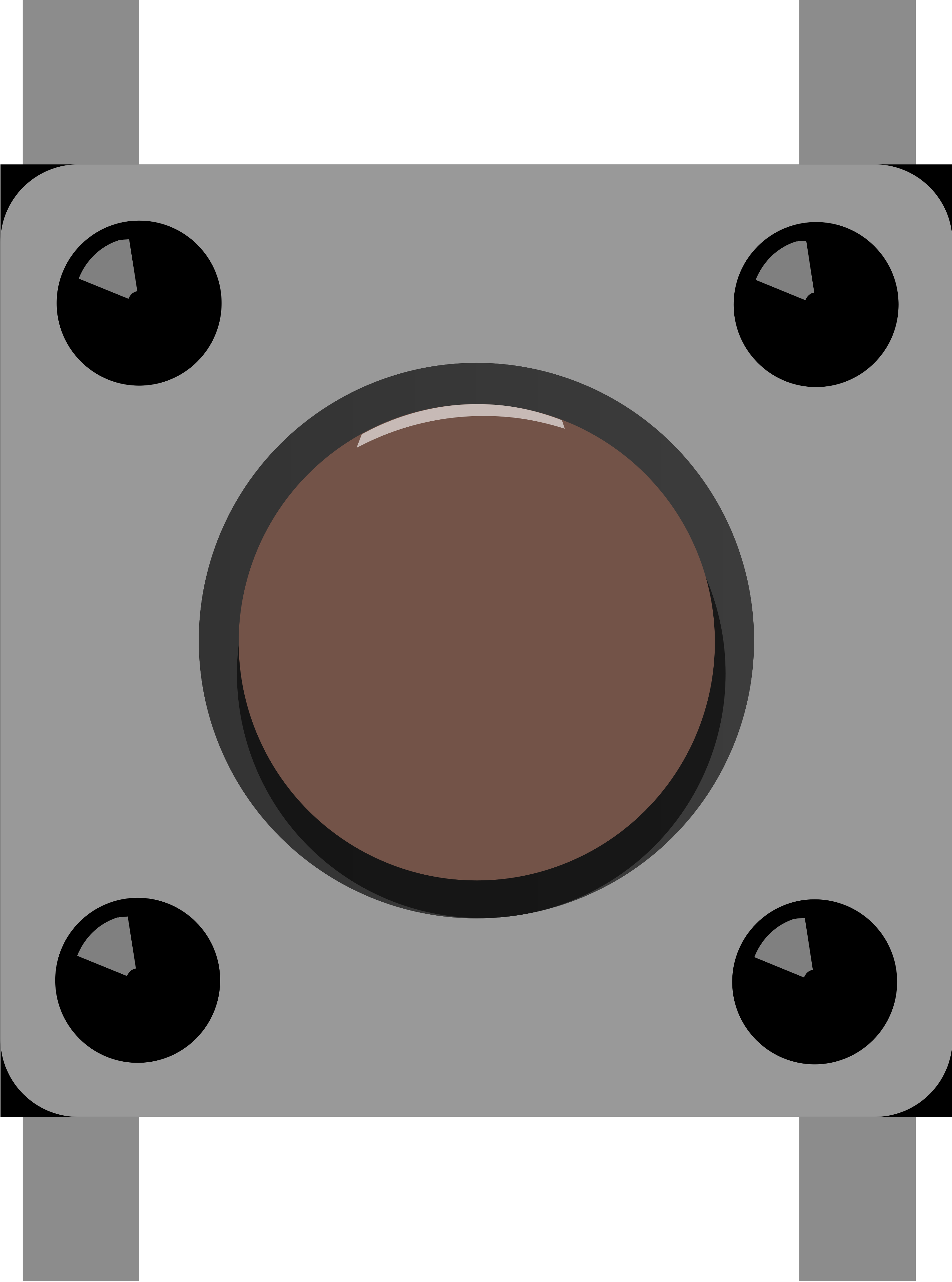

Image of Pushbutton (SIM TEST)
Cirkit Designer LogoDesign with Pushbutton (SIM TEST) in Cirkit Designer

Introduction

The Pushbutton (SIM TEST) is a momentary switch designed to complete a circuit temporarily. This component is widely used in various applications, particularly in testing scenarios where simulating user input or resetting devices is required. Its simple operation makes it an essential tool for engineers, hobbyists, and developers alike.

Explore Projects Built with Pushbutton (SIM TEST)
Use Cirkit Designer to design, explore, and prototype these projects online. Some projects support real-time simulation. Click "Open Project" to start designing instantly!
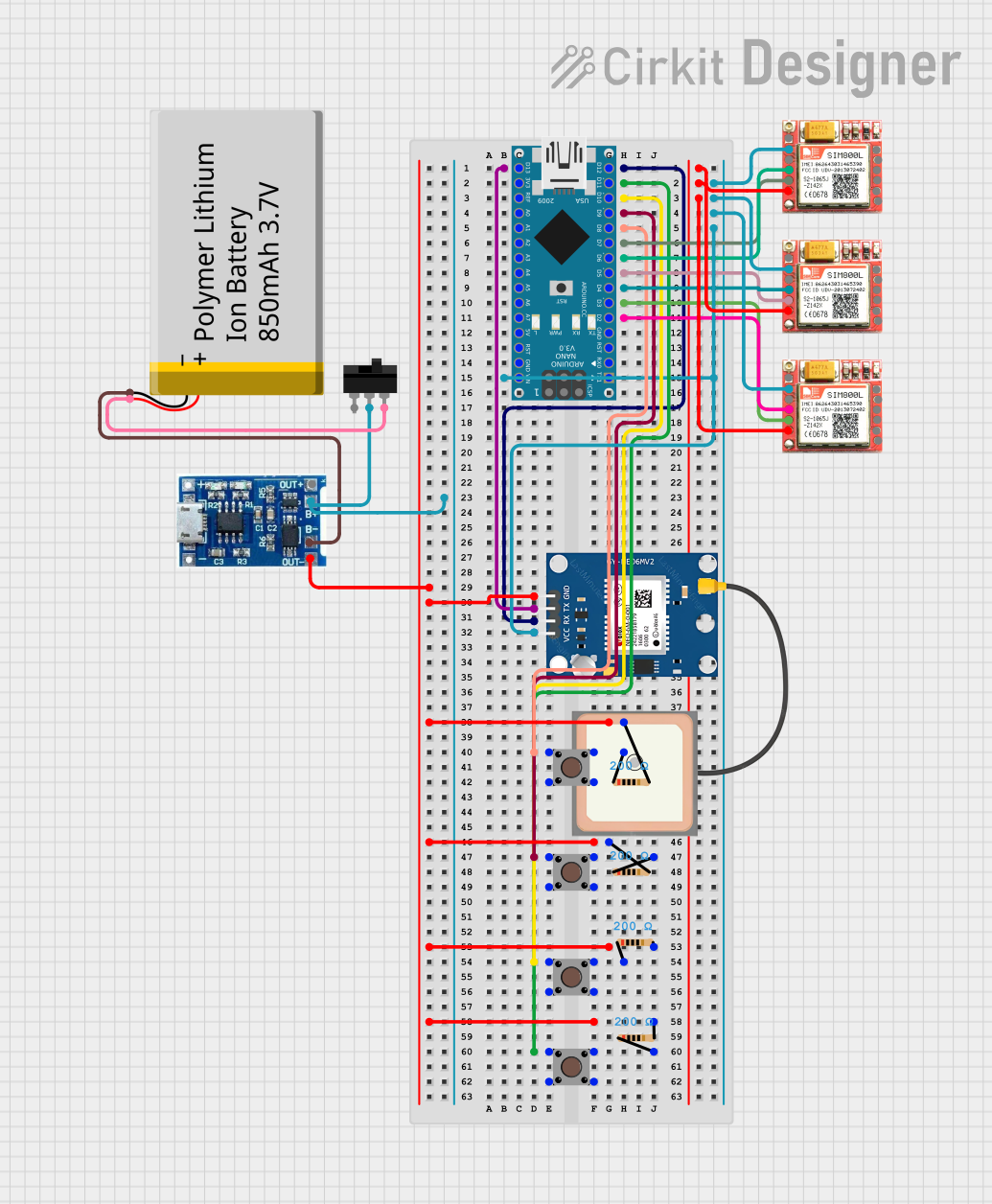
Arduino Nano-Based Panic Button System with GPS and GSM Modules
Image of panic button .2\: A project utilizing Pushbutton (SIM TEST) in a practical application
This circuit is designed as a panic button system featuring an Arduino Nano interfaced with a NEO6MV2 GPS module and three SIM800L GSM modules. It includes four pushbuttons, each assigned to trigger a call to a specific emergency service (hospital, fire department, police) or to send the GPS location. The system is powered by a lithium battery with a charging module, and it can send the GPS location to a predefined number or alongside an emergency call when the corresponding buttons are pressed simultaneously.
Cirkit Designer LogoOpen Project in Cirkit Designer
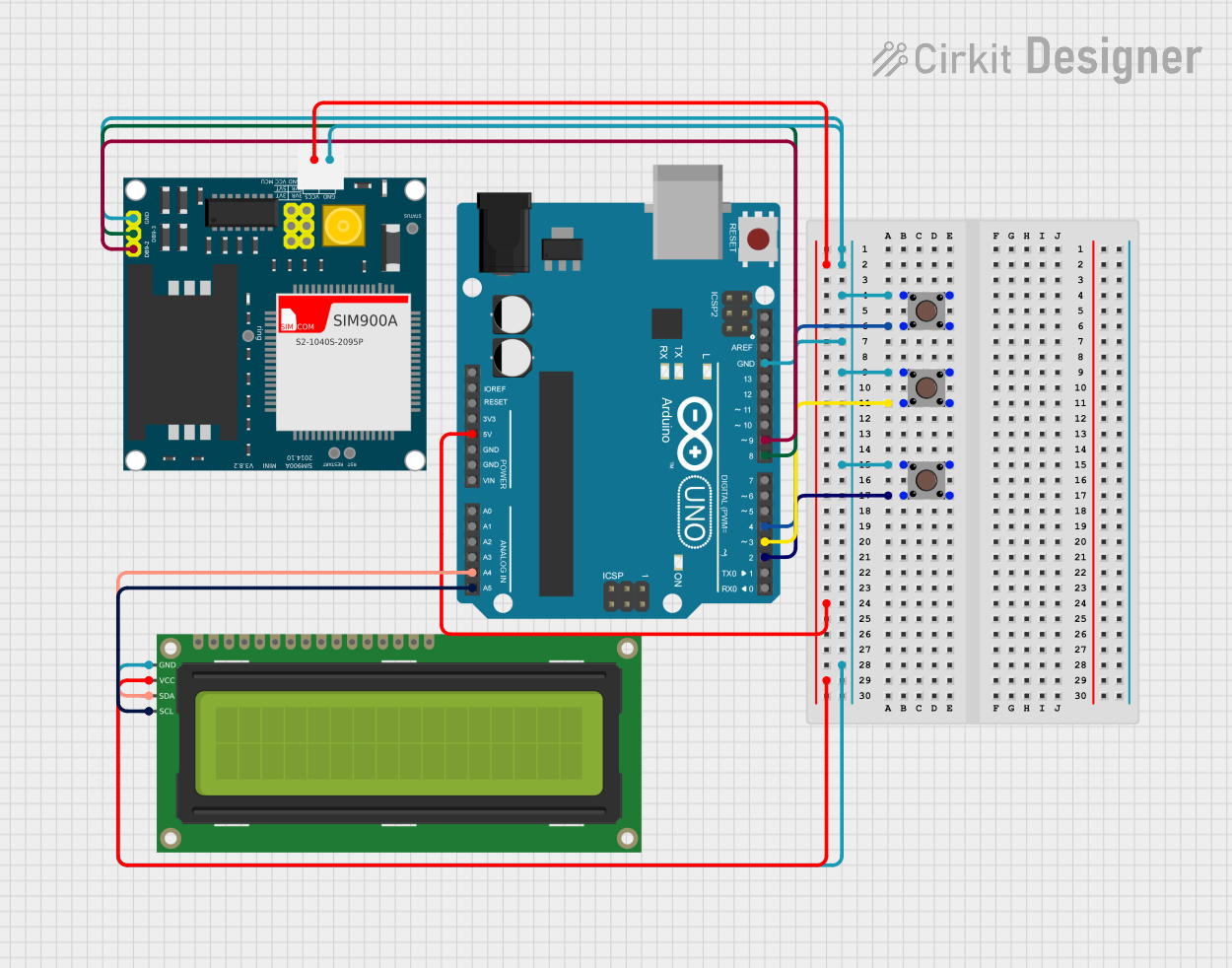
Arduino UNO-Based GSM Communication System with Pushbutton Control and I2C LCD Display
Image of miniiii: A project utilizing Pushbutton (SIM TEST) in a practical application
This circuit features an Arduino UNO microcontroller interfaced with three pushbuttons, a SIM900A GSM module, and a 16x2 I2C LCD display. The pushbuttons are used as input devices, while the SIM900A module enables GSM communication, and the LCD display provides visual feedback. The Arduino UNO controls the entire system, processing inputs and managing communication and display outputs.
Cirkit Designer LogoOpen Project in Cirkit Designer
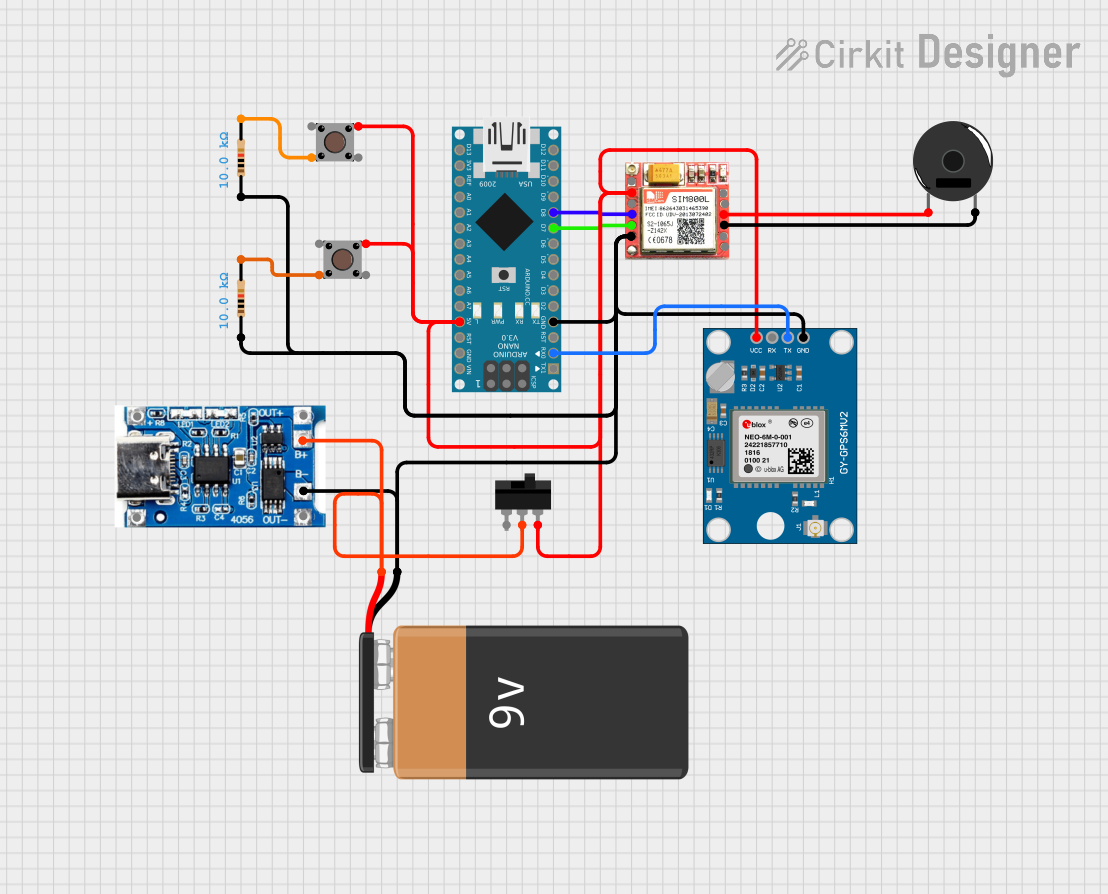
Arduino Nano-Based GPS and GSM Alert System with Pushbutton Activation
Image of GPS Tracker: A project utilizing Pushbutton (SIM TEST) in a practical application
This circuit is a GPS-enabled emergency alert system using an Arduino Nano, a SIM800L GSM module, and a Neo 6M GPS module. When either of the two pushbuttons is pressed, the system sends an SMS with the GPS location or makes a call to a predefined phone number, providing a means to request help in emergencies.
Cirkit Designer LogoOpen Project in Cirkit Designer
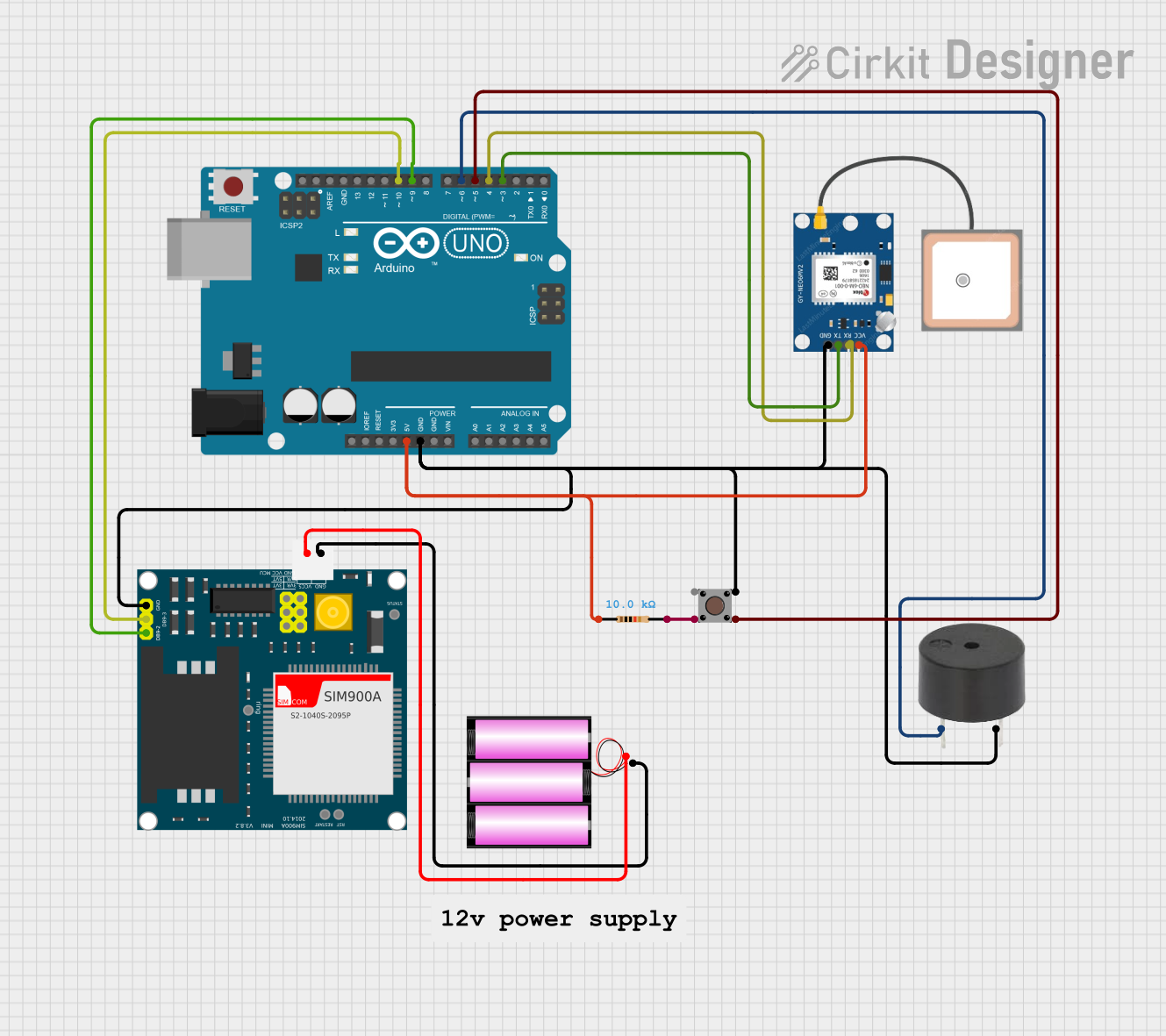
Arduino-Based Emergency Alert System with GPS and GSM
Image of women safety  png: A project utilizing Pushbutton (SIM TEST) in a practical application
This circuit is an emergency alert system that uses an Arduino UNO to interface with a GPS module (NEO 6M) and a GSM module (SIM900A). When a pushbutton is pressed, the system reads the GPS coordinates and sends an SMS with the location details to a predefined phone number, while also activating a buzzer for audible feedback.
Cirkit Designer LogoOpen Project in Cirkit Designer

Explore Projects Built with Pushbutton (SIM TEST)

Use Cirkit Designer to design, explore, and prototype these projects online. Some projects support real-time simulation. Click "Open Project" to start designing instantly!
Image of panic button .2\: A project utilizing Pushbutton (SIM TEST) in a practical application
Arduino Nano-Based Panic Button System with GPS and GSM Modules
This circuit is designed as a panic button system featuring an Arduino Nano interfaced with a NEO6MV2 GPS module and three SIM800L GSM modules. It includes four pushbuttons, each assigned to trigger a call to a specific emergency service (hospital, fire department, police) or to send the GPS location. The system is powered by a lithium battery with a charging module, and it can send the GPS location to a predefined number or alongside an emergency call when the corresponding buttons are pressed simultaneously.
Cirkit Designer LogoOpen Project in Cirkit Designer
Image of miniiii: A project utilizing Pushbutton (SIM TEST) in a practical application
Arduino UNO-Based GSM Communication System with Pushbutton Control and I2C LCD Display
This circuit features an Arduino UNO microcontroller interfaced with three pushbuttons, a SIM900A GSM module, and a 16x2 I2C LCD display. The pushbuttons are used as input devices, while the SIM900A module enables GSM communication, and the LCD display provides visual feedback. The Arduino UNO controls the entire system, processing inputs and managing communication and display outputs.
Cirkit Designer LogoOpen Project in Cirkit Designer
Image of GPS Tracker: A project utilizing Pushbutton (SIM TEST) in a practical application
Arduino Nano-Based GPS and GSM Alert System with Pushbutton Activation
This circuit is a GPS-enabled emergency alert system using an Arduino Nano, a SIM800L GSM module, and a Neo 6M GPS module. When either of the two pushbuttons is pressed, the system sends an SMS with the GPS location or makes a call to a predefined phone number, providing a means to request help in emergencies.
Cirkit Designer LogoOpen Project in Cirkit Designer
Image of women safety  png: A project utilizing Pushbutton (SIM TEST) in a practical application
Arduino-Based Emergency Alert System with GPS and GSM
This circuit is an emergency alert system that uses an Arduino UNO to interface with a GPS module (NEO 6M) and a GSM module (SIM900A). When a pushbutton is pressed, the system reads the GPS coordinates and sends an SMS with the location details to a predefined phone number, while also activating a buzzer for audible feedback.
Cirkit Designer LogoOpen Project in Cirkit Designer

Common Applications and Use Cases

  • Testing Circuits: Used to simulate user input during circuit testing.
  • Resetting Devices: Acts as a reset switch for microcontrollers and other devices.
  • User Interfaces: Provides a simple interface for user interaction in prototypes.
  • Debugging: Helps in troubleshooting by allowing manual control of circuit states.

Technical Specifications

Key Technical Details

Specification Value
Voltage Rating 12V DC
Current Rating 10A
Power Rating 120W
Contact Type Normally Open (NO)
Actuation Force 200g (approx.)
Lifespan 1,000,000 cycles

Pin Configuration and Descriptions

Pin Number Pin Name Description
1 COM Common terminal for the switch
2 NO Normally Open terminal

Usage Instructions

How to Use the Component in a Circuit

  1. Wiring the Pushbutton:

    • Connect one terminal (COM) to the ground (GND) of your circuit.
    • Connect the Normally Open (NO) terminal to the input pin of your microcontroller or circuit.
  2. Circuit Example:

    • For an Arduino UNO, you can connect the pushbutton to digital pin 2.

Important Considerations and Best Practices

  • Debouncing: When using the pushbutton in digital circuits, consider implementing a debouncing mechanism to avoid false triggering due to mechanical bounce.
  • Pull-up Resistor: Use a pull-up resistor (typically 10kΩ) to ensure a stable HIGH state when the button is not pressed.
  • Voltage Ratings: Ensure that the voltage and current ratings of the pushbutton are not exceeded to prevent damage.

Troubleshooting and FAQs

Common Issues Users Might Face

  1. Button Not Responding:

    • Ensure that the wiring is correct and that the button is properly connected.
    • Check for any loose connections or broken wires.
  2. False Triggering:

    • This may be due to mechanical bounce. Implement debouncing in your code or circuit.
  3. Button Sticking:

    • Inspect the button for any physical obstructions or damage.

Solutions and Tips for Troubleshooting

  • Testing with a Multimeter: Use a multimeter to check continuity across the pushbutton terminals when pressed.
  • Code Example for Arduino UNO:
    const int buttonPin = 2; // Pin connected to the pushbutton
    int buttonState = 0;     // Variable to store button state
    
    void setup() {
        pinMode(buttonPin, INPUT_PULLUP); // Set pin as input with pull-up
        Serial.begin(9600);                // Start serial communication
    }
    
    void loop() {
        // Read the state of the pushbutton
        buttonState = digitalRead(buttonPin);
        if (buttonState == LOW) { // Button pressed
            Serial.println("Button Pressed!");
            delay(200); // Debounce delay
        }
    }
    

This code sets up the pushbutton on pin 2 of the Arduino UNO, using the internal pull-up resistor. When the button is pressed, it prints a message to the serial monitor. Adjust the delay as needed for your application.

By following this documentation, users can effectively utilize the Pushbutton (SIM TEST) in their projects, ensuring reliable performance and ease of use.