Cirkit Designer LogoCirkit DesignerYour all-in-one circuit design IDE Launch Cirkit Designer App

How to Use WCS1700: Examples, Pinouts, and Specs

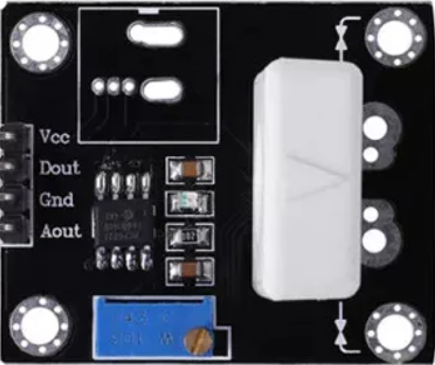
Image of WCS1700Design with WCS1700 in Cirkit Designer

Introduction

The WCS1700 is a capacitive touch sensor designed to detect touch input through a capacitive sensing mechanism. It is widely used in applications such as touch screens, touch-sensitive controls, and other user interface systems where a reliable and responsive touch detection is required. The WCS1700 offers high sensitivity, low power consumption, and ease of integration, making it an ideal choice for modern touch-based designs.

Explore Projects Built with WCS1700

Use Cirkit Designer to design, explore, and prototype these projects online. Some projects support real-time simulation. Click "Open Project" to start designing instantly!
Image of Cellular-Enabled IoT Device with Real-Time Clock and Power Management: A project utilizing WCS1700 in a practical application
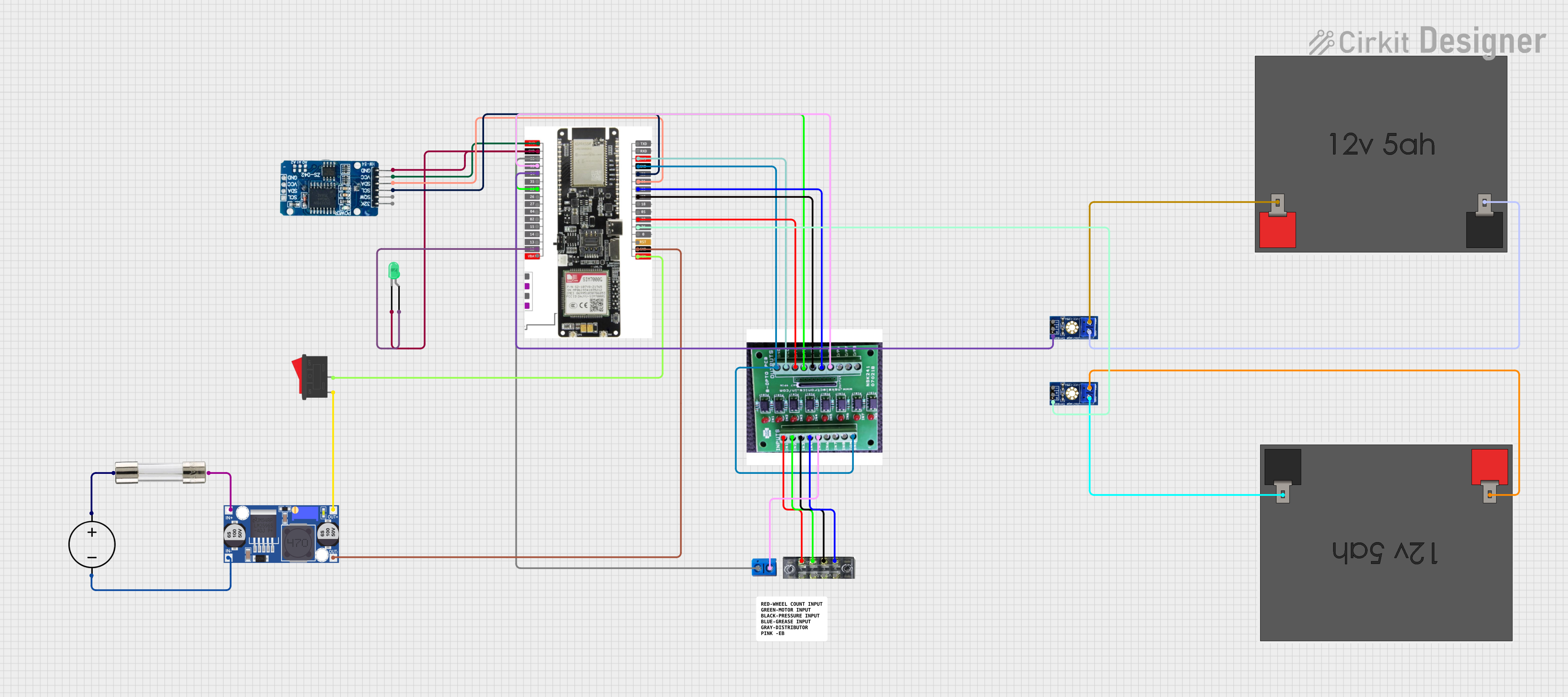
Cellular-Enabled IoT Device with Real-Time Clock and Power Management

This circuit features a LilyGo-SIM7000G module for cellular communication and GPS functionality, interfaced with an RTC DS3231 for real-time clock capabilities. It includes voltage sensing through two voltage sensor modules, and uses an 8-channel opto-coupler for isolating different parts of the circuit. Power management is handled by a buck converter connected to a DC power source and batteries, with a fuse for protection and a rocker switch for on/off control. Additionally, there's an LED for indication purposes.

Open Project in Cirkit Designer
Image of ESP32-Based Environmental Monitoring and Alert System with Solar Charging: A project utilizing WCS1700 in a practical application
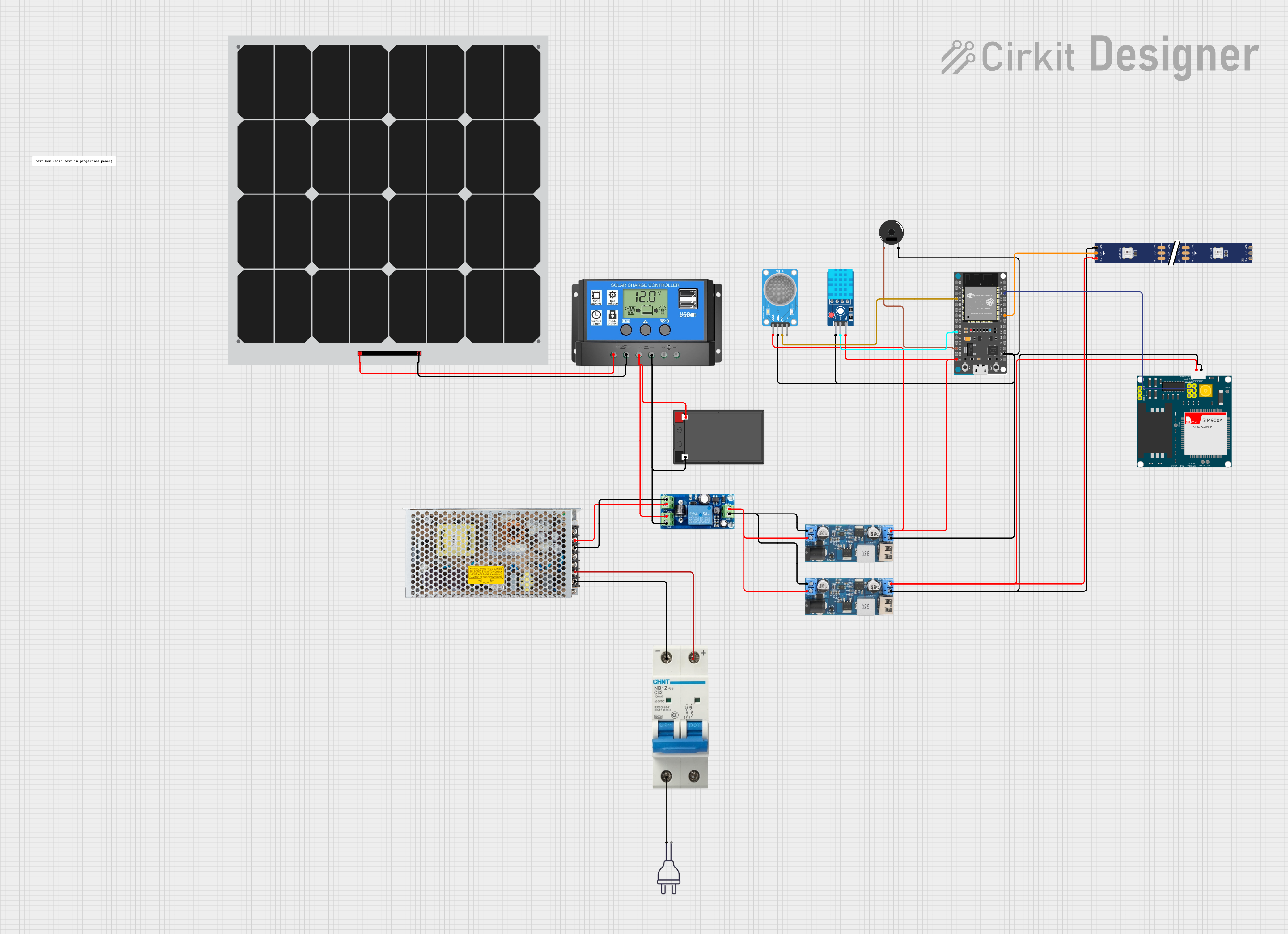
ESP32-Based Environmental Monitoring and Alert System with Solar Charging

This circuit features an ESP32 Devkit V1 microcontroller connected to various sensors and devices, including a DHT11 temperature and humidity sensor, an MQ-2 gas sensor, and a WS2812 RGB LED strip. The ESP32 controls the LED strip and processes sensor readings, while a SIM900A module provides cellular communication capabilities. Power management is handled by a UPS module fed by a 12V battery charged via a solar panel and charge controller, with voltage regulation provided by step-down converters. Additionally, a piezo buzzer is included for audible alerts, and the system's safety is ensured by a circuit breaker connected to a switching power supply for AC to DC conversion.

Open Project in Cirkit Designer
Image of Satellite Compass and Network-Integrated GPS Data Processing System: A project utilizing WCS1700 in a practical application
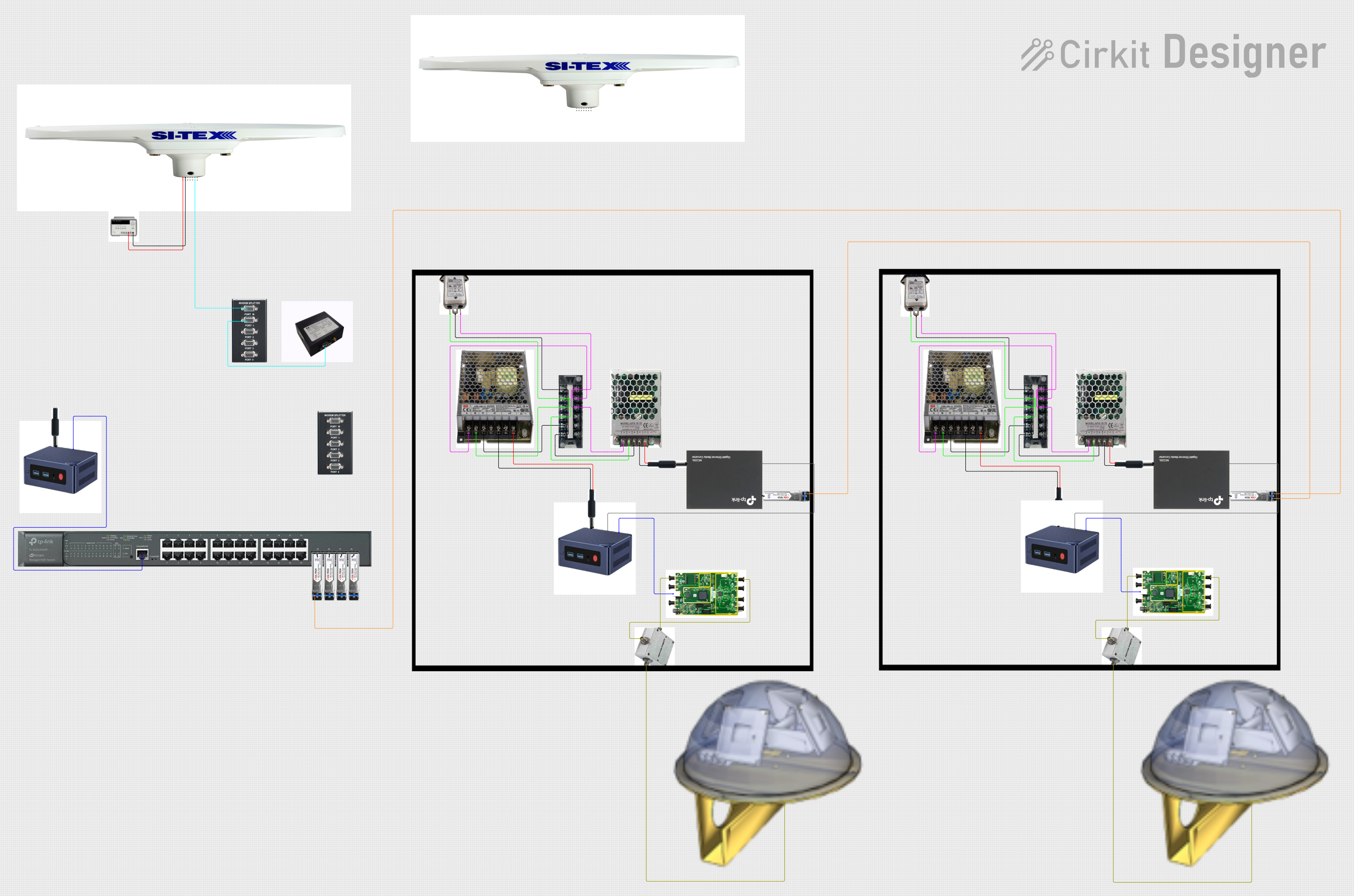
Satellite Compass and Network-Integrated GPS Data Processing System

This circuit comprises a satellite compass, a mini PC, two GPS antennas, power supplies, a network switch, media converters, and an atomic rubidium clock. The satellite compass is powered by a triple output DC power supply and interfaces with an RS232 splitter for 1PPS signals. The mini PCs are connected to the USRP B200 devices via USB for data and power, and to media converters via Ethernet, which in turn connect to a network switch using fiber optic links. The antennas are connected to the USRP B200s through RF directional couplers, and the atomic clock provides a 1PPS input to the RS232 splitter.

Open Project in Cirkit Designer

Common Applications

Technical Specifications

Key Technical Details

Pin Configuration and Descriptions

The WCS1700 is typically available in an 8-pin package. Below is the pinout and description:

Pin Number Pin Name Description
1 VCC Power supply input (2.7V to 5.5V).
2 OUT Digital output pin. Indicates touch detection.
3 GND Ground connection.
4 SEN Sensitivity adjustment pin. Connect to a resistor or capacitor to adjust sensitivity.
5 NC No connection. Leave unconnected.
6 NC No connection. Leave unconnected.
7 NC No connection. Leave unconnected.
8 NC No connection. Leave unconnected.

Note: Some variants of the WCS1700 may have slightly different pin configurations. Always refer to the specific datasheet for your component.

Usage Instructions

How to Use the WCS1700 in a Circuit

  1. Power Supply: Connect the VCC pin to a stable power source (2.7V to 5.5V) and the GND pin to ground.
  2. Output Connection: Connect the OUT pin to a microcontroller or other digital input device to read the touch detection signal.
  3. Sensitivity Adjustment: Use an external resistor or capacitor on the SEN pin to adjust the touch sensitivity. Refer to the datasheet for recommended values.
  4. Touch Pad Design: Connect the touch pad (sensor electrode) to the appropriate input. Ensure the touch pad is properly designed for optimal sensitivity and noise immunity.

Important Considerations

Example: Connecting WCS1700 to Arduino UNO

Below is an example of how to connect the WCS1700 to an Arduino UNO and read touch input:

Circuit Connections

Arduino Code

// WCS1700 Capacitive Touch Sensor Example
// This code reads the touch input from the WCS1700 and prints the status to the Serial Monitor.

#define TOUCH_PIN 2  // Define the digital pin connected to the OUT pin of WCS1700

void setup() {
  pinMode(TOUCH_PIN, INPUT);  // Set the touch pin as input
  Serial.begin(9600);         // Initialize serial communication at 9600 baud
}

void loop() {
  int touchState = digitalRead(TOUCH_PIN);  // Read the touch sensor state

  if (touchState == LOW) {
    // The sensor outputs LOW when a touch is detected
    Serial.println("Touch detected!");
  } else {
    Serial.println("No touch detected.");
  }

  delay(100);  // Add a small delay to avoid flooding the Serial Monitor
}

Note: Adjust the TOUCH_PIN definition if you connect the OUT pin to a different Arduino pin.

Troubleshooting and FAQs

Common Issues and Solutions

  1. No Response from the Sensor

    • Cause: Incorrect power supply or loose connections.
    • Solution: Verify that the VCC and GND pins are properly connected and the supply voltage is within the specified range.
  2. False Touch Detection

    • Cause: Noise or improper grounding.
    • Solution: Ensure proper grounding and shielding. Add a decoupling capacitor (e.g., 0.1 µF) near the VCC pin.
  3. Low Sensitivity

    • Cause: Incorrect sensitivity adjustment.
    • Solution: Adjust the resistor or capacitor connected to the SEN pin to increase sensitivity.
  4. Interference from Nearby Components

    • Cause: Electromagnetic interference (EMI) from other components.
    • Solution: Use proper PCB layout techniques, such as separating the touch sensor traces from high-frequency signals.

FAQs

By following this documentation, you can effectively integrate the WCS1700 into your touch-sensitive applications.