
How to Use 7 SEGMENT: Examples, Pinouts, and Specs
 Design with 7 SEGMENT in Cirkit Designer
Introduction
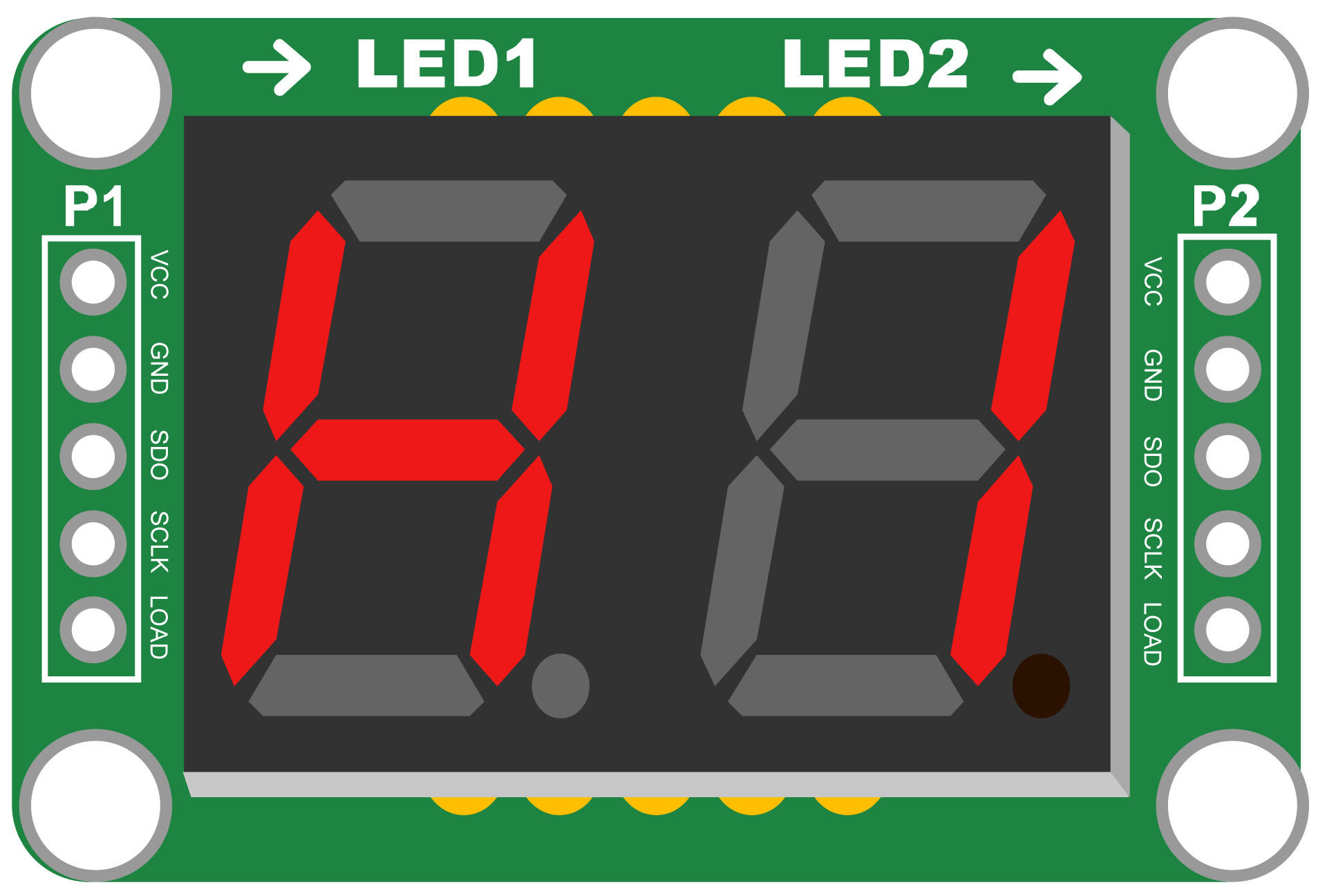
A 7-segment display is an electronic display device used to represent decimal numbers and some letters. Manufactured by A, the 2 DIGIT 7-segment display consists of two digits, each made up of seven individual LED segments arranged in a figure-eight pattern. By selectively illuminating these segments, the display can represent numerals from 0 to 9 and some alphabetic characters.
Explore Projects Built with 7 SEGMENT
 Open Project in Cirkit Designer
 Open Project in Cirkit Designer
 Open Project in Cirkit Designer
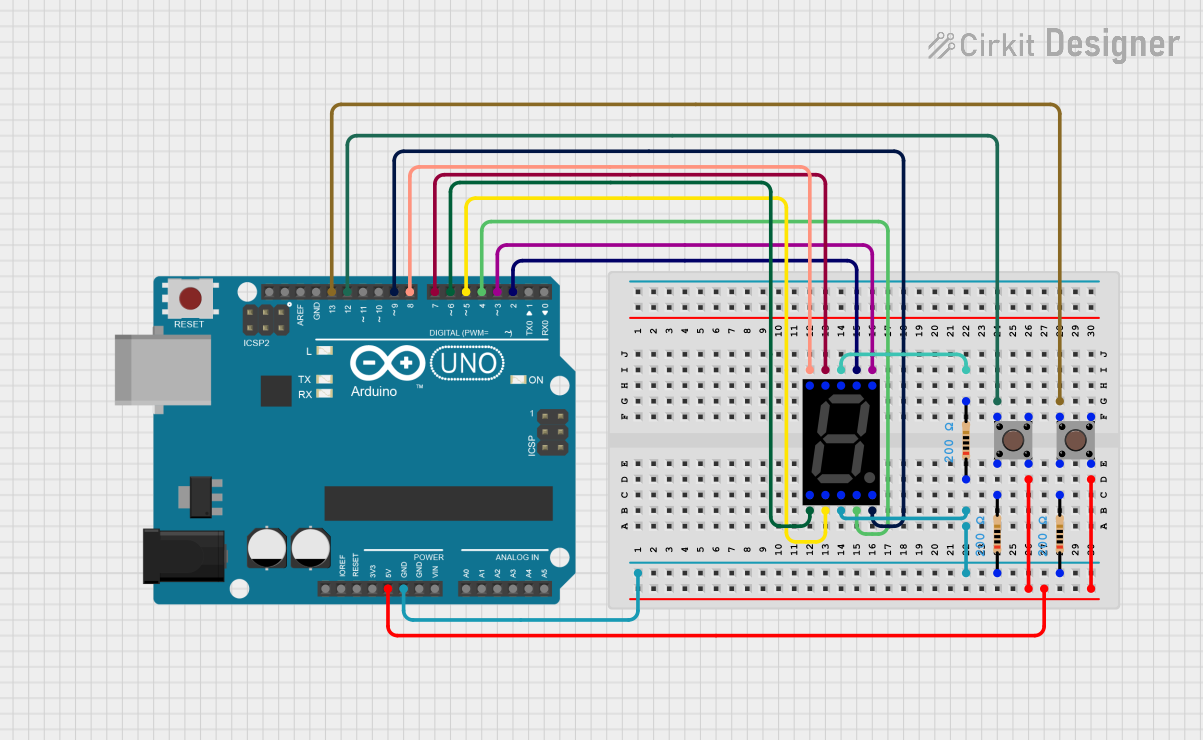 Open Project in Cirkit Designer
Explore Projects Built with 7 SEGMENT
Open Project in Cirkit DesignerOpen Project in Cirkit DesignerOpen Project in Cirkit DesignerOpen Project in Cirkit DesignerCommon Applications and Use Cases
- Digital clocks
- Electronic meters (e.g., voltmeters, ammeters)
- Calculators
- Scoreboards
- Embedded systems requiring numeric output
Technical Specifications
Key Technical Details
| Parameter | Value |
|---|---|
| Manufacturer | A |
| Part ID | 2 DIGIT |
| Number of Digits | 2 |
| Operating Voltage | 2V to 3.5V per segment |
| Forward Current (If) | 10mA to 20mA per segment |
| Peak Forward Current | 100mA (non-continuous, <10ms) |
| Reverse Voltage (Vr) | 5V |
| Operating Temperature | -40°C to +85°C |
| Display Type | Common Cathode or Common Anode |
Pin Configuration and Descriptions
The 2 DIGIT 7-segment display has 10 or more pins, depending on the specific model. Below is the pin configuration for a common cathode display:
| Pin Number | Description |
|---|---|
| 1 | Segment E (Digit 1) |
| 2 | Segment D (Digit 1) |
| 3 | Segment C (Digit 1) |
| 4 | Segment G (Digit 1) |
| 5 | Common Cathode (Digit 1) |
| 6 | Segment F (Digit 1) |
| 7 | Segment A (Digit 1) |
| 8 | Segment B (Digit 1) |
| 9 | Common Cathode (Digit 2) |
| 10 | Segment A (Digit 2) |
| 11 | Segment F (Digit 2) |
| 12 | Segment B (Digit 2) |
| 13 | Segment G (Digit 2) |
| 14 | Segment C (Digit 2) |
| 15 | Segment D (Digit 2) |
| 16 | Segment E (Digit 2) |
Note: For a common anode display, the common pins (5 and 9) are connected to the positive voltage supply, and the segments are controlled by grounding the respective pins.
Usage Instructions
How to Use the Component in a Circuit
- Determine the Type of Display: Identify whether the display is common cathode or common anode. This determines how the segments are activated.
- For common cathode: Connect the common cathode pins to ground.
- For common anode: Connect the common anode pins to the positive voltage supply.
- Current Limiting Resistors: Use a resistor (typically 220Ω to 1kΩ) in series with each segment to limit the current and prevent damage to the LEDs.
- Control the Segments: Use a microcontroller (e.g., Arduino UNO) or a driver IC (e.g., 74HC595) to control the segments. Set the corresponding pins HIGH or LOW to light up the desired segments.
Example Circuit with Arduino UNO
Below is an example of how to connect and control a 2 DIGIT 7-segment display (common cathode) using an Arduino UNO:
Circuit Connections
- Connect the common cathode pins (5 and 9) to GND.
- Connect each segment pin (A, B, C, D, E, F, G) to Arduino digital pins via 220Ω resistors.
Arduino Code
// Define segment pins for Digit 1
const int segA1 = 2;  // Segment A for Digit 1
const int segB1 = 3;  // Segment B for Digit 1
const int segC1 = 4;  // Segment C for Digit 1
const int segD1 = 5;  // Segment D for Digit 1
const int segE1 = 6;  // Segment E for Digit 1
const int segF1 = 7;  // Segment F for Digit 1
const int segG1 = 8;  // Segment G for Digit 1

// Define segment pins for Digit 2
const int segA2 = 9;  // Segment A for Digit 2
const int segB2 = 10; // Segment B for Digit 2
const int segC2 = 11; // Segment C for Digit 2
const int segD2 = 12; // Segment D for Digit 2
const int segE2 = 13; // Segment E for Digit 2
const int segF2 = A0; // Segment F for Digit 2
const int segG2 = A1; // Segment G for Digit 2

void setup() {
  // Set all segment pins as OUTPUT
  for (int pin = 2; pin <= A1; pin++) {
    pinMode(pin, OUTPUT);
    digitalWrite(pin, LOW); // Turn off all segments initially
  }
}

void loop() {
  // Display the number "12" on the 7-segment display
  displayDigit1(1); // Display "1" on Digit 1
  displayDigit2(2); // Display "2" on Digit 2
  delay(1000);      // Wait for 1 second
}

// Function to display a number on Digit 1
void displayDigit1(int num) {
  // Segment patterns for numbers 0-9
  const byte digitPatterns[10] = {
    0b0111111, // 0
    0b0000110, // 1
    0b1011011, // 2
    0b1001111, // 3
    0b1100110, // 4
    0b1101101, // 5
    0b1111101, // 6
    0b0000111, // 7
    0b1111111, // 8
    0b1101111  // 9
  };

  byte pattern = digitPatterns[num];
  digitalWrite(segA1, pattern & 0b0000001);
  digitalWrite(segB1, pattern & 0b0000010);
  digitalWrite(segC1, pattern & 0b0000100);
  digitalWrite(segD1, pattern & 0b0001000);
  digitalWrite(segE1, pattern & 0b0010000);
  digitalWrite(segF1, pattern & 0b0100000);
  digitalWrite(segG1, pattern & 0b1000000);
}

// Function to display a number on Digit 2
void displayDigit2(int num) {
  const byte digitPatterns[10] = {
    0b0111111, 0b0000110, 0b1011011, 0b1001111, 0b1100110,
    0b1101101, 0b1111101, 0b0000111, 0b1111111, 0b1101111
  };

  byte pattern = digitPatterns[num];
  digitalWrite(segA2, pattern & 0b0000001);
  digitalWrite(segB2, pattern & 0b0000010);
  digitalWrite(segC2, pattern & 0b0000100);
  digitalWrite(segD2, pattern & 0b0001000);
  digitalWrite(segE2, pattern & 0b0010000);
  digitalWrite(segF2, pattern & 0b0100000);
  digitalWrite(segG2, pattern & 0b1000000);
}
Important Considerations and Best Practices
- Always use current-limiting resistors to protect the LEDs.
- Verify the type of display (common cathode or common anode) before wiring.
- Avoid exceeding the maximum forward current to prevent damage.
- Use a driver IC for more efficient control of multiple digits.
Troubleshooting and FAQs
Common Issues and Solutions
Segments Not Lighting Up:
- Check the wiring and ensure all connections are secure.
- Verify that the common cathode or anode pins are correctly connected.
- Ensure the current-limiting resistors are not too high.
Incorrect Digits Displayed:
- Double-check the segment-to-pin mapping in your code.
- Ensure the correct segment patterns are being sent to the display.
Dim or Uneven Brightness:
- Verify that all resistors have the same value.
- Ensure the power supply can provide sufficient current.
FAQs
Q: Can I use the 7-segment display without a microcontroller?
A: Yes, you can use switches or