
How to Use WS2812 LED Strip: Examples, Pinouts, and Specs

 Design with WS2812 LED Strip in Cirkit Designer
Introduction
The WS2812 LED Strip is a flexible strip of individually addressable RGB LEDs. Each LED contains a built-in driver chip, allowing for precise control of color and brightness. This makes the WS2812 LED Strip ideal for creating dynamic lighting effects, animations, and displays. The strip is widely used in decorative lighting, signage, DIY projects, and artistic installations.
Common applications include:
- Ambient lighting for homes, offices, and events
- LED displays and signage
- Wearable electronics and costumes
- Interactive art installations
- DIY projects with microcontrollers like Arduino or Raspberry Pi
Explore Projects Built with WS2812 LED Strip
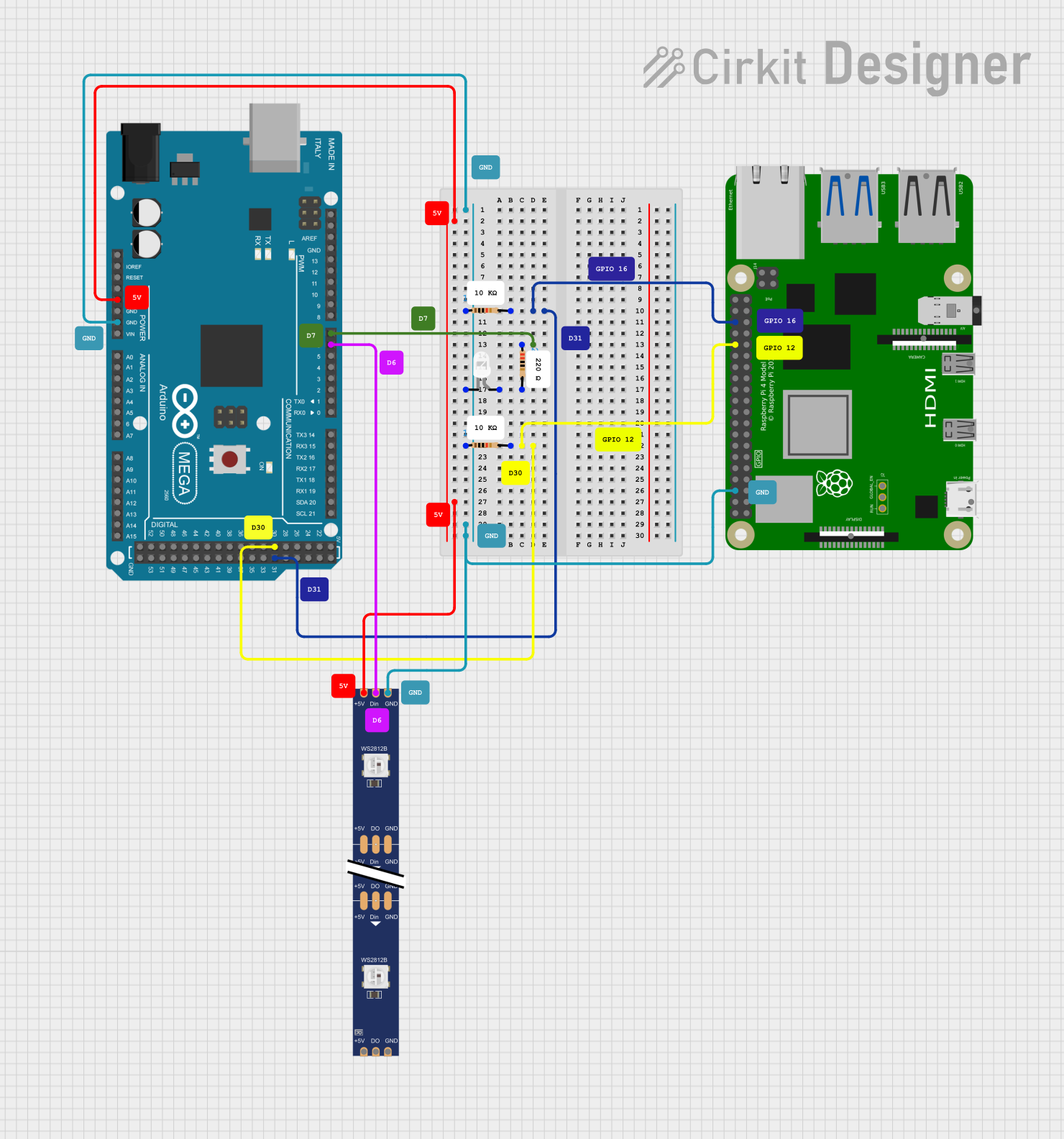 Open Project in Cirkit Designer
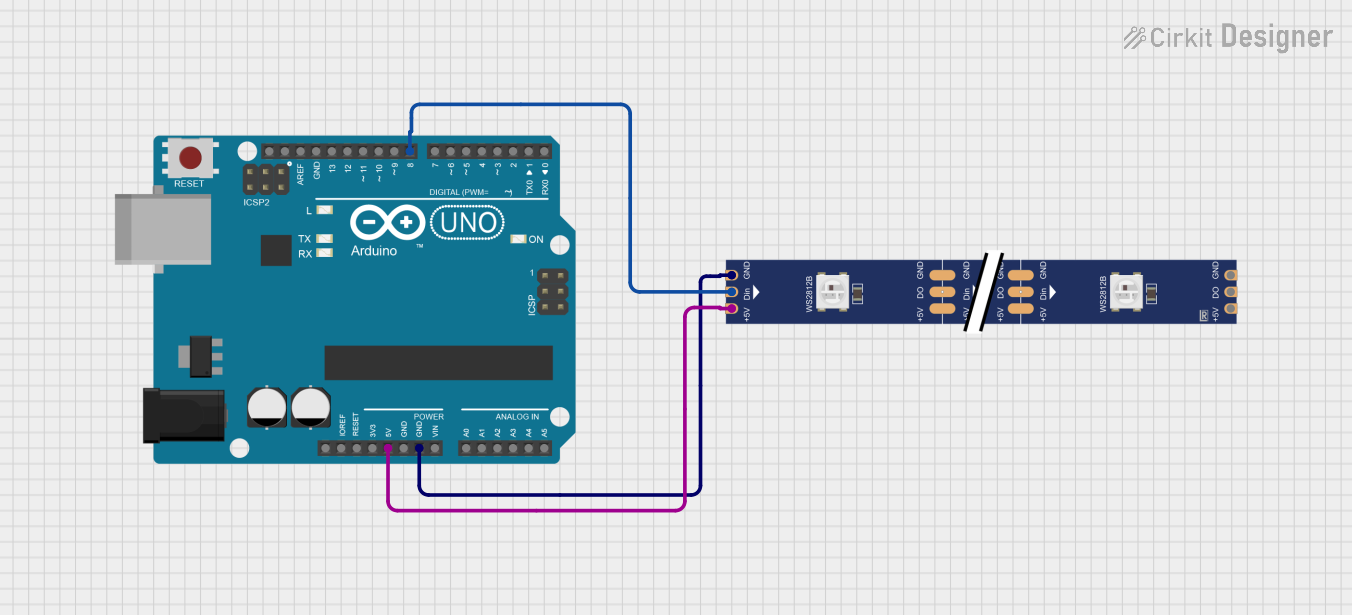 Open Project in Cirkit Designer
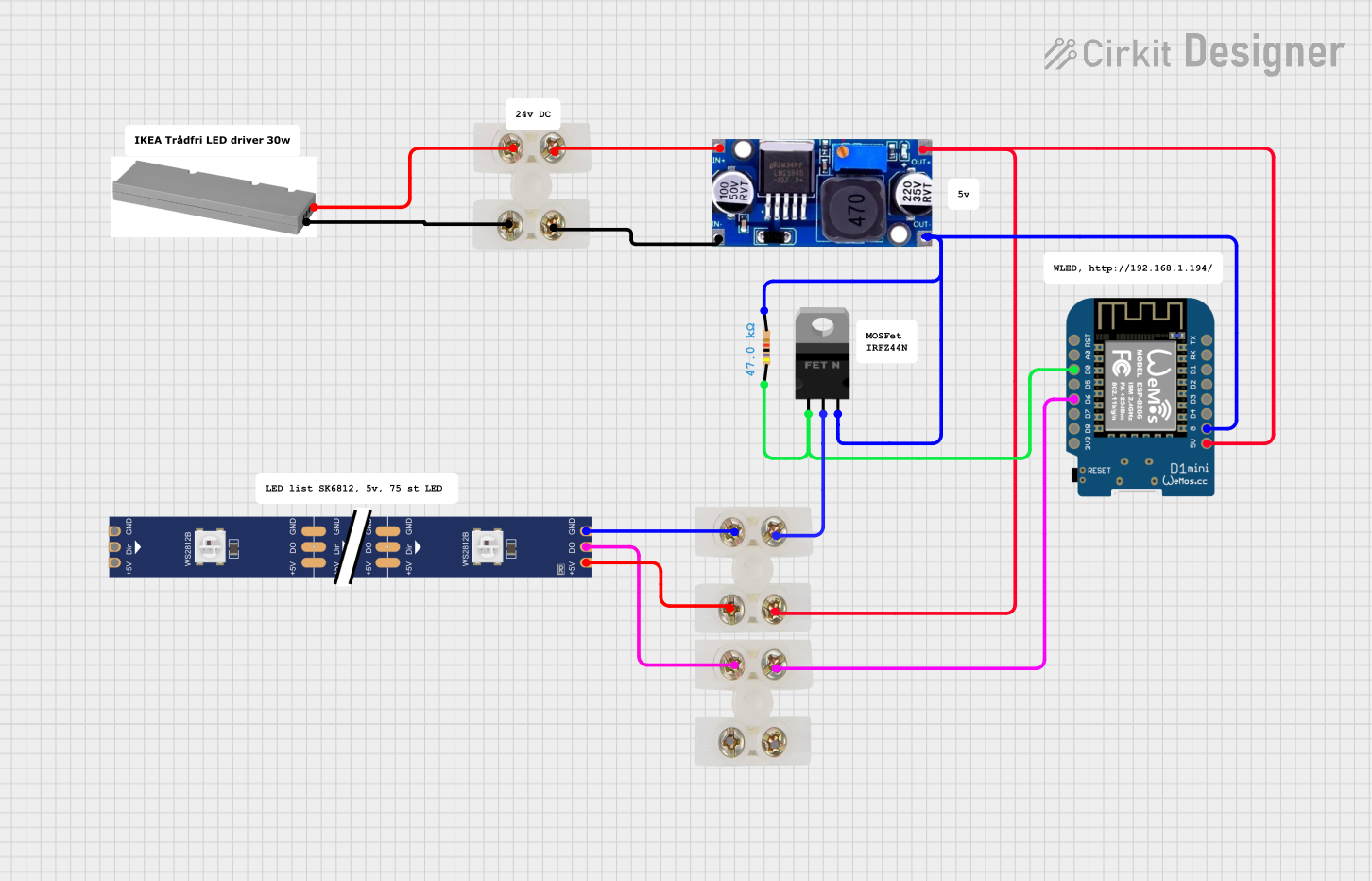 Open Project in Cirkit Designer
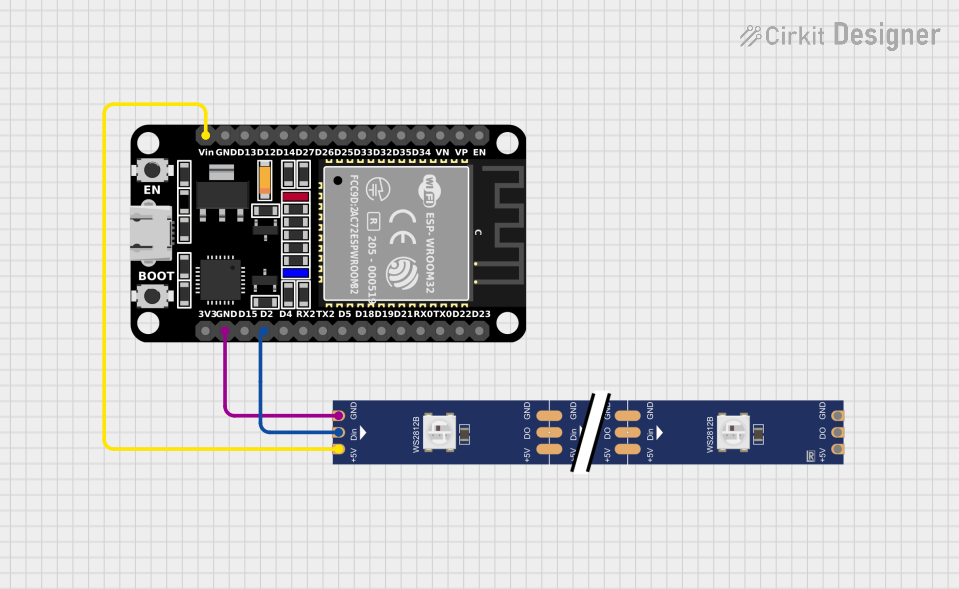 Open Project in Cirkit Designer
Explore Projects Built with WS2812 LED Strip
Open Project in Cirkit DesignerOpen Project in Cirkit DesignerOpen Project in Cirkit DesignerOpen Project in Cirkit DesignerTechnical Specifications
The WS2812 LED Strip is designed for ease of use and versatility. Below are its key technical details:
General Specifications
| Parameter | Value |
|---|---|
| LED Type | WS2812 (RGB, individually addressable) |
| Operating Voltage | 5V DC |
| Power Consumption | ~60mA per LED at full brightness |
| Communication Protocol | Single-wire (data line) |
| LED Color Depth | 24-bit (8 bits per color channel) |
| LED Pitch | Varies (e.g., 30, 60, or 144 LEDs per meter) |
| Operating Temperature | -25°C to +80°C |
Pin Configuration
The WS2812 LED Strip typically has three pins for connection:
| Pin Name | Description |
|---|---|
| +5V | Power supply input (5V DC) |
| GND | Ground connection |
| DIN | Data input for controlling the LEDs |
Note: Some strips may have an additional DOUT pin at the end of the strip for chaining multiple strips together.
Usage Instructions
Connecting the WS2812 LED Strip
- Power Supply: Connect the
+5Vpin of the strip to a 5V DC power source. Ensure the power supply can provide sufficient current for the number of LEDs (approximately 60mA per LED at full brightness). - Ground: Connect the
GNDpin to the ground of the power supply and the microcontroller. - Data Line: Connect the
DINpin to a digital output pin on your microcontroller (e.g., Arduino). Use a resistor (330–470 ohms) in series with the data line to protect the LEDs. - Capacitor: Place a 1000µF capacitor across the
+5VandGNDpins near the strip to stabilize the power supply.
Arduino Example Code
Below is an example of how to control the WS2812 LED Strip using an Arduino UNO and the Adafruit NeoPixel library:
// Include the Adafruit NeoPixel library
#include <Adafruit_NeoPixel.h>

// Define the pin connected to the DIN pin of the LED strip
#define LED_PIN 6

// Define the number of LEDs in the strip
#define NUM_LEDS 30

// Create a NeoPixel object
Adafruit_NeoPixel strip = Adafruit_NeoPixel(NUM_LEDS, LED_PIN, NEO_GRB + NEO_KHZ800);

void setup() {
  // Initialize the LED strip
  strip.begin();
  strip.show(); // Turn off all LEDs initially
}

void loop() {
  // Call a function to display a rainbow effect
  rainbowCycle(20); // Adjust the speed of the effect
}

// Function to display a rainbow cycle effect
void rainbowCycle(uint8_t wait) {
  uint16_t i, j;

  for (j = 0; j < 256; j++) { // Cycle through all colors
    for (i = 0; i < strip.numPixels(); i++) {
      // Set each pixel to a color in the rainbow
      strip.setPixelColor(i, Wheel((i + j) & 255));
    }
    strip.show(); // Update the strip with new colors
    delay(wait);  // Wait before the next update
  }
}

// Helper function to generate rainbow colors
uint32_t Wheel(byte WheelPos) {
  WheelPos = 255 - WheelPos;
  if (WheelPos < 85) {
    return strip.Color(255 - WheelPos * 3, 0, WheelPos * 3);
  } else if (WheelPos < 170) {
    WheelPos -= 85;
    return strip.Color(0, WheelPos * 3, 255 - WheelPos * 3);
  } else {
    WheelPos -= 170;
    return strip.Color(WheelPos * 3, 255 - WheelPos * 3, 0);
  }
}
Best Practices
- Use a level shifter to convert the microcontroller's 3.3V data signal to 5V if necessary.
- Avoid powering too many LEDs directly from the microcontroller; use an external power supply.
- Ensure proper heat dissipation if running the LEDs at high brightness for extended periods.
Troubleshooting and FAQs
Common Issues
LEDs not lighting up:
- Check the power supply voltage and current rating.
- Verify all connections, especially the
DINpin. - Ensure the data signal is being sent to the correct pin.
Flickering or incorrect colors:
- Add a 330–470 ohm resistor in series with the data line.
- Use a 1000µF capacitor across the power supply to reduce noise.
- Ensure the ground of the LED strip is connected to the microcontroller's ground.
Only the first LED works:
- Check the data connection to the first LED.
- Ensure the library and code are configured for the correct number of LEDs.
FAQs
Q: Can I cut the WS2812 LED Strip to a custom length?
A: Yes, the strip can be cut at designated points (usually marked with a scissor icon). Ensure you reconnect the +5V, GND, and DIN pins properly.
Q: How many LEDs can I control with one microcontroller?
A: Theoretically, you can control hundreds of LEDs, but the refresh rate decreases as the number of LEDs increases. For large setups, consider using multiple microcontrollers or splitting the strip into segments.
Q: Can I chain multiple strips together?
A: Yes, connect the DOUT pin of one strip to the DIN pin of the next. Ensure the power supply can handle the total current draw.
By following this documentation, you can effectively use the WS2812 LED Strip in your projects and troubleshoot common issues.