
How to Use Relè: Examples, Pinouts, and Specs
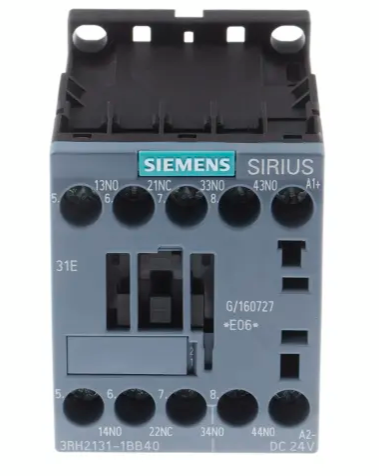
 Design with Relè in Cirkit Designer
Introduction
A relay, manufactured by Siemens, is an electromechanical switch designed to control a circuit using a low-power signal or to manage multiple circuits with a single signal. It operates by utilizing an electromagnetic coil to mechanically open or close contacts within the relay. This makes it an essential component in applications requiring electrical isolation, signal amplification, or the ability to control high-power circuits with low-power inputs.
Explore Projects Built with Relè
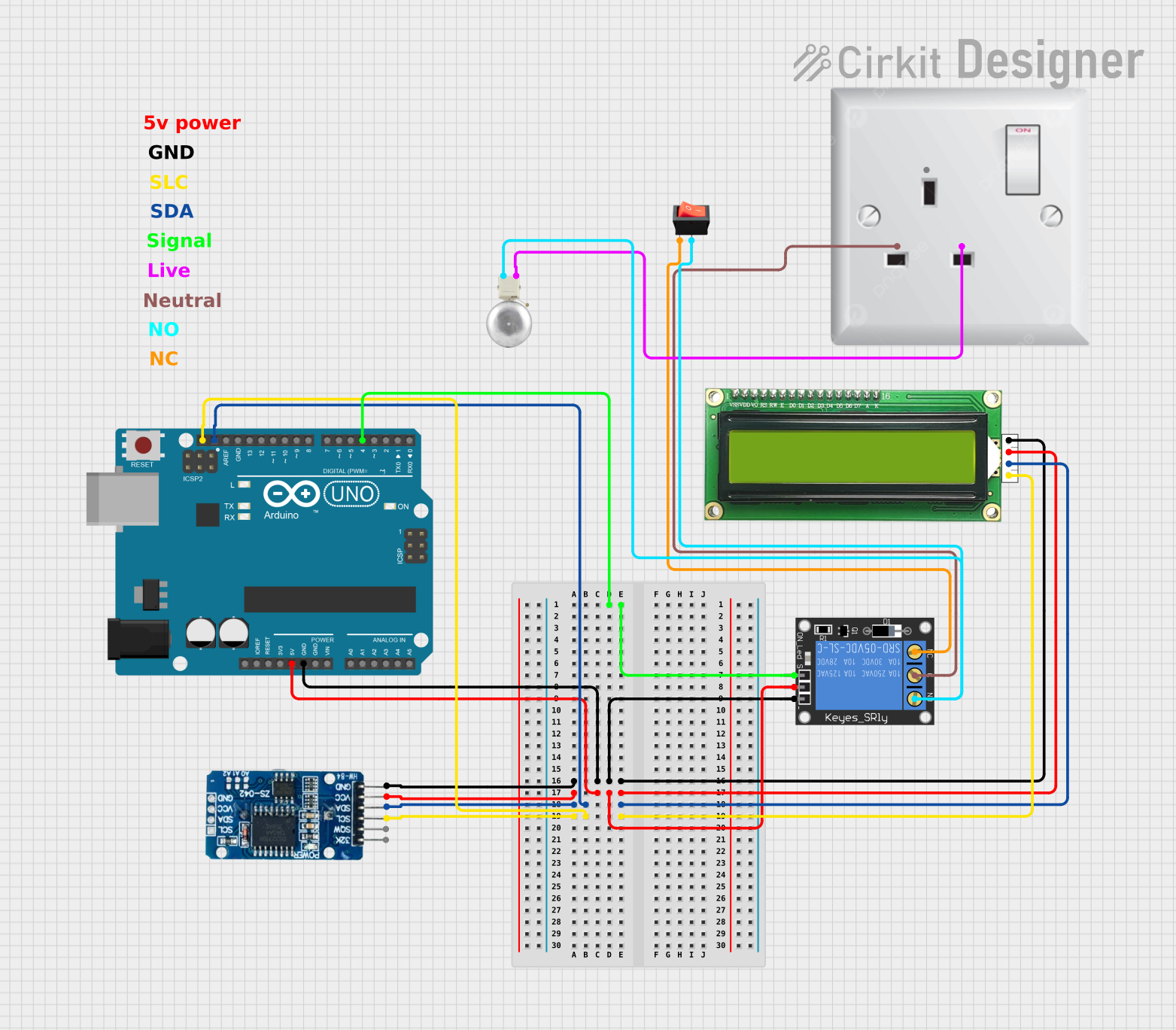 Open Project in Cirkit Designer
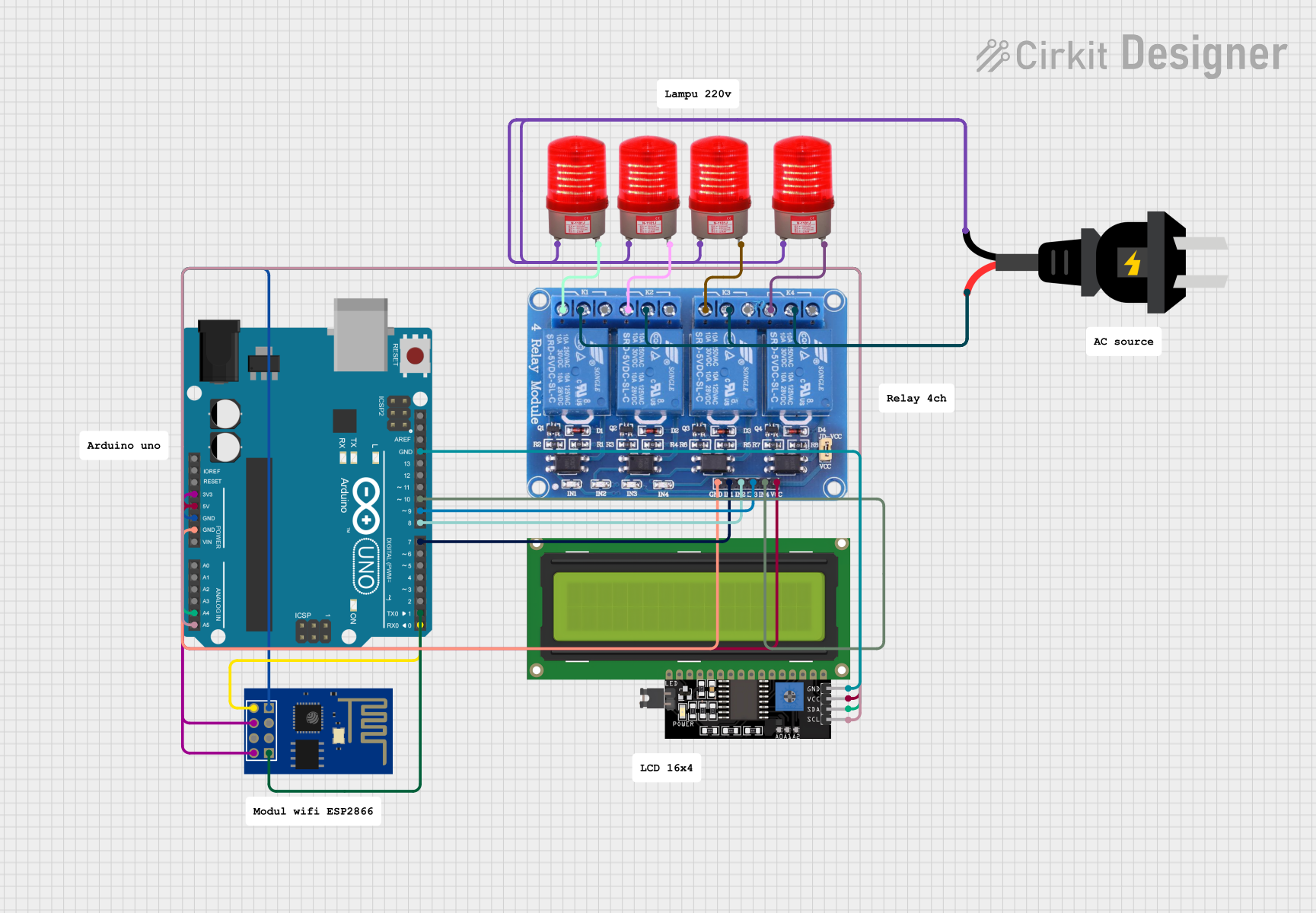 Open Project in Cirkit Designer
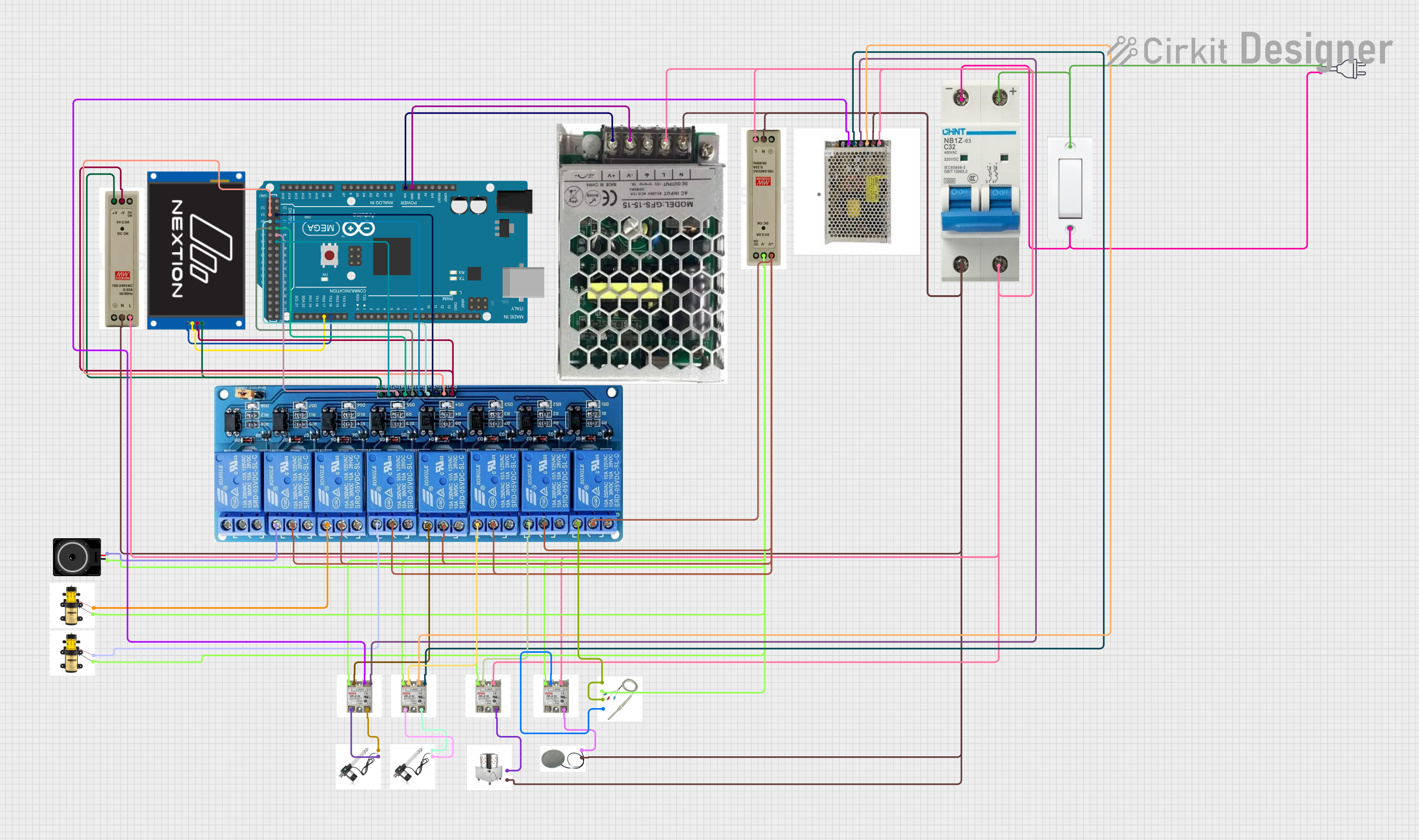 Open Project in Cirkit Designer
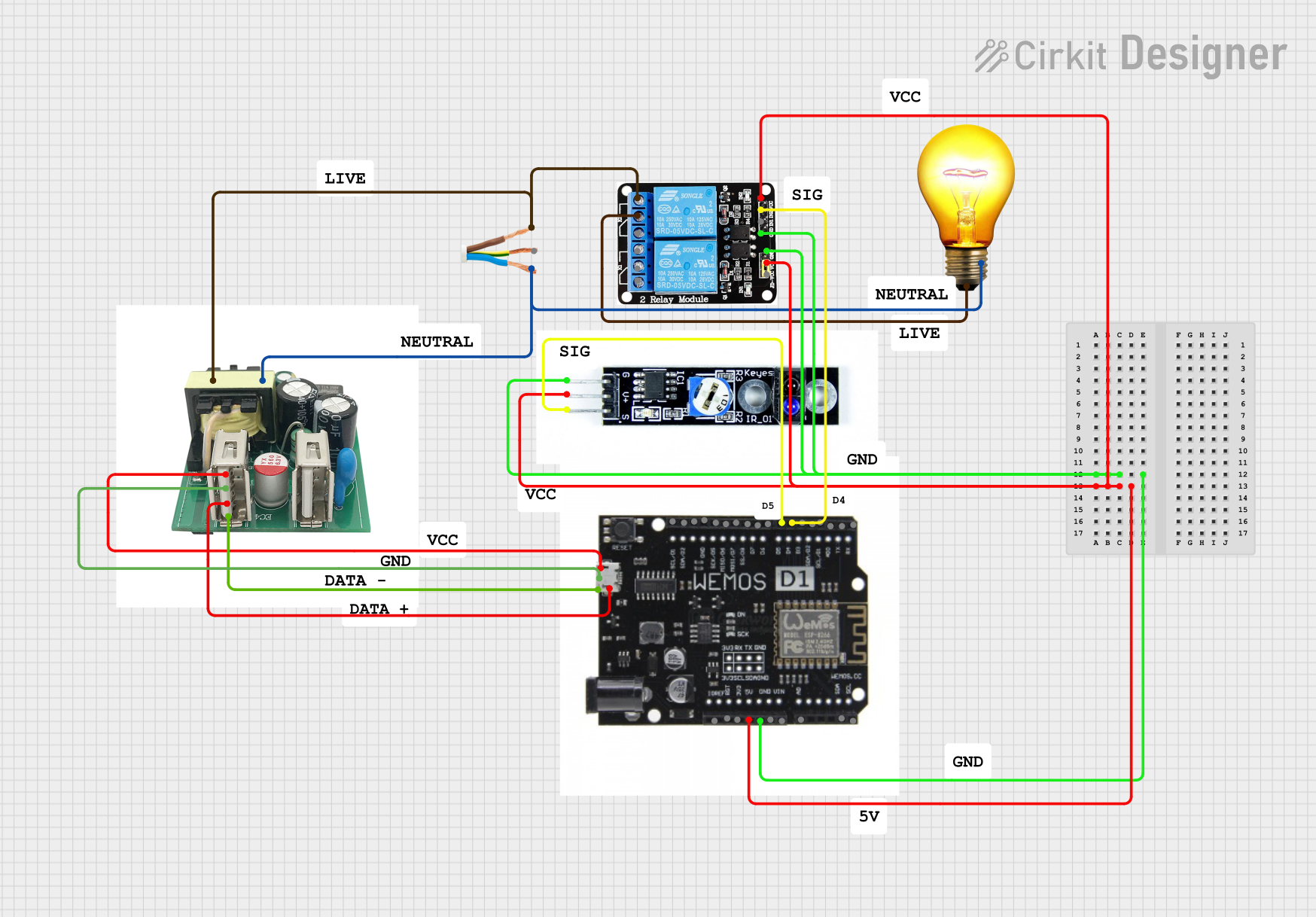 Open Project in Cirkit Designer
Explore Projects Built with Relè
Open Project in Cirkit DesignerOpen Project in Cirkit DesignerOpen Project in Cirkit DesignerOpen Project in Cirkit DesignerCommon Applications and Use Cases
- Home Automation: Used in smart home systems to control appliances and lighting.
- Industrial Control Systems: Employed in motor control, safety circuits, and automation processes.
- Automotive Systems: Found in car electronics for controlling headlights, horns, and other systems.
- Power Distribution: Used in circuit breakers and power grid systems for switching and protection.
- Microcontroller Projects: Commonly used with Arduino, Raspberry Pi, and other microcontrollers to control high-power devices.
Technical Specifications
Below are the key technical details for the Siemens relay:
General Specifications
- Coil Voltage: 5V DC, 12V DC, or 24V DC (depending on the model)
- Contact Rating: 10A at 250V AC or 10A at 30V DC
- Contact Configuration: SPDT (Single Pole Double Throw) or DPDT (Double Pole Double Throw)
- Coil Resistance: Varies by model (e.g., 70Ω for 5V DC coil)
- Switching Time: Typically 5ms (operate) and 3ms (release)
- Dielectric Strength: 1000V AC between coil and contacts
- Insulation Resistance: ≥100MΩ at 500V DC
- Operating Temperature: -40°C to +85°C
Pin Configuration and Descriptions
The Siemens relay typically has 5 or more pins, depending on the model. Below is the pin configuration for a standard SPDT relay:
| Pin Number | Name | Description |
|---|---|---|
| 1 | Coil (+) | Positive terminal of the electromagnetic coil. |
| 2 | Coil (-) | Negative terminal of the electromagnetic coil. |
| 3 | Common (COM) | Common terminal connected to the moving contact. |
| 4 | Normally Open (NO) | Contact that remains open until the relay is activated. |
| 5 | Normally Closed (NC) | Contact that remains closed until the relay is activated. |
For DPDT relays, there will be additional pins for the second set of contacts.
Usage Instructions
How to Use the Relay in a Circuit
- Power the Coil: Connect the coil terminals (pins 1 and 2) to a DC power source matching the relay's rated coil voltage (e.g., 5V DC).
- Control the Load: Connect the load circuit to the COM, NO, and/or NC terminals:
- Use the NO terminal if you want the circuit to close only when the relay is activated.
- Use the NC terminal if you want the circuit to remain closed until the relay is activated.
- Driving the Relay: If using a microcontroller (e.g., Arduino), use a transistor or relay driver IC to provide sufficient current to the relay coil.
Important Considerations and Best Practices
- Diode Protection: Always connect a flyback diode across the coil terminals to protect the circuit from voltage spikes when the relay is deactivated.
- Power Ratings: Ensure the relay's contact rating matches or exceeds the load's voltage and current requirements.
- Isolation: Use optocouplers or isolation circuits when controlling the relay with sensitive electronics.
- Avoid Overheating: Do not exceed the relay's rated coil voltage or contact current to prevent overheating or damage.
Example: Using a Relay with Arduino UNO
Below is an example of how to control a Siemens relay with an Arduino UNO:
// Define the pin connected to the relay module
const int relayPin = 7;

void setup() {
  pinMode(relayPin, OUTPUT); // Set the relay pin as an output
  digitalWrite(relayPin, LOW); // Ensure the relay is off at startup
}

void loop() {
  digitalWrite(relayPin, HIGH); // Activate the relay
  delay(5000); // Keep the relay on for 5 seconds
  digitalWrite(relayPin, LOW); // Deactivate the relay
  delay(5000); // Keep the relay off for 5 seconds
}
Note: Ensure the relay module is connected to the Arduino as follows:
- Relay module's VCC to Arduino 5V.
- Relay module's GND to Arduino GND.
- Relay module's IN to Arduino pin 7.
Troubleshooting and FAQs
Common Issues and Solutions
Relay Not Activating
- Cause: Insufficient voltage or current to the coil.
- Solution: Verify the power supply matches the relay's rated coil voltage and current.
Relay Buzzing or Clicking
- Cause: Unstable power supply or incorrect driving circuit.
- Solution: Use a stable power source and ensure proper transistor or driver circuit design.
Load Not Switching
- Cause: Incorrect wiring of the load to the relay terminals.
- Solution: Double-check the connections to the COM, NO, and NC terminals.
Microcontroller Resetting When Relay Activates
- Cause: Voltage spikes from the relay coil affecting the microcontroller.
- Solution: Add a flyback diode across the coil and use a separate power supply for the relay.
FAQs
Q: Can I use the relay to switch AC loads?
- A: Yes, as long as the load's voltage and current are within the relay's contact rating.
Q: Do I need a transistor to drive the relay with an Arduino?
- A: Yes, most relays require more current than an Arduino pin can supply. Use a transistor or relay driver IC.
Q: What is the purpose of the flyback diode?
- A: The flyback diode protects the circuit from voltage spikes generated when the relay coil is de-energized.
Q: Can I use the relay in high-frequency switching applications?
- A: No, relays are not suitable for high-frequency switching due to their mechanical nature. Use solid-state relays or transistors for such applications.