
How to Use ESP32 DEVKIT V1: Examples, Pinouts, and Specs
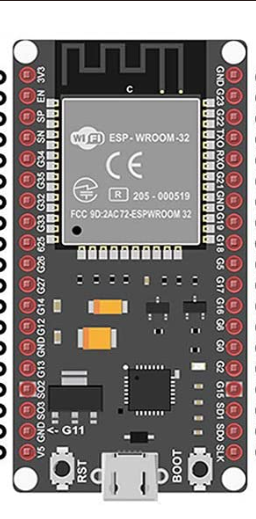
 Design with ESP32 DEVKIT V1 in Cirkit Designer
Introduction
The ESP32 DEVKIT V1, manufactured by Espressif Systems, is a versatile development board based on the ESP32-WROOM-32 module. It features dual-core processing, integrated Wi-Fi, and Bluetooth capabilities, making it an excellent choice for IoT applications, smart devices, and rapid prototyping. Its compact design and rich set of GPIO pins allow developers to create a wide range of projects, from home automation to wearable devices.
Explore Projects Built with ESP32 DEVKIT V1
 Open Project in Cirkit Designer
 Open Project in Cirkit Designer
 Open Project in Cirkit Designer
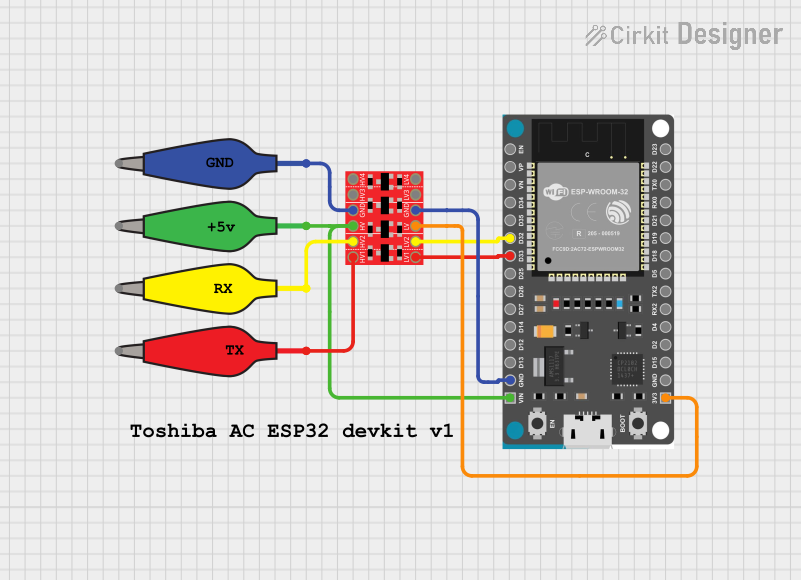 Open Project in Cirkit Designer
Explore Projects Built with ESP32 DEVKIT V1
Open Project in Cirkit DesignerOpen Project in Cirkit DesignerOpen Project in Cirkit DesignerOpen Project in Cirkit DesignerCommon Applications and Use Cases
- Internet of Things (IoT) devices
- Home automation systems
- Wireless sensor networks
- Wearable technology
- Robotics and automation
- Prototyping and educational projects
Technical Specifications
The ESP32 DEVKIT V1 is built around the ESP32-WROOM-32 module, which provides robust performance and connectivity. Below are the key technical details:
Key Specifications
| Parameter | Value |
|---|---|
| Microcontroller | ESP32 (dual-core, Xtensa LX6) |
| Clock Speed | Up to 240 MHz |
| Flash Memory | 4 MB (varies by model) |
| SRAM | 520 KB |
| Wi-Fi | 802.11 b/g/n (2.4 GHz) |
| Bluetooth | v4.2 BR/EDR and BLE |
| Operating Voltage | 3.3V |
| Input Voltage (VIN) | 5V (via USB or external power supply) |
| GPIO Pins | 30 (varies by board version) |
| ADC Channels | 18 (12-bit resolution) |
| DAC Channels | 2 |
| Communication Interfaces | UART, SPI, I2C, I2S, CAN, PWM |
| Power Consumption | Ultra-low power (deep sleep: ~10 µA) |
| Dimensions | ~54 mm x 27 mm |
Pin Configuration and Descriptions
The ESP32 DEVKIT V1 has a total of 30 pins, with the following configuration:
| Pin Name | Pin Number | Description |
|---|---|---|
| VIN | 1 | Input voltage (5V) |
| GND | 2, 15 | Ground |
| 3V3 | 3 | 3.3V output |
| EN | 4 | Enable pin (active high) |
| IO0 | 5 | GPIO0, used for boot mode selection |
| IO2 | 6 | GPIO2, general-purpose I/O |
| IO4 | 7 | GPIO4, general-purpose I/O |
| IO5 | 8 | GPIO5, general-purpose I/O |
| IO12 | 9 | GPIO12, general-purpose I/O |
| IO13 | 10 | GPIO13, general-purpose I/O |
| IO14 | 11 | GPIO14, general-purpose I/O |
| IO15 | 12 | GPIO15, general-purpose I/O |
| IO16 | 13 | GPIO16, general-purpose I/O |
| IO17 | 14 | GPIO17, general-purpose I/O |
| IO18 | 16 | GPIO18, general-purpose I/O |
| IO19 | 17 | GPIO19, general-purpose I/O |
| IO21 | 18 | GPIO21, general-purpose I/O |
| IO22 | 19 | GPIO22, general-purpose I/O |
| IO23 | 20 | GPIO23, general-purpose I/O |
| IO25 | 21 | GPIO25, general-purpose I/O |
| IO26 | 22 | GPIO26, general-purpose I/O |
| IO27 | 23 | GPIO27, general-purpose I/O |
| IO32 | 24 | GPIO32, ADC channel |
| IO33 | 25 | GPIO33, ADC channel |
| IO34 | 26 | GPIO34, ADC channel (input only) |
| IO35 | 27 | GPIO35, ADC channel (input only) |
| RXD0 | 28 | UART0 RX |
| TXD0 | 29 | UART0 TX |
| RST | 30 | Reset pin |
Usage Instructions
The ESP32 DEVKIT V1 is easy to use and can be programmed using the Arduino IDE or Espressif's ESP-IDF framework. Below are the steps to get started:
Setting Up the ESP32 DEVKIT V1
- Install Drivers: Ensure that the USB-to-serial driver for the ESP32 is installed on your computer. Most boards use the CP2102 or CH340 chip.
- Install Arduino IDE: Download and install the Arduino IDE from Arduino's official website.
- Add ESP32 Board Support:
- Open the Arduino IDE and go to
File > Preferences. - In the "Additional Board Manager URLs" field, add the following URL:
https://dl.espressif.com/dl/package_esp32_index.json - Go to
Tools > Board > Boards Manager, search for "ESP32," and install the package.
- Open the Arduino IDE and go to
- Select the Board:
- Go to
Tools > Boardand select "ESP32 Dev Module." - Choose the correct COM port under
Tools > Port.
- Go to
Example Code: Blinking an LED
The following example demonstrates how to blink an LED connected to GPIO2:
// Blink an LED connected to GPIO2 on the ESP32 DEVKIT V1

#define LED_PIN 2  // Define the GPIO pin for the LED

void setup() {
  pinMode(LED_PIN, OUTPUT);  // Set GPIO2 as an output pin
}

void loop() {
  digitalWrite(LED_PIN, HIGH);  // Turn the LED on
  delay(1000);                  // Wait for 1 second
  digitalWrite(LED_PIN, LOW);   // Turn the LED off
  delay(1000);                  // Wait for 1 second
}
Important Considerations
- Power Supply: Ensure the board is powered via USB or a stable 5V source through the VIN pin.
- Boot Mode: To upload code, press and hold the "BOOT" button while clicking the upload button in the Arduino IDE.
- Voltage Levels: The ESP32 operates at 3.3V logic levels. Avoid connecting 5V signals directly to its GPIO pins.
Troubleshooting and FAQs
Common Issues
- Board Not Detected:
- Ensure the correct USB driver (CP2102 or CH340) is installed.
- Check the USB cable for data transfer capability (some cables are power-only).
- Upload Fails:
- Verify the correct COM port is selected in the Arduino IDE.
- Press and hold the "BOOT" button during the upload process.
- Wi-Fi Connection Issues:
- Double-check the SSID and password in your code.
- Ensure the router is operating on the 2.4 GHz band (ESP32 does not support 5 GHz).
Tips for Troubleshooting
- Use the Serial Monitor in the Arduino IDE (
Tools > Serial Monitor) to debug your code. - If the board becomes unresponsive, press the "EN" (reset) button to restart it.
- For advanced debugging, use Espressif's ESP-IDF framework and tools.
By following this documentation, you can effectively utilize the ESP32 DEVKIT V1 for your projects and overcome common challenges. Happy prototyping!