
How to Use Piezo Transducer: Examples, Pinouts, and Specs

 Design with Piezo Transducer in Cirkit Designer
Introduction
The MakerLab 20mm Piezo Transducer is a versatile electronic component designed to convert mechanical energy into electrical energy or vice versa, leveraging the piezoelectric effect. This component is widely used in applications such as sound generation (e.g., buzzers), vibration sensing, and pressure detection. Its compact size and efficiency make it ideal for integration into a variety of electronic projects.
Explore Projects Built with Piezo Transducer
 Open Project in Cirkit Designer
 Open Project in Cirkit Designer
 Open Project in Cirkit Designer
 Open Project in Cirkit Designer
Explore Projects Built with Piezo Transducer
Open Project in Cirkit DesignerOpen Project in Cirkit DesignerOpen Project in Cirkit DesignerOpen Project in Cirkit DesignerCommon Applications
- Sound Generation: Used in buzzers, alarms, and notification systems.
- Sensors: Detects vibrations, pressure, or impact in industrial and consumer devices.
- Actuators: Converts electrical signals into mechanical motion for precision control systems.
- Educational Projects: Frequently used in DIY electronics and Arduino-based projects.
Technical Specifications
Below are the key technical details for the MakerLab 20mm Piezo Transducer:
| Parameter | Value |
|---|---|
| Manufacturer | MakerLab |
| Part ID | 20mm Piezo Transducer |
| Diameter | 20 mm |
| Operating Voltage | 3V to 12V |
| Resonant Frequency | 4 kHz |
| Sound Pressure Level | ≥85 dB (at 10 cm, 5V input) |
| Operating Temperature | -20°C to +70°C |
| Material | Brass |
Pin Configuration
The piezo transducer typically has two terminals:
| Pin | Description |
|---|---|
| Positive (+) | Connects to the positive voltage supply. |
| Negative (-) | Connects to ground (GND). |
Usage Instructions
How to Use the Piezo Transducer in a Circuit
Basic Connection:
- Connect the positive terminal of the piezo transducer to the output pin of a microcontroller (e.g., Arduino) or a signal generator.
- Connect the negative terminal to the ground (GND) of the circuit.
Driving the Transducer:
- For sound generation, apply a square wave signal at the resonant frequency (4 kHz) to the positive terminal.
- Use a current-limiting resistor (e.g., 1 kΩ) if necessary to protect the microcontroller or signal source.
Arduino Example: Below is an example of how to use the piezo transducer with an Arduino UNO to generate a simple tone:
// Piezo Transducer Example with Arduino UNO
// Generates a 4 kHz tone on the piezo transducer

const int piezoPin = 8; // Pin connected to the piezo transducer

void setup() {
  // No setup required for this example
}

void loop() {
  // Generate a 4 kHz tone for 500 ms
  tone(piezoPin, 4000, 500);
  delay(1000); // Wait for 1 second before repeating
}
Important Considerations
- Voltage Limits: Do not exceed the maximum operating voltage (12V) to avoid damaging the transducer.
- Frequency Matching: For optimal sound output, drive the transducer at its resonant frequency (4 kHz).
- Mounting: Ensure the transducer is securely mounted to avoid mechanical vibrations that could affect performance.
Troubleshooting and FAQs
Common Issues and Solutions
No Sound Output:
- Cause: Incorrect wiring or insufficient voltage.
- Solution: Verify the connections and ensure the input voltage is within the operating range (3V to 12V).
Low Sound Volume:
- Cause: Driving frequency is not at the resonant frequency.
- Solution: Use a signal generator or microcontroller to produce a 4 kHz square wave.
Overheating:
- Cause: Excessive voltage or prolonged operation at high power.
- Solution: Reduce the input voltage and limit the duty cycle of the signal.
Intermittent Operation:
- Cause: Loose connections or mechanical instability.
- Solution: Check and secure all connections. Ensure the transducer is properly mounted.
FAQs
Q1: Can I use the piezo transducer to detect vibrations?
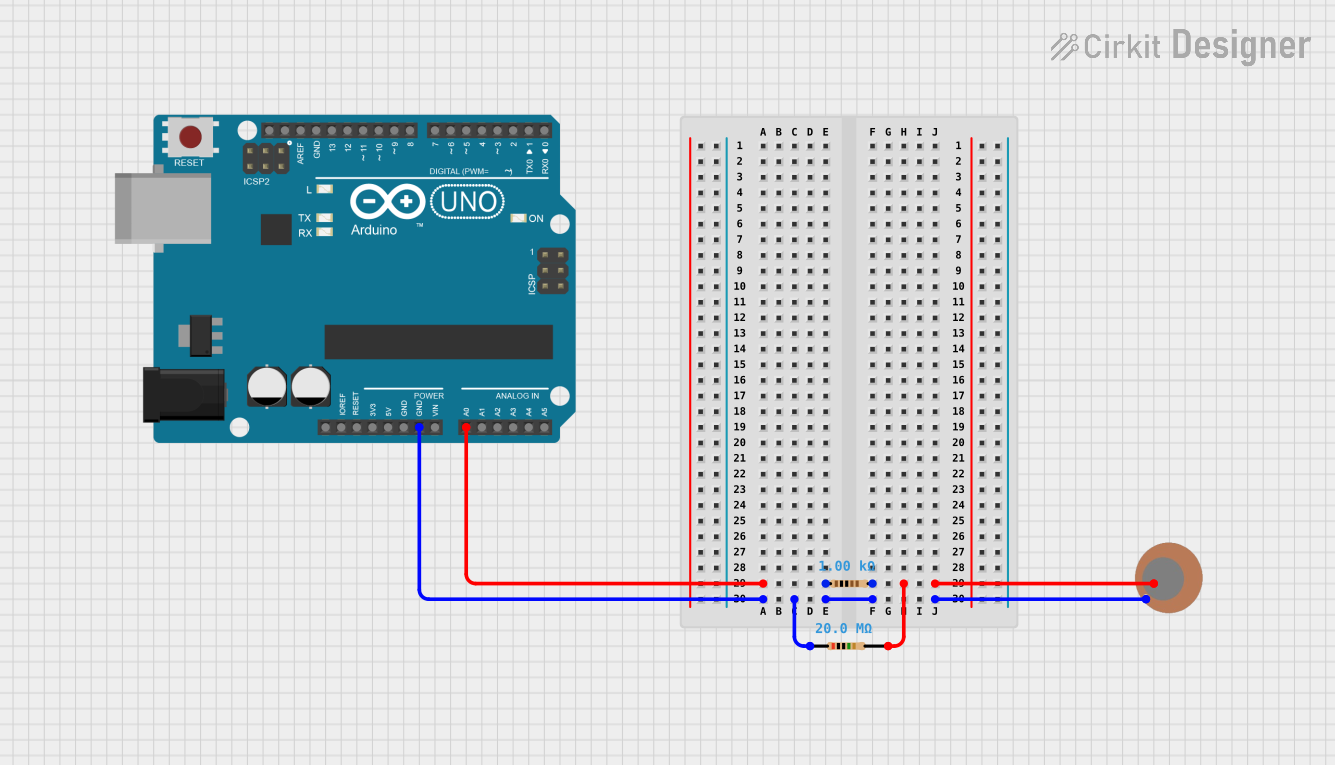
A1: Yes, the piezo transducer can act as a vibration sensor. Connect it to an analog input pin of a microcontroller and measure the voltage changes caused by vibrations.
Q2: What is the difference between a piezo transducer and a piezo buzzer?
A2: A piezo transducer requires an external signal (e.g., square wave) to produce sound, while a piezo buzzer has an internal oscillator and can generate sound with a DC voltage.
Q3: Can I use the transducer with a 3.3V microcontroller?
A3: Yes, the transducer operates at voltages as low as 3V. However, the sound output may be quieter compared to higher voltages.
Q4: How do I clean the transducer?
A4: Use a soft, dry cloth to clean the surface. Avoid using water or solvents, as they may damage the component.
This concludes the documentation for the MakerLab 20mm Piezo Transducer. For further assistance, refer to the manufacturer's datasheet or contact MakerLab support.