
How to Use Arduino MKR WAN 1310: Examples, Pinouts, and Specs
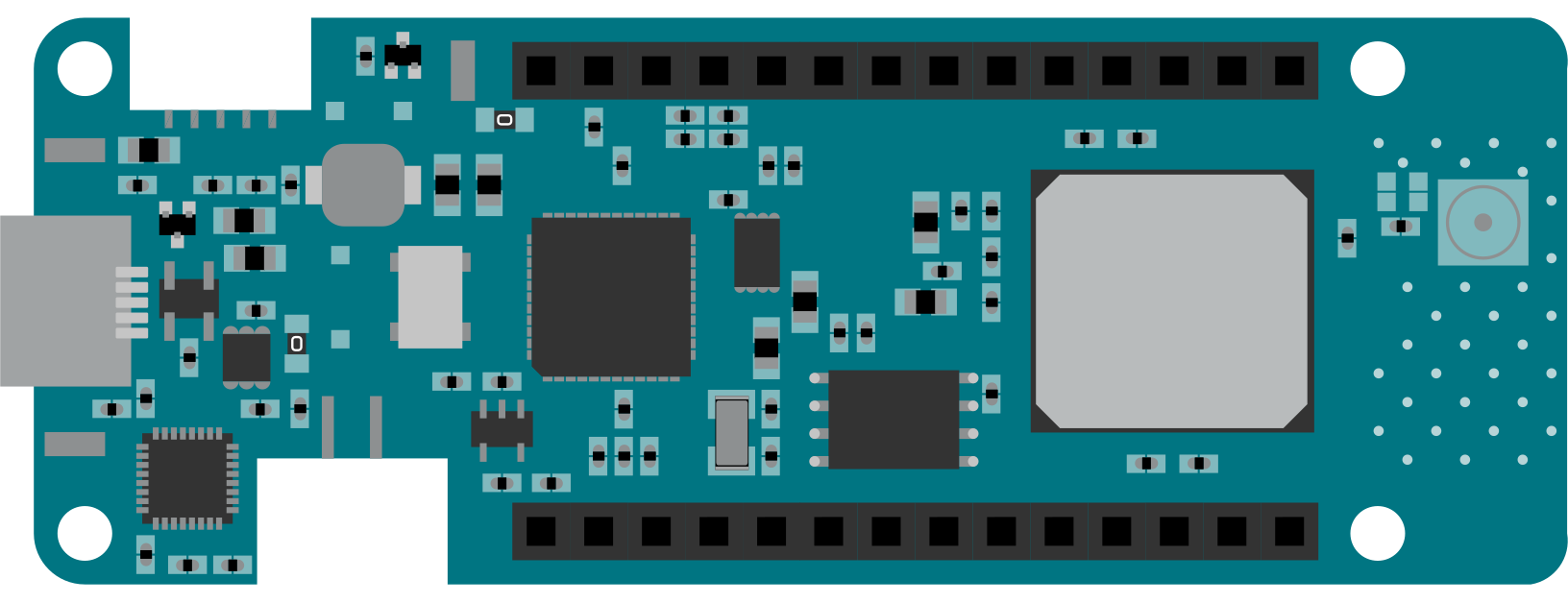
 Design with Arduino MKR WAN 1310 in Cirkit Designer
Introduction
The Arduino MKR WAN 1310 is a microcontroller board specifically designed for Internet of Things (IoT) applications. It features LoRa connectivity, enabling long-range wireless communication, and is powered by the SAMD21 Cortex-M0+ 32-bit ARM microcontroller. Its compact form factor and low power consumption make it ideal for battery-powered projects and remote sensing applications.
Explore Projects Built with Arduino MKR WAN 1310
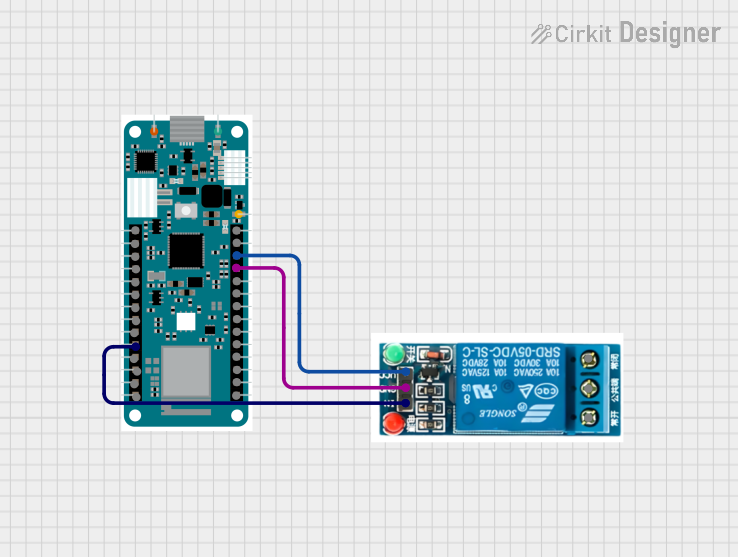 Open Project in Cirkit Designer
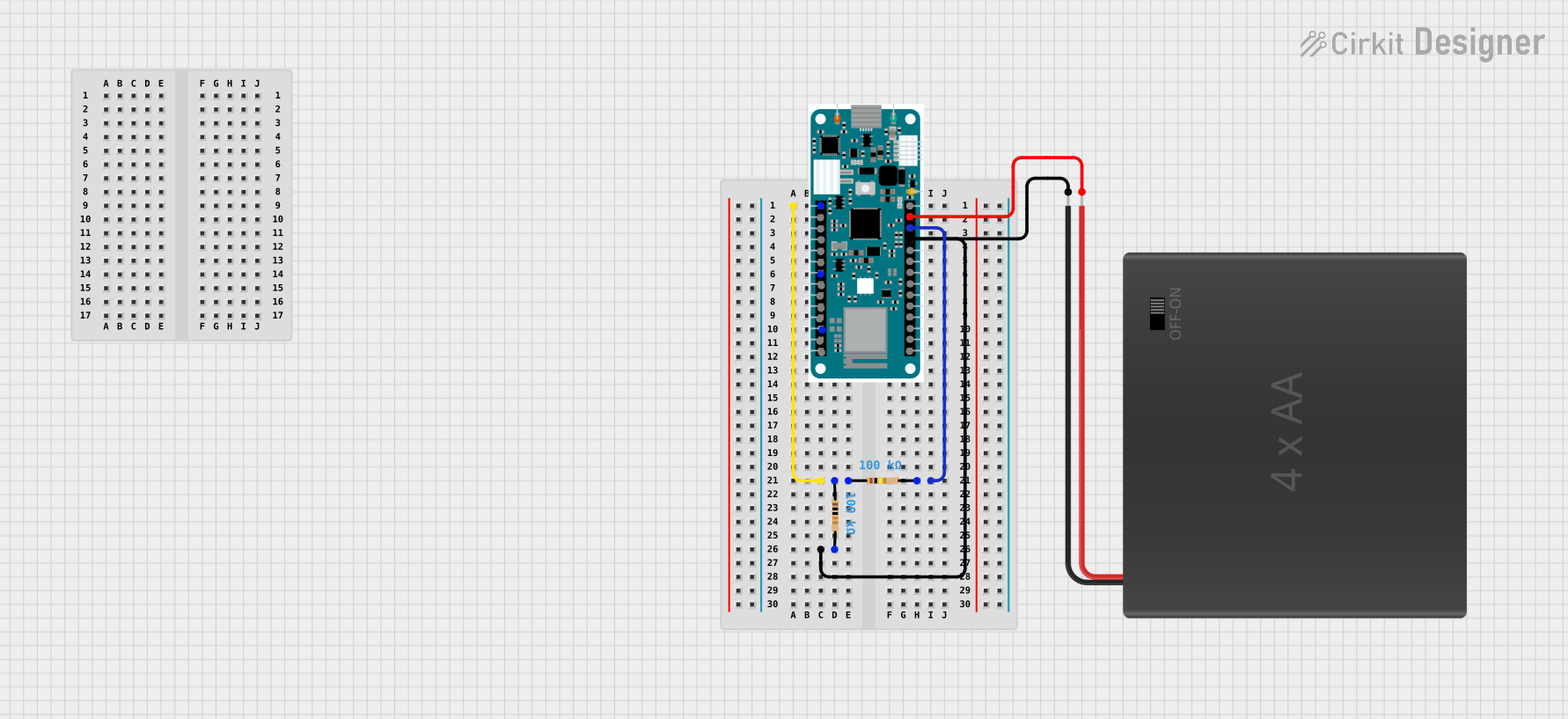 Open Project in Cirkit Designer
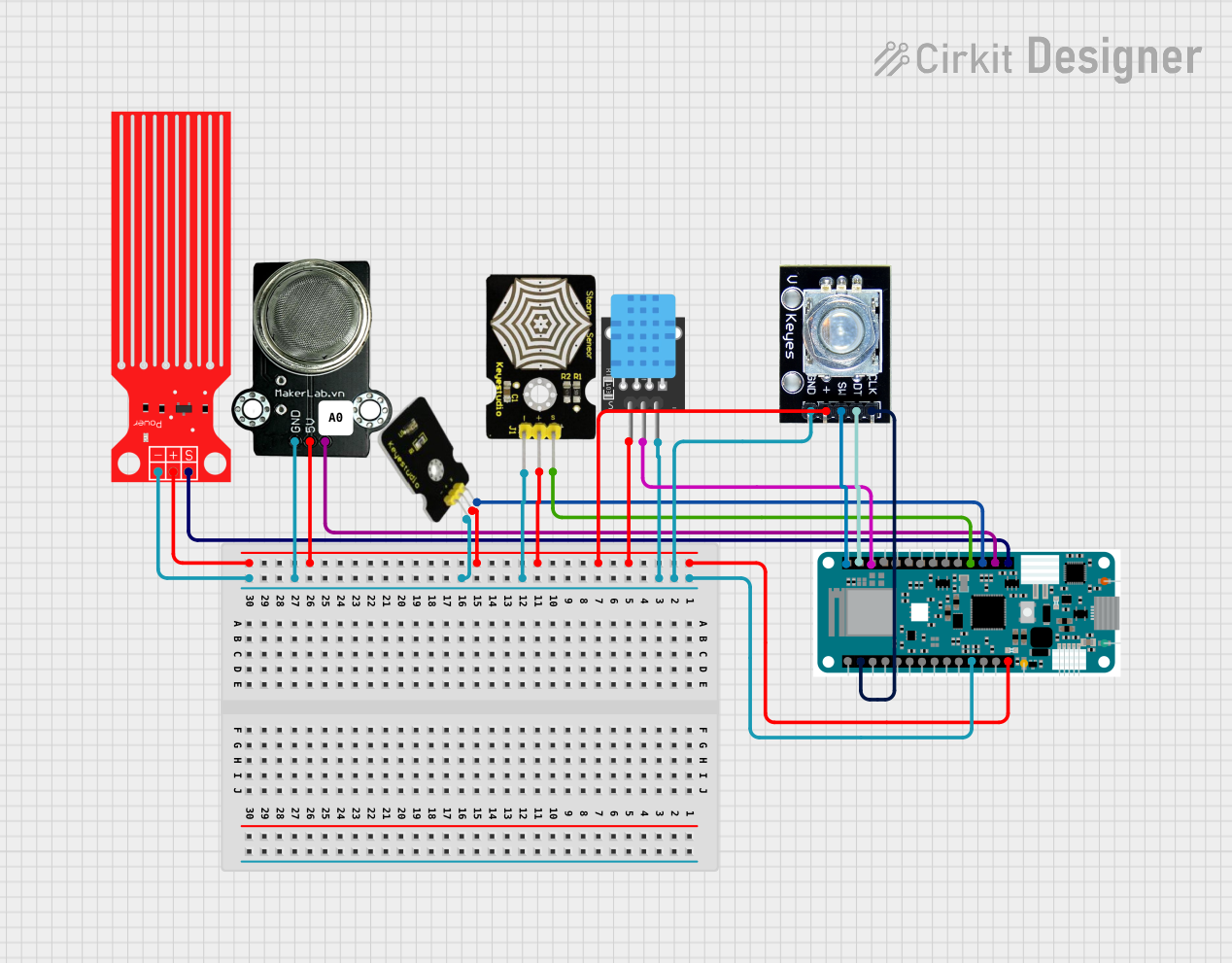 Open Project in Cirkit Designer
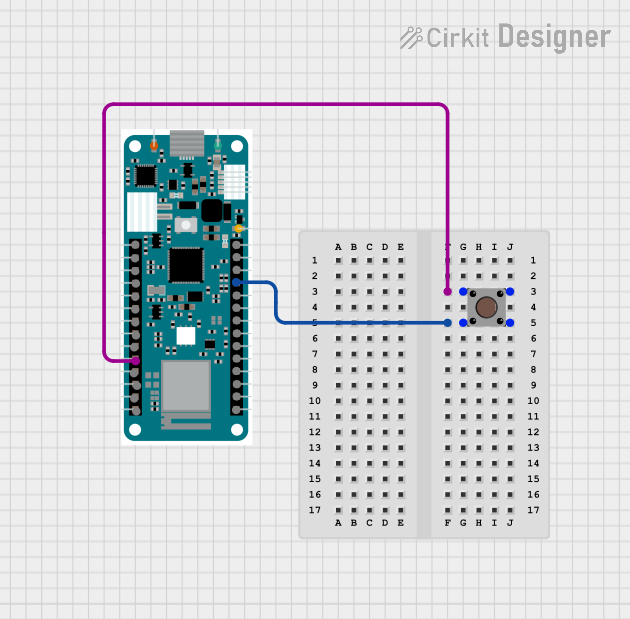 Open Project in Cirkit Designer
Explore Projects Built with Arduino MKR WAN 1310
Open Project in Cirkit DesignerOpen Project in Cirkit DesignerOpen Project in Cirkit DesignerOpen Project in Cirkit DesignerCommon Applications and Use Cases
- Smart agriculture and environmental monitoring
- Industrial IoT (IIoT) applications
- Asset tracking and geolocation
- Smart cities and infrastructure monitoring
- Home automation and remote control systems
Technical Specifications
Key Technical Details
| Specification | Value |
|---|---|
| Microcontroller | SAMD21 Cortex-M0+ 32-bit ARM |
| Operating Voltage | 3.3V |
| Input Voltage (via VIN) | 5V to 12V |
| Digital I/O Pins | 8 (of which 4 can be used as PWM outputs) |
| Analog Input Pins | 7 |
| Analog Output Pins | 1 (DAC) |
| Flash Memory | 256 KB |
| SRAM | 32 KB |
| Clock Speed | 48 MHz |
| Connectivity | LoRa (via Murata CMWX1ZZABZ module) |
| Battery Connector | JST 2-pin for Li-Po battery |
| USB Interface | Micro USB |
| Dimensions | 67.64 mm x 25 mm |
Pin Configuration and Descriptions
| Pin Name | Type | Description |
|---|---|---|
| VIN | Power Input | External power input (5V to 12V). |
| 3.3V | Power Output | Regulated 3.3V output for powering external components. |
| GND | Ground | Ground connection. |
| A0-A6 | Analog Input | Analog input pins (12-bit ADC). |
| D0-D7 | Digital I/O | Digital input/output pins (D2-D5 support PWM). |
| TX (D1) | UART TX | UART transmit pin for serial communication. |
| RX (D0) | UART RX | UART receive pin for serial communication. |
| SDA | I2C Data | I2C data line for communication with I2C devices. |
| SCL | I2C Clock | I2C clock line for communication with I2C devices. |
| RST | Reset | Resets the board. |
| SWD | Debug | Debugging interface for advanced users. |
| Li-Po | Power Input | JST connector for a 3.7V Li-Po battery. |
Usage Instructions
How to Use the Arduino MKR WAN 1310 in a Circuit
Powering the Board:
- Connect a 3.7V Li-Po battery to the JST connector for portable applications.
- Alternatively, supply 5V to 12V via the VIN pin or use the Micro USB port for power and programming.
Connecting Sensors and Actuators:
- Use the analog pins (A0-A6) for sensors that output analog signals.
- Use the digital pins (D0-D7) for digital sensors, actuators, or communication protocols like UART, I2C, or SPI.
Programming the Board:
- Connect the board to your computer using a Micro USB cable.
- Open the Arduino IDE, select "Arduino MKR WAN 1310" from the board manager, and upload your code.
LoRa Communication:
- Install the
MKRWANlibrary in the Arduino IDE. - Configure the LoRa module with your network credentials (e.g., frequency, keys, and IDs).
- Install the
Example Code for LoRa Communication
The following example demonstrates how to send a message using LoRa:
#include <MKRWAN.h>

// Create a LoRa modem object
LoRaModem modem;

// Replace with your LoRaWAN credentials
String appEui = "0000000000000000"; // Application EUI
String appKey = "00000000000000000000000000000000"; // Application Key

void setup() {
  // Initialize serial communication for debugging
  Serial.begin(9600);
  while (!Serial);

  // Initialize the LoRa module
  if (!modem.begin(EU868)) {
    Serial.println("Failed to initialize LoRa module!");
    while (1);
  }

  // Join the LoRaWAN network
  Serial.print("Joining LoRaWAN network...");
  if (!modem.joinOTAA(appEui, appKey)) {
    Serial.println("Failed to join network!");
    while (1);
  }
  Serial.println("Joined successfully!");
}

void loop() {
  // Send a message over LoRa
  Serial.println("Sending message...");
  int success = modem.beginPacket();
  modem.print("Hello, LoRa!");
  success = modem.endPacket();

  if (success) {
    Serial.println("Message sent successfully!");
  } else {
    Serial.println("Failed to send message.");
  }

  // Wait 10 seconds before sending the next message
  delay(10000);
}
Important Considerations and Best Practices
- Always use a proper antenna for the LoRa module to ensure optimal range and performance.
- Avoid powering the board via USB and Li-Po simultaneously to prevent damage.
- Use a voltage divider or level shifter when interfacing 5V components with the 3.3V pins.
- Ensure compliance with regional frequency regulations for LoRa communication (e.g., EU868, US915).
Troubleshooting and FAQs
Common Issues and Solutions
The board does not power on:
- Ensure the Li-Po battery is charged or the VIN/USB power supply is within the specified range.
- Check for loose connections or damaged cables.
Unable to upload code:
- Verify that the correct board and port are selected in the Arduino IDE.
- Double-tap the reset button to enter bootloader mode and try uploading again.
LoRa module fails to initialize:
- Ensure the
MKRWANlibrary is installed and up to date. - Check the antenna connection and ensure the correct frequency band is configured.
- Ensure the
Short range in LoRa communication:
- Verify that the antenna is securely connected and positioned correctly.
- Avoid obstructions and interference sources in the communication path.
FAQs
Q: Can I use the MKR WAN 1310 with 5V sensors?
A: The MKR WAN 1310 operates at 3.3V logic levels. Use a level shifter or voltage divider to interface with 5V sensors.
Q: What is the maximum range of the LoRa module?
A: The range depends on environmental factors, but it can reach up to 10 km in open areas with a proper antenna.
Q: How do I monitor battery voltage?
A: Use the analogRead() function on the A0 pin, which is internally connected to the battery voltage monitor.
Q: Can I use the board without a battery?
A: Yes, the board can be powered via USB or VIN without a battery.
This concludes the documentation for the Arduino MKR WAN 1310.