
How to Use TFT Display 1.54": Examples, Pinouts, and Specs
 Design with TFT Display 1.54" in Cirkit Designer
Introduction
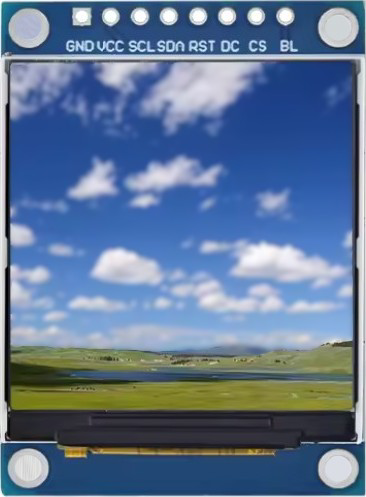
The TFT Display 1.54" is a compact, high-quality thin-film transistor (TFT) display designed for use in small electronic devices. With a diagonal measurement of 1.54 inches, this display offers vibrant colors, excellent contrast, and a resolution suitable for displaying both text and graphics. It is commonly used in applications such as handheld devices, IoT projects, smartwatches, and small-scale embedded systems.
Explore Projects Built with TFT Display 1.54"
 Open Project in Cirkit Designer
 Open Project in Cirkit Designer
 Open Project in Cirkit Designer
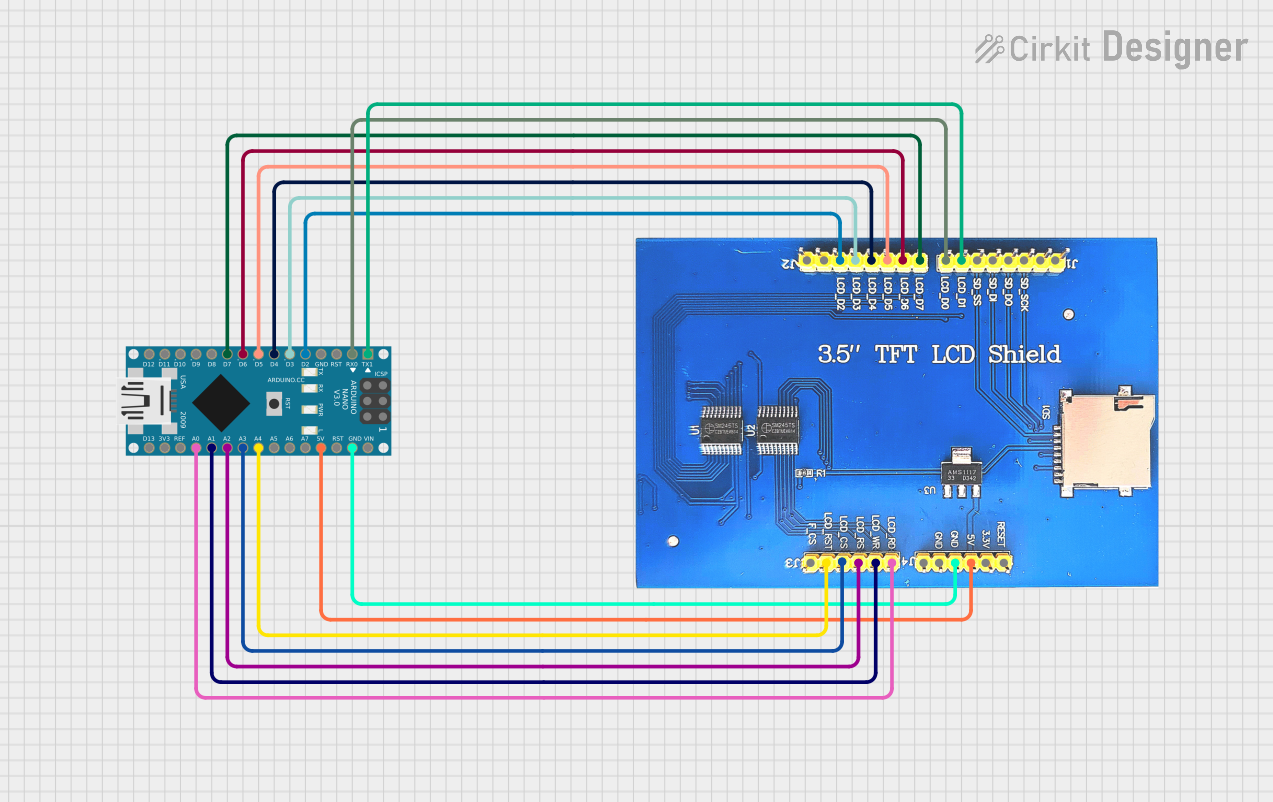 Open Project in Cirkit Designer
Explore Projects Built with TFT Display 1.54"
Open Project in Cirkit DesignerOpen Project in Cirkit DesignerOpen Project in Cirkit DesignerOpen Project in Cirkit DesignerCommon Applications:
- Wearable devices (e.g., smartwatches)
- IoT dashboards and control panels
- Portable gaming consoles
- Home automation displays
- Educational and hobbyist projects with microcontrollers (e.g., Arduino, Raspberry Pi)
Technical Specifications
Below are the key technical details of the TFT Display 1.54":
| Parameter | Value |
|---|---|
| Display Type | TFT (Thin-Film Transistor) |
| Screen Size | 1.54 inches (diagonal) |
| Resolution | 240 x 240 pixels |
| Interface | SPI (Serial Peripheral Interface) |
| Operating Voltage | 3.3V |
| Backlight Voltage | 3.0V to 3.3V |
| Current Consumption | ~20mA (typical) |
| Viewing Angle | 160° |
| Color Depth | 65K (16-bit RGB) |
| Driver IC | ST7789 |
| Operating Temperature | -20°C to 70°C |
Pin Configuration
The TFT Display 1.54" typically has an 8-pin interface. Below is the pinout description:
| Pin | Name | Description |
|---|---|---|
| 1 | GND | Ground connection |
| 2 | VCC | Power supply (3.3V) |
| 3 | SCL | Serial Clock Line (SPI clock input) |
| 4 | SDA | Serial Data Line (SPI data input) |
| 5 | RES | Reset pin (active low) |
| 6 | DC | Data/Command control pin (High = Data, Low = Command) |
| 7 | CS | Chip Select (active low) |
| 8 | BLK | Backlight control (connect to 3.3V for always-on backlight or PWM for dimming) |
Usage Instructions
Connecting the TFT Display to an Arduino UNO
To use the TFT Display 1.54" with an Arduino UNO, follow these steps:
Wiring the Display: Connect the pins of the TFT display to the Arduino UNO as shown below:
TFT Pin Arduino Pin GND GND VCC 3.3V SCL D13 (SCK) SDA D11 (MOSI) RES D8 DC D9 CS D10 BLK 3.3V or PWM Pin Install Required Libraries:
- Install the
Adafruit_GFXandAdafruit_ST7789libraries from the Arduino Library Manager.
- Install the
Upload Example Code: Use the following example code to display a simple graphic on the screen:
// Include necessary libraries
#include <Adafruit_GFX.h>       // Core graphics library
#include <Adafruit_ST7789.h>   // ST7789 driver library
#include <SPI.h>               // SPI communication library

// Define TFT pins
#define TFT_CS    10  // Chip Select pin
#define TFT_RST   8   // Reset pin
#define TFT_DC    9   // Data/Command pin

// Initialize the display object
Adafruit_ST7789 tft = Adafruit_ST7789(TFT_CS, TFT_DC, TFT_RST);

void setup() {
  // Initialize the display
  tft.init(240, 240);  // Initialize with 240x240 resolution
  tft.setRotation(1);  // Set display orientation (1 = landscape)

  // Fill the screen with a solid color
  tft.fillScreen(ST77XX_BLACK);

  // Draw a red rectangle
  tft.fillRect(50, 50, 140, 140, ST77XX_RED);

  // Display text
  tft.setTextColor(ST77XX_WHITE);
  tft.setTextSize(2);
  tft.setCursor(60, 100);
  tft.print("Hello!");
}

void loop() {
  // Nothing to do here
}
Important Considerations:
- Voltage Levels: Ensure the display operates at 3.3V. If using a 5V microcontroller, use a level shifter for the SPI lines.
- Backlight Control: The backlight pin (BLK) can be connected to a PWM pin for brightness control.
- SPI Speed: The SPI clock speed should not exceed the maximum supported by the display (typically 10-15 MHz).
Troubleshooting and FAQs
Common Issues and Solutions:
The display does not turn on:
- Verify all connections, especially the power (VCC and GND) and SPI lines.
- Ensure the backlight pin (BLK) is connected to 3.3V or a PWM pin.
The screen is blank or flickering:
- Check the SPI connections (SCL, SDA, CS, DC) for loose or incorrect wiring.
- Ensure the correct driver library (
Adafruit_ST7789) is installed and used.
Text or graphics appear distorted:
- Verify the resolution and orientation settings in the code.
- Ensure the
tft.init(240, 240)function is called with the correct resolution.
The display is not responding to commands:
- Confirm the
CSpin is correctly connected and set to LOW during communication. - Check the reset pin (RES) connection and ensure it is not floating.
- Confirm the
FAQs:
Q: Can I use this display with a 5V microcontroller?
A: Yes, but you must use a level shifter to convert the 5V logic signals to 3.3V for the SPI lines.
Q: How do I control the brightness of the backlight?
A: Connect the BLK pin to a PWM-capable pin on your microcontroller and use analogWrite() to adjust brightness.
Q: Can I use this display with a Raspberry Pi?
A: Yes, the display is compatible with Raspberry Pi. Use the SPI interface and appropriate libraries (e.g., ST7789 Python library).
By following this documentation, you can successfully integrate and use the TFT Display 1.54" in your projects!