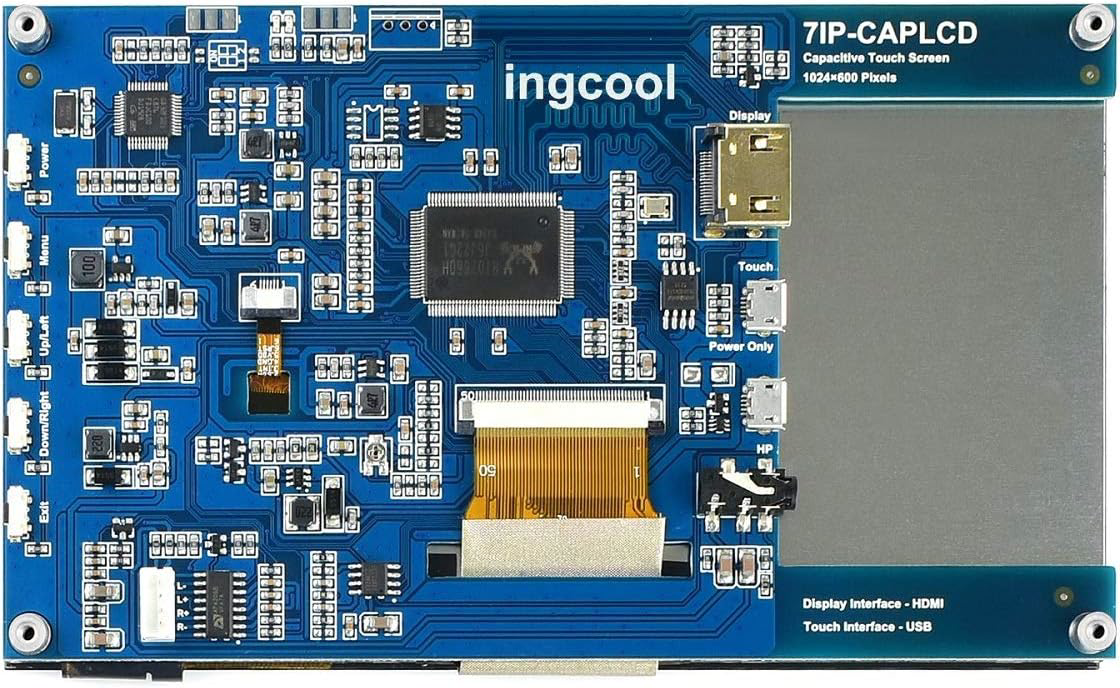
The Ingcool 7 inch Touchscreen (Part ID: 7IP-CAPLCD) is a high-resolution capacitive touchscreen display designed for interactive applications. With its 7-inch diagonal size, it provides a user-friendly interface for input and control in a variety of electronic projects. This display is ideal for use in embedded systems, IoT devices, industrial control panels, and DIY projects requiring a graphical user interface.
Explore Projects Built with Ingcool 7 inch Touchscreen
Use Cirkit Designer to design, explore, and prototype these projects online. Some projects support real-time simulation. Click "Open Project" to start designing instantly!
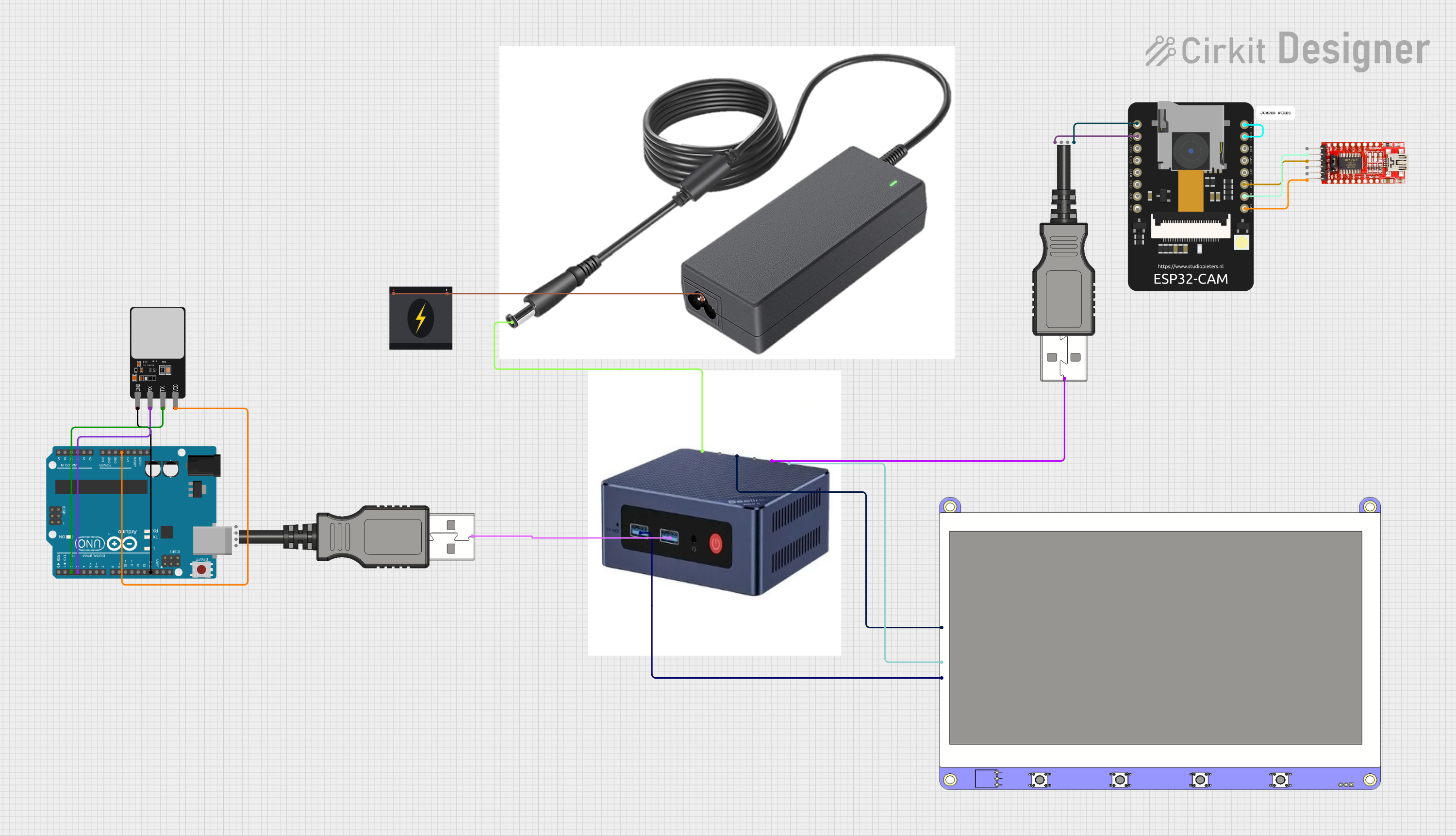
This circuit features a Beelink MINI S12 N95 computer connected to a 7-inch display via HDMI for video output and two USB connections for power and touch screen functionality. An Arduino UNO is interfaced with a fingerprint scanner for biometric input. The Beelink MINI S12 N95 is powered by a PC power supply, which in turn is connected to a 240V power source. Additionally, an ESP32 CAM module is powered and programmed via a USB plug and an FTDI programmer, respectively, for wireless camera capabilities.
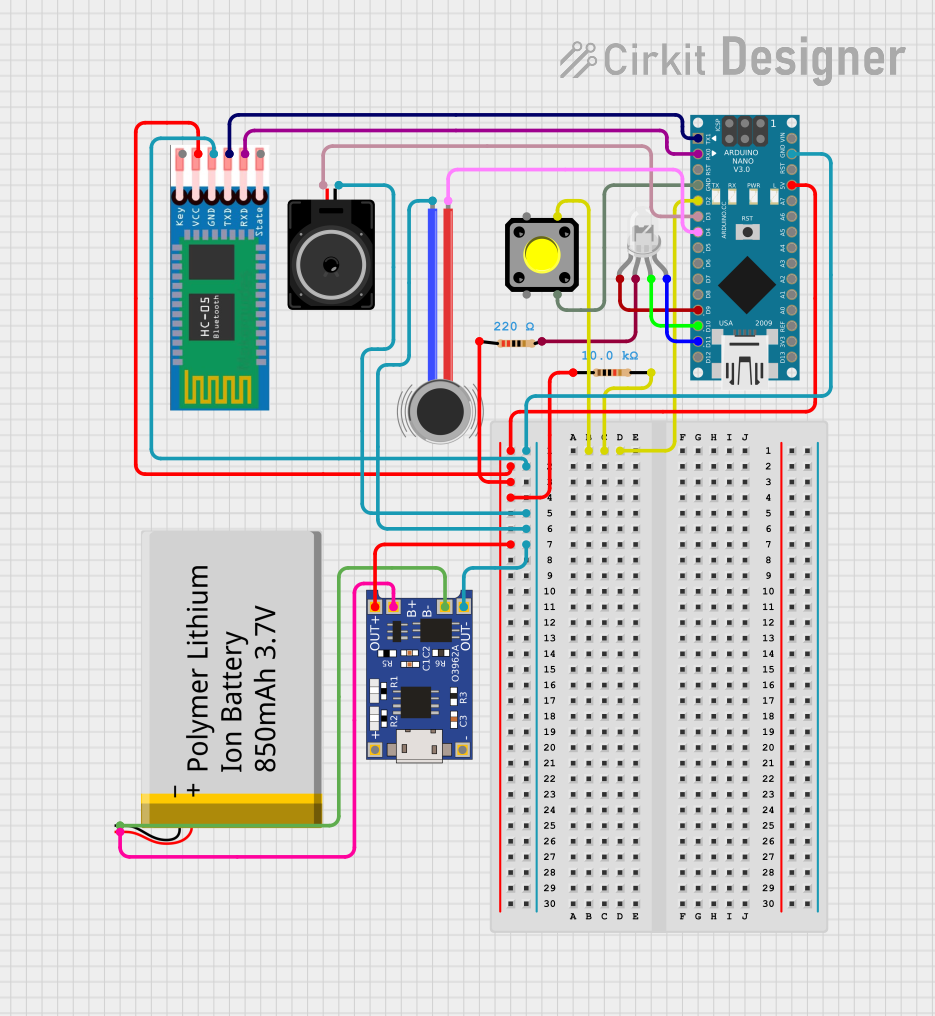
This is a portable, microcontroller-driven interactive device featuring Bluetooth connectivity, visual (RGB LED), auditory (loudspeaker), and haptic (vibration motor) feedback, user input (pushbutton), and a rechargeable power system (TP4056 with Li-ion battery).
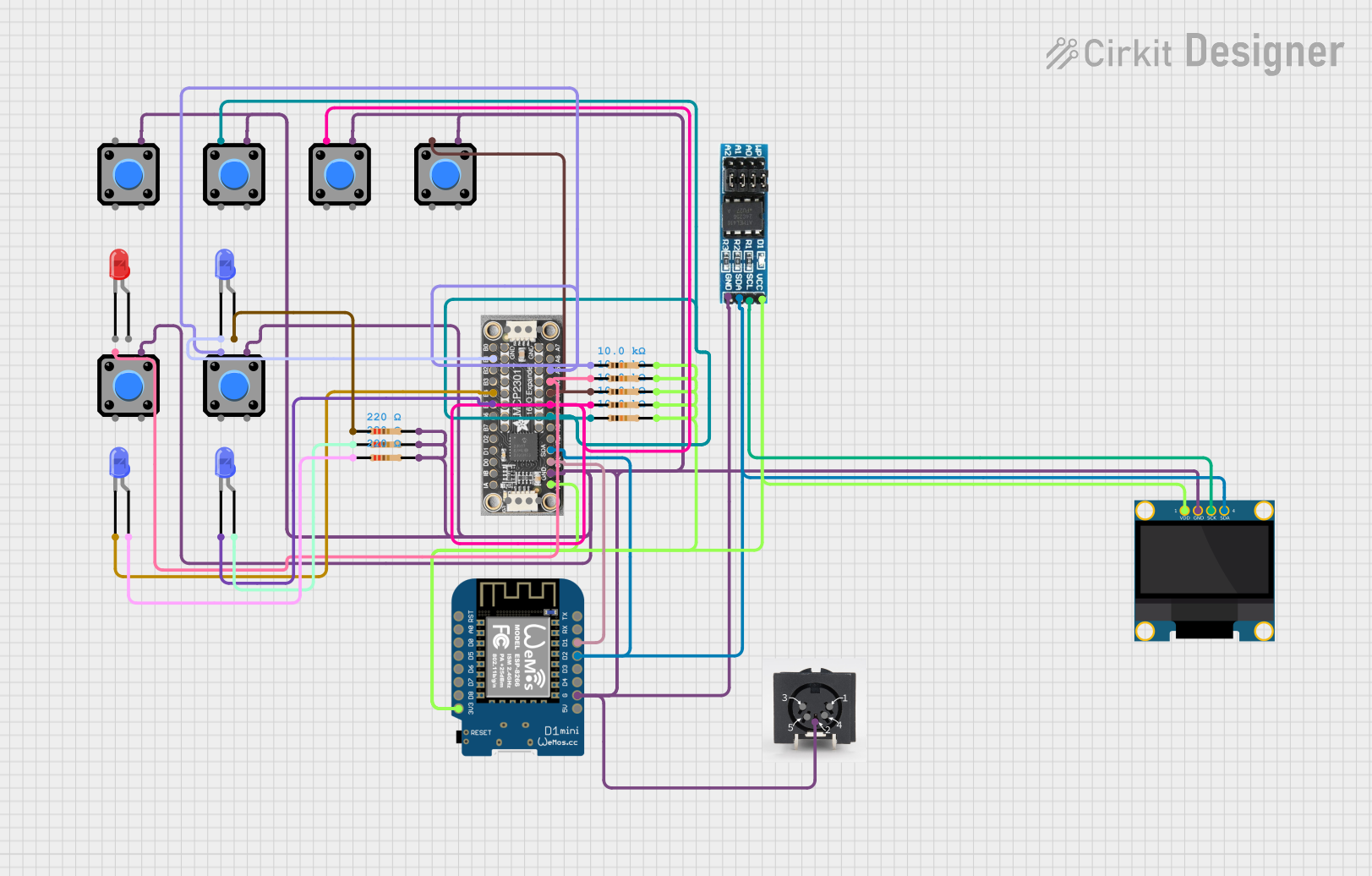
This is a microcontroller-based interactive device featuring a Wemos D1 Mini, an OLED display, external EEPROM, and an I/O expander. It includes user input buttons and status LEDs, with potential MIDI interface capabilities.
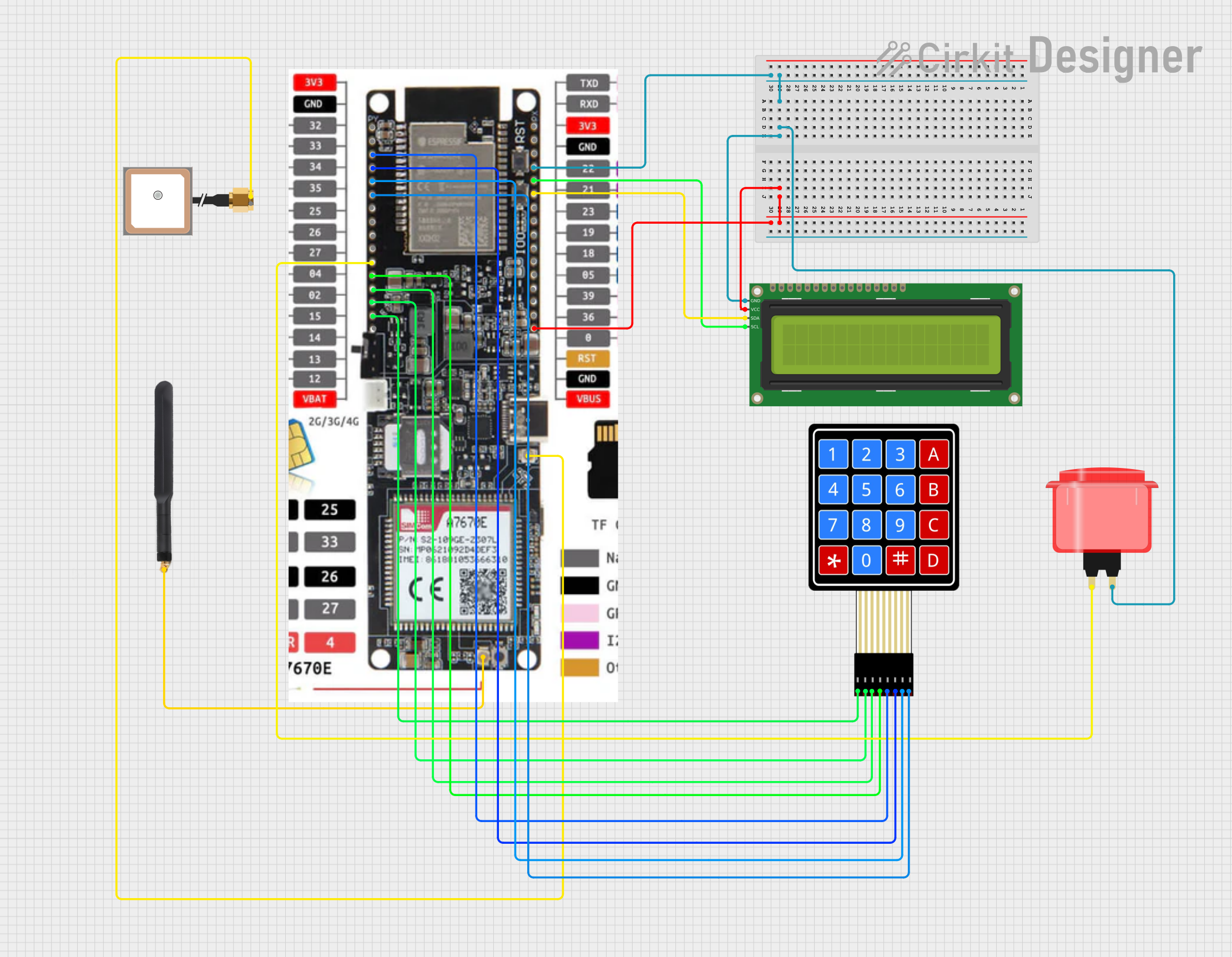
This circuit features a Lilygo 7670e microcontroller interfaced with a 16x2 I2C LCD for display, a 4X4 membrane matrix keypad for input, and an arcade button for additional control. It also includes a 4G antenna and a GPS antenna for communication and location tracking capabilities.
The following table outlines the key technical details of the Ingcool 7 inch Touchscreen:
Specification
Details
Display Type
Capacitive touchscreen
Screen Size
7 inches (diagonal)
Resolution
1024 x 600 pixels
Aspect Ratio
16:9
Touch Technology
5-point multi-touch
Interface
HDMI for display, USB for touch
Power Supply
5V DC (via USB or external source)
Operating Temperature
-20°C to 70°C
Dimensions
164.9mm x 100mm x 5.7mm
Pin Configuration and Descriptions
The Ingcool 7 inch Touchscreen uses HDMI and USB connections for operation. Below is a description of the key connectors:
Connector
Pin/Port
Description
HDMI
HDMI Port
Transmits video signal to the display
USB
USB Port
Provides power and touch input functionality
Power Input
5V DC
Optional external power input for the display
Usage Instructions
Connecting the Display
Power Supply: Connect the USB cable to a 5V power source (e.g., a USB port or power adapter). Alternatively, use the 5V DC input for external power.
Video Signal: Connect the HDMI cable from your device (e.g., Raspberry Pi, PC, or Arduino with HDMI shield) to the display's HDMI port.
Touch Input: Connect the USB cable to your device to enable touch functionality.
Using with an Arduino UNO
The Ingcool 7 inch Touchscreen is not directly compatible with the Arduino UNO due to the lack of an HDMI interface. However, you can use an HDMI shield or an intermediary device like a Raspberry Pi to interface the display with Arduino-based projects.
Important Considerations
Ensure the power supply provides sufficient current (at least 1A) to avoid display flickering or instability.
Use high-quality HDMI and USB cables to ensure reliable performance.
Avoid exposing the display to extreme temperatures or moisture.
Example Code for Raspberry Pi
Below is an example of how to configure the touchscreen with a Raspberry Pi:
# Example Python script to enable touch functionality on Raspberry Pi
# Ensure the HDMI and USB cables are properly connected to the display.

import os

# Set the display resolution to match the touchscreen
os.system("xrandr --output HDMI-1 --mode 1024x600")

# Enable touch calibration (if needed)
# Install xinput-calibrator if not already installed
os.system("sudo apt-get install -y xinput-calibrator")

print("Touchscreen setup complete. You can now use the display.")
Troubleshooting and FAQs
Common Issues
No Display Output
Ensure the HDMI cable is securely connected to both the display and the source device.
Verify that the source device is outputting video to the HDMI port.
Check the power supply to ensure the display is receiving sufficient power.
Touchscreen Not Responding
Confirm that the USB cable is connected to the source device.
Check if the source device has the necessary drivers for touch input.
Restart the device to reinitialize the touchscreen.
Display Flickering
Verify that the power supply provides at least 1A of current.
Use a shorter or higher-quality HDMI cable to reduce signal interference.
FAQs
Q: Can I use this display with a Raspberry Pi?
A: Yes, the Ingcool 7 inch Touchscreen is fully compatible with Raspberry Pi. Simply connect the HDMI and USB cables, and configure the resolution as needed.
Q: Does the display support multi-touch?
A: Yes, the touchscreen supports 5-point multi-touch functionality.
Q: Can I power the display using only the USB connection?
A: Yes, the display can be powered via USB, but ensure the power source provides sufficient current (at least 1A).
Q: Is the display compatible with Arduino?
A: The display is not directly compatible with Arduino UNO due to the lack of an HDMI interface. However, you can use an HDMI shield or a Raspberry Pi as an intermediary.
Q: How do I calibrate the touchscreen?
A: On a Raspberry Pi, you can use the xinput-calibrator tool to calibrate the touchscreen. Install it using sudo apt-get install xinput-calibrator.
This concludes the documentation for the Ingcool 7 inch Touchscreen. For further assistance, refer to the manufacturer's user manual or contact support.

 Open Project in Cirkit Designer