Cirkit Designer LogoCirkit DesignerYour all-in-one circuit design IDE Launch Cirkit Designer App

How to Use Kontaktor & Tor: Examples, Pinouts, and Specs

Image of Kontaktor & TorDesign with Kontaktor & Tor in Cirkit Designer

Introduction

A contactor is an electrically controlled switch designed for switching power circuits. It is widely used in industrial and commercial applications to control high-power devices such as motors, lighting systems, and heating equipment. Contactors are preferred for their ability to handle high currents and provide reliable switching.

The term Tor typically refers to a gate or barrier in electrical contexts. When used alongside contactors, it often represents a mechanism for controlling access or power to specific areas or systems. Together, contactors and Tor systems are integral to automation, safety, and power management in electrical installations.

Explore Projects Built with Kontaktor & Tor

Use Cirkit Designer to design, explore, and prototype these projects online. Some projects support real-time simulation. Click "Open Project" to start designing instantly!
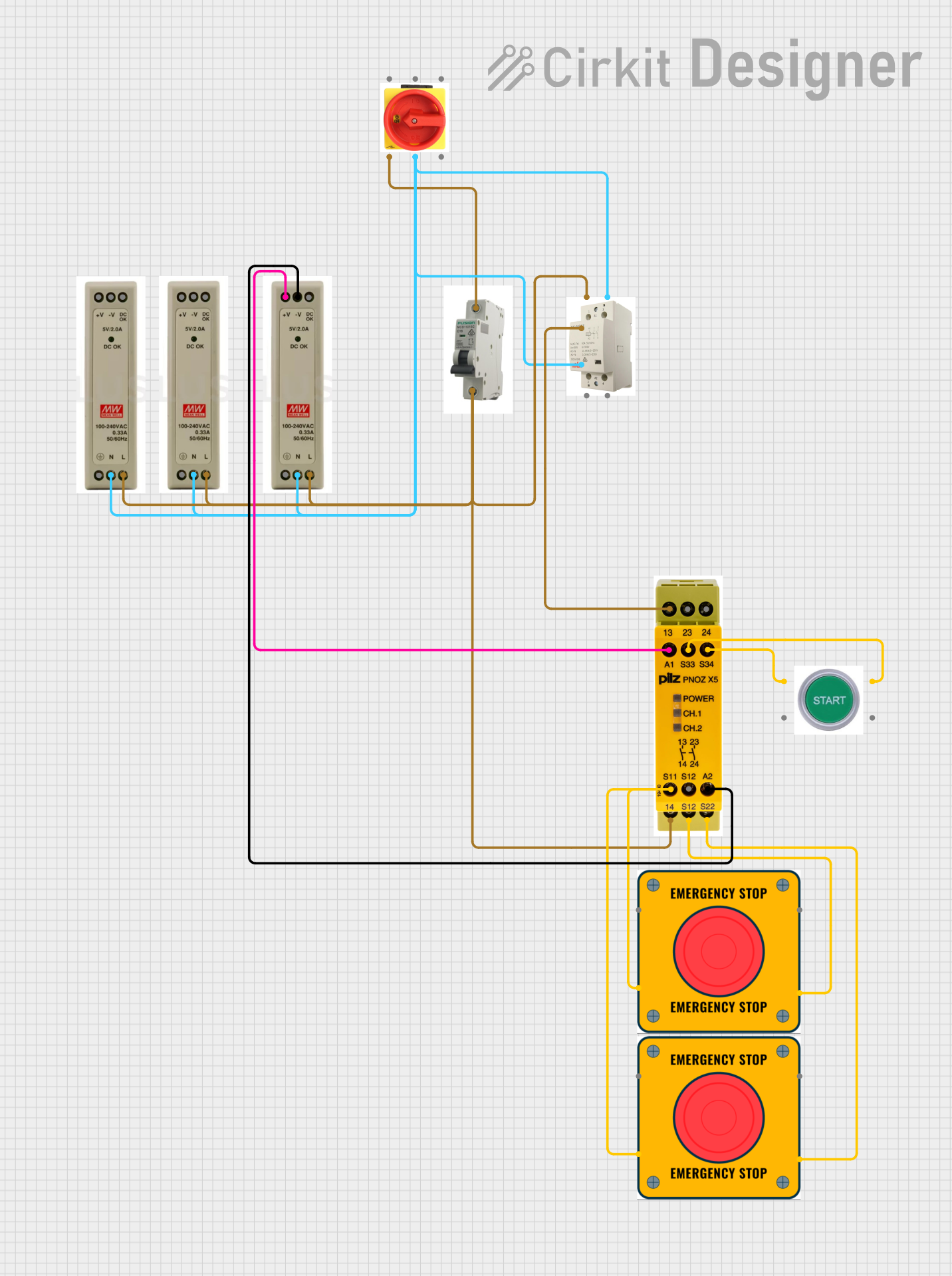
Image of Industrial Power Distribution and Safety Control System: A project utilizing Kontaktor & Tor in a practical application
Industrial Power Distribution and Safety Control System

This circuit is designed for power distribution and safety control in an industrial setting. It features a main isolator and circuit breaker for power management, multiple PSUs for 5V, 12V, and 24V outputs, and a safety relay system that interfaces with E-stop buttons and a start switch to control a main contactor, ensuring safe operation and emergency power cut-off capabilities.

Open Project in Cirkit Designer

Common Applications and Use Cases

Technical Specifications

Contactor Specifications

Parameter Value/Range
Operating Voltage 24V DC, 110V AC, 230V AC, or higher
Rated Current 10A to 630A (varies by model)
Coil Voltage 12V DC, 24V DC, 110V AC, 230V AC
Contact Configuration SPST, SPDT, DPST, DPDT, etc.
Mechanical Life Up to 10 million operations
Electrical Life Up to 1 million operations
Operating Temperature -25°C to +55°C
Mounting Type DIN rail or panel-mounted

Tor Specifications

Parameter Value/Range
Gate Type Electromechanical or electronic
Control Voltage 12V DC, 24V DC, or 230V AC
Actuation Mechanism Solenoid, motorized, or manual
Operating Temperature -20°C to +50°C
Safety Features Overload protection, interlocks
Material Steel, aluminum, or composite

Pin Configuration and Descriptions

Contactor Pin Configuration

Pin Number Label Description
1 L1 Input power phase 1
2 L2 Input power phase 2
3 L3 Input power phase 3
4 T1 Output power phase 1
5 T2 Output power phase 2
6 T3 Output power phase 3
A1 Coil (+) Positive terminal for the control coil
A2 Coil (-) Negative terminal for the control coil
NC Normally Closed Auxiliary contact for control circuits
NO Normally Open Auxiliary contact for control circuits

Tor Pin Configuration

Pin Number Label Description
1 IN Input signal for gate control
2 OUT Output signal to the controlled device
3 GND Ground connection
4 VCC Power supply for the gate mechanism

Usage Instructions

How to Use a Contactor in a Circuit

  1. Determine the Load Requirements: Identify the voltage and current ratings of the load to select an appropriate contactor.
  2. Connect the Power Supply: Attach the input power lines to the L1, L2, and L3 terminals of the contactor.
  3. Connect the Load: Connect the output lines to the T1, T2, and T3 terminals.
  4. Control Circuit: Wire the control coil (A1 and A2) to the control voltage source. Use a switch, relay, or microcontroller to activate the coil.
  5. Auxiliary Contacts: Use the NO or NC terminals for additional control logic, such as feedback to a PLC or indicator lights.

How to Use a Tor System

  1. Install the Gate Mechanism: Mount the Tor system securely in the desired location.
  2. Connect the Control Circuit: Wire the IN and OUT terminals to the control device (e.g., a contactor or microcontroller).
  3. Power the System: Provide the required voltage to the VCC and GND terminals.
  4. Test the Operation: Ensure the gate opens and closes as expected when the control signal is applied.

Important Considerations and Best Practices

Example: Contactor Control with Arduino UNO

Below is an example of using an Arduino UNO to control a contactor:

// Define the pin connected to the contactor coil
const int contactorPin = 7;

void setup() {
  // Set the contactor pin as an output
  pinMode(contactorPin, OUTPUT);
}

void loop() {
  // Activate the contactor
  digitalWrite(contactorPin, HIGH);
  delay(5000); // Keep the contactor ON for 5 seconds

  // Deactivate the contactor
  digitalWrite(contactorPin, LOW);
  delay(5000); // Keep the contactor OFF for 5 seconds
}

Troubleshooting and FAQs

Common Issues and Solutions

  1. Contactor Not Activating

    • Cause: Insufficient control voltage or faulty coil.
    • Solution: Verify the control voltage and check the coil resistance with a multimeter.
  2. Excessive Heating

    • Cause: Overcurrent or poor ventilation.
    • Solution: Ensure the load does not exceed the contactor's rated current and improve ventilation.
  3. Tor System Not Responding

    • Cause: Faulty wiring or control signal.
    • Solution: Check all connections and ensure the control signal is within the specified range.
  4. Chattering Noise in Contactor

    • Cause: Unstable control voltage or loose connections.
    • Solution: Stabilize the control voltage and tighten all connections.

FAQs