
How to Use Red Cap Pushbutton: Examples, Pinouts, and Specs
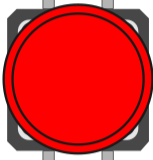
 Design with Red Cap Pushbutton in Cirkit Designer
Introduction
The Red Cap Pushbutton is a momentary switch that is activated when pressed. It is commonly used for user input in electronic devices, where the red cap often signifies a specific function, such as "stop" or "emergency." This component is widely utilized in control panels, DIY electronics projects, and industrial systems due to its simplicity and reliability.
Explore Projects Built with Red Cap Pushbutton
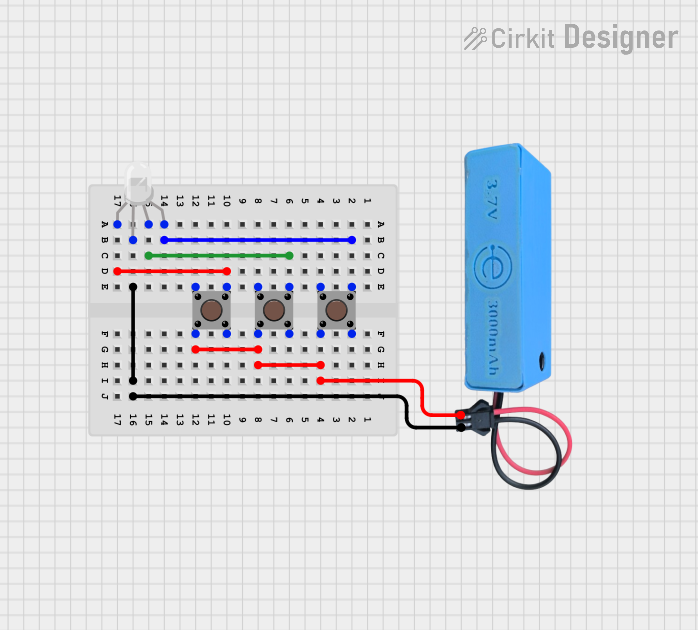 Open Project in Cirkit Designer
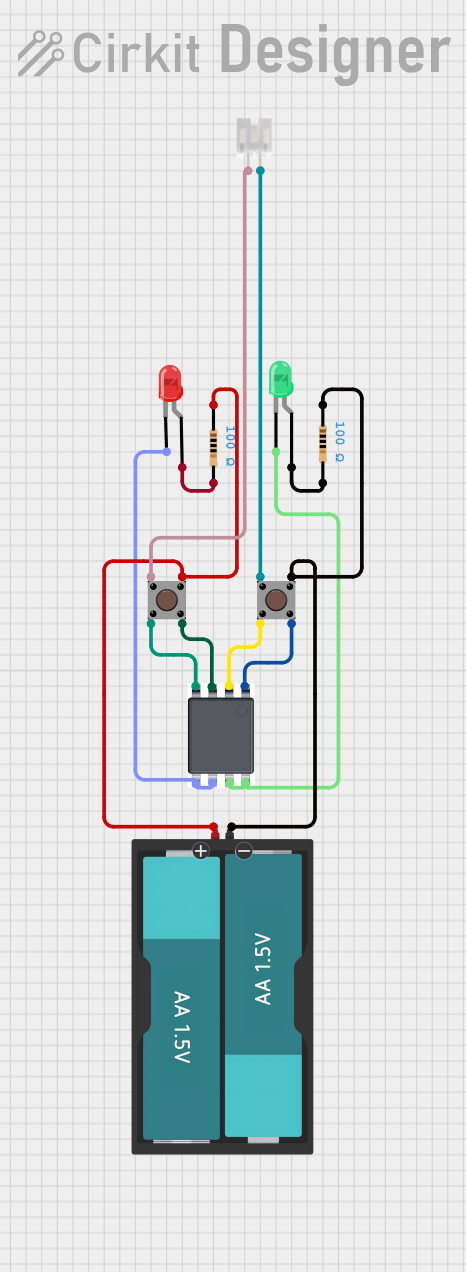 Open Project in Cirkit Designer
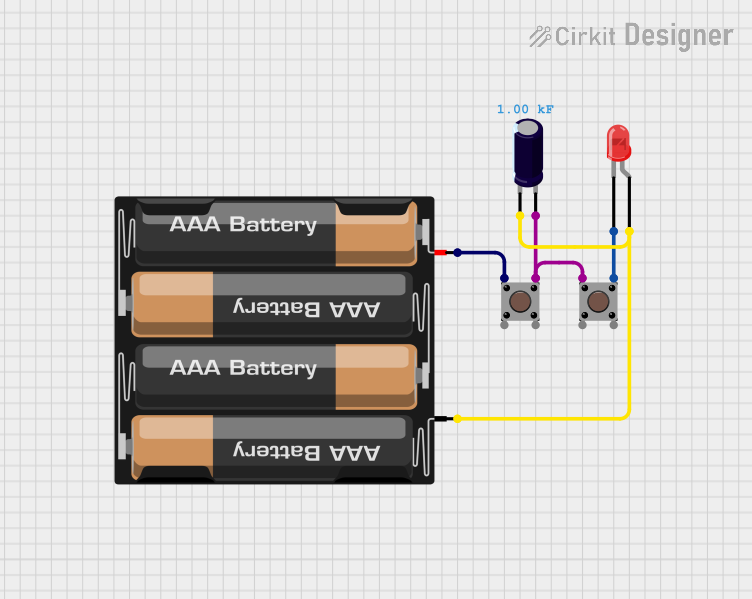 Open Project in Cirkit Designer
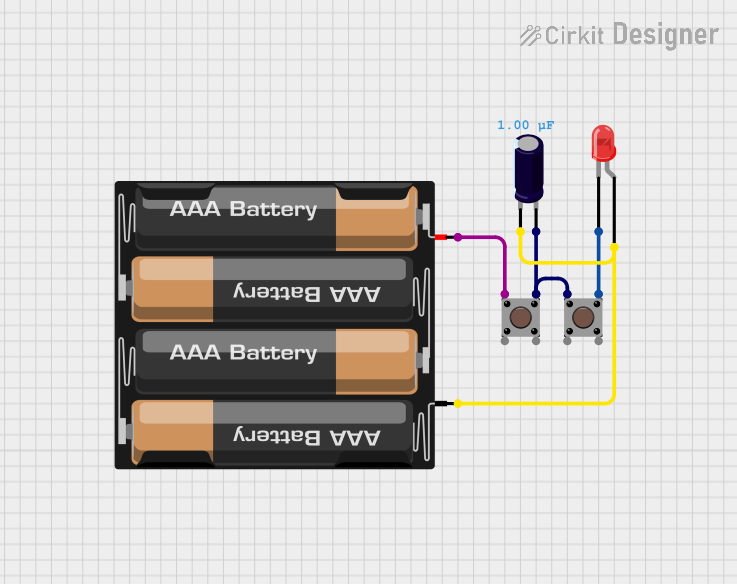 Open Project in Cirkit Designer
Explore Projects Built with Red Cap Pushbutton
Open Project in Cirkit DesignerOpen Project in Cirkit DesignerOpen Project in Cirkit DesignerOpen Project in Cirkit DesignerCommon Applications:
- Emergency stop buttons in machinery
- User input for microcontroller-based projects
- Reset or power control in electronic devices
- Interactive systems and arcade machines
Technical Specifications
The Red Cap Pushbutton is a simple, robust component with the following technical details:
| Parameter | Value |
|---|---|
| Operating Voltage | 3V to 24V |
| Maximum Current Rating | 1A |
| Contact Resistance | ≤ 50 mΩ |
| Insulation Resistance | ≥ 100 MΩ at 500V DC |
| Operating Temperature | -20°C to +70°C |
| Mechanical Durability | ≥ 1,000,000 cycles |
| Mounting Type | Panel mount or PCB mount |
Pin Configuration:
The Red Cap Pushbutton typically has two pins for connection. These pins are not polarized, meaning they can be connected in either orientation.
| Pin | Description |
|---|---|
| Pin 1 | Connects to one side of the circuit |
| Pin 2 | Connects to the other side of the circuit |
Usage Instructions
How to Use the Red Cap Pushbutton in a Circuit:
Wiring the Pushbutton:
- Connect one pin of the pushbutton to the positive voltage source (e.g., 5V).
- Connect the other pin to the input pin of a microcontroller or the desired circuit.
- Use a pull-down resistor (typically 10kΩ) between the input pin and ground to ensure a stable low signal when the button is not pressed.
Testing the Pushbutton:
- When the button is pressed, the circuit is completed, and the input pin will read a HIGH signal.
- When released, the pull-down resistor ensures the input pin reads a LOW signal.
Example: Connecting to an Arduino UNO
Below is an example of how to use the Red Cap Pushbutton with an Arduino UNO to toggle an LED:
// Define pin numbers
const int buttonPin = 2;  // Pushbutton connected to digital pin 2
const int ledPin = 13;    // LED connected to digital pin 13

// Variable to store button state
int buttonState = 0;

void setup() {
  pinMode(buttonPin, INPUT);  // Set pushbutton pin as input
  pinMode(ledPin, OUTPUT);   // Set LED pin as output
}

void loop() {
  // Read the state of the pushbutton
  buttonState = digitalRead(buttonPin);

  // If the button is pressed, turn on the LED
  if (buttonState == HIGH) {
    digitalWrite(ledPin, HIGH);  // Turn on LED
  } else {
    digitalWrite(ledPin, LOW);   // Turn off LED
  }
}
Important Considerations:
- Debouncing: Mechanical pushbuttons may produce noise or multiple signals when pressed. Use a software debounce routine or a capacitor across the pins to filter out unwanted signals.
- Voltage Compatibility: Ensure the operating voltage of the pushbutton matches your circuit requirements.
- Mounting: Secure the pushbutton properly to avoid accidental disconnections or damage.
Troubleshooting and FAQs
Common Issues:
Button Not Responding:
- Cause: Loose connections or incorrect wiring.
- Solution: Double-check the wiring and ensure all connections are secure.
Button Produces Erratic Signals:
- Cause: Signal bouncing due to mechanical contacts.
- Solution: Implement a debounce routine in software or use a capacitor (e.g., 0.1µF) across the button terminals.
LED Does Not Turn On in Arduino Example:
- Cause: Incorrect pin configuration or faulty components.
- Solution: Verify the pin numbers in the code match your circuit. Test the LED and pushbutton separately to ensure they are functional.
FAQs:
Q: Can I use the Red Cap Pushbutton with a 3.3V microcontroller?
A: Yes, the pushbutton is compatible with 3.3V systems. Ensure the pull-down resistor is appropriately sized for your circuit.
Q: How do I mount the pushbutton on a panel?
A: The pushbutton typically comes with a threaded shaft and a nut. Drill a hole in the panel, insert the pushbutton, and secure it with the nut.
Q: Can the pushbutton handle AC voltage?
A: The Red Cap Pushbutton is designed for low-voltage DC applications. Using it with AC voltage is not recommended unless specified by the manufacturer.
By following this documentation, you can effectively integrate the Red Cap Pushbutton into your projects and troubleshoot any issues that arise.