
How to Use Touch Sensor TP233: Examples, Pinouts, and Specs

 Design with Touch Sensor TP233 in Cirkit Designer
Introduction
The TP233 is a capacitive touch sensor designed to detect touch input and convert it into an electrical signal. It is widely used in user interface applications, such as touch buttons, touch panels, and proximity sensing. The TP233 offers high sensitivity, low power consumption, and reliable performance, making it an excellent choice for modern touch-based designs.
Explore Projects Built with Touch Sensor TP233
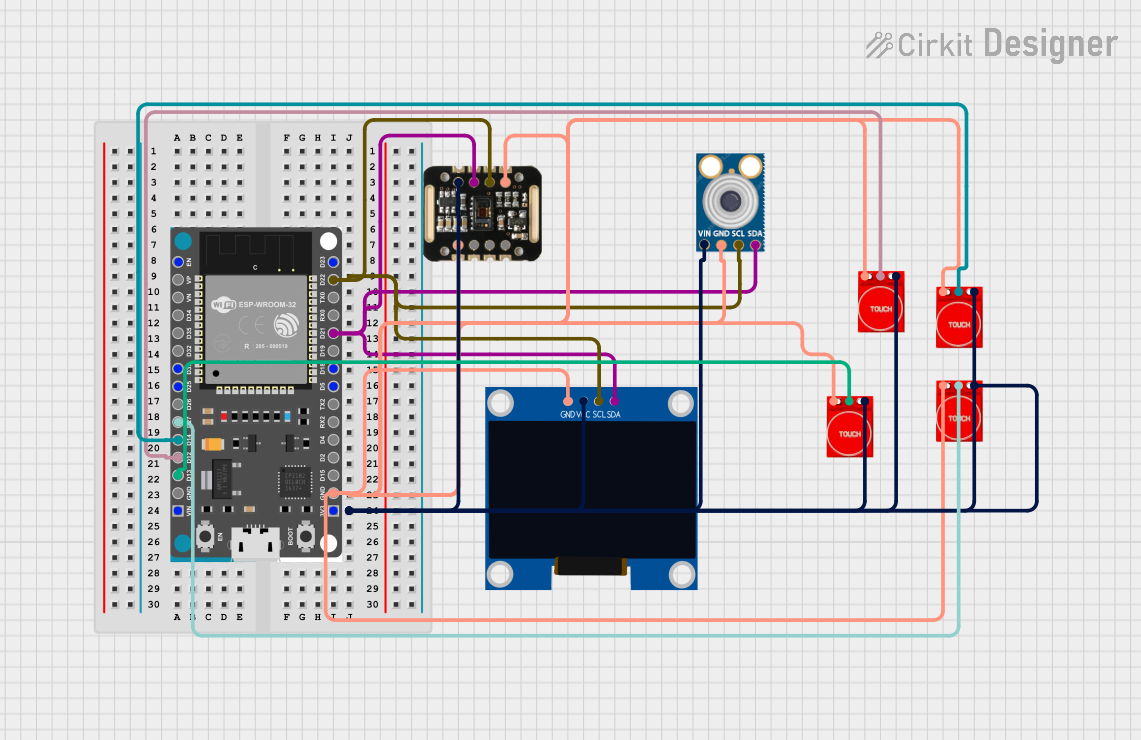 Open Project in Cirkit Designer
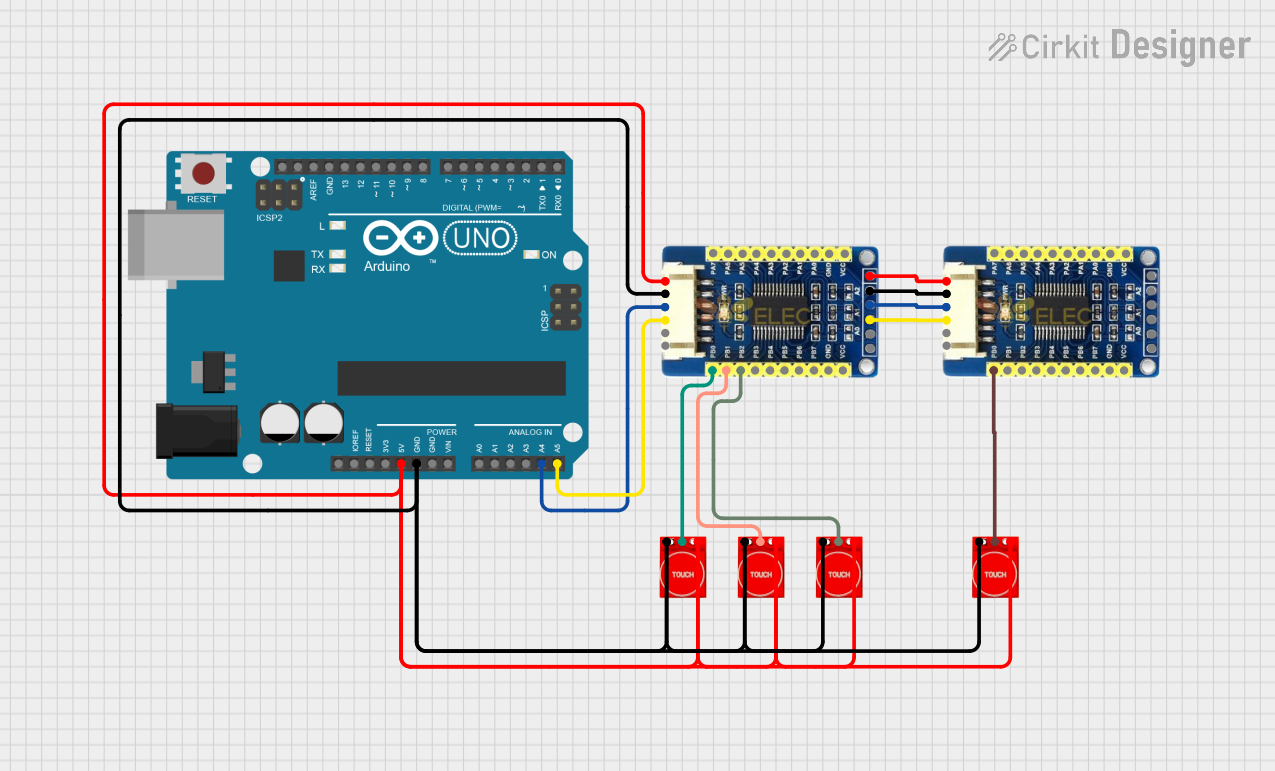 Open Project in Cirkit Designer
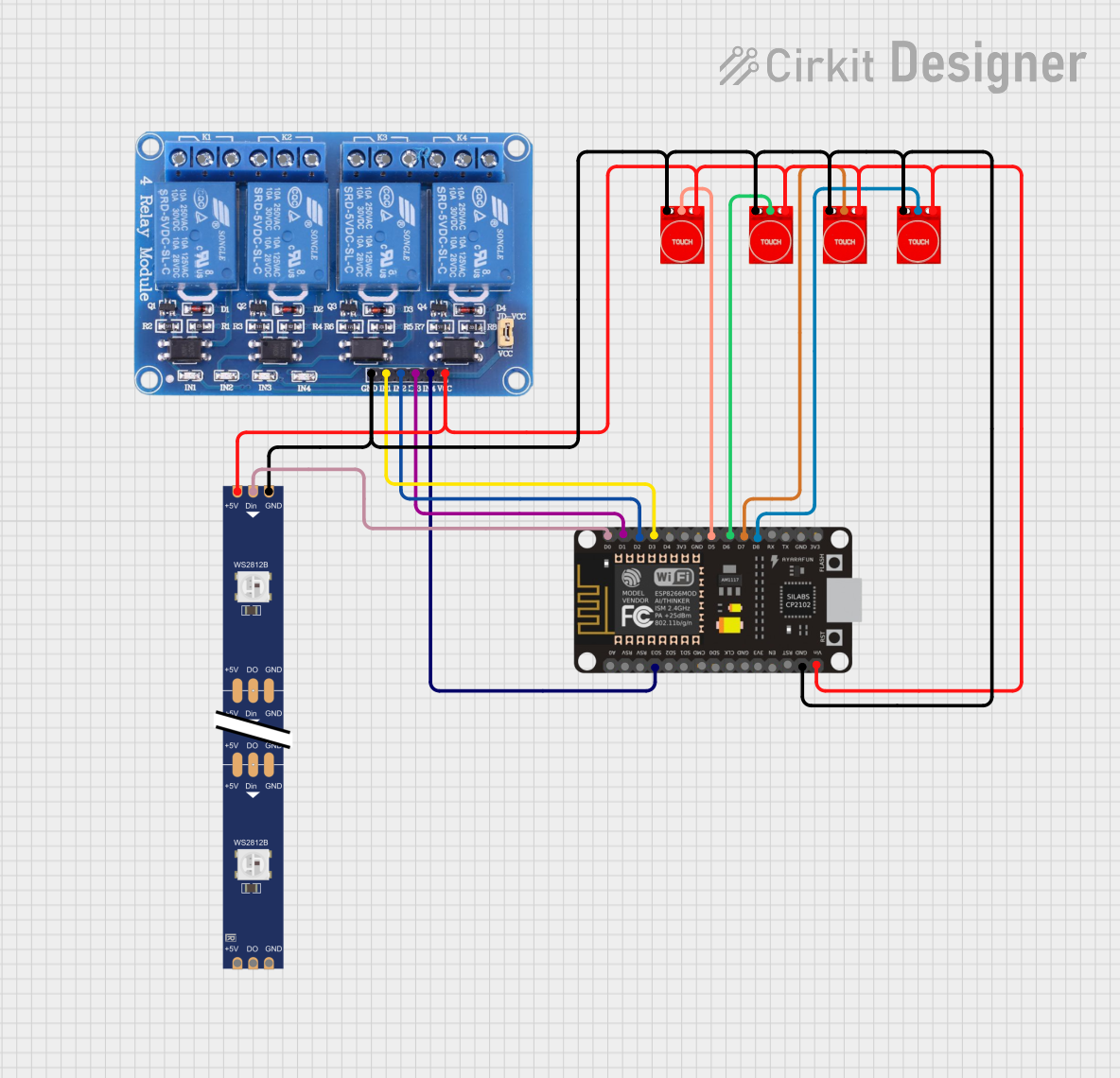 Open Project in Cirkit Designer
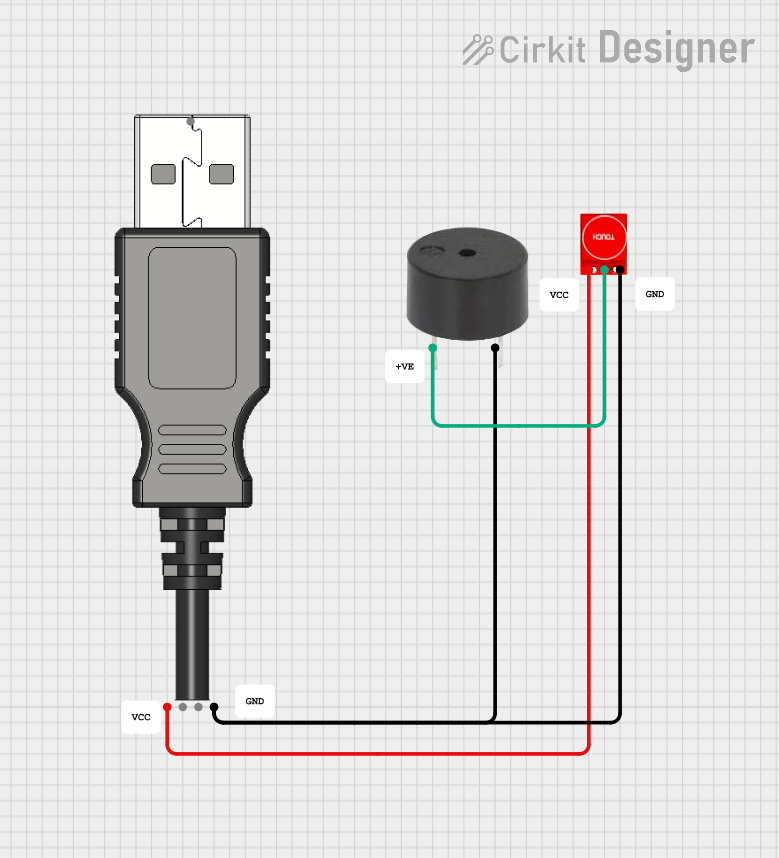 Open Project in Cirkit Designer
Explore Projects Built with Touch Sensor TP233
Open Project in Cirkit DesignerOpen Project in Cirkit DesignerOpen Project in Cirkit DesignerOpen Project in Cirkit DesignerCommon Applications
- Touch-sensitive buttons for home appliances
- Proximity detection in smart devices
- Interactive displays and control panels
- Wearable electronics
- IoT devices requiring touch input
Technical Specifications
The TP233 touch sensor is a compact and efficient component with the following key specifications:
| Parameter | Value |
|---|---|
| Operating Voltage | 2.0V to 5.5V |
| Operating Current | < 3µA (typical) |
| Response Time | ~60ms |
| Output Type | Digital (Active High or Low) |
| Interface | Single output pin |
| Operating Temperature | -40°C to +85°C |
| Sensitivity Adjustment | Automatic |
Pin Configuration and Descriptions
The TP233 is typically available in an SOT23-6 package. Below is the pin configuration:
| Pin Number | Pin Name | Description |
|---|---|---|
| 1 | VDD | Power supply (2.0V to 5.5V) |
| 2 | OUT | Digital output pin (Active High or Low) |
| 3 | VSS | Ground |
| 4 | AHLB | Output mode selection (Active High/Low control) |
| 5 | TTP | Touch detection input |
| 6 | NC | No connection (leave unconnected) |
Usage Instructions
How to Use the TP233 in a Circuit
- Power Supply: Connect the VDD pin to a stable power source (2.0V to 5.5V) and the VSS pin to ground.
- Touch Input: Attach a conductive touch pad to the TTP pin. This pad will act as the touch-sensitive surface.
- Output Signal: Connect the OUT pin to a microcontroller or other digital input device to read the touch signal.
- Output Mode: Use the AHLB pin to configure the output mode:
- Connect AHLB to VDD for Active Low output.
- Connect AHLB to VSS for Active High output.
Important Considerations
- PCB Design: Ensure the touch pad is isolated from noise sources to avoid false triggering.
- Debouncing: Implement software debouncing in your microcontroller to filter out spurious signals.
- Power Supply Decoupling: Place a 0.1µF capacitor close to the VDD pin to stabilize the power supply.
- Sensitivity: The TP233 automatically adjusts sensitivity based on environmental conditions, but avoid placing it near high-frequency noise sources.
Example: Connecting TP233 to Arduino UNO
Below is an example of how to connect the TP233 to an Arduino UNO and read touch input:
Circuit Connections
- TP233 VDD → Arduino 5V
- TP233 VSS → Arduino GND
- TP233 OUT → Arduino Digital Pin 2
- TP233 AHLB → Arduino GND (Active High output mode)
Arduino Code
// TP233 Touch Sensor Example with Arduino UNO
// Reads touch input and toggles an LED on pin 13

#define TOUCH_PIN 2  // TP233 OUT pin connected to Arduino Digital Pin 2
#define LED_PIN 13   // Built-in LED pin on Arduino UNO

void setup() {
  pinMode(TOUCH_PIN, INPUT);  // Set TOUCH_PIN as input
  pinMode(LED_PIN, OUTPUT);  // Set LED_PIN as output
  Serial.begin(9600);        // Initialize serial communication
}

void loop() {
  int touchState = digitalRead(TOUCH_PIN);  // Read the touch sensor state

  if (touchState == HIGH) {  // If touch is detected
    digitalWrite(LED_PIN, HIGH);  // Turn on the LED
    Serial.println("Touch detected!");  // Print message to Serial Monitor
  } else {
    digitalWrite(LED_PIN, LOW);  // Turn off the LED
  }

  delay(50);  // Small delay for stability
}
Troubleshooting and FAQs
Common Issues
False Triggering:
- Cause: Electrical noise or improper grounding.
- Solution: Add a 0.1µF decoupling capacitor near the VDD pin and ensure proper grounding.
No Response from Sensor:
- Cause: Incorrect wiring or insufficient power supply.
- Solution: Double-check all connections and ensure the power supply voltage is within the specified range.
Unstable Output:
- Cause: Environmental interference or improper touch pad design.
- Solution: Use a shielded touch pad and avoid placing the sensor near high-frequency noise sources.
FAQs
Q: Can I use the TP233 with a 3.3V microcontroller?
A: Yes, the TP233 operates within a voltage range of 2.0V to 5.5V, making it compatible with 3.3V systems.
Q: How do I increase the sensitivity of the touch sensor?
A: The TP233 automatically adjusts sensitivity, but you can improve performance by increasing the size of the touch pad or reducing environmental noise.
Q: Can the TP233 detect proximity without direct touch?
A: Yes, the TP233 can detect proximity if the touch pad is large enough and the object is close to the pad.
Q: What is the maximum response time of the TP233?
A: The typical response time is approximately 60ms, which is suitable for most touch applications.