
How to Use Waveshare esp32-S3 3.5 inch display: Examples, Pinouts, and Specs
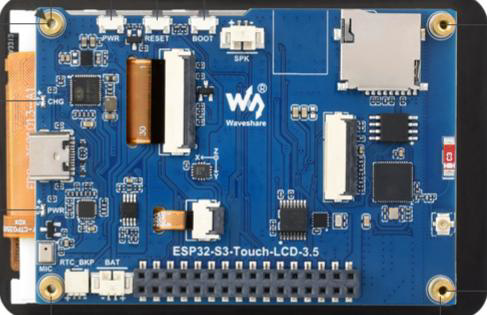
 Design with Waveshare esp32-S3 3.5 inch display in Cirkit Designer
Introduction
The Waveshare ESP32-S3 3.5 Inch Display (Manufacturer Part ID: ESP32-S3-Touch-LCD-3.5) is a compact and versatile display module designed for embedded systems. It features a 3.5-inch capacitive touchscreen and is powered by the ESP32-S3 microcontroller, which supports Wi-Fi and Bluetooth connectivity. This module is ideal for creating interactive user interfaces, visualizing data, and controlling IoT devices.
Explore Projects Built with Waveshare esp32-S3 3.5 inch display
 Open Project in Cirkit Designer
 Open Project in Cirkit Designer
 Open Project in Cirkit Designer
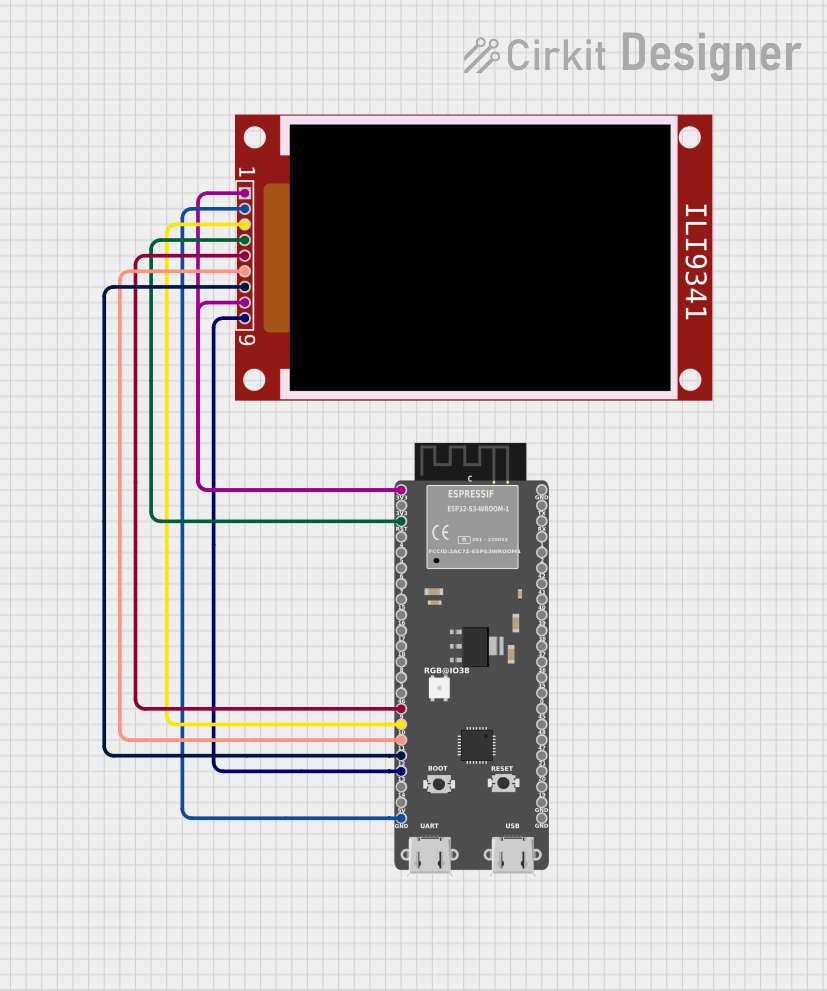 Open Project in Cirkit Designer
Explore Projects Built with Waveshare esp32-S3 3.5 inch display
Open Project in Cirkit DesignerOpen Project in Cirkit DesignerOpen Project in Cirkit DesignerOpen Project in Cirkit DesignerCommon Applications and Use Cases
- IoT dashboards and control panels
- Smart home automation systems
- Portable data visualization tools
- Educational and prototyping projects
- Industrial control interfaces
Technical Specifications
Key Technical Details
| Parameter | Specification |
|---|---|
| Display Type | 3.5-inch capacitive touchscreen |
| Resolution | 480 x 320 pixels |
| Touch Technology | Capacitive, multi-touch support |
| Microcontroller | ESP32-S3 |
| Connectivity | Wi-Fi 802.11 b/g/n, Bluetooth 5.0 |
| Operating Voltage | 5V (via USB-C) |
| Logic Voltage | 3.3V |
| Flash Memory | 16MB |
| PSRAM | 8MB |
| Interface | USB-C, GPIO pins |
| Dimensions | 85.5mm x 55.5mm |
| Weight | ~70g |
Pin Configuration and Descriptions
The module includes a GPIO header for additional functionality. Below is the pinout:
| Pin Name | Pin Number | Description |
|---|---|---|
| 5V | 1 | Power input (5V) |
| GND | 2 | Ground |
| GPIO0 | 3 | General-purpose I/O pin |
| GPIO1 | 4 | General-purpose I/O pin |
| GPIO2 | 5 | General-purpose I/O pin |
| GPIO3 | 6 | General-purpose I/O pin |
| TXD | 7 | UART transmit pin |
| RXD | 8 | UART receive pin |
| I2C_SCL | 9 | I2C clock line |
| I2C_SDA | 10 | I2C data line |
Usage Instructions
How to Use the Component in a Circuit
- Powering the Module: Connect the module to a 5V power source using the USB-C port or the 5V pin on the GPIO header.
- Programming the ESP32-S3: Use the USB-C port to upload code to the ESP32-S3 microcontroller via the Arduino IDE or ESP-IDF.
- Connecting Peripherals: Use the GPIO pins to connect sensors, actuators, or other peripherals. Ensure the logic voltage of connected devices is 3.3V to avoid damage.
- Touchscreen Interface: The capacitive touchscreen can be used to create interactive user interfaces. Libraries such as LVGL (Light and Versatile Graphics Library) are recommended for GUI development.
Important Considerations and Best Practices
- Power Supply: Ensure a stable 5V power supply to avoid performance issues.
- ESD Protection: Handle the touchscreen carefully to prevent electrostatic discharge damage.
- Firmware Updates: Regularly update the ESP32-S3 firmware to ensure compatibility with the latest libraries and features.
- Heat Management: Avoid prolonged operation in high-temperature environments to prevent overheating.
Example Code for Arduino UNO
Below is an example of how to use the Waveshare ESP32-S3 3.5 Inch Display with the Arduino IDE. This code initializes the display and draws a simple rectangle on the screen.
#include <TFT_eSPI.h> // Include the TFT_eSPI library for display control

TFT_eSPI tft = TFT_eSPI(); // Create an instance of the display object

void setup() {
  tft.init(); // Initialize the display
  tft.setRotation(1); // Set display orientation (1 = landscape)
  tft.fillScreen(TFT_BLACK); // Clear the screen with black color

  // Draw a rectangle on the screen
  tft.fillRect(50, 50, 100, 50, TFT_BLUE);
  // Parameters: x, y, width, height, color
}

void loop() {
  // Add your code here for interactive functionality
}
Notes:
- Install the TFT_eSPI library in the Arduino IDE before running the code.
- Configure the
User_Setup.hfile in the TFT_eSPI library to match the display's specifications.
Troubleshooting and FAQs
Common Issues and Solutions
Display Not Turning On:
- Ensure the module is connected to a stable 5V power source.
- Verify the USB-C cable is functional and supports data transfer.
Touchscreen Not Responding:
- Check for loose connections or damaged cables.
- Ensure the touchscreen library is correctly installed and configured.
Code Upload Fails:
- Confirm the correct COM port is selected in the Arduino IDE.
- Hold the BOOT button on the module while pressing the RESET button to enter programming mode.
Wi-Fi or Bluetooth Not Working:
- Verify the ESP32-S3 firmware is up to date.
- Check the Wi-Fi credentials or Bluetooth pairing settings in your code.
FAQs
Q: Can I use this module with other microcontrollers?
A: While the module is designed around the ESP32-S3, you can use the GPIO pins to interface with other microcontrollers. However, the touchscreen and display functionality may require additional drivers or libraries.
Q: What is the maximum current draw of the module?
A: The module typically draws around 200mA during operation but may peak higher depending on usage.
Q: Is the display sunlight-readable?
A: The display is not optimized for outdoor use and may be difficult to read in direct sunlight.
Q: Can I power the module using a battery?
A: Yes, you can use a 5V battery pack with a USB-C output or connect a regulated 5V source to the 5V pin.
This documentation provides a comprehensive guide to using the Waveshare ESP32-S3 3.5 Inch Display effectively in your projects. For further assistance, refer to the official Waveshare documentation or community forums.