
How to Use CPU Fan: Examples, Pinouts, and Specs
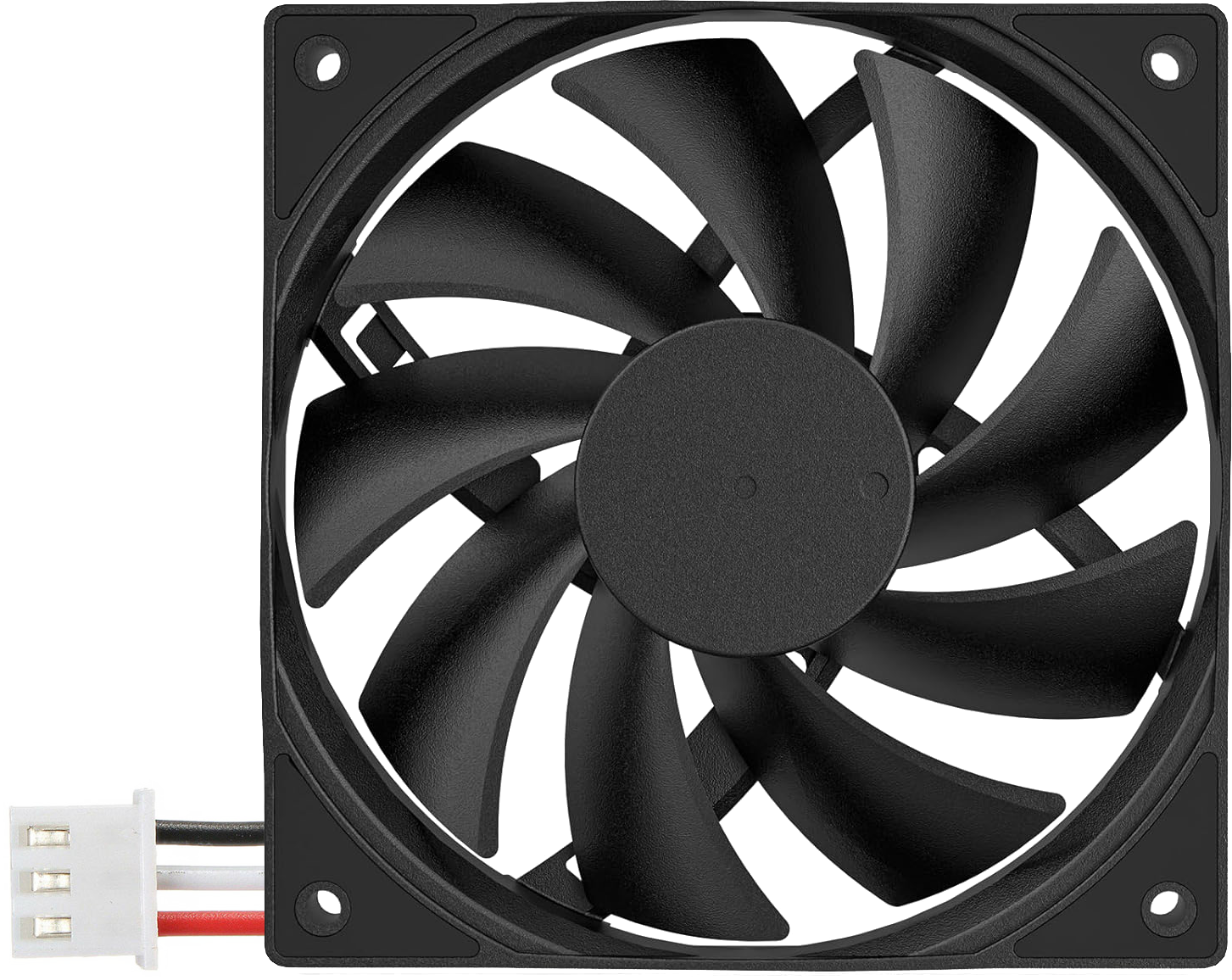
 Design with CPU Fan in Cirkit Designer
Introduction
A CPU fan, such as the DARKROCK B0CD7P3S8Q, is a critical cooling device designed to dissipate heat generated by the central processing unit (CPU) of a computer. By maintaining optimal operating temperatures, the CPU fan ensures the reliable performance and longevity of the processor. It is typically mounted on top of a heatsink, which further aids in heat dissipation.
Explore Projects Built with CPU Fan
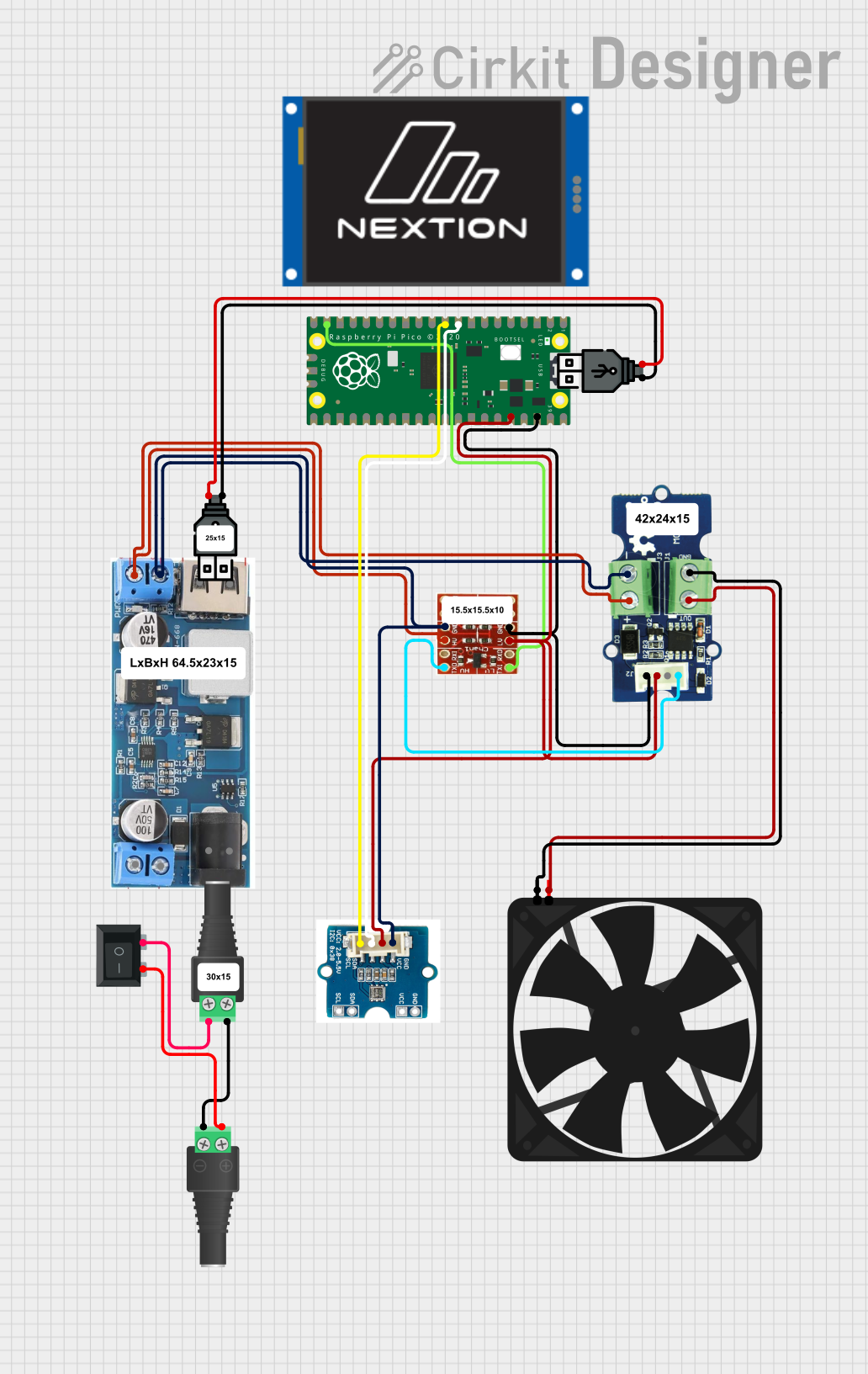 Open Project in Cirkit Designer
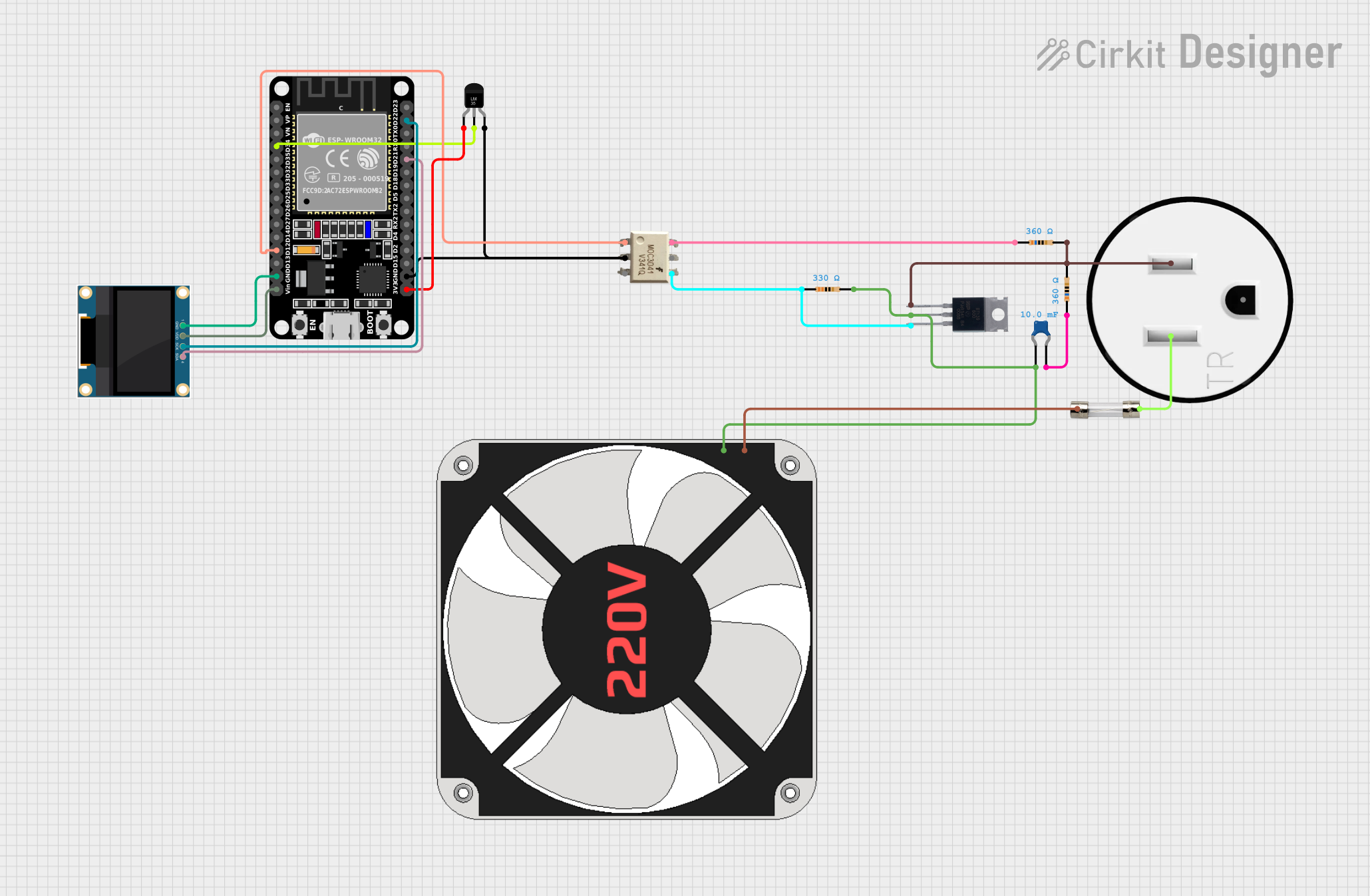 Open Project in Cirkit Designer
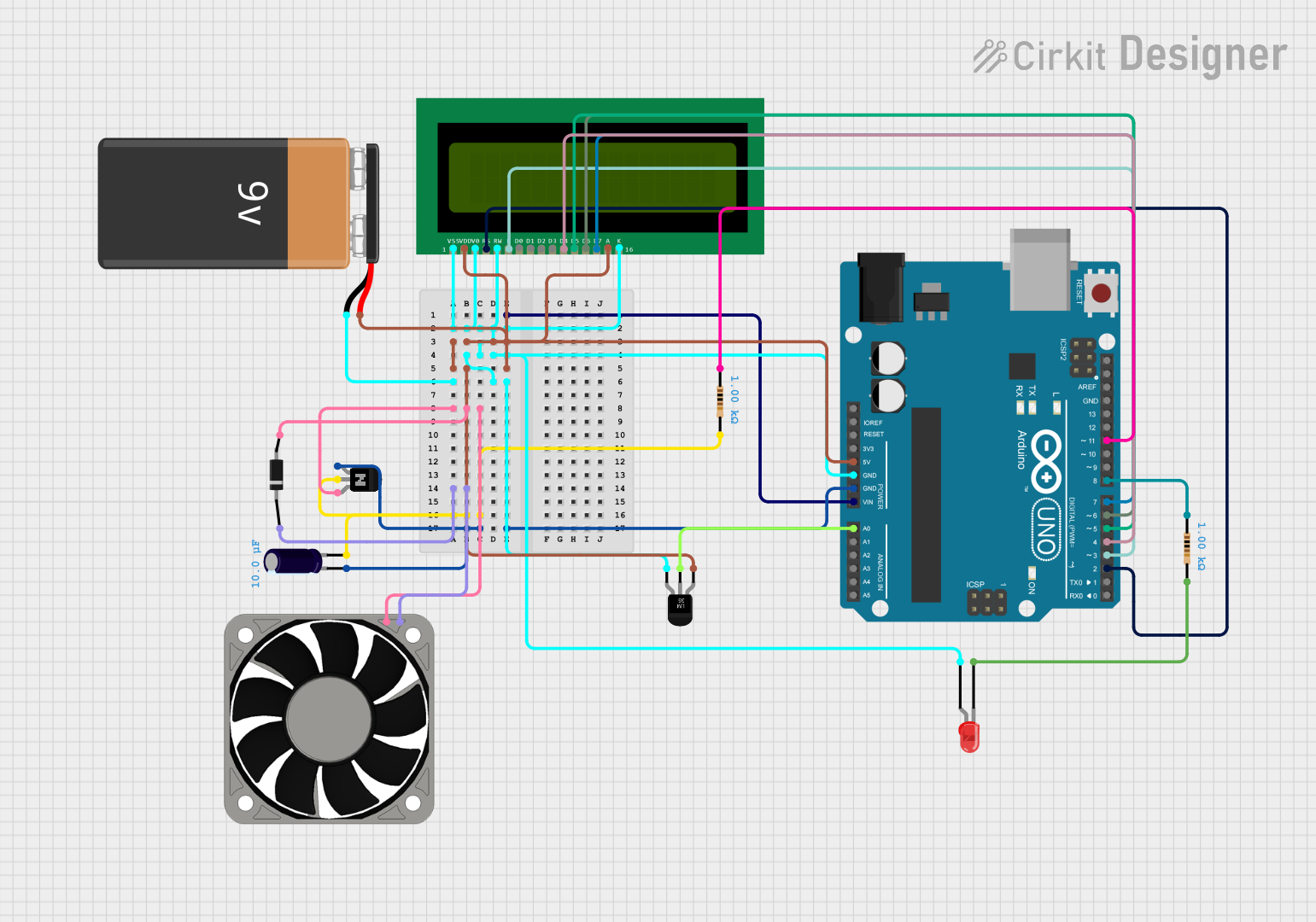 Open Project in Cirkit Designer
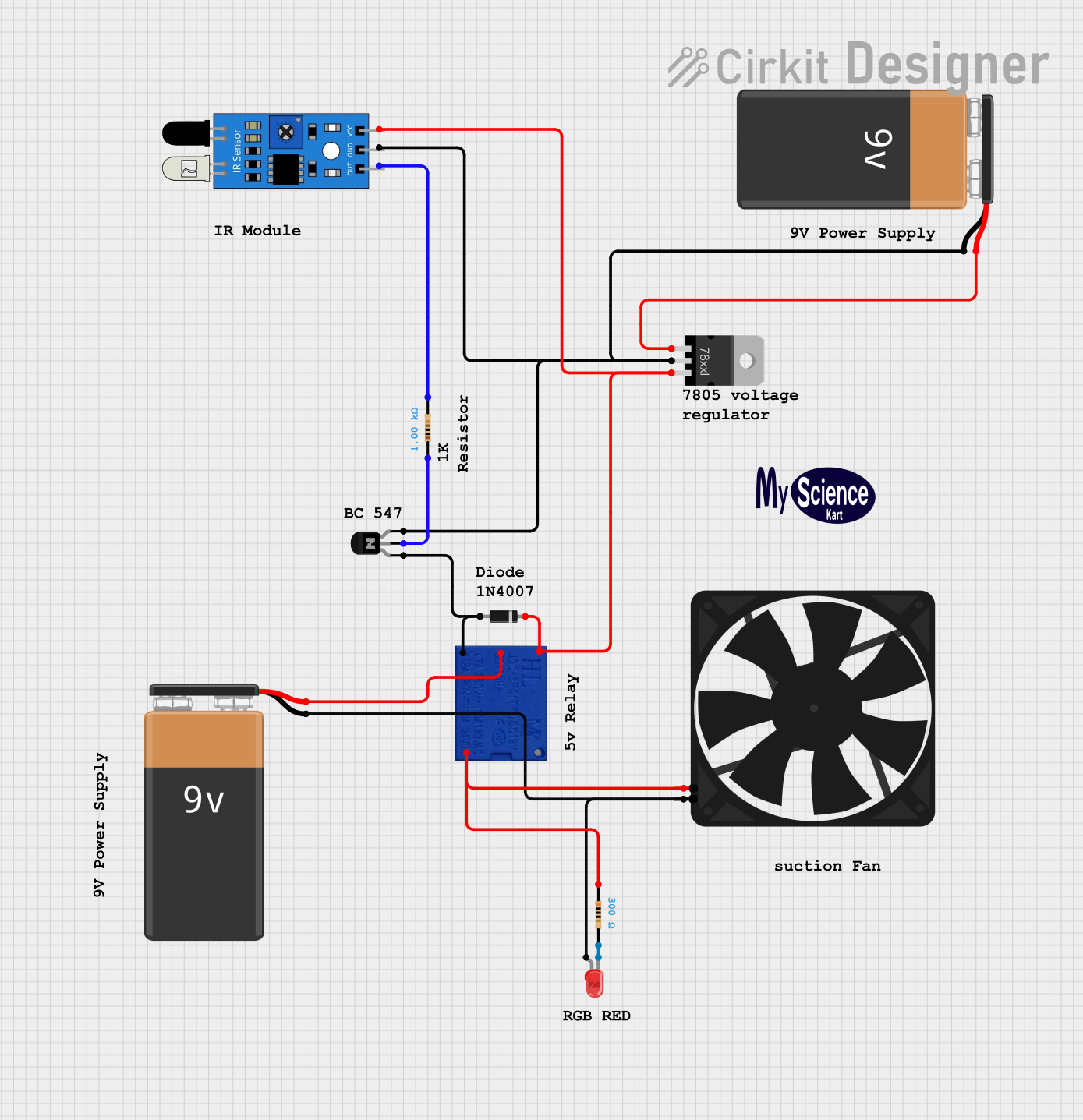 Open Project in Cirkit Designer
Explore Projects Built with CPU Fan
Open Project in Cirkit DesignerOpen Project in Cirkit DesignerOpen Project in Cirkit DesignerOpen Project in Cirkit DesignerCommon Applications and Use Cases
- Cooling CPUs in desktop computers, gaming rigs, and workstations.
- Preventing thermal throttling during high-performance tasks such as gaming, video rendering, or data processing.
- Maintaining system stability and extending the lifespan of the CPU.
Technical Specifications
Key Technical Details
| Parameter | Specification |
|---|---|
| Manufacturer | DARKROCK |
| Part ID | B0CD7P3S8Q |
| Fan Dimensions | 120mm x 120mm x 25mm |
| Rated Voltage | 12V DC |
| Operating Voltage Range | 7V - 13.2V |
| Current Consumption | 0.2A |
| Power Consumption | 2.4W |
| Fan Speed | 600 - 1500 RPM (±10%) |
| Airflow | 50 CFM (Cubic Feet per Minute) |
| Noise Level | 20 dBA (at maximum speed) |
| Connector Type | 4-pin PWM (Pulse Width Modulation) |
| Bearing Type | Fluid Dynamic Bearing (FDB) |
| Lifespan | 50,000 hours |
Pin Configuration and Descriptions
| Pin Number | Pin Name | Description |
|---|---|---|
| 1 | GND | Ground connection for the fan. |
| 2 | +12V | Power supply for the fan (12V DC). |
| 3 | Tachometer | Outputs a signal to monitor the fan's speed (RPM). |
| 4 | PWM | Pulse Width Modulation input for controlling the fan speed dynamically. |
Usage Instructions
How to Use the Component in a Circuit
- Mounting the Fan: Secure the DARKROCK B0CD7P3S8Q CPU fan onto the CPU heatsink using the provided screws or mounting clips. Ensure proper alignment for optimal airflow.
- Connecting the Fan:
- Plug the 4-pin connector into the CPU_FAN header on the motherboard.
- Ensure the connector is properly seated to avoid loose connections.
- Configuring Fan Speed:
- Use the BIOS/UEFI settings to enable PWM control for the CPU fan.
- Adjust fan speed profiles (e.g., silent, balanced, or performance) based on your cooling needs.
Important Considerations and Best Practices
- Airflow Direction: Ensure the fan is oriented correctly to push air through the heatsink and out of the case.
- Cable Management: Route the fan cable neatly to avoid interference with other components or airflow.
- Thermal Paste: Apply a thin, even layer of thermal paste between the CPU and heatsink for efficient heat transfer.
- Dust Management: Periodically clean the fan and heatsink to prevent dust buildup, which can reduce cooling efficiency.
Example: Controlling the Fan with an Arduino UNO
The DARKROCK B0CD7P3S8Q fan can be controlled using an Arduino UNO via PWM. Below is an example code to adjust the fan speed:
// Define the PWM pin connected to the fan's PWM input
const int fanPWMPin = 9;

void setup() {
  // Set the PWM pin as an output
  pinMode(fanPWMPin, OUTPUT);
}

void loop() {
  // Example: Gradually increase and decrease fan speed
  for (int speed = 0; speed <= 255; speed++) {
    analogWrite(fanPWMPin, speed); // Set fan speed (0-255)
    delay(20); // Wait 20ms before increasing speed
  }
  for (int speed = 255; speed >= 0; speed--) {
    analogWrite(fanPWMPin, speed); // Decrease fan speed
    delay(20); // Wait 20ms before decreasing speed
  }
}
Notes:
- The
analogWrite()function generates a PWM signal to control the fan speed. - Ensure the Arduino's ground (GND) is connected to the fan's ground (GND) for proper operation.
Troubleshooting and FAQs
Common Issues and Solutions
Fan Not Spinning:
- Cause: Loose or incorrect connection.
- Solution: Check the 4-pin connector and ensure it is securely plugged into the CPU_FAN header.
Excessive Noise:
- Cause: Dust buildup or fan running at maximum speed.
- Solution: Clean the fan and heatsink. Adjust the fan speed profile in the BIOS/UEFI.
Overheating CPU:
- Cause: Improper mounting or insufficient thermal paste.
- Solution: Reapply thermal paste and ensure the fan and heatsink are securely mounted.
Fan Speed Not Changing:
- Cause: PWM control not enabled.
- Solution: Enable PWM control in the BIOS/UEFI or verify the PWM signal from the controller.
FAQs
Q: Can I use this fan with a 3-pin header?
A: Yes, but PWM speed control will not function. The fan will run at a constant speed.Q: How often should I clean the fan?
A: Clean the fan and heatsink every 3-6 months, or more frequently in dusty environments.Q: What happens if the fan fails?
A: The CPU may overheat, leading to thermal throttling or shutdown. Replace the fan immediately if it fails.Q: Can I use this fan for overclocking?
A: Yes, but ensure your case has adequate airflow and consider additional cooling solutions if needed.