
How to Use USB Type C Cable: Examples, Pinouts, and Specs
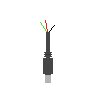
 Design with USB Type C Cable in Cirkit Designer
Introduction
The USB Type C cable is a versatile and widely adopted connector standard used for data transfer and charging. It features a reversible design, allowing users to plug it in either way, eliminating the frustration of incorrect orientation. USB Type C supports high-speed data transfer rates, enhanced power delivery capabilities, and compatibility with a wide range of devices, including smartphones, laptops, tablets, and peripherals.
Explore Projects Built with USB Type C Cable
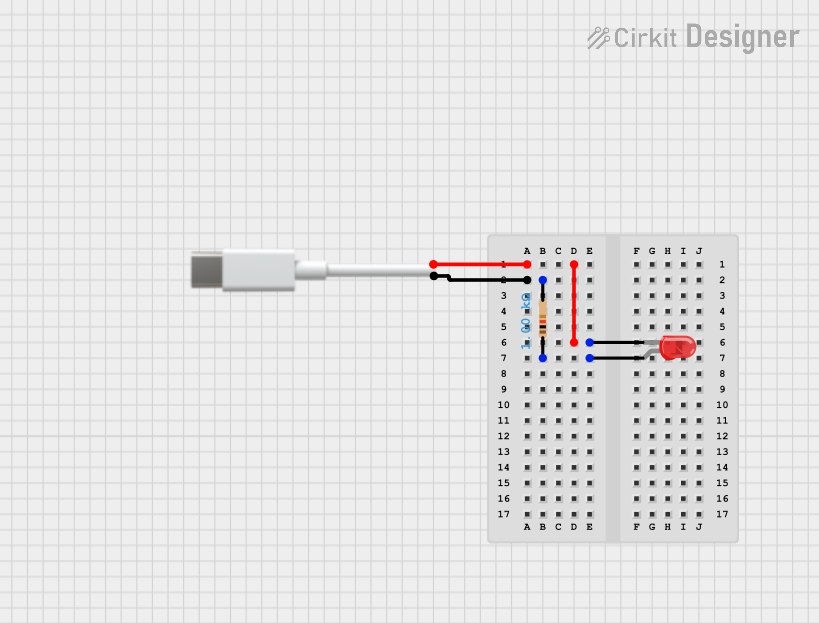 Open Project in Cirkit Designer
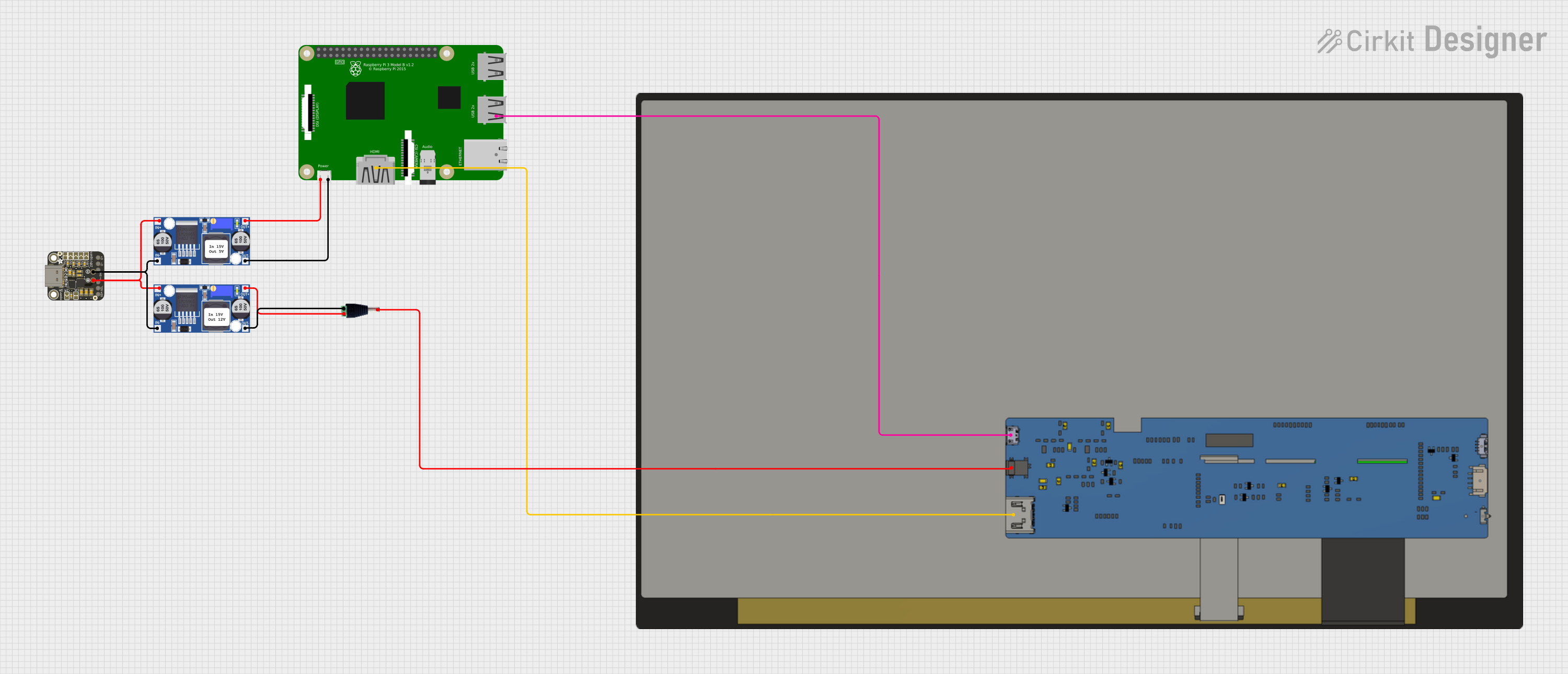 Open Project in Cirkit Designer
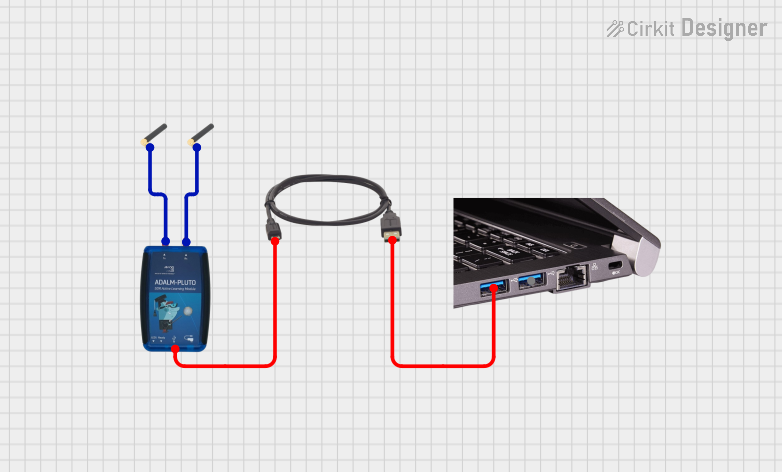 Open Project in Cirkit Designer
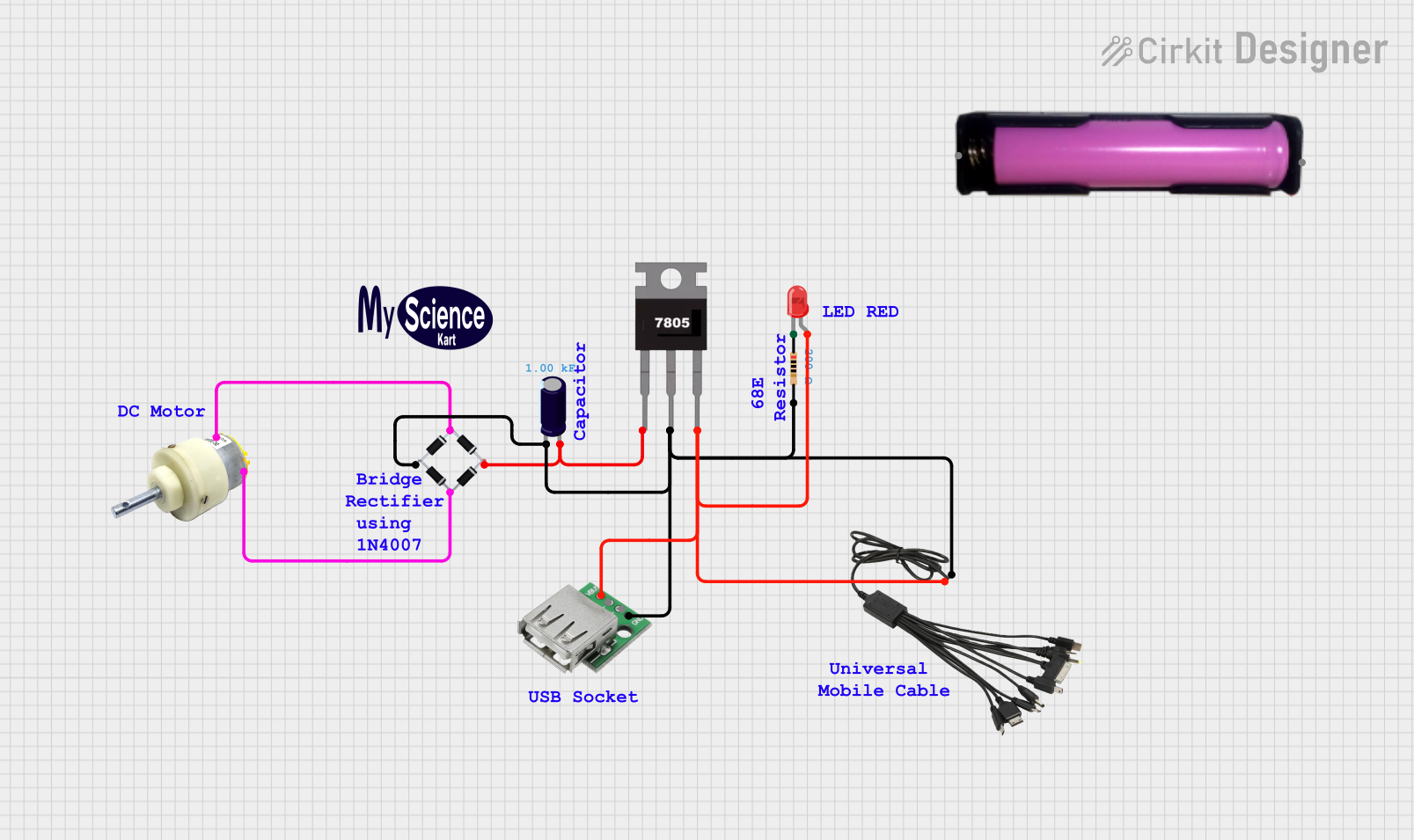 Open Project in Cirkit Designer
Explore Projects Built with USB Type C Cable
Open Project in Cirkit DesignerOpen Project in Cirkit DesignerOpen Project in Cirkit DesignerOpen Project in Cirkit DesignerCommon Applications and Use Cases
- Charging smartphones, tablets, laptops, and other USB-powered devices
- High-speed data transfer between devices
- Connecting external peripherals such as hard drives, monitors, and docking stations
- Power delivery for devices requiring up to 100W of power
- Audio and video transmission via protocols like DisplayPort or HDMI (with adapters)
Technical Specifications
The USB Type C cable is designed to meet the latest USB standards, offering robust performance and compatibility. Below are the key technical details:
General Specifications
| Parameter | Specification |
|---|---|
| Connector Type | USB Type C (Reversible) |
| Data Transfer Rate | Up to 40 Gbps (USB4), 10 Gbps (USB 3.1 Gen 2) |
| Power Delivery (PD) | Up to 100W (20V, 5A) |
| Cable Length | Typically 0.5m to 2m |
| Compatibility | Backward compatible with USB 2.0, 3.0, and 3.1 |
| Video Support | Supports DisplayPort, HDMI (with adapters) |
Pin Configuration and Descriptions
The USB Type C connector has 24 pins, enabling advanced features like high-speed data transfer and power delivery. Below is a simplified pinout:
| Pin Number | Name | Description |
|---|---|---|
| A1, A12 | GND | Ground |
| A4, A9 | VBUS | Power supply (up to 20V, 5A) |
| A6, A7 | D+ / D- | USB 2.0 differential pair for data transfer |
| A2, A3 | TX1+ / TX1- | SuperSpeed differential pair for data transfer |
| A8, A5 | RX1+ / RX1- | SuperSpeed differential pair for data reception |
| B1, B12 | GND | Ground |
| B4, B9 | VBUS | Power supply (up to 20V, 5A) |
| B6, B7 | D+ / D- | USB 2.0 differential pair for data transfer |
| B2, B3 | TX2+ / TX2- | SuperSpeed differential pair for data transfer |
| B8, B5 | RX2+ / RX2- | SuperSpeed differential pair for data reception |
| CC1, CC2 | Configuration | Determines cable orientation and power delivery |
| SBU1, SBU2 | Sideband Use | Used for alternate modes like audio or video |
Usage Instructions
How to Use the USB Type C Cable
- Connecting Devices: Plug the USB Type C connector into the corresponding port on your device. The reversible design ensures it can be inserted in either orientation.
- Data Transfer: Connect the cable between two devices (e.g., a laptop and an external hard drive) to transfer files at high speeds.
- Charging: Use the cable with a compatible power adapter to charge devices. Ensure the adapter supports the required power delivery specifications for your device.
- Video Output: For video output, connect the cable to a USB Type C port that supports alternate modes (e.g., DisplayPort). Use an appropriate adapter if needed.
Important Considerations and Best Practices
- Check Compatibility: Ensure your devices support USB Type C and the required features (e.g., Power Delivery, USB 3.1, or alternate modes).
- Use Certified Cables: Always use certified USB Type C cables to avoid potential damage to devices or reduced performance.
- Avoid Excessive Lengths: Longer cables may result in reduced data transfer speeds or charging efficiency.
- Handle with Care: Avoid bending or twisting the cable excessively to prevent damage to the internal wires.
Example: Using USB Type C with Arduino UNO
While the Arduino UNO does not natively support USB Type C, you can use a USB Type C to USB Type A cable to connect it to your computer for programming and power. Below is an example of Arduino code for basic functionality:
// Blink an LED connected to pin 13 on the Arduino UNO
// This code demonstrates basic functionality when the Arduino is powered
// and programmed via a USB Type C to USB Type A cable.

void setup() {
  pinMode(13, OUTPUT); // Set pin 13 as an output
}

void loop() {
  digitalWrite(13, HIGH); // Turn the LED on
  delay(1000);            // Wait for 1 second
  digitalWrite(13, LOW);  // Turn the LED off
  delay(1000);            // Wait for 1 second
}
Troubleshooting and FAQs
Common Issues
Cable Not Working:
- Cause: The cable may be damaged or not certified.
- Solution: Inspect the cable for physical damage and replace it if necessary. Use a certified USB Type C cable.
Slow Charging:
- Cause: The power adapter or cable may not support the required power delivery.
- Solution: Use a power adapter and cable that meet the device's power requirements.
Data Transfer Fails:
- Cause: The cable may only support charging or USB 2.0 speeds.
- Solution: Use a cable that supports USB 3.1 or higher for faster data transfer.
Video Output Not Working:
- Cause: The device or cable may not support alternate modes.
- Solution: Ensure the device supports video output via USB Type C and use a compatible cable or adapter.
FAQs
Q: Can I use a USB Type C cable with older USB devices?
A: Yes, USB Type C is backward compatible with older USB standards when used with appropriate adapters.
Q: Is USB Type C the same as Thunderbolt 3 or 4?
A: No, but USB Type C is the physical connector used by Thunderbolt 3 and 4. Ensure your cable supports Thunderbolt if required.
Q: Can USB Type C cables be used for audio?
A: Yes, USB Type C supports audio transmission, but the device must support this feature.
Q: How do I know if my cable supports Power Delivery?
A: Check the cable's specifications or look for certification labels indicating Power Delivery support.