
How to Use MKS CANable V2: Examples, Pinouts, and Specs
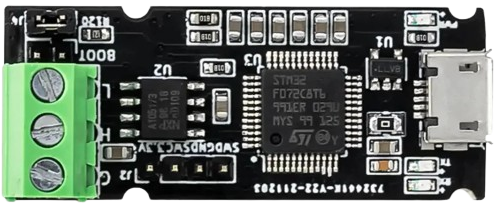
 Design with MKS CANable V2 in Cirkit Designer
Introduction
The MKS CANable V2 is a USB-to-CAN interface module designed by MakerBase. It enables seamless communication between a computer and devices on a CAN (Controller Area Network) bus. This compact and versatile device is widely used in applications such as robotics, automotive diagnostics, industrial automation, and IoT systems. Its compatibility with open-source tools and support for multiple CAN protocols make it a popular choice for developers and engineers working with CAN networks.
Explore Projects Built with MKS CANable V2
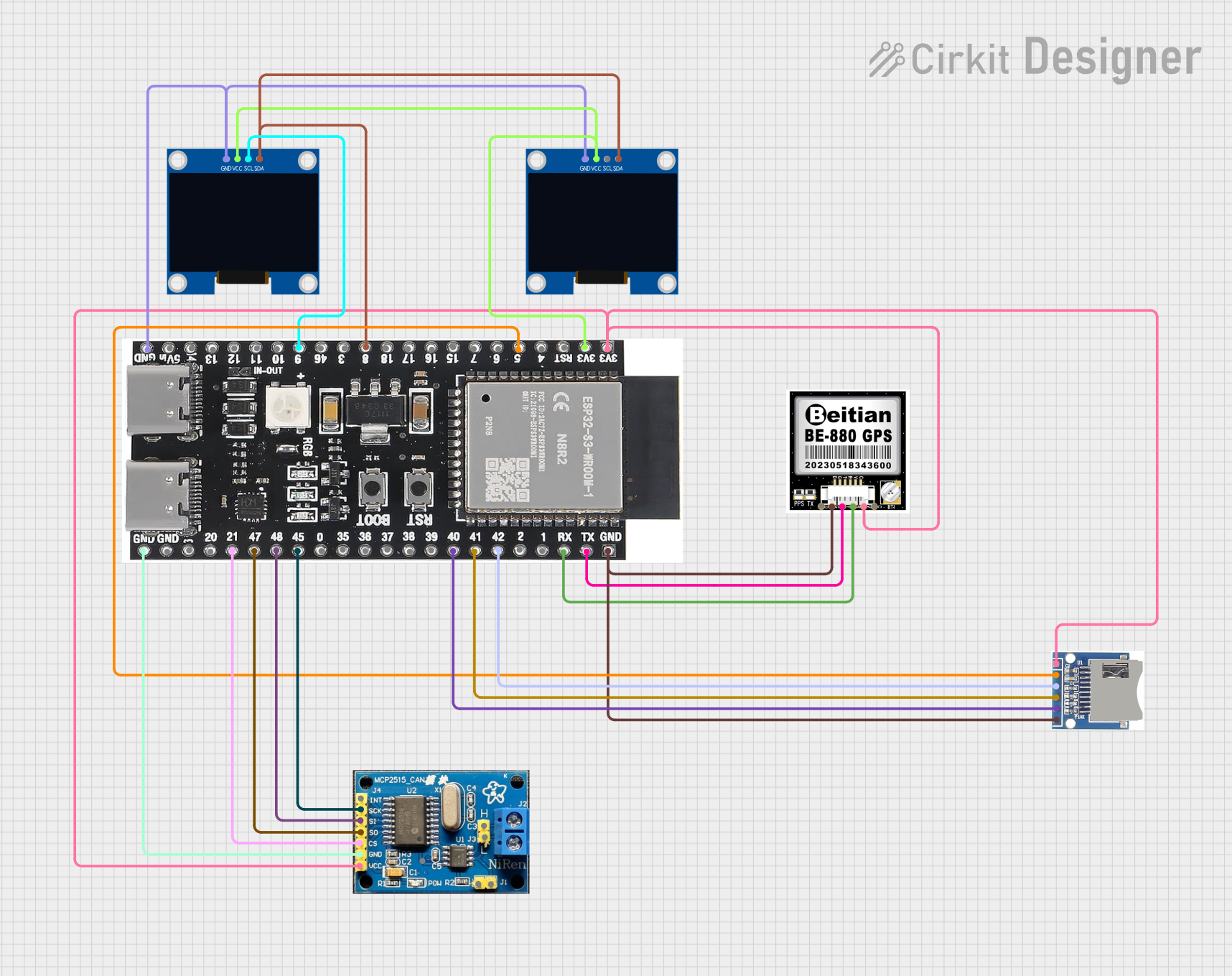 Open Project in Cirkit Designer
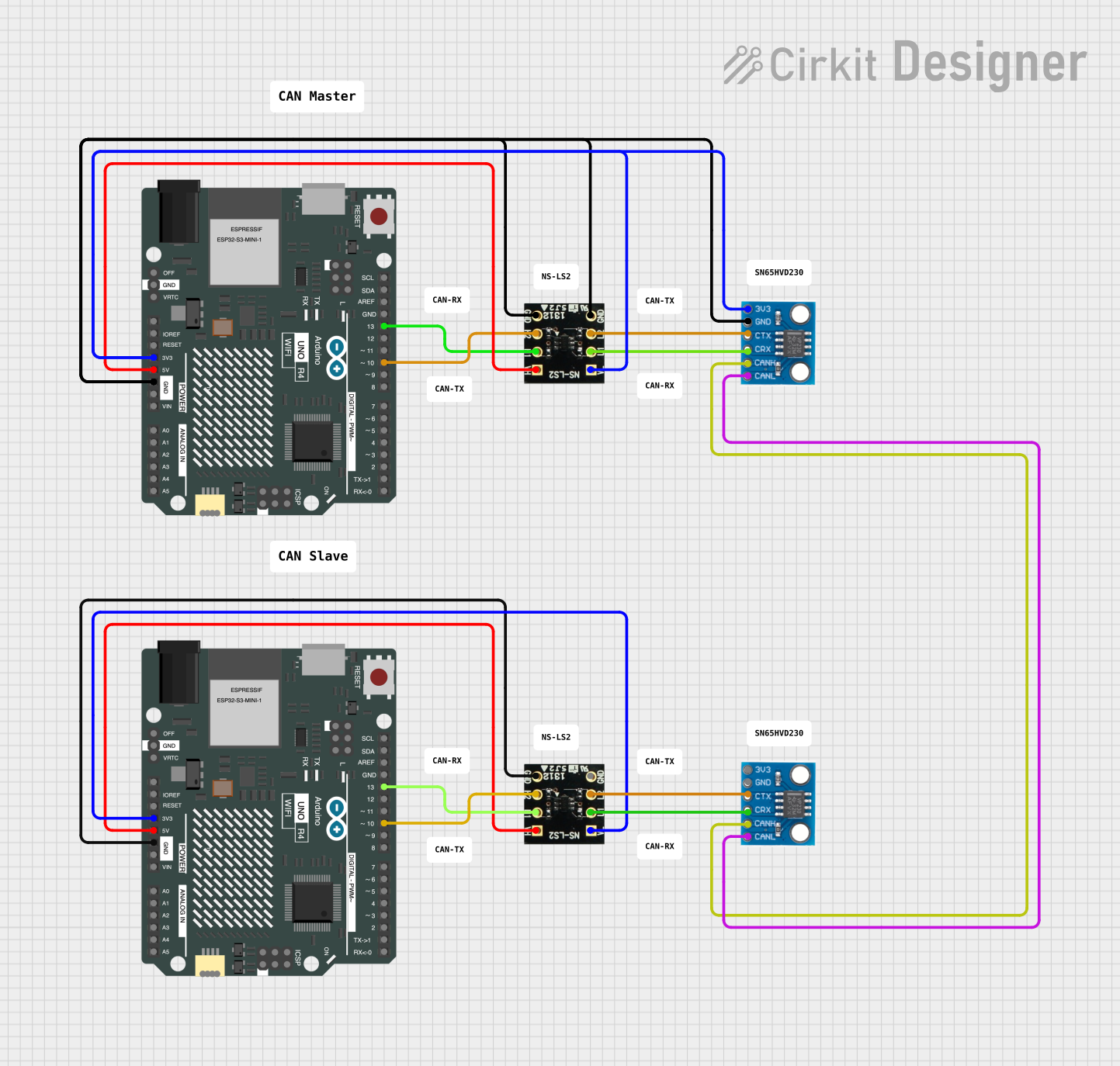 Open Project in Cirkit Designer
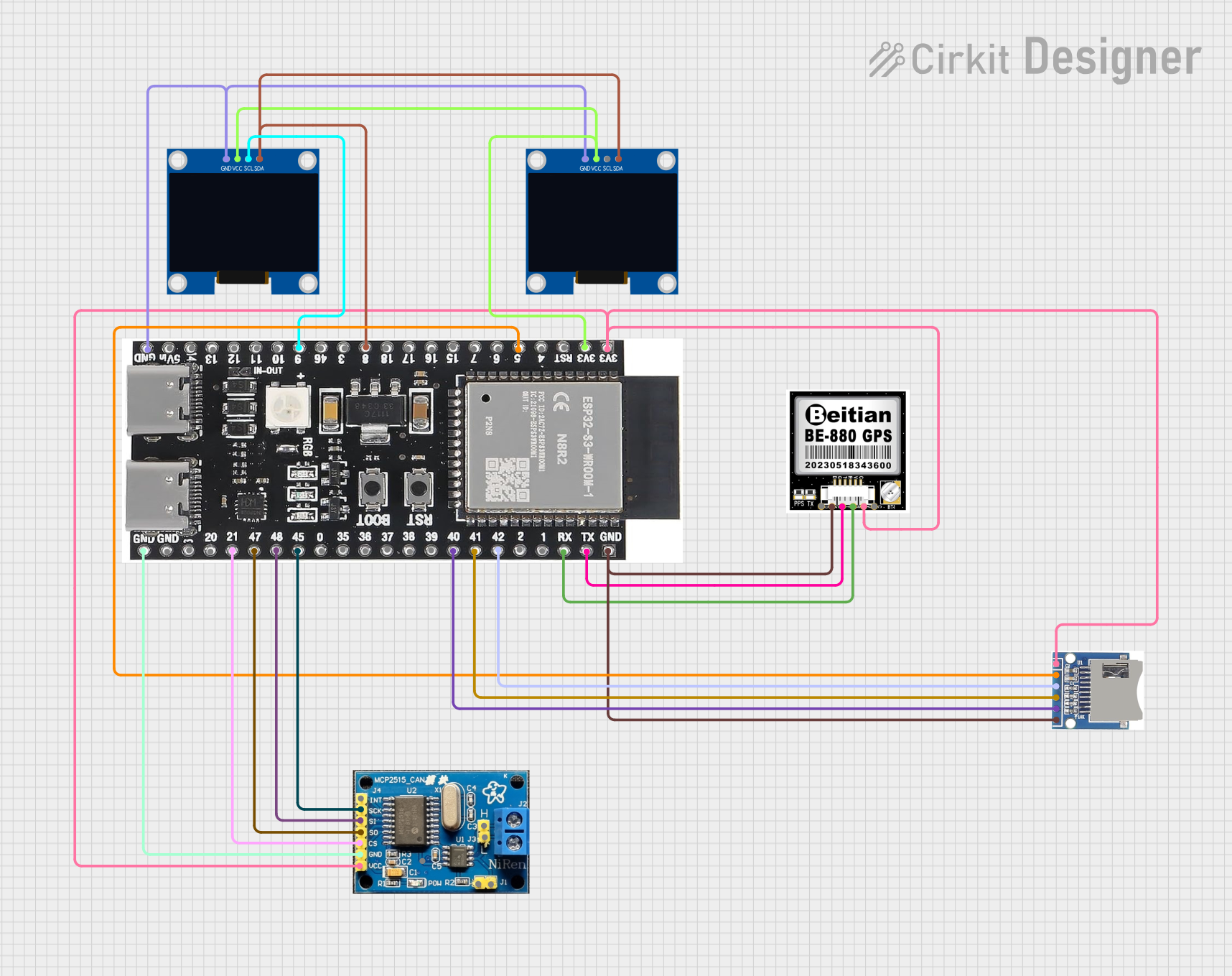 Open Project in Cirkit Designer
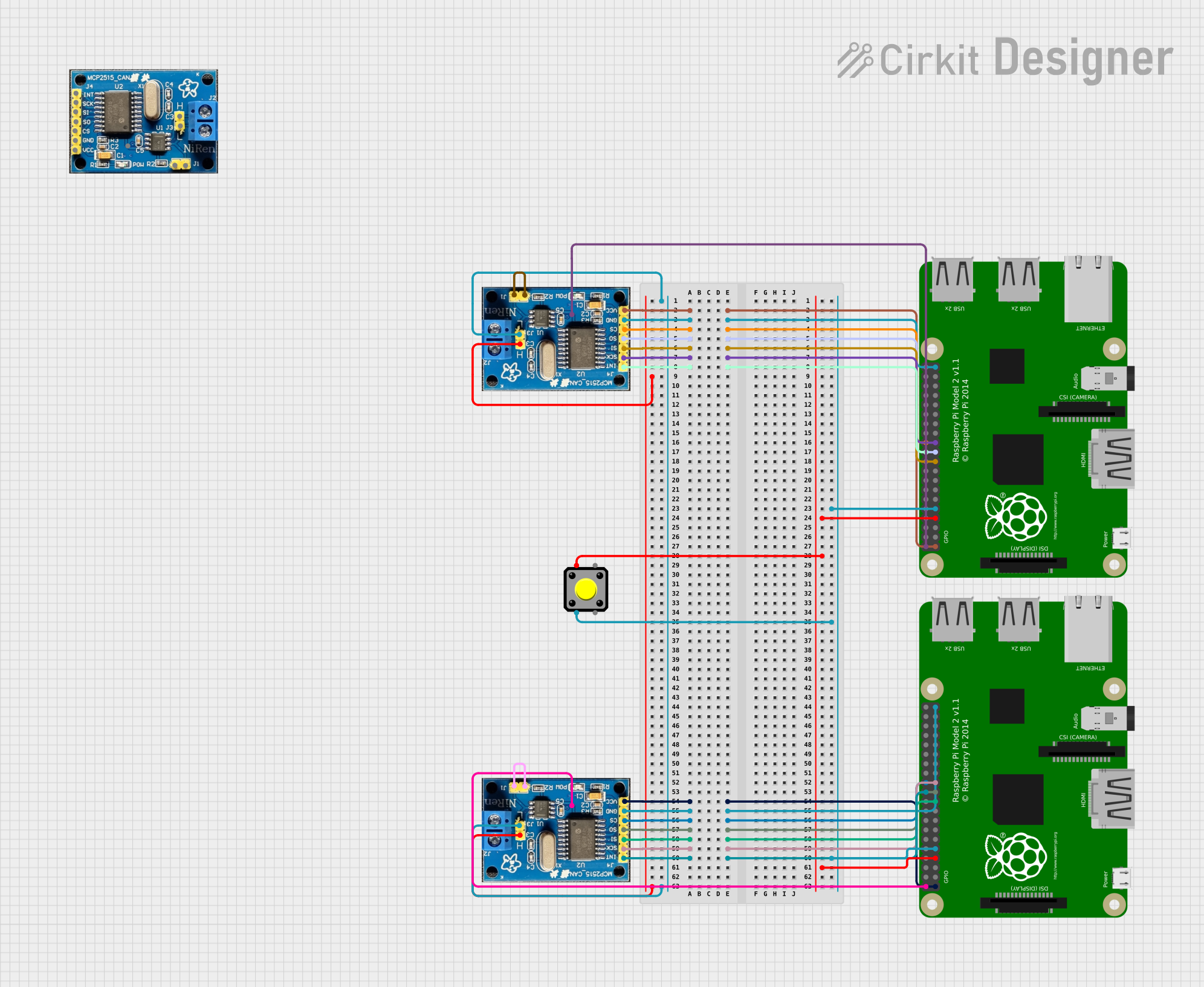 Open Project in Cirkit Designer
Explore Projects Built with MKS CANable V2
Open Project in Cirkit DesignerOpen Project in Cirkit DesignerOpen Project in Cirkit DesignerOpen Project in Cirkit DesignerCommon Applications and Use Cases
- Automotive diagnostics and ECU programming
- Robotics communication and control
- Industrial automation and monitoring
- IoT systems requiring CAN bus integration
- Debugging and testing CAN networks
Technical Specifications
The following table outlines the key technical details of the MKS CANable V2:
| Specification | Details |
|---|---|
| Microcontroller | STM32F042F6 |
| CAN Protocol Support | CAN 2.0A and CAN 2.0B |
| USB Interface | USB 2.0 (Micro-USB connector) |
| CAN Transceiver | MCP2551 or equivalent |
| Baud Rate | Up to 1 Mbps |
| Power Supply | 5V via USB |
| Operating Temperature | -40°C to 85°C |
| Dimensions | 40mm x 20mm x 10mm |
| Firmware | Compatible with Candlelight firmware and other open-source CAN firmware |
Pin Configuration and Descriptions
The MKS CANable V2 features a simple pinout for connecting to the CAN bus. The table below describes the pin configuration:
| Pin Name | Description |
|---|---|
| CAN_H | CAN High signal line |
| CAN_L | CAN Low signal line |
| GND | Ground connection |
| 5V | Optional 5V power output for CAN bus |
Usage Instructions
How to Use the MKS CANable V2 in a Circuit
Connect the CANable V2 to a Computer:
- Use a Micro-USB cable to connect the MKS CANable V2 to your computer. Ensure the necessary drivers are installed (e.g., STM32 Virtual COM Port drivers).
Connect to the CAN Bus:
- Connect the
CAN_HandCAN_Lpins of the CANable V2 to the corresponding lines on your CAN bus. - Optionally, connect the
GNDpin to the ground of the CAN bus for proper signal referencing.
- Connect the
Install and Configure Software:
- Use open-source tools like candleLight, SocketCAN (Linux), or CANutils to interface with the device.
- Configure the CAN baud rate and other parameters as required by your application.
Send and Receive CAN Messages:
- Use the software to send and receive CAN messages. For example, in Linux, you can use the
candumpandcansendcommands with SocketCAN.
- Use the software to send and receive CAN messages. For example, in Linux, you can use the
Important Considerations and Best Practices
- Termination Resistor: Ensure that the CAN bus is properly terminated with 120-ohm resistors at both ends of the bus. The MKS CANable V2 does not include an onboard termination resistor.
- Power Supply: The device is powered via USB. If your CAN bus requires additional power, use the
5Vpin to supply power (if supported by your setup). - Firmware Updates: The MKS CANable V2 supports firmware updates. Use tools like DFU-util to flash new firmware if needed.
- Isolation: The device does not provide galvanic isolation. For high-voltage or industrial applications, consider using an external isolator.
Example: Using MKS CANable V2 with Arduino UNO
The MKS CANable V2 can be used alongside an Arduino UNO to monitor or control a CAN bus. Below is an example of how to send a CAN message using the Arduino IDE and the CANable V2:
// Example: Sending a CAN message using MKS CANable V2 and Arduino UNO
// Ensure the CANable V2 is connected to the CAN bus and the computer

#include <SPI.h>
#include <mcp2515.h> // Include MCP2515 library for CAN communication

MCP2515 mcp2515(10); // Set CS pin to 10 for MCP2515

void setup() {
  Serial.begin(115200); // Initialize serial communication
  if (mcp2515.begin(MCP_ANY, CAN_500KBPS, MCP_8MHZ) == CAN_OK) {
    Serial.println("MCP2515 Initialized Successfully!");
  } else {
    Serial.println("Error Initializing MCP2515!");
    while (1);
  }
  mcp2515.setMode(MCP_NORMAL); // Set MCP2515 to normal mode
}

void loop() {
  struct can_frame canMsg;
  canMsg.can_id = 0x123; // Set CAN ID
  canMsg.can_dlc = 2;    // Set data length
  canMsg.data[0] = 0xAB; // First byte of data
  canMsg.data[1] = 0xCD; // Second byte of data

  if (mcp2515.sendMessage(&canMsg) == CAN_OK) {
    Serial.println("Message Sent Successfully!");
  } else {
    Serial.println("Error Sending Message!");
  }
  delay(1000); // Wait 1 second before sending the next message
}
Troubleshooting and FAQs
Common Issues and Solutions
Device Not Recognized by Computer:
- Ensure the correct drivers are installed (e.g., STM32 Virtual COM Port drivers).
- Try a different USB cable or port.
No Communication on CAN Bus:
- Verify the CAN bus is properly terminated with 120-ohm resistors.
- Check the baud rate configuration on both the CANable V2 and the CAN bus.
Firmware Issues:
- If the device is unresponsive, reflash the firmware using DFU mode and tools like DFU-util.
Data Corruption or Errors:
- Ensure proper grounding between the CANable V2 and the CAN bus.
- Check for electrical noise or interference on the CAN lines.
FAQs
Q: Can I use the MKS CANable V2 with Windows, Linux, and macOS?
A: Yes, the device is compatible with all major operating systems. Use appropriate tools like SocketCAN (Linux) or candleLight (Windows/macOS).Q: Does the MKS CANable V2 support CAN FD?
A: No, the MKS CANable V2 supports only CAN 2.0A and CAN 2.0B protocols.Q: How do I update the firmware?
A: Put the device into DFU mode by shorting the BOOT pins and use DFU-util to flash the firmware.Q: Is the device isolated?
A: No, the MKS CANable V2 does not provide galvanic isolation. Use an external isolator if required.