
How to Use Power Supply: Examples, Pinouts, and Specs
 Design with Power Supply in Cirkit Designer
Introduction
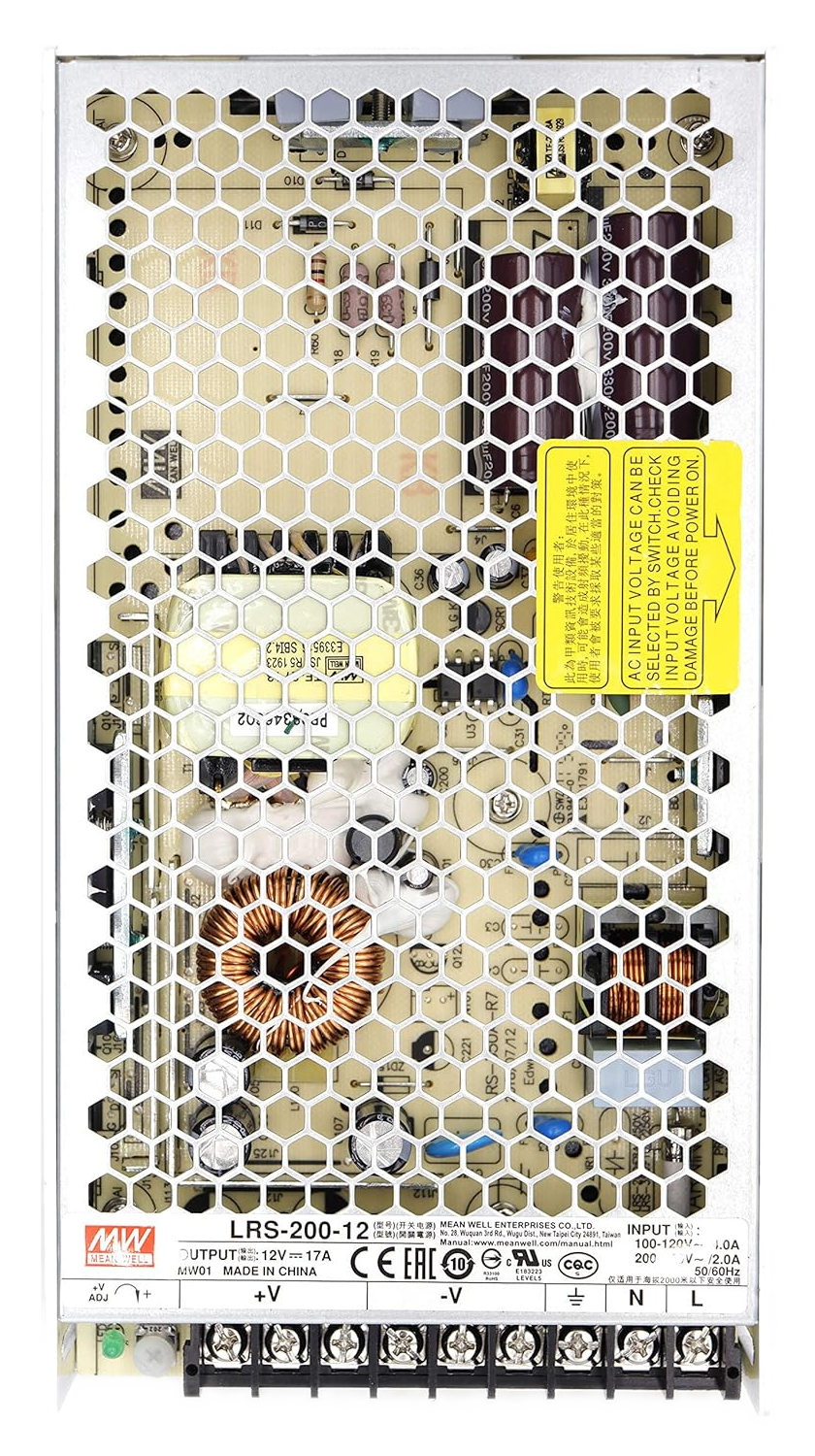
A power supply is a device that provides electrical energy to a circuit, converting AC or DC voltage from a source into a usable form for electronic components. It is an essential component in virtually all electronic systems, ensuring that devices receive the correct voltage and current for proper operation. Power supplies come in various types, including linear, switching, and programmable models, each suited for specific applications.
Explore Projects Built with Power Supply
 Open Project in Cirkit Designer
 Open Project in Cirkit Designer
 Open Project in Cirkit Designer
 Open Project in Cirkit Designer
Explore Projects Built with Power Supply
Open Project in Cirkit DesignerOpen Project in Cirkit DesignerOpen Project in Cirkit DesignerOpen Project in Cirkit DesignerCommon Applications and Use Cases
- Powering microcontrollers, sensors, and actuators in embedded systems
- Supplying energy to industrial equipment and machinery
- Charging batteries and portable devices
- Providing stable voltage for laboratory testing and prototyping
- Powering consumer electronics such as televisions, computers, and audio systems
Technical Specifications
The technical specifications of a power supply vary depending on its type and intended application. Below are general specifications for a typical DC power supply:
Key Technical Details
- Input Voltage: 100-240V AC, 50/60Hz (for AC-DC power supplies)
- Output Voltage: Adjustable or fixed, typically ranging from 1.2V to 48V DC
- Output Current: Varies by model, commonly 0.5A to 30A
- Power Rating: 5W to 1000W or more
- Efficiency: 70% to 95% (depending on design)
- Ripple and Noise: <50mV (for high-quality supplies)
- Protection Features: Overvoltage, overcurrent, short-circuit, and thermal protection
Pin Configuration and Descriptions
For a basic DC power supply with a standard output connector:
| Pin | Name | Description |
|---|---|---|
| 1 | Positive (+) | Provides the positive DC voltage output. Connect to the positive terminal of the load. |
| 2 | Negative (-) | Provides the ground or negative DC voltage output. Connect to the negative terminal of the load. |
| 3 | Earth (GND) | Optional earth ground connection for safety and noise reduction. |
For modular power supplies with multiple outputs, refer to the manufacturer's datasheet for detailed pinouts.
Usage Instructions
How to Use the Component in a Circuit
- Determine Voltage and Current Requirements: Identify the voltage and current requirements of your circuit or device.
- Select the Appropriate Power Supply: Choose a power supply that meets or exceeds the required specifications.
- Connect the Power Supply:
- Connect the positive output terminal of the power supply to the positive input of your circuit.
- Connect the negative output terminal to the ground or negative input of your circuit.
- Adjust Output Voltage (if applicable): If the power supply has an adjustable output, use the adjustment knob or digital controls to set the desired voltage.
- Power On the Supply: Turn on the power supply and verify the output voltage using a multimeter before connecting it to sensitive components.
Important Considerations and Best Practices
- Check Polarity: Always ensure correct polarity when connecting the power supply to your circuit to avoid damage.
- Use Proper Wiring: Use wires with appropriate gauge and insulation to handle the current without overheating.
- Avoid Overloading: Do not exceed the power supply's maximum current or power rating.
- Enable Protection Features: If available, enable overcurrent and overvoltage protection to safeguard your circuit.
- Ventilation: Ensure adequate ventilation around the power supply to prevent overheating.
Example: Using a Power Supply with an Arduino UNO
To power an Arduino UNO using a DC power supply:
- Set the power supply to 9V DC (recommended input voltage for the Arduino UNO barrel jack).
- Connect the positive terminal of the power supply to the center pin of the Arduino's barrel jack.
- Connect the negative terminal to the outer sleeve of the barrel jack.
- Turn on the power supply and verify the Arduino powers up.
Alternatively, you can power the Arduino UNO via its VIN pin:
// Example code for Arduino UNO powered by an external power supply
void setup() {
  // Initialize the serial communication
  Serial.begin(9600);
  Serial.println("Arduino is powered by an external power supply.");
}

void loop() {
  // Blink the onboard LED to confirm operation
  digitalWrite(LED_BUILTIN, HIGH); // Turn the LED on
  delay(1000);                     // Wait for 1 second
  digitalWrite(LED_BUILTIN, LOW);  // Turn the LED off
  delay(1000);                     // Wait for 1 second
}
Troubleshooting and FAQs
Common Issues Users Might Face
No Output Voltage:
- Cause: Power supply is not turned on or input power is disconnected.
- Solution: Verify the input power connection and ensure the power supply is switched on.
Incorrect Output Voltage:
- Cause: Output voltage is not set correctly or load is drawing excessive current.
- Solution: Adjust the output voltage and ensure the load does not exceed the power supply's capacity.
Overheating:
- Cause: Insufficient ventilation or overloading.
- Solution: Ensure proper airflow around the power supply and reduce the load if necessary.
Noise or Ripple in Output:
- Cause: Poor filtering or interference from nearby devices.
- Solution: Use additional capacitors or shielding to reduce noise.
Solutions and Tips for Troubleshooting
- Use a Multimeter: Always measure the output voltage and current to verify proper operation.
- Inspect Connections: Check all wiring and connectors for loose or damaged connections.
- Refer to the Datasheet: Consult the manufacturer's documentation for specific troubleshooting steps and recommendations.
By following these guidelines, you can ensure safe and effective use of your power supply in various electronic applications.