
How to Use traffic light: Examples, Pinouts, and Specs
 Design with traffic light in Cirkit Designer
Introduction
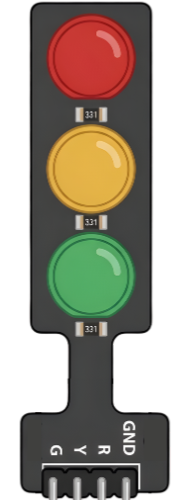
A traffic light is a signaling device that uses colored lights to control vehicle and pedestrian traffic at intersections. It typically features three lights: red, yellow, and green, which indicate stop, caution, and go, respectively. Traffic lights are essential for maintaining order and safety in road systems.
Explore Projects Built with traffic light
 Open Project in Cirkit Designer
 Open Project in Cirkit Designer
 Open Project in Cirkit Designer
 Open Project in Cirkit Designer
Explore Projects Built with traffic light
Open Project in Cirkit DesignerOpen Project in Cirkit DesignerOpen Project in Cirkit DesignerOpen Project in Cirkit DesignerCommon Applications and Use Cases
- Traffic management at road intersections
- Pedestrian crossing systems
- Simulated traffic control in educational or training environments
- Embedded systems projects, such as Arduino-based traffic light simulations
- Industrial automation for signaling and process control
Technical Specifications
Below are the general technical specifications for a standard traffic light module used in electronics projects:
Key Technical Details
- Operating Voltage: 5V DC (common for modules) or 12V DC (industrial-grade)
- Current Consumption: ~20mA per LED
- LED Colors: Red, Yellow, Green
- Control Type: Digital (via microcontroller or switches)
- Dimensions: Varies by module; typically compact for prototyping
- Mounting: PCB-compatible or standalone
Pin Configuration and Descriptions
The pin configuration for a typical 3-LED traffic light module is as follows:
| Pin | Name | Description |
|---|---|---|
| 1 | Red LED (+) | Positive terminal for the red LED |
| 2 | Yellow LED (+) | Positive terminal for the yellow LED |
| 3 | Green LED (+) | Positive terminal for the green LED |
| 4 | GND (-) | Common ground for all LEDs |
Note: Some modules may have built-in resistors for current limiting, while others may require external resistors.
Usage Instructions
How to Use the Component in a Circuit
- Power Supply: Connect the GND pin of the traffic light module to the ground of your power source or microcontroller. Supply 5V or 12V (depending on the module) to the LED pins via a microcontroller or external switches.
- Control Signals: Use digital output pins from a microcontroller (e.g., Arduino) to control the LEDs. Each LED can be turned on or off by sending a HIGH or LOW signal to its respective pin.
- Resistors: If the module does not include built-in resistors, connect a 220Ω resistor in series with each LED pin to limit current and prevent damage.
Important Considerations and Best Practices
- Voltage Compatibility: Ensure the module's operating voltage matches your power source or microcontroller.
- Current Limiting: Always use appropriate resistors if not built into the module.
- Heat Management: Avoid prolonged operation at maximum brightness to prevent overheating.
- Polarity: Double-check connections to avoid reversing polarity, which can damage the LEDs.
Example: Connecting to an Arduino UNO
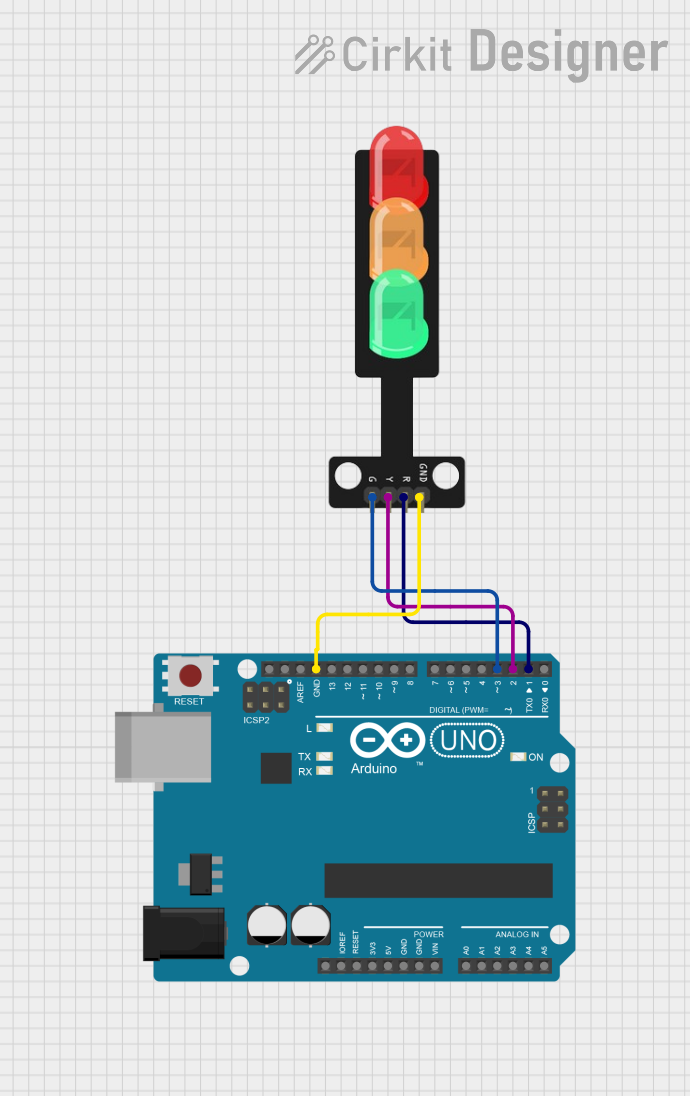
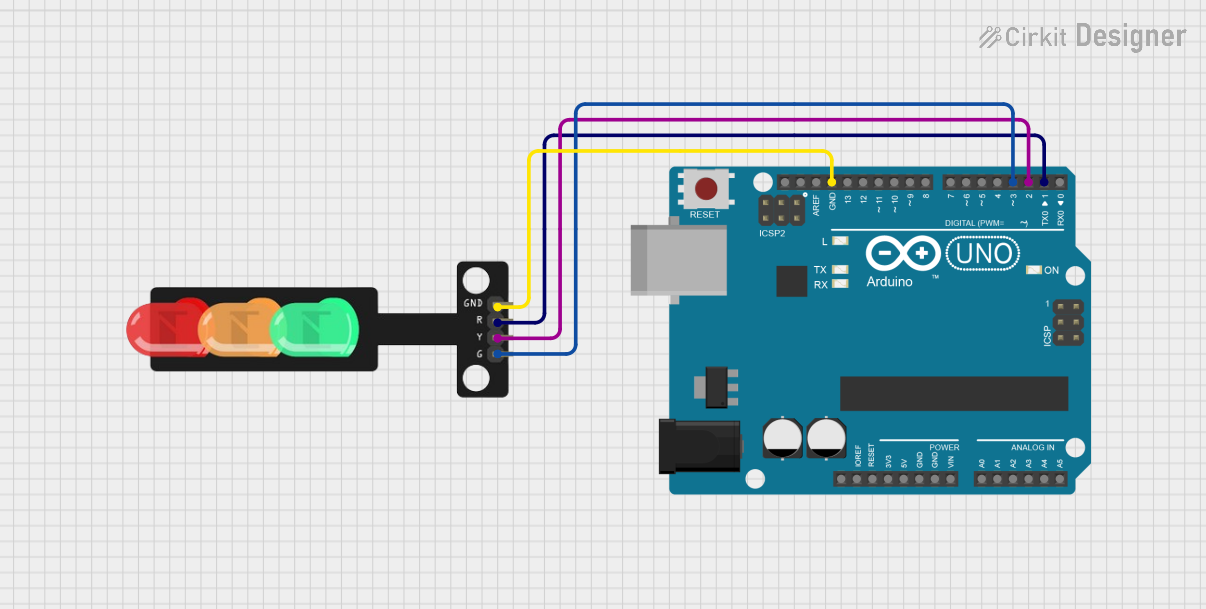
Below is an example of how to connect and program a traffic light module with an Arduino UNO:
Circuit Connections
- Connect the Red LED pin to Arduino digital pin 8.
- Connect the Yellow LED pin to Arduino digital pin 9.
- Connect the Green LED pin to Arduino digital pin 10.
- Connect the GND pin of the module to the Arduino GND.
Arduino Code
// Traffic Light Simulation with Arduino UNO

// Define pin numbers for the LEDs
const int redLED = 8;    // Red LED connected to pin 8
const int yellowLED = 9; // Yellow LED connected to pin 9
const int greenLED = 10; // Green LED connected to pin 10

void setup() {
  // Set LED pins as output
  pinMode(redLED, OUTPUT);
  pinMode(yellowLED, OUTPUT);
  pinMode(greenLED, OUTPUT);
}

void loop() {
  // Red light ON for 5 seconds
  digitalWrite(redLED, HIGH);
  delay(5000); // Wait for 5 seconds
  digitalWrite(redLED, LOW);

  // Green light ON for 5 seconds
  digitalWrite(greenLED, HIGH);
  delay(5000); // Wait for 5 seconds
  digitalWrite(greenLED, LOW);

  // Yellow light ON for 2 seconds
  digitalWrite(yellowLED, HIGH);
  delay(2000); // Wait for 2 seconds
  digitalWrite(yellowLED, LOW);
}
Tip: Adjust the
delay()values in the code to simulate different traffic light timings.
Troubleshooting and FAQs
Common Issues Users Might Face
LEDs Not Lighting Up:
- Check the power supply and ensure the module is receiving the correct voltage.
- Verify that the GND pin is properly connected to the ground of the circuit.
- Ensure resistors are used if required.
Incorrect LED Behavior:
- Double-check the pin connections between the module and the microcontroller.
- Verify the code logic to ensure the correct sequence of LED activation.
Overheating LEDs:
- Ensure current-limiting resistors are in place if the module does not include them.
- Avoid exceeding the recommended operating voltage.
Solutions and Tips for Troubleshooting
- Use a multimeter to check voltage and continuity in the circuit.
- Test each LED individually by connecting it directly to a power source with a resistor.
- If using an Arduino, upload a simple blink sketch to test individual pins and connections.
FAQ:
Q: Can I use this module with a 3.3V microcontroller?
A: Yes, but the brightness of the LEDs may be reduced. Ensure the module is compatible with 3.3V logic levels.
Q: Do I need external resistors for this module?
A: It depends on the module. Check the datasheet or product description to confirm if resistors are built-in.
Q: Can I control the traffic light module with a Raspberry Pi?
A: Yes, you can use GPIO pins on the Raspberry Pi to control the LEDs, but ensure proper voltage levels and current limiting.
This concludes the documentation for the traffic light module.