
How to Use LCD: Examples, Pinouts, and Specs
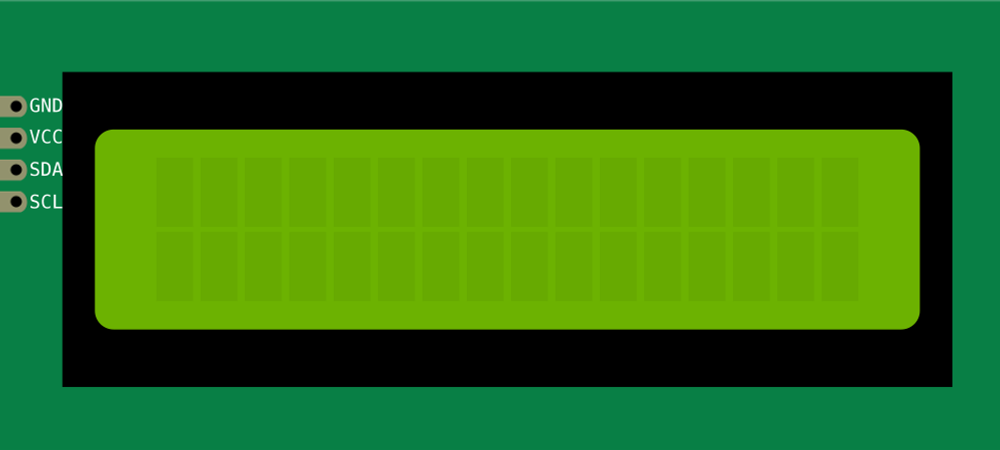
 Design with LCD in Cirkit Designer
Introduction
A Liquid Crystal Display (LCD) is a flat-panel display technology that uses liquid crystals to modulate light. Manufactured by Arduino with the part ID "UNO," this component is widely used for displaying alphanumeric characters, symbols, and simple graphics in embedded systems. LCDs are lightweight, energy-efficient, and versatile, making them ideal for a variety of applications.
Explore Projects Built with LCD
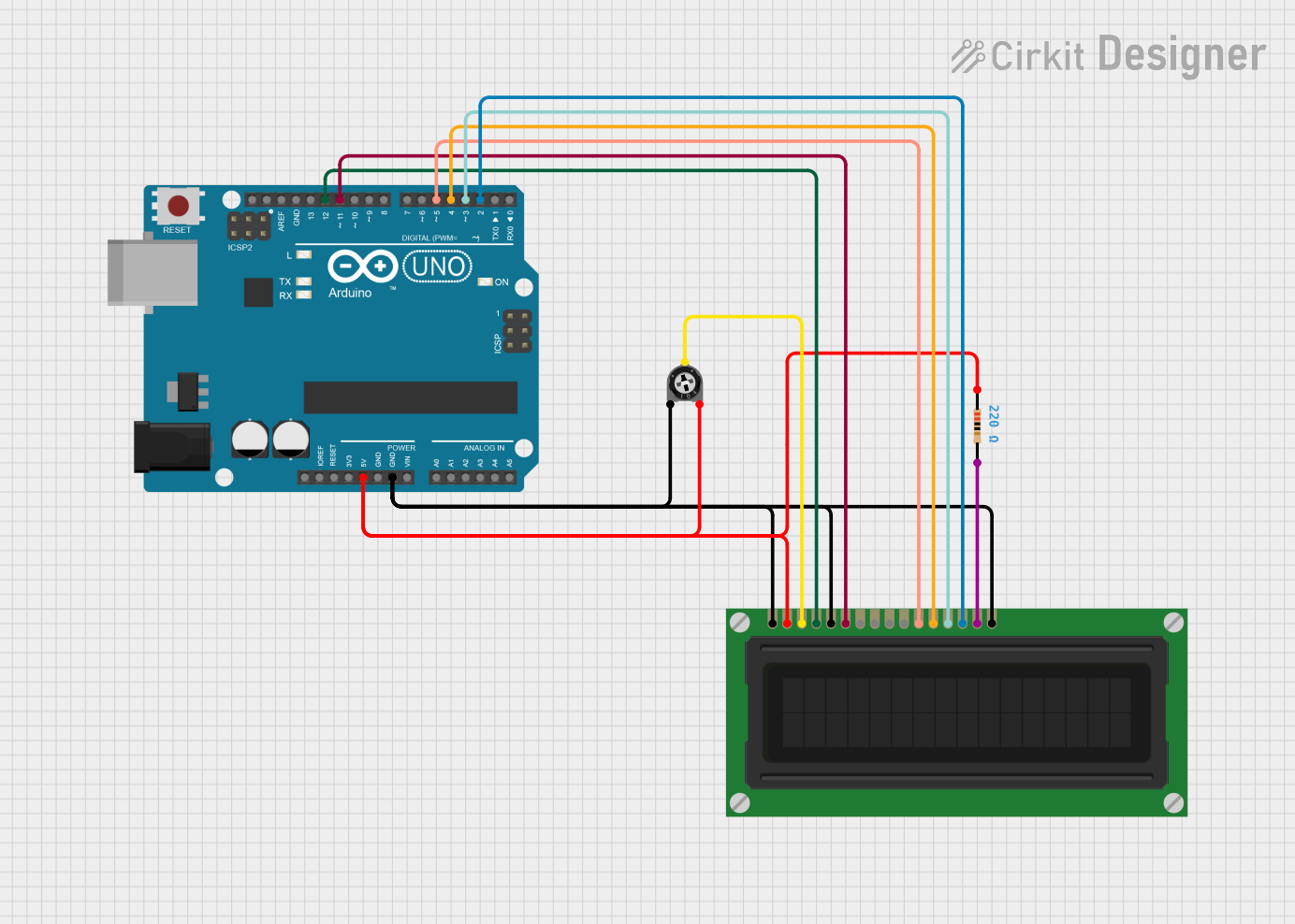 Open Project in Cirkit Designer
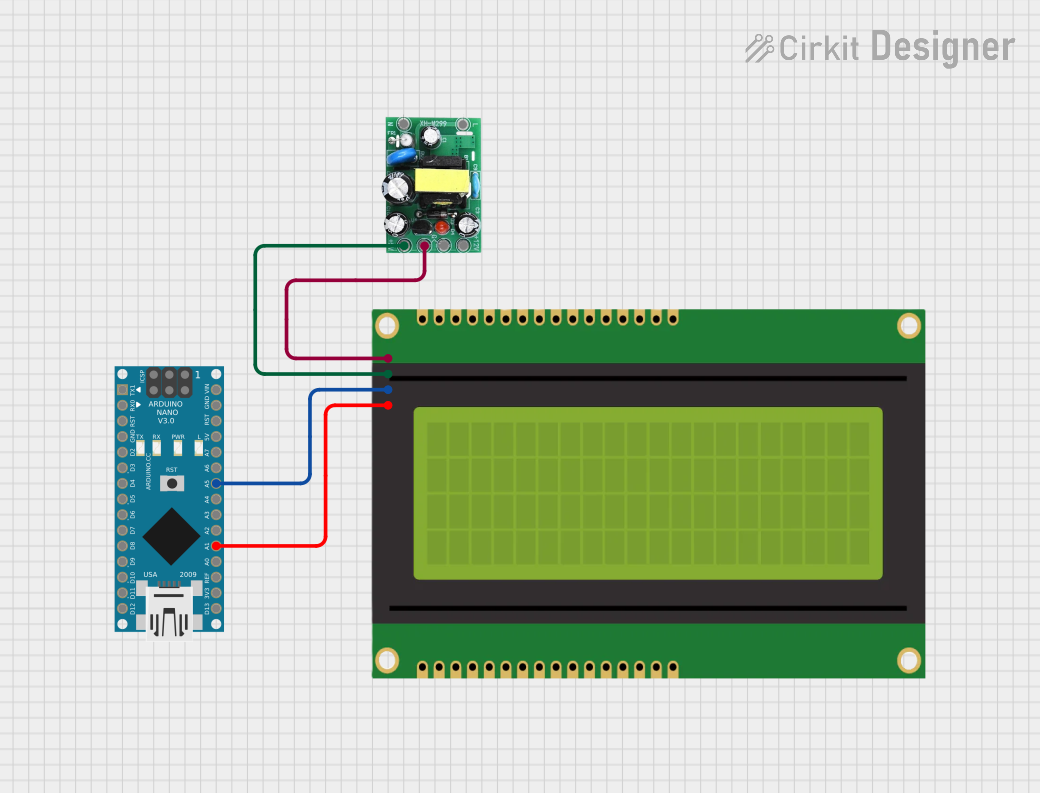 Open Project in Cirkit Designer
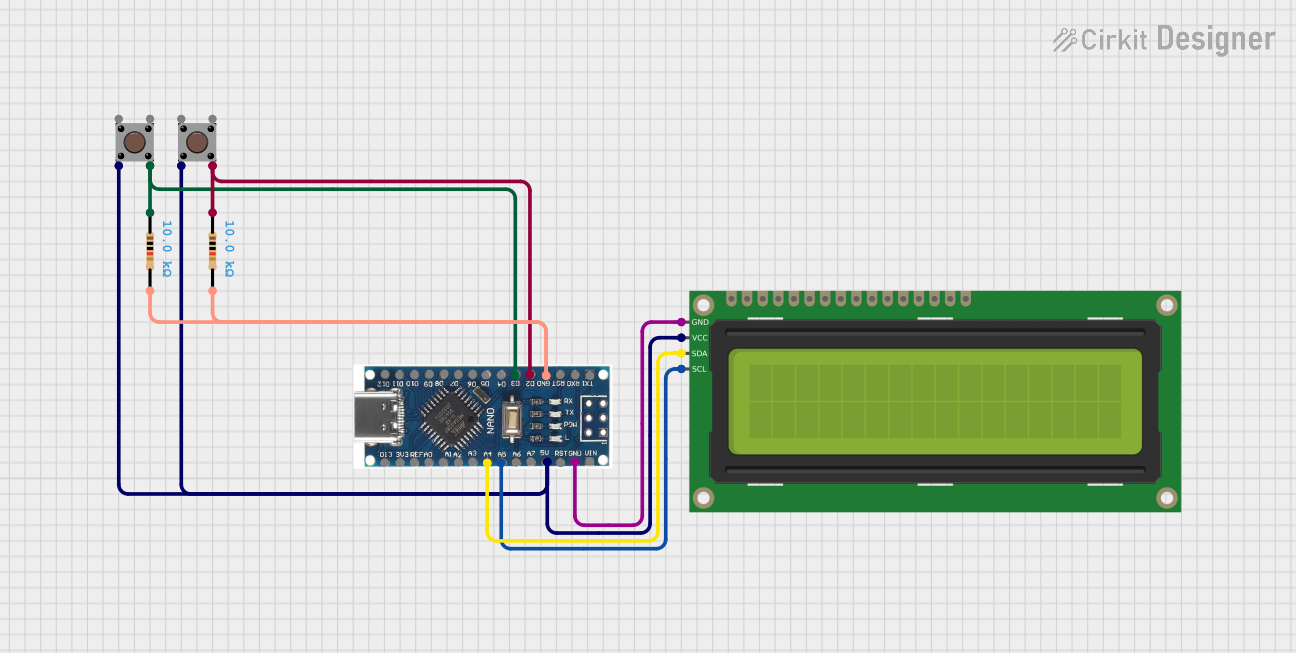 Open Project in Cirkit Designer
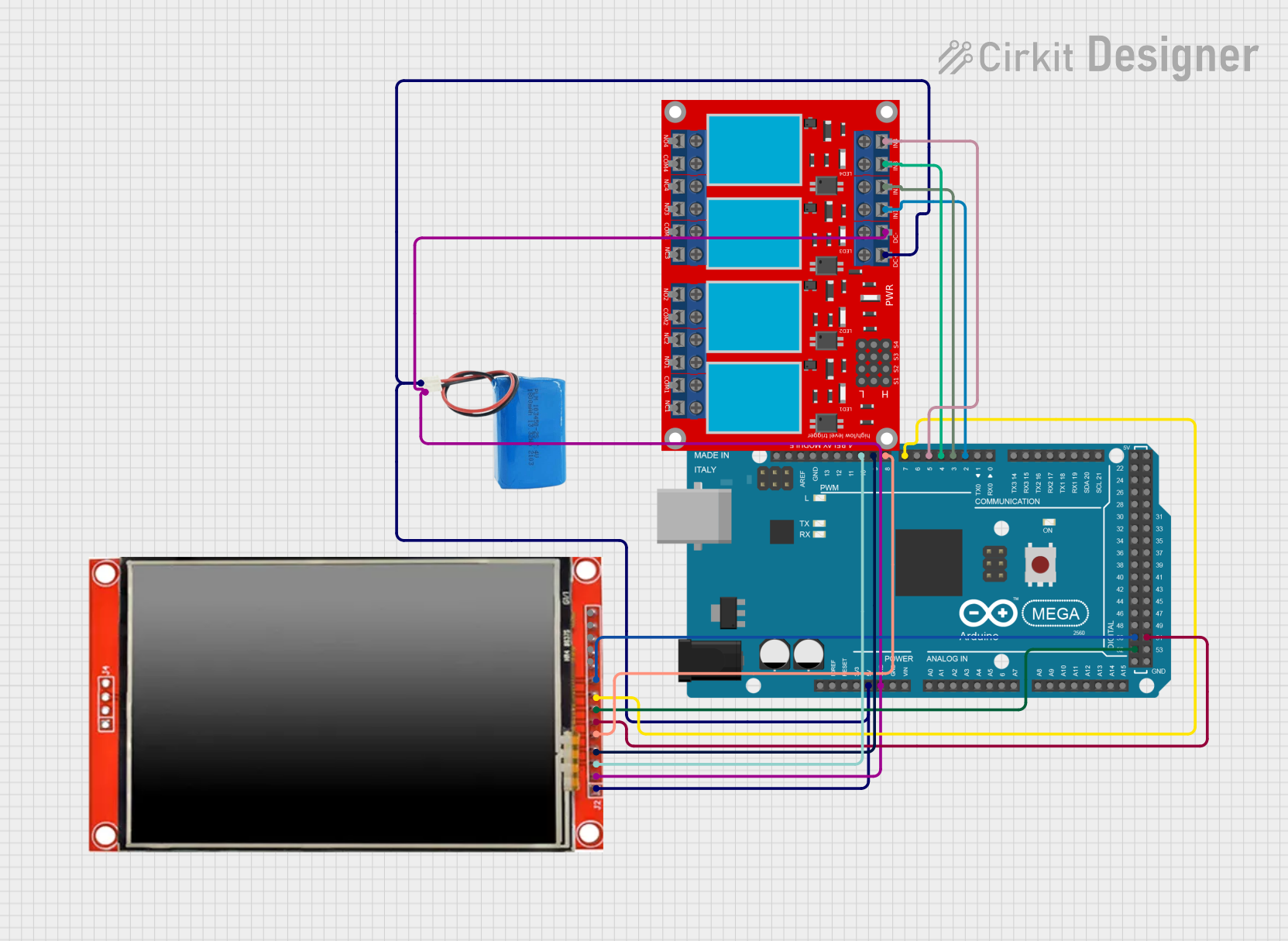 Open Project in Cirkit Designer
Explore Projects Built with LCD
Open Project in Cirkit DesignerOpen Project in Cirkit DesignerOpen Project in Cirkit DesignerOpen Project in Cirkit DesignerCommon Applications and Use Cases
- Embedded systems and microcontroller projects
- Digital clocks and timers
- Home automation systems
- Measurement and monitoring devices
- Educational and prototyping purposes
Technical Specifications
Below are the key technical details for the Arduino UNO-compatible LCD module:
General Specifications
- Display Type: Alphanumeric (16x2 or 20x4 configurations are common)
- Operating Voltage: 5V DC
- Backlight Voltage: 4.2V to 4.6V DC
- Current Consumption: ~1mA (without backlight), ~15mA (with backlight)
- Interface: Parallel (4-bit or 8-bit mode)
- Character Size: ~5.00 x 8.00 mm
- Operating Temperature: -20°C to +70°C
Pin Configuration and Descriptions
The LCD module typically has 16 pins. Below is the pinout and description:
| Pin | Name | Description |
|---|---|---|
| 1 | VSS | Ground (0V) connection |
| 2 | VDD | Power supply (5V DC) |
| 3 | V0 | Contrast adjustment (connect to a potentiometer for contrast control) |
| 4 | RS | Register Select (0: Command Register, 1: Data Register) |
| 5 | RW | Read/Write (0: Write, 1: Read) |
| 6 | E | Enable pin (used to latch data into the LCD) |
| 7 | D0 | Data pin 0 (used in 8-bit mode; leave unconnected in 4-bit mode) |
| 8 | D1 | Data pin 1 (used in 8-bit mode; leave unconnected in 4-bit mode) |
| 9 | D2 | Data pin 2 (used in 8-bit mode; leave unconnected in 4-bit mode) |
| 10 | D3 | Data pin 3 (used in 8-bit mode; leave unconnected in 4-bit mode) |
| 11 | D4 | Data pin 4 (used in both 4-bit and 8-bit modes) |
| 12 | D5 | Data pin 5 (used in both 4-bit and 8-bit modes) |
| 13 | D6 | Data pin 6 (used in both 4-bit and 8-bit modes) |
| 14 | D7 | Data pin 7 (used in both 4-bit and 8-bit modes) |
| 15 | LED+ | Backlight anode (connect to 5V via a current-limiting resistor) |
| 16 | LED- | Backlight cathode (connect to ground) |
Usage Instructions
How to Use the LCD in a Circuit
- Power the LCD: Connect the VSS pin to ground and the VDD pin to a 5V power supply.
- Adjust Contrast: Connect the V0 pin to the wiper of a 10kΩ potentiometer. Connect one end of the potentiometer to ground and the other to 5V. Adjust the potentiometer to set the desired contrast.
- Connect Control Pins:
- Connect the RS pin to a digital output pin on the Arduino.
- Connect the RW pin to ground (for write-only mode).
- Connect the E pin to another digital output pin on the Arduino.
- Connect Data Pins: Use either 4-bit or 8-bit mode:
- For 4-bit mode, connect D4-D7 to digital output pins on the Arduino and leave D0-D3 unconnected.
- For 8-bit mode, connect all data pins (D0-D7) to digital output pins on the Arduino.
- Backlight: Connect LED+ to 5V through a 220Ω resistor and LED- to ground.
Arduino UNO Example Code
Below is an example of how to use a 16x2 LCD with an Arduino UNO in 4-bit mode:
#include <LiquidCrystal.h>

// Initialize the library with the pins connected to the LCD
// RS, E, D4, D5, D6, D7
LiquidCrystal lcd(7, 8, 9, 10, 11, 12);

void setup() {
  // Set up the LCD's number of columns and rows
  lcd.begin(16, 2);

  // Print a message to the LCD
  lcd.print("Hello, World!");
}

void loop() {
  // Move the cursor to the second row, first column
  lcd.setCursor(0, 1);

  // Print a dynamic message
  lcd.print(millis() / 1000); // Display elapsed time in seconds
}
Important Considerations and Best Practices
- Always use a current-limiting resistor for the backlight to prevent damage.
- Avoid leaving unused data pins floating; tie them to ground if not used.
- Use a decoupling capacitor (e.g., 0.1µF) across the power supply pins to reduce noise.
- Ensure proper grounding between the LCD and the Arduino to avoid erratic behavior.
Troubleshooting and FAQs
Common Issues and Solutions
No Display on the LCD:
- Check the power connections (VSS and VDD).
- Adjust the contrast using the potentiometer connected to V0.
- Verify the backlight connections (LED+ and LED-).
Garbled or Incorrect Characters:
- Ensure the data pins are correctly connected to the Arduino.
- Verify that the LCD is initialized in the correct mode (4-bit or 8-bit).
- Check for loose or faulty connections.
LCD Not Responding to Commands:
- Confirm that the RS, RW, and E pins are properly connected.
- Ensure the RW pin is grounded for write-only mode.
- Double-check the Arduino code for correct pin assignments.
FAQs
Q: Can I use the LCD with a 3.3V microcontroller?
A: Most LCD modules require 5V for proper operation. However, you can use a level shifter or voltage divider to interface with a 3.3V microcontroller.
Q: How do I display custom characters on the LCD?
A: Use the createChar() function in the LiquidCrystal library to define and display custom characters.
Q: Can I use the LCD without a backlight?
A: Yes, the LCD will still function without a backlight, but visibility may be reduced in low-light conditions.