
How to Use Wiznet Pico: Examples, Pinouts, and Specs
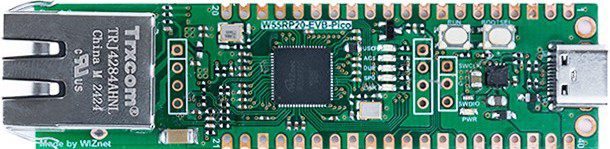
 Design with Wiznet Pico in Cirkit Designer
Introduction
The Wiznet Pico (W55RP20-EVB-PICO) is a compact, low-power Ethernet module designed for Internet of Things (IoT) applications. It features a built-in TCP/IP stack, enabling seamless integration with microcontrollers for reliable and efficient network connectivity. This module is based on the W5500 Ethernet controller and is compatible with the Raspberry Pi Pico form factor, making it an excellent choice for developers looking to add Ethernet functionality to their projects.
Explore Projects Built with Wiznet Pico
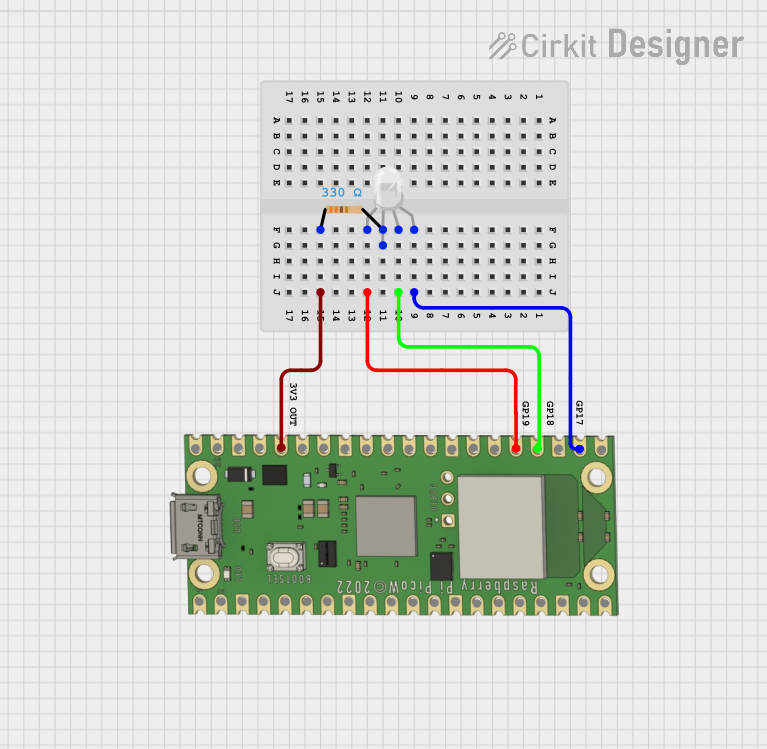 Open Project in Cirkit Designer
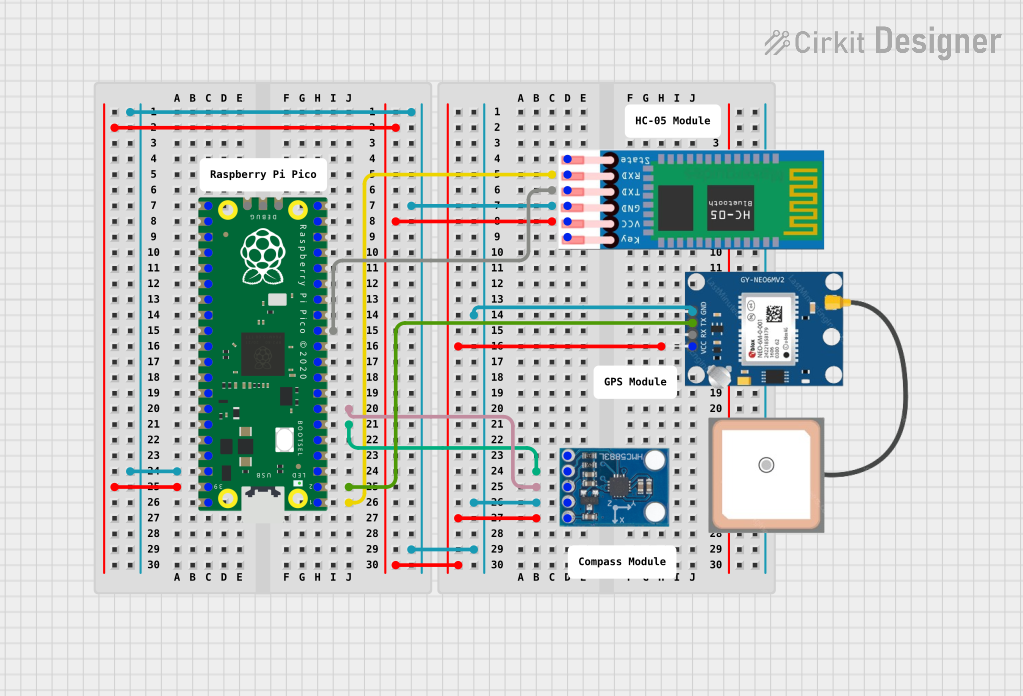 Open Project in Cirkit Designer
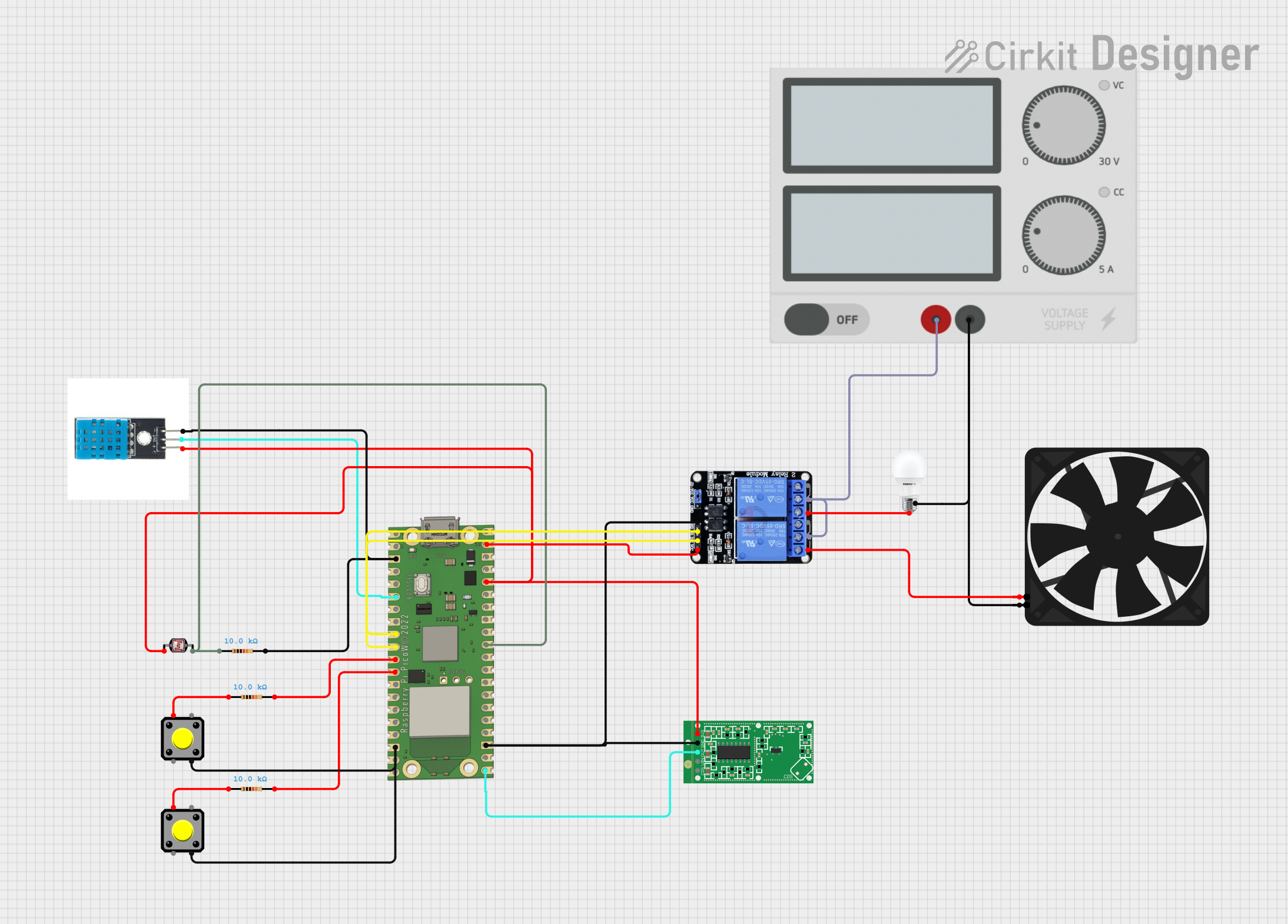 Open Project in Cirkit Designer
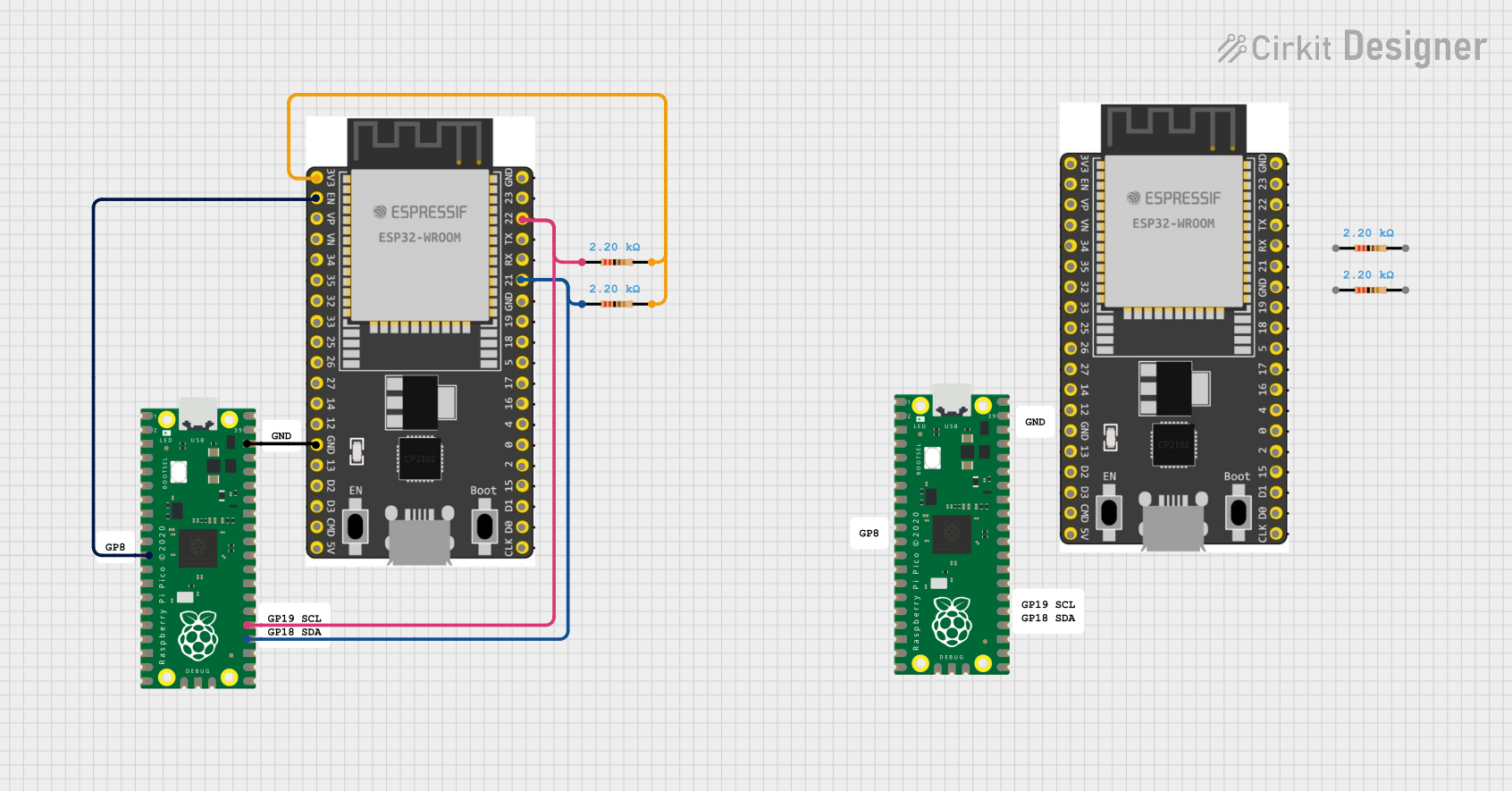 Open Project in Cirkit Designer
Explore Projects Built with Wiznet Pico
Open Project in Cirkit DesignerOpen Project in Cirkit DesignerOpen Project in Cirkit DesignerOpen Project in Cirkit DesignerCommon Applications and Use Cases
- IoT devices requiring wired Ethernet connectivity
- Home automation systems
- Industrial monitoring and control
- Network-enabled sensors and actuators
- Educational and prototyping projects
Technical Specifications
The following table outlines the key technical details of the Wiznet Pico module:
| Parameter | Specification |
|---|---|
| Ethernet Controller | W5500 |
| Network Interface | 10/100 Mbps Ethernet |
| Operating Voltage | 3.3V |
| Power Consumption | ~132 mA (typical) |
| Communication Interface | SPI (Serial Peripheral Interface) |
| Dimensions | 51mm x 21mm |
| Operating Temperature | -40°C to +85°C |
| Built-in TCP/IP Stack | Yes |
| Supported Protocols | TCP, UDP, ICMP, IPv4, ARP, IGMP, PPPoE |
Pin Configuration and Descriptions
The Wiznet Pico module has a pinout compatible with the Raspberry Pi Pico form factor. Below is the pin configuration:
| Pin | Name | Description |
|---|---|---|
| 1 | GND | Ground |
| 2 | 3V3 | 3.3V Power Supply |
| 3 | SPI_MOSI | SPI Master Out Slave In |
| 4 | SPI_MISO | SPI Master In Slave Out |
| 5 | SPI_SCK | SPI Clock |
| 6 | SPI_CS | SPI Chip Select |
| 7 | INT | Interrupt Pin (Active Low) |
| 8 | RST | Reset Pin (Active Low) |
| 9 | TX+ | Ethernet Transmit Positive |
| 10 | TX- | Ethernet Transmit Negative |
| 11 | RX+ | Ethernet Receive Positive |
| 12 | RX- | Ethernet Receive Negative |
Usage Instructions
How to Use the Wiznet Pico in a Circuit
- Power Supply: Connect the 3.3V pin to a regulated 3.3V power source and GND to ground.
- SPI Communication: Connect the SPI pins (MOSI, MISO, SCK, and CS) to the corresponding SPI pins on your microcontroller.
- Ethernet Connection: Attach an Ethernet cable to the RJ45 connector on the module.
- Interrupt and Reset: Optionally, connect the INT pin to monitor interrupts and the RST pin for hardware resets.
Important Considerations and Best Practices
- Ensure the SPI clock speed does not exceed 80 MHz for reliable communication.
- Use proper decoupling capacitors near the power pins to minimize noise.
- Avoid hot-plugging the Ethernet cable to prevent damage to the module.
- Use a stable 3.3V power supply to ensure consistent operation.
Example Code for Arduino UNO
Below is an example of how to use the Wiznet Pico with an Arduino UNO to establish a basic Ethernet connection:
#include <SPI.h>
#include <Ethernet.h>

// MAC address for the Ethernet module
byte mac[] = { 0xDE, 0xAD, 0xBE, 0xEF, 0xFE, 0xED };

// IP address for the device (adjust as needed)
IPAddress ip(192, 168, 1, 177);

// Initialize the Ethernet server on port 80
EthernetServer server(80);

void setup() {
  // Start the serial communication for debugging
  Serial.begin(9600);

  // Initialize the Ethernet module
  if (Ethernet.begin(mac) == 0) {
    Serial.println("Failed to configure Ethernet using DHCP");
    // Use static IP if DHCP fails
    Ethernet.begin(mac, ip);
  }

  // Start the server
  server.begin();
  Serial.print("Server is at ");
  Serial.println(Ethernet.localIP());
}

void loop() {
  // Listen for incoming clients
  EthernetClient client = server.available();
  if (client) {
    Serial.println("New client connected");
    while (client.connected()) {
      if (client.available()) {
        char c = client.read();
        Serial.write(c); // Echo the received data to the serial monitor
        // Respond to the client
        client.println("Hello from Wiznet Pico!");
      }
    }
    client.stop();
    Serial.println("Client disconnected");
  }
}
Troubleshooting and FAQs
Common Issues and Solutions
Ethernet Not Connecting
- Cause: Incorrect SPI connections or faulty Ethernet cable.
- Solution: Double-check the SPI wiring and ensure the Ethernet cable is functional.
Module Not Responding
- Cause: Insufficient power supply or incorrect reset sequence.
- Solution: Verify the 3.3V power supply and ensure the RST pin is properly connected.
Slow Network Performance
- Cause: High SPI clock speed or network congestion.
- Solution: Reduce the SPI clock speed and check the network environment.
FAQs
Can the Wiznet Pico work with 5V microcontrollers?
- Yes, but you must use level shifters to convert the 5V logic to 3.3V for SPI communication.
Does the module support IPv6?
- No, the Wiznet Pico supports only IPv4.
Can I use the module with platforms other than Arduino?
- Yes, the module is compatible with any platform that supports SPI communication, such as Raspberry Pi, STM32, and ESP32.
What is the maximum cable length for Ethernet?
- The module supports standard Ethernet cable lengths of up to 100 meters (328 feet).