
How to Use LED Two Pin (Red): Examples, Pinouts, and Specs
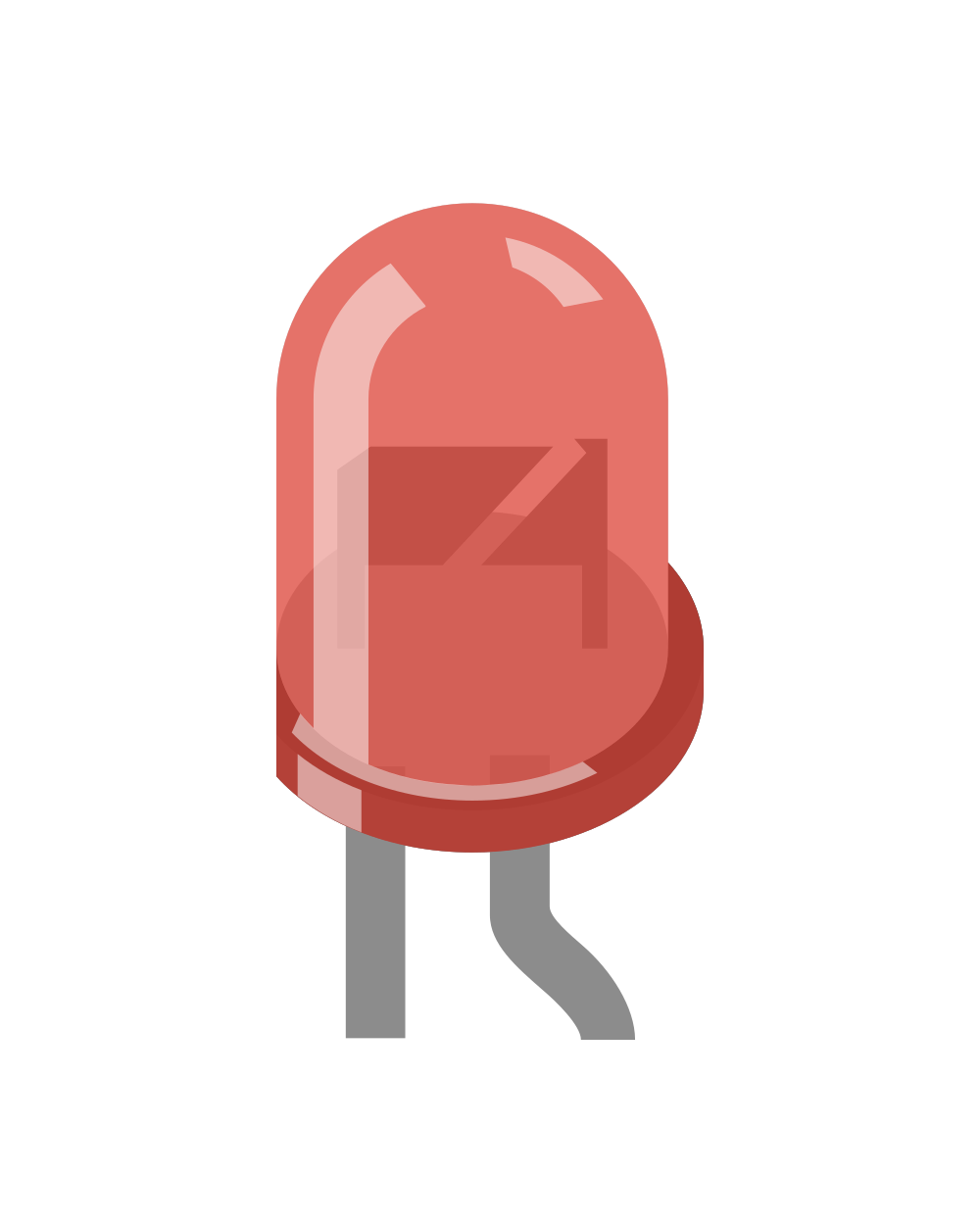
 Design with LED Two Pin (Red) in Cirkit Designer
Introduction
The LED Two Pin (Red) is a light-emitting diode that emits red light when an electric current flows through it. It is a simple yet versatile component widely used in electronics for visual indicators, status displays, and decorative lighting. The LED has two pins: the anode (positive) and the cathode (negative), which must be connected correctly for proper operation. Its compact size, low power consumption, and long lifespan make it an essential component in many electronic projects.
Explore Projects Built with LED Two Pin (Red)
 Open Project in Cirkit Designer
 Open Project in Cirkit Designer
 Open Project in Cirkit Designer
 Open Project in Cirkit Designer
Explore Projects Built with LED Two Pin (Red)
Open Project in Cirkit DesignerOpen Project in Cirkit DesignerOpen Project in Cirkit DesignerOpen Project in Cirkit DesignerCommon Applications
- Power and status indicators in electronic devices
- Digital displays and signage
- Decorative and ambient lighting
- Circuit debugging and testing
- Educational and hobbyist projects
Technical Specifications
Below are the key technical details for the LED Two Pin (Red):
| Parameter | Value |
|---|---|
| Forward Voltage (Vf) | 1.8V to 2.2V |
| Forward Current (If) | 20mA (typical) |
| Maximum Current (Imax) | 30mA |
| Wavelength | 620nm to 630nm (red light) |
| Viewing Angle | 20° to 30° |
| Power Dissipation | 75mW (maximum) |
| Operating Temperature | -40°C to +85°C |
| Storage Temperature | -40°C to +100°C |
Pin Configuration
The LED Two Pin (Red) has two pins, as described below:
| Pin | Name | Description |
|---|---|---|
| Longer Pin | Anode (+) | Connect to the positive terminal of the power source |
| Shorter Pin | Cathode (-) | Connect to the negative terminal or ground |
Note: The cathode is often marked with a flat edge on the LED casing for easy identification.
Usage Instructions
How to Use the LED in a Circuit
Determine the Resistor Value: To prevent damage to the LED, always use a current-limiting resistor in series with it. The resistor value can be calculated using Ohm's Law: [ R = \frac{V_{supply} - V_f}{I_f} ]
- (V_{supply}): Supply voltage
- (V_f): Forward voltage of the LED (1.8V to 2.2V)
- (I_f): Desired forward current (typically 20mA or 0.02A)
For example, if (V_{supply} = 5V) and (V_f = 2V), the resistor value is: [ R = \frac{5V - 2V}{0.02A} = 150\Omega ]
Connect the LED:
- Connect the anode (longer pin) to the positive terminal of the power source through the resistor.
- Connect the cathode (shorter pin) to the ground or negative terminal.
Power the Circuit: Apply the appropriate voltage to the circuit. The LED will emit red light when current flows through it.
Important Considerations
- Polarity: LEDs are polarized components. Reversing the polarity may prevent the LED from lighting up or damage it.
- Current Limiting: Always use a resistor to limit the current through the LED. Exceeding the maximum current rating can permanently damage the LED.
- Heat Dissipation: While LEDs generate minimal heat, ensure proper ventilation if used in high-density arrays or enclosed spaces.
Example: Connecting to an Arduino UNO
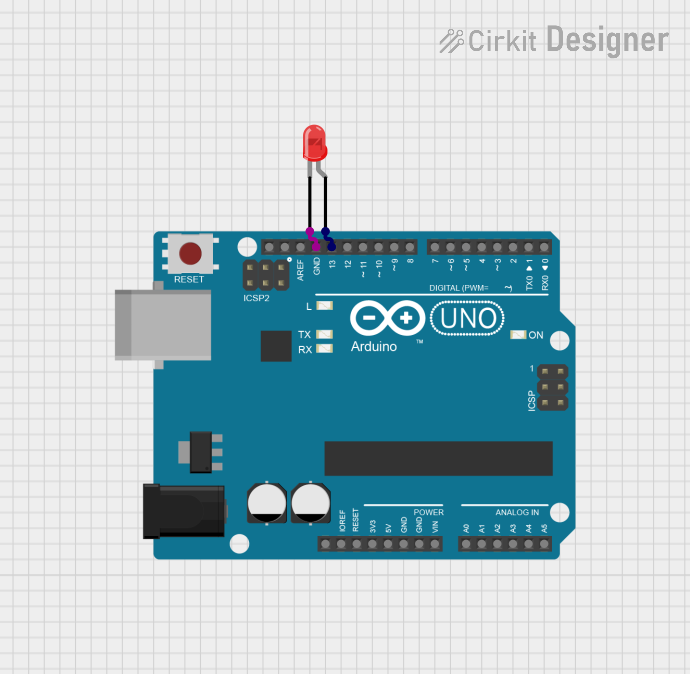
The LED Two Pin (Red) can be easily interfaced with an Arduino UNO for various projects. Below is an example of how to blink the LED using Arduino:
Circuit Diagram
- Connect the anode of the LED to digital pin 13 on the Arduino through a 220Ω resistor.
- Connect the cathode of the LED to the GND pin on the Arduino.
Arduino Code
// LED Blink Example for Arduino UNO
// This code blinks an LED connected to pin 13 at 1-second intervals.

const int ledPin = 13; // Define the pin connected to the LED

void setup() {
  pinMode(ledPin, OUTPUT); // Set the LED pin as an output
}

void loop() {
  digitalWrite(ledPin, HIGH); // Turn the LED on
  delay(1000);               // Wait for 1 second
  digitalWrite(ledPin, LOW);  // Turn the LED off
  delay(1000);               // Wait for 1 second
}
Troubleshooting and FAQs
Common Issues
LED Does Not Light Up:
Cause: Incorrect polarity.
Solution: Ensure the anode is connected to the positive terminal and the cathode to the ground.
Cause: No current-limiting resistor or incorrect resistor value.
Solution: Verify the resistor value and connections.
LED is Dim:
- Cause: Insufficient current.
- Solution: Check the resistor value and ensure the supply voltage is adequate.
LED Burns Out:
- Cause: Excessive current.
- Solution: Use a resistor with the correct value to limit the current.
Flickering LED:
- Cause: Unstable power supply or loose connections.
- Solution: Check the power source and ensure all connections are secure.
FAQs
Q: Can I connect the LED directly to a 5V power source without a resistor?
A: No, doing so will likely damage the LED due to excessive current. Always use a current-limiting resistor.
Q: How do I identify the anode and cathode if the pins are cut to the same length?
A: Look for the flat edge on the LED casing, which indicates the cathode. Alternatively, use a multimeter in diode mode to identify the polarity.
Q: Can I use the LED with a 3.3V power source?
A: Yes, but ensure you calculate the appropriate resistor value for the lower supply voltage.
Q: What happens if I exceed the maximum current rating?
A: Exceeding the maximum current rating can cause the LED to overheat and fail permanently.
By following this documentation, you can effectively use the LED Two Pin (Red) in your electronic projects with confidence!