
How to Use ESP32S: Examples, Pinouts, and Specs
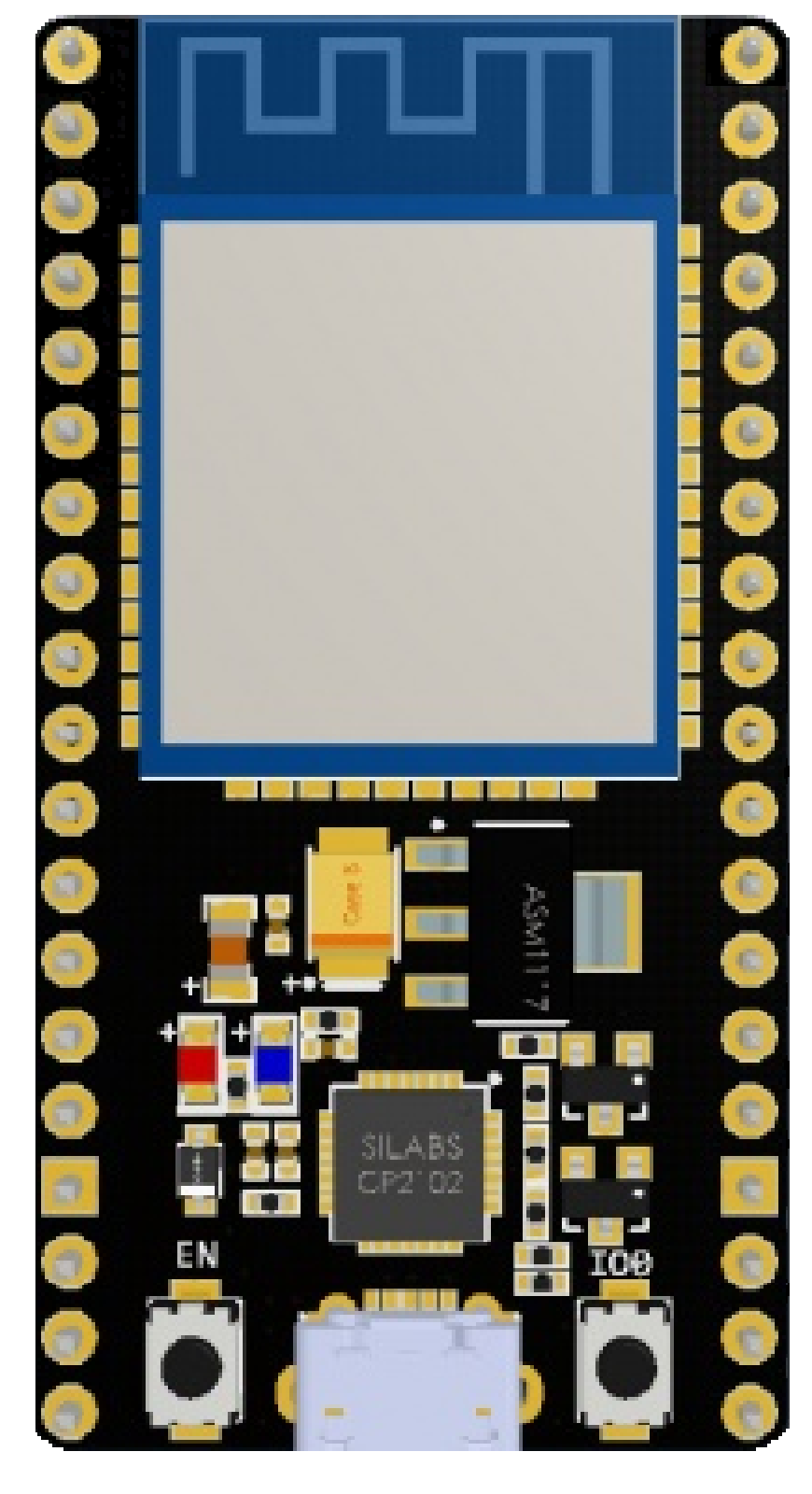
 Design with ESP32S in Cirkit Designer
Introduction
The ESP32S, manufactured by NodeMCU, is a powerful microcontroller designed for IoT (Internet of Things) applications. It features integrated Wi-Fi and Bluetooth capabilities, making it an excellent choice for projects requiring wireless communication. With its dual-core processor, low power consumption, and extensive GPIO options, the ESP32S is suitable for a wide range of applications, including smart home devices, wearable electronics, and industrial automation.
Explore Projects Built with ESP32S
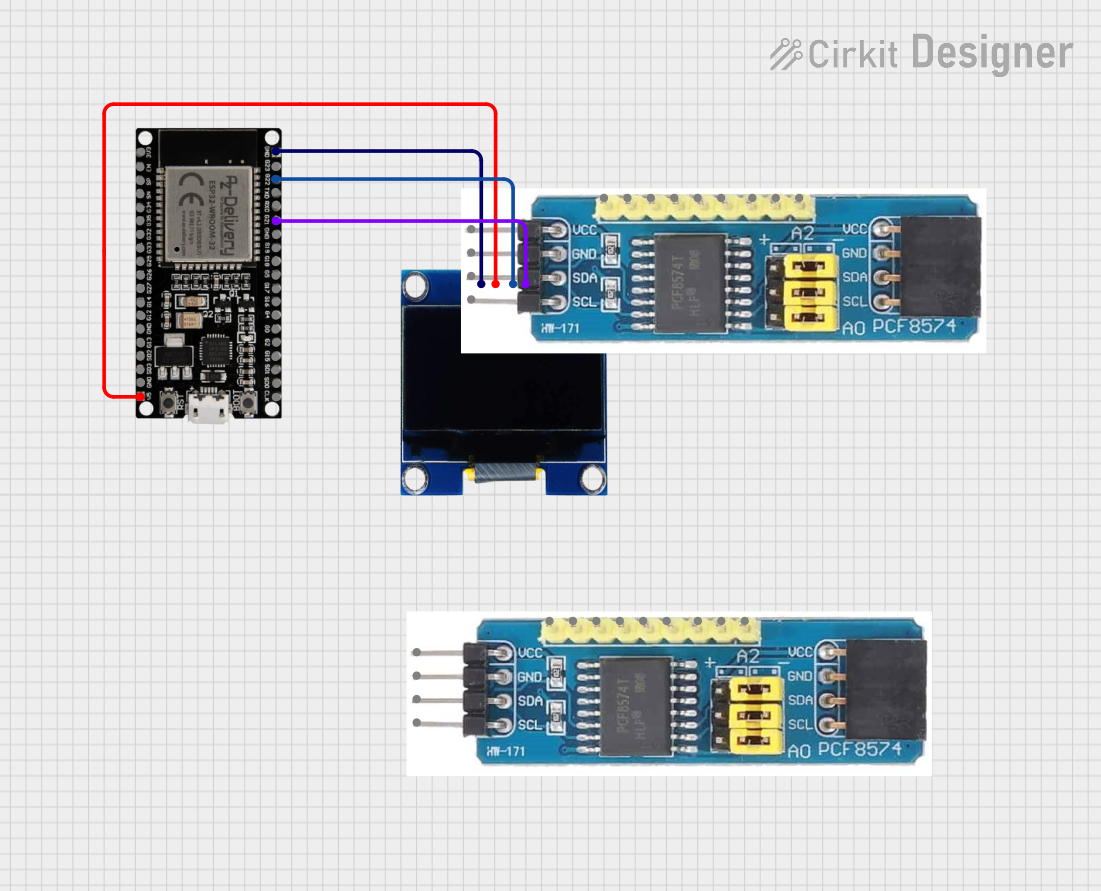 Open Project in Cirkit Designer
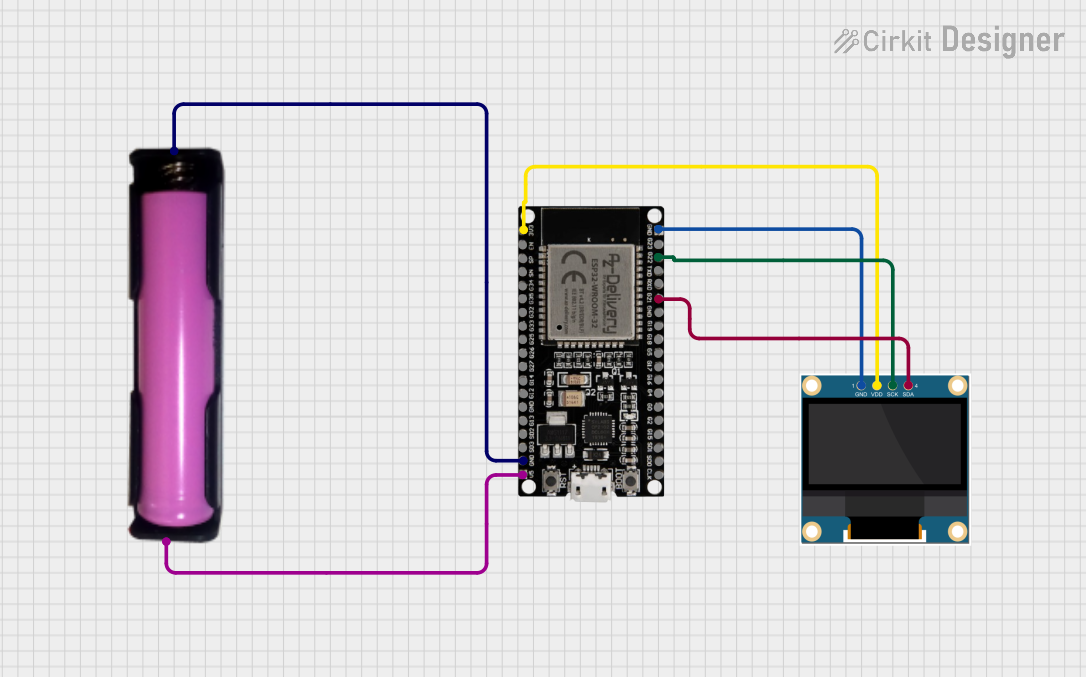 Open Project in Cirkit Designer
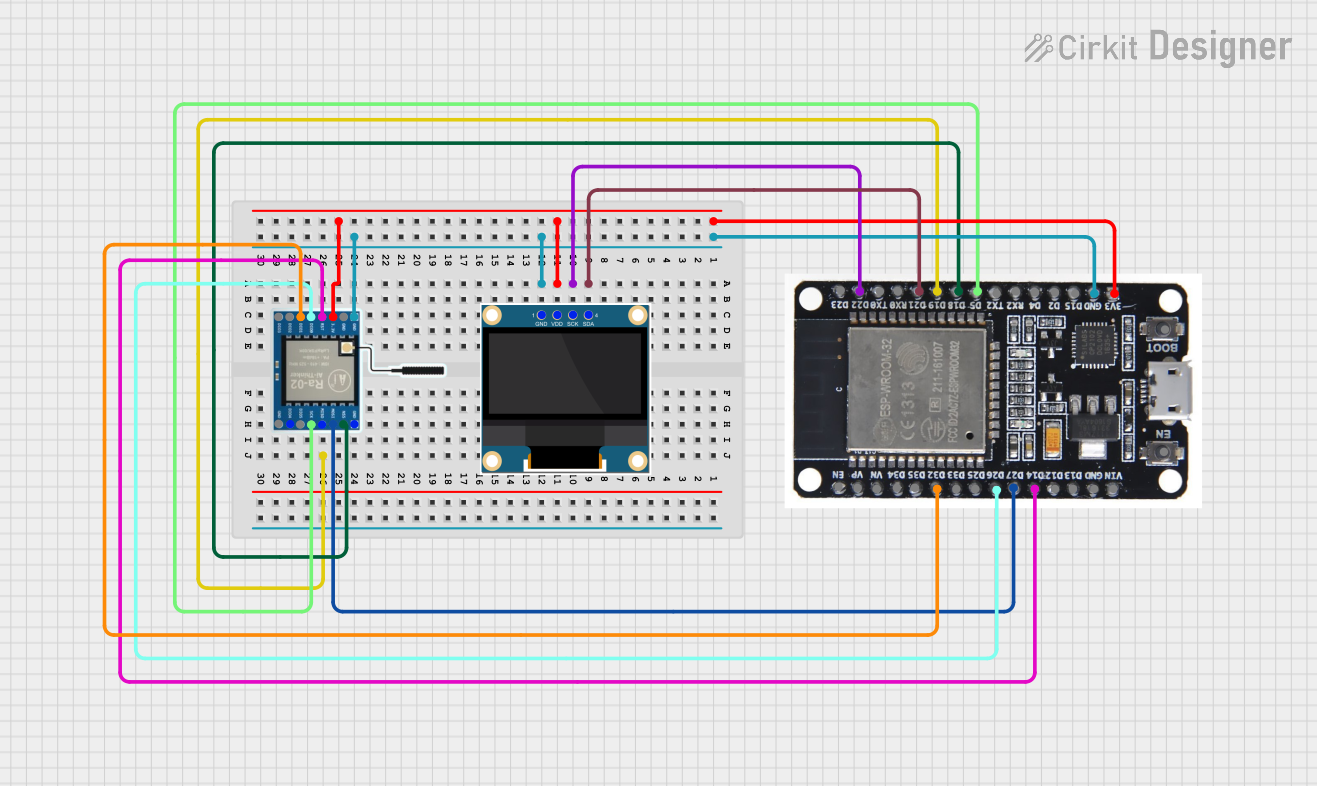 Open Project in Cirkit Designer
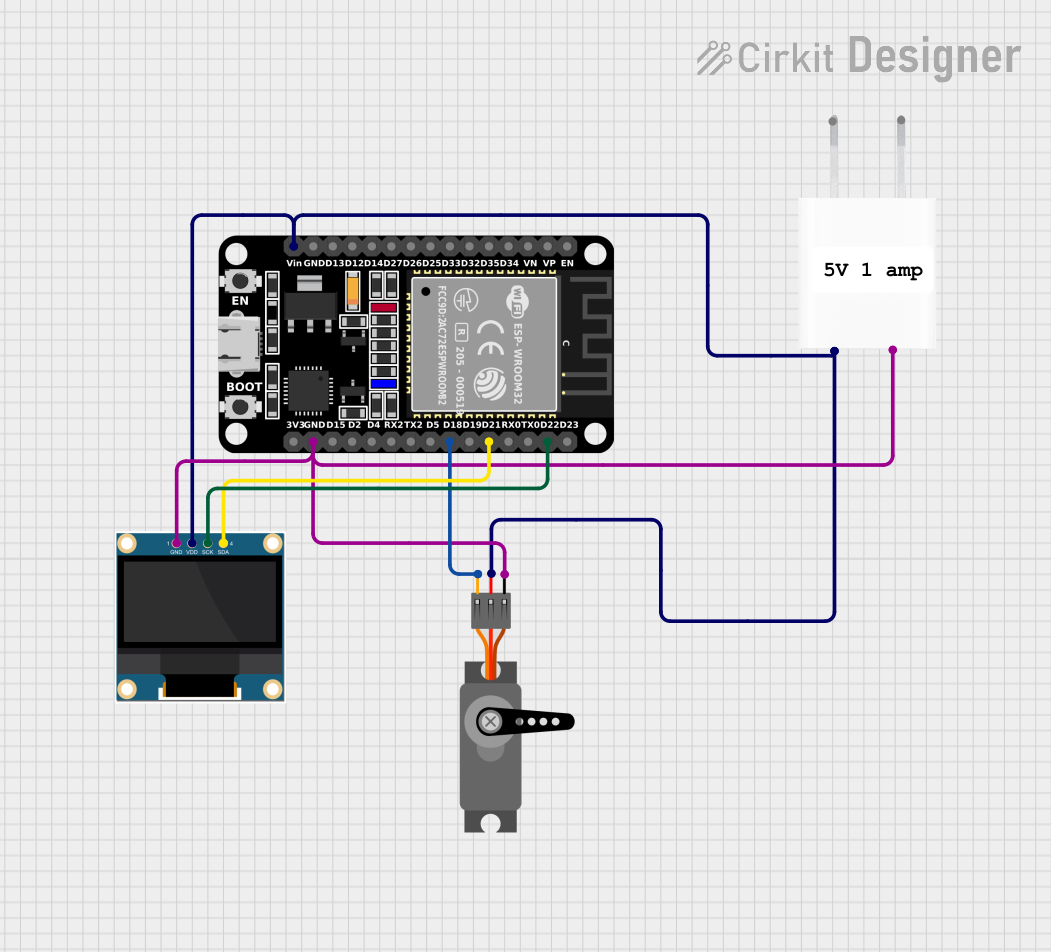 Open Project in Cirkit Designer
Explore Projects Built with ESP32S
Open Project in Cirkit DesignerOpen Project in Cirkit DesignerOpen Project in Cirkit DesignerOpen Project in Cirkit DesignerCommon Applications and Use Cases
- IoT devices and smart home automation
- Wireless sensor networks
- Wearable technology
- Robotics and automation systems
- Data logging and remote monitoring
- Bluetooth-enabled devices
Technical Specifications
The ESP32S is a feature-rich microcontroller with the following key specifications:
| Parameter | Value |
|---|---|
| Manufacturer | NodeMCU |
| Part ID | ESP32S |
| Processor | Dual-core Xtensa® 32-bit LX6 |
| Clock Speed | Up to 240 MHz |
| Flash Memory | 4 MB (varies by model) |
| SRAM | 520 KB |
| Wireless Connectivity | Wi-Fi 802.11 b/g/n, Bluetooth v4.2 + BLE |
| Operating Voltage | 3.3V |
| Input Voltage Range | 5V (via USB) or 3.3V (via VIN pin) |
| GPIO Pins | 36 (multipurpose, including ADC, DAC, PWM, I2C, SPI, UART, etc.) |
| ADC Resolution | 12-bit |
| DAC Resolution | 8-bit |
| Power Consumption | Ultra-low power consumption in deep sleep mode (as low as 10 µA) |
| Operating Temperature | -40°C to +125°C |
Pin Configuration and Descriptions
The ESP32S has a total of 38 pins, with the following key pin functions:
| Pin Name | Function | Description |
|---|---|---|
| VIN | Power Input | Accepts 5V input from USB or external power supply. |
| 3V3 | Power Output | Provides 3.3V output for external components. |
| GND | Ground | Common ground for the circuit. |
| EN | Enable | Enables or disables the chip. Active high. |
| IO0 | GPIO0 | General-purpose I/O, also used for boot mode selection. |
| IO2 | GPIO2 | General-purpose I/O, often used for onboard LED. |
| IO12-IO39 | GPIO Pins | Multipurpose pins for ADC, DAC, PWM, I2C, SPI, UART, etc. |
| TX0, RX0 | UART0 TX/RX | Default UART pins for serial communication. |
| ADC1_CH0-CH7 | ADC Channels | 12-bit ADC channels for analog input. |
| DAC1, DAC2 | Digital-to-Analog Converter | 8-bit DAC output pins. |
| SD2, SD3 | SPI Flash Interface | Used for external flash memory or SD card communication. |
Usage Instructions
How to Use the ESP32S in a Circuit
Powering the ESP32S:
- Connect the VIN pin to a 5V power source (e.g., USB or external power supply).
- Alternatively, supply 3.3V directly to the 3V3 pin. Ensure the power source can provide sufficient current (at least 500 mA).
Programming the ESP32S:
- Use a USB cable to connect the ESP32S to your computer.
- Install the necessary drivers for the USB-to-serial chip (e.g., CP2102 or CH340).
- Use the Arduino IDE or ESP-IDF (Espressif IoT Development Framework) to write and upload code.
Connecting Peripherals:
- Use the GPIO pins to connect sensors, actuators, or other peripherals.
- Configure the pins in your code according to the desired functionality (e.g., input, output, ADC, etc.).
Wireless Communication:
- Use the built-in Wi-Fi and Bluetooth modules for wireless connectivity.
- Configure the network settings in your code to connect to a Wi-Fi network or pair with Bluetooth devices.
Important Considerations and Best Practices
- Voltage Levels: Ensure all connected peripherals operate at 3.3V logic levels. Use level shifters if interfacing with 5V devices.
- Deep Sleep Mode: Use deep sleep mode to minimize power consumption in battery-powered applications.
- Boot Mode: To enter bootloader mode, hold the IO0 pin low while resetting the board.
- Pin Multiplexing: Many GPIO pins have multiple functions. Refer to the ESP32S datasheet to avoid conflicts when assigning pin functions.
Example Code for Arduino IDE
The following example demonstrates how to connect the ESP32S to a Wi-Fi network and blink an LED:
#include <WiFi.h> // Include the Wi-Fi library

// Replace with your network credentials
const char* ssid = "Your_SSID";
const char* password = "Your_PASSWORD";

const int ledPin = 2; // GPIO2 is often connected to the onboard LED

void setup() {
  pinMode(ledPin, OUTPUT); // Set GPIO2 as an output
  Serial.begin(115200);    // Initialize serial communication

  // Connect to Wi-Fi
  Serial.print("Connecting to Wi-Fi");
  WiFi.begin(ssid, password);
  while (WiFi.status() != WL_CONNECTED) {
    delay(500);
    Serial.print(".");
  }
  Serial.println("\nWi-Fi connected!");
}

void loop() {
  digitalWrite(ledPin, HIGH); // Turn the LED on
  delay(1000);                // Wait for 1 second
  digitalWrite(ledPin, LOW);  // Turn the LED off
  delay(1000);                // Wait for 1 second
}
Troubleshooting and FAQs
Common Issues and Solutions
ESP32S Not Detected by Computer:
- Ensure the USB cable is functional and supports data transfer.
- Install the correct USB-to-serial driver (e.g., CP2102 or CH340).
Wi-Fi Connection Fails:
- Double-check the SSID and password in your code.
- Ensure the Wi-Fi network is within range and not using unsupported security protocols.
GPIO Pin Not Working:
- Verify the pin configuration in your code.
- Check for pin conflicts due to multiplexing.
Program Upload Fails:
- Hold the IO0 pin low while pressing the reset button to enter bootloader mode.
- Ensure the correct board and port are selected in the Arduino IDE.
FAQs
Q: Can the ESP32S operate on battery power?
A: Yes, the ESP32S can be powered by a battery. Use a 3.7V LiPo battery with a voltage regulator to provide 3.3V to the 3V3 pin.
Q: How do I reset the ESP32S?
A: Press the onboard reset button to restart the microcontroller.
Q: Can I use the ESP32S with 5V peripherals?
A: The ESP32S operates at 3.3V logic levels. Use level shifters to interface with 5V peripherals safely.
Q: What is the maximum range of the ESP32S Wi-Fi?
A: The Wi-Fi range depends on environmental factors but typically extends up to 100 meters in open spaces.